What you will finish with
By the end of this workflow, your Cloudflare zone will have an explicit, intentional policy for three separate categories of AI bot traffic — Search, Agent, and Training — instead of whatever default landed on your domain. You will know exactly which crawlers are allowed, which are blocked, and on which pages, and you will have a robots.txt file and an edge-enforcement rule that actually agree with each other.
Who this is for: anyone who runs a Cloudflare-proxied website — publishers, SaaS marketing sites, ecommerce stores, blogs — who wants to decide on purpose whether AI systems can train on, summarize, or agent-browse their content, rather than inherit a platform default.
Prerequisites:
- A domain proxied through Cloudflare (any plan, including Free; some steps below are Paid-plan only and are marked as such)
- Dashboard access with at least domain-level Security settings permission
- 20-30 minutes for the audit and configuration steps; a few minutes of daily/weekly monitoring afterward
Definition of done: your zone's Security Settings show a deliberate choice (not a default) for Search, Agent, and Training; your live /robots.txt reflects that choice; and you've confirmed in AI Crawl Control that the bots you meant to block are actually being blocked.
Why this suddenly matters: what changed on September 15
Cloudflare has been building AI-traffic controls in stages since a Content Signals Policy addition to robots.txt in September 2025 and the "Content Independence Day" launch on July 1, 2026, which first split AI bot behavior into three named categories instead of one blunt "AI or not" toggle:
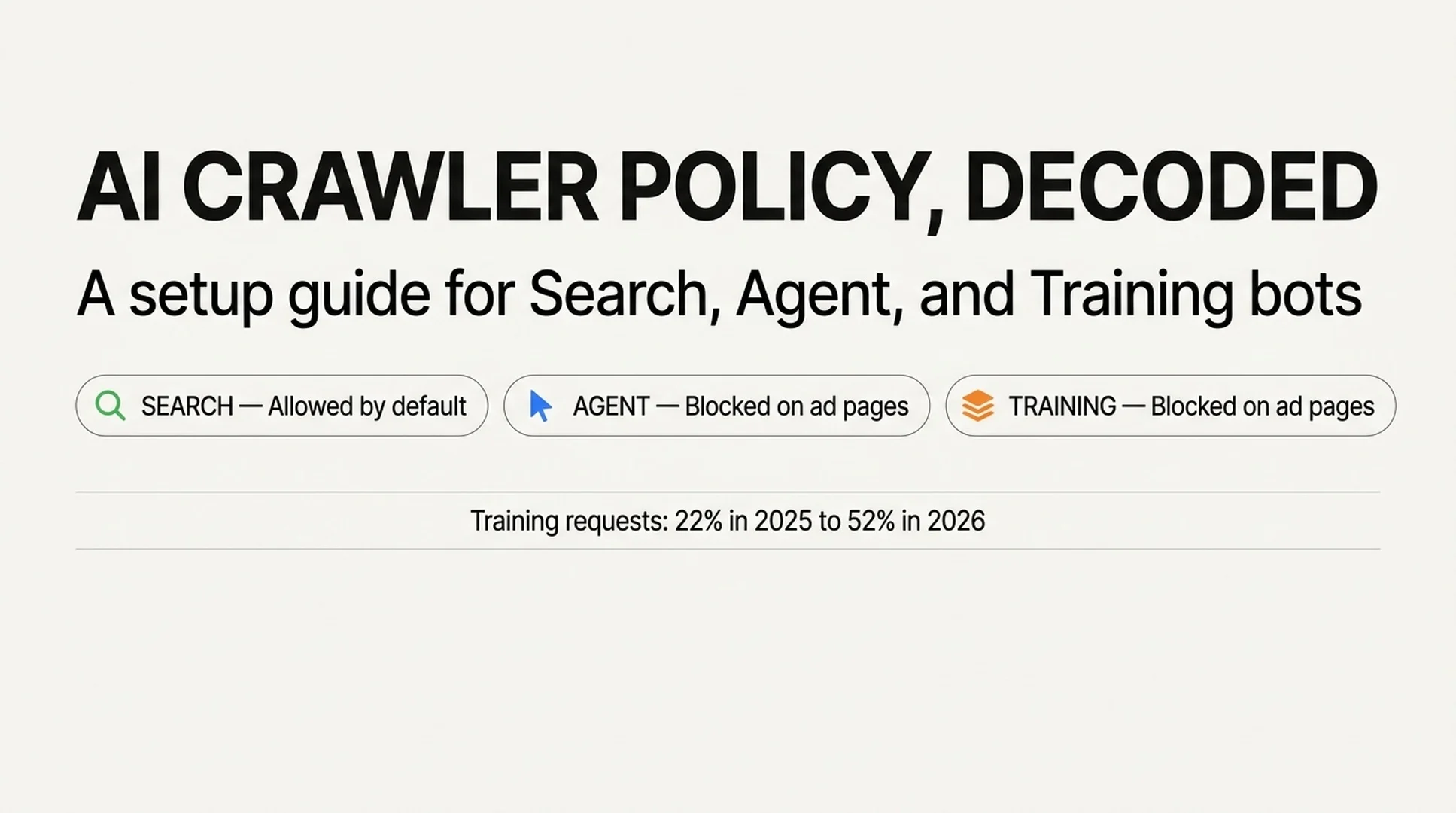
- Search — crawling that builds a search index and returns links or short excerpts later. Cloudflare's framing: this is the traffic that should send you referrals.
- Agent — real-time automated activity acting on a person's behalf right now, such as a chat assistant fetching a page or a browser-use agent completing a task.
- Training — crawling to train or fine-tune a model, where your content gets permanently absorbed into model weights rather than linked back to.
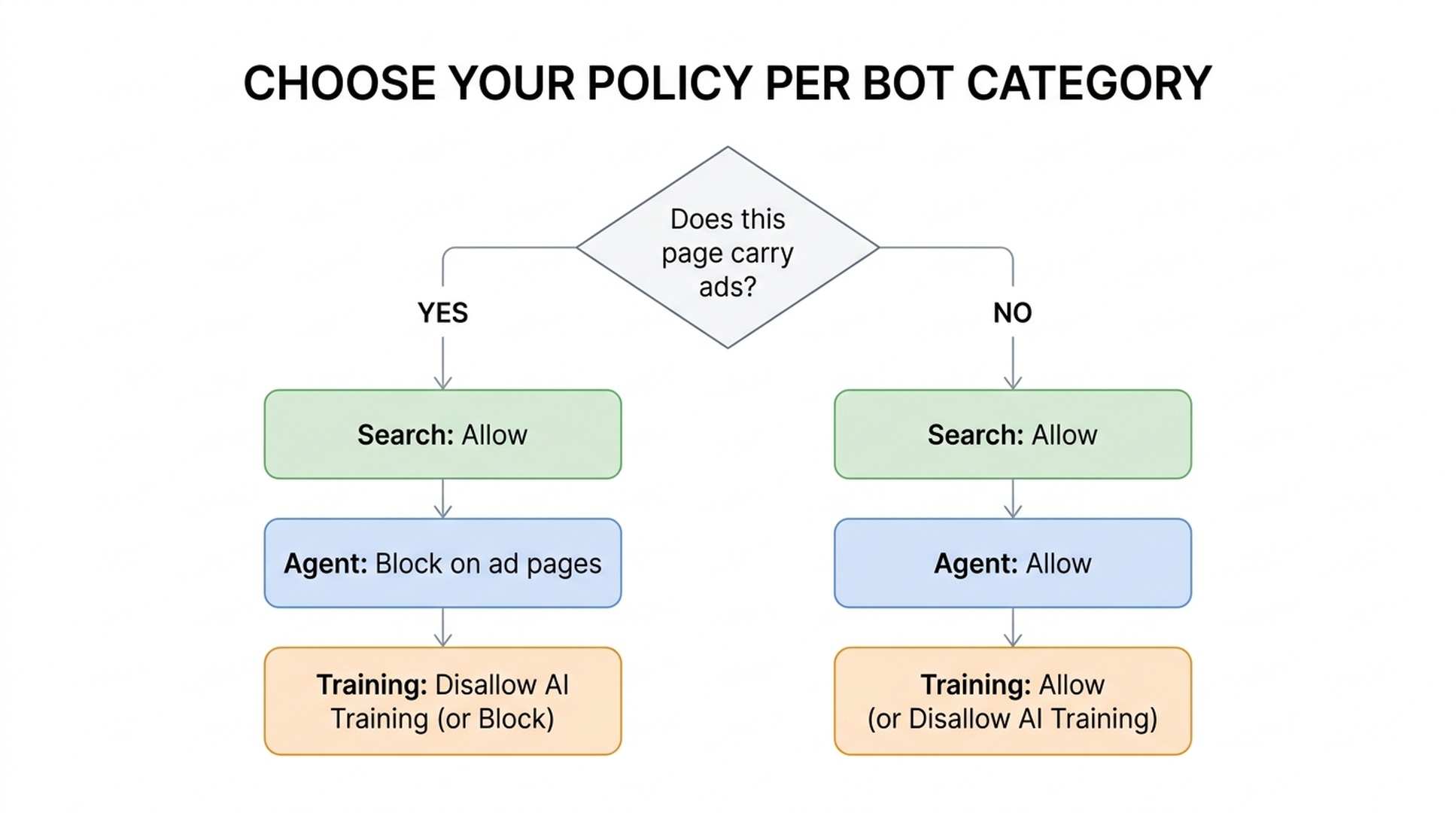
On September 15, 2026, Cloudflare changed what happens automatically. For any domain newly onboarding to Cloudflare on or after that date, if the site is flagged as ad-monetized, the default configuration becomes:
Category | Default on ad-monetized pages |
|---|---|
Search | Allow |
Agent | Block on pages with ads |
Training | Disallow AI Training |
Non-ad-monetized new domains default to Allow across all three. Existing customers were not silently switched — Cloudflare gave a window before the 15th to opt out via the dashboard, and the actual per-domain migration rules were more specific than a single new default (covered below).
The reason ad-serving pages get the stricter default: an ad on a page is a signal that a human being was expected to see it. According to Cloudflare's own numbers, in June 2026 mixed-use crawlers — the kind that blend search indexing, agent fetching, and training behind a single user agent — made up over 36% of verified crawler traffic, the single largest bucket. And AI training's share of total crawler requests on Cloudflare's network grew from roughly 22% in spring 2025 to 52% in June 2026. That's the traffic this change is aimed at.
Before you start: three things to understand about the categories
1. Some crawlers are "mixed-use" and behave differently under Block vs. Disallow. Googlebot, Bingbot, and Applebot each do double duty — they crawl for both Search and Training under one user agent. Cloudflare calls Apple, Google, and Microsoft "Accountable" operators because they meet four conditions: they honor a no-training robots.txt preference, offer an opt-out from AI summaries, provide URL-level visibility into what was used for training, and can show that opting out of training doesn't hurt your search presence.
2. "Disallow AI Training" and "Block" are not the same setting, and the difference is the whole point. Disallow AI Training publishes a Disallow preference in robots.txt aimed at training-specific user agents (like Google-Extended and Applebot-Extended). Accountable mixed-use crawlers read that preference and voluntarily keep crawling for Search while skipping training — so your search presence survives. Every other training crawler that isn't Accountable gets blocked outright at the edge, which doesn't touch search because those operators run separate training-only bots. Plain Block, by contrast, now also blocks Googlebot, Bingbot, and Applebot outright — meaning your content disappears from their search results too. If you want training gone but search intact, Disallow AI Training is the setting you want, not Block.
3. Bing doesn't honor the robots.txt training preference yet. Applebot and Googlebot both respect a training-specific Disallow directive today. Microsoft has said it's building the equivalent for Bingbot, targeted for early 2027. Until then, selecting Disallow AI Training will request the preference in your robots.txt, but Bing crawling behavior for training won't change from that signal alone — Bing's own NOARCHIVE meta tag or its Content Removal tool are the interim levers if training exposure via Bing specifically concerns you.
Step 1: Find out where your site actually landed
Don't assume you know your current setting — verify it.
Action: In the Cloudflare dashboard, open your domain, go to Security → Settings, and look for the AI bot policy controls (the newer three-category UI has replaced the old single "Block AI Bots" toggle, though some accounts may still show the legacy toggle if not yet migrated). Separately, fetch your live robots.txt in a browser or with curl https://yourdomain.com/robots.txt and look for a block that starts with a Cloudflare-managed comment marker; you can also cross-check with Auspia's Robots.txt AI Crawler Checker to see how your current rules read to AI crawlers.
Expected output: Three settings, one each for Search, Agent, and Training, each set to one of Allow / Block on pages with ads / Block (Disallow AI Training is a fourth option available only for Training). Your live robots.txt should show a Cloudflare-managed section listing specific bot user agents and Disallow/Content-Signal lines, if Bot Preference Sync or managed robots.txt is enabled.
Quality check: Confirm the three settings match what you actually intend, not what a migration assumed for you. Cloudflare's stated migration logic for existing customers: if you'd previously turned on the legacy "Block AI" toggle, you were moved to Training = Disallow AI Training, Search left on Allow, Agent set to Block on pages with ads. If you'd previously set Training itself to Block or Block on pages with ads, you were moved to Disallow AI Training. Either migration path assumes you wanted search preserved — if you actually wanted mixed-use crawlers gone entirely (including from search), that's not what you have anymore, and you need to explicitly select Block.
Recovery path: If Security Settings shows only a single legacy "Block AI Bots" toggle with no three-category breakdown, your account hasn't migrated to the new controls yet. Look for "Configure AI bot policies" as a separate, newer settings surface; that's where the granular controls live going forward, alongside the legacy toggle during the transition.
Step 2: Decide your policy per category, not one blanket answer
This is the actual decision step. Work through each category separately.
Search. Almost nobody blocks this — Cloudflare reports less than 1% of sites choose to block Search bots — because losing search visibility is rarely worth it. Default to Allow unless you have a specific reason (e.g., a staging environment, a paywalled archive) to keep it out of search indexes.
Agent. These are bots acting in real time on behalf of a person who is actively trying to do something on your site right now — check a price, complete a booking, pull a fact into a chat answer. Blocking Agent traffic on your monetized/ad pages is the new default rationale: an agent visit doesn't generate the ad impression a human visit would. If your business model depends on that human attention (media, content sites with display ads), Block on pages with ads is defensible. If you'd rather have agents be able to complete tasks on your site even on ad pages — for example, if agent-driven traffic still converts for you — choose Allow.
Training. This is where the real decision lives, and where the terminology trips people up:
- Choose Disallow AI Training if you want to stop your content from training models while keeping your presence in Google, Bing, and Apple's search products intact (given Bing's current lag, understand that as "intact for Google and Apple today, pending for Bing"). This is Cloudflare's recommended middle path and the one built specifically for the search-vs-training tradeoff.
- Choose Block only if you're willing to lose Googlebot, Bingbot, and Applebot search crawling entirely as the cost of also blocking their training-mode behavior. This is now the strict option — as of September 15, Block applies to mixed-use crawlers too, which was not previously the case.
- Choose Allow only if you're intentionally fine with your content training AI models, for example because you want maximum AI-answer citation exposure and treat training exposure as an acceptable tradeoff for that.
Action: In Security → Settings → Configure AI bot policies, set each of the three dropdowns to your decision.
Expected output: The dashboard should reflect your explicit choice per category, and (if Bot Preference Sync is on) begin publishing a matching robots.txt block automatically — no manual file editing needed.
Quality check: Re-read your Training choice against this one sentence: "Do I want search visibility preserved, or don't I care?" If preserved, it's Disallow AI Training, not Block, no matter how tempting the word "Block" sounds for stopping AI training.
Recovery path: If you pick a setting and your search traffic later drops, check whether you accidentally selected Block instead of Disallow AI Training — this is the single most common self-inflicted mistake in this configuration, since the naming makes Block sound like the "does more" option when for Training specifically it does something you may not want (loses search too).
Step 3: Turn on Bot Preference Sync so robots.txt matches what you configured
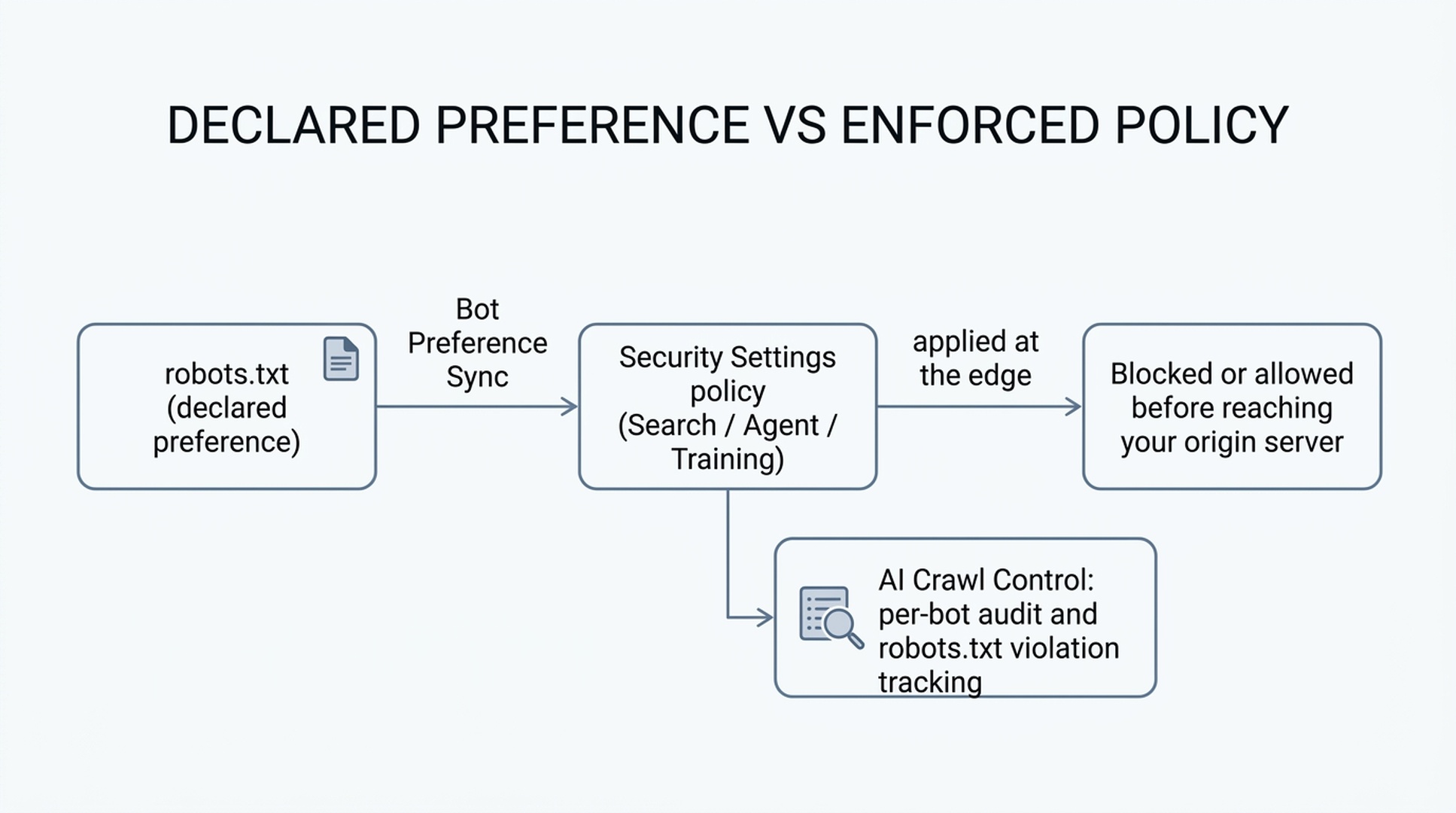
A dashboard setting and a robots.txt file are two different systems, and when they disagree, some crawlers use the mismatch as an excuse to ignore your preference. Cloudflare's Bot Preference Sync closes that gap by generating your robots.txt directly from your Security Settings choices.
Action: In the same AI bot policy settings area, enable Bot Preference Sync (it is on by default for new customers; existing customers on the older managed-robots.txt feature will be prompted to review and confirm during migration).
Expected output: Cloudflare prepends a managed block to your robots.txt, wrapped in # BEGIN Cloudflare Bot Preference Sync / # END comments, listing the specific user agents affected and their Disallow rules — without deleting any custom rules you already had in your own robots.txt file, which stay intact below the managed block.
Quality check: Fetch /robots.txt again after enabling and confirm the managed block appears and matches your Step 2 choices — for example, if you set Training to Disallow AI Training, you should see training-specific user agents (like Google-Extended, Applebot-Extended) with Disallow rules, while general-purpose Googlebot/Applebot/Bingbot user agents remain unblocked for search.
Recovery path: If you have a special one-off arrangement with a specific crawler operator that the category-wide policy would break (say, a paid content licensing deal), turn Bot Preference Sync off and hand-edit your own robots.txt instead — the category toggles are built for zone-wide policy, not per-operator exceptions.
Step 4: Verify your policy is actually being enforced, not just requested
Robots.txt is a request. It doesn't stop a crawler from ignoring it at a technical level. This is the step people skip, and it's the one that tells you whether your Step 2 decision is real or theoretical.
Action: Open AI Crawl Control for your zone (available on all plans, including Free — detection quality is stronger on plans with Bot Management, but the visibility features work everywhere). Check the Crawlers tab, which lists every bot that's hit your site along with a Robots.txt violations column.
Expected output: A table of bots with request counts and a violations count per bot. A non-zero violations count on a bot you set to Disallow or Block means that bot is currently ignoring your robots.txt.
Quality check: For any bot showing violations, look at what it's actually accessing under "Most popular paths" — filtered to flagged paths — to see whether it's hitting content you actually care about protecting.
Recovery path: If a bot is ignoring your declared preference, robots.txt alone won't stop it. Use the "Enforce robots.txt rules" action in AI Crawl Control (sometimes referred to by its internal name, Robotcop) to convert your declared rules into an actual WAF rule, which blocks the non-compliant bot at Cloudflare's edge before it reaches your origin — moving you from requesting compliance to enforcing it. This step uses the WAF, so availability follows your plan's WAF access.
Step 5: Decide whether to monetize instead of just blocking
If your Training decision was "no training access," you have a second option beyond a flat block: charging for it.
Action: If you're interested, sign up for Cloudflare's Pay Per Crawl private beta (via Cloudflare's signup page, or your account executive if you're an Enterprise customer). Once enabled at the account level (Manage Account → Settings → Pay Per Crawl → set your domain's Visibility to Visible), you can set a single flat per-request price for your zone and, per crawler, choose Allow (free), Charge (bill at your price), or Block.
Expected output: When a crawler that authenticates via Web Bot Auth (an Ed25519-signed request identifying the crawler) requests a page you've set to Charge, it gets an HTTP 402 Payment Required response carrying a crawler-price header; if it retries agreeing to pay, or included a crawler-max-price header upfront that covers your price, it gets the content with a crawler-charged header confirming the billed amount. Cloudflare acts as merchant of record and handles settlement.
Quality check: This only works against crawlers that have registered payment details with Cloudflare and support the 402 flow — it isn't a universal toggle against every bot. For everyone else, your Charge setting effectively behaves like a Block, which Cloudflare notes can still function as a signal that you'd be open to a paid relationship in the future.
Recovery path: This feature is in private beta; if you're not accepted or don't want to wait, Disallow AI Training or Block remain the available options for the same crawlers today.
Handling the exception: what if a specific AI operator asks for access?
You may get an inbound request — a partnership, a citation deal, a licensing conversation — from an AI company wanting explicit access despite your zone-wide policy.
Two ways to grant a narrow exception without reopening the whole category:
- Per-crawler override in Manage AI crawlers: switch that specific bot's row from Block/Charge to Allow, independent of your category-wide Training or Agent setting.
- Hand-edit robots.txt directly: if you've turned off Bot Preference Sync (or scope the exception outside the managed block), you can add a targeted Allow for that one user agent below the Cloudflare-managed section.
Either way, keep your zone-wide category policy as the default and treat named exceptions as deliberate, logged decisions — not the other way around.
Verify the finished result
Run through this checklist once your configuration is live:
- [ ] Security Settings shows an explicit, intentional value for Search, Agent, and Training — not an unreviewed default
- [ ]
/robots.txton your live domain shows a Cloudflare-managed block matching those settings - [ ] AI Crawl Control's Crawlers tab shows the bots you expect, with violations at or near zero for anything you set to Block/Disallow
- [ ] If you chose Disallow AI Training, you've confirmed (via Search Console / Bing Webmaster Tools, or simply watching organic traffic) that search crawling from Googlebot/Applebot continues normally
- [ ] If you enabled robots.txt enforcement (Robotcop), the resulting WAF rule is deployed and active, not just generated and left in draft
- [ ] You've documented which setting you chose and why, so a future review isn't starting from zero
Maintain the result
This isn't a set-and-forget configuration. Revisit it on a light cadence:
- Monthly: Check AI Crawl Control's Metrics tab for new bots you haven't categorized a policy for, and re-check the violations count.
- When Bing ships training-preference support for Bingbot (targeted early 2027 per Microsoft), re-evaluate whether your current setup still gets you the search-preserved-training-blocked outcome you intended, since that's the point where Bing catches up to Google and Apple's current behavior.
- Whenever your ad-monetization status changes — adding or removing display ads changes which default track your pages fall under, and it's worth reconfirming your explicit settings still make sense against that.
FAQ
Does blocking Training crawlers hurt my SEO rankings? Not if you use Disallow AI Training rather than Block. Disallow AI Training is specifically built so Accountable mixed-use crawlers (Google, Apple, and eventually Bing) keep crawling for search while skipping training. Plain Block, on the other hand, now also blocks those same crawlers' search behavior, which will hurt your visibility in their search products.
I already had "Block AI Bots" turned on before September 15. What happened to my setting? Cloudflare migrated it automatically: legacy Block AI Bots became Training = Disallow AI Training, Search = Allow, Agent = Block on pages with ads. Verify this actually landed as expected using Step 1 above rather than assuming the migration matched your intent.
Is any of this available on the Free plan? Yes. AI Crawl Control, the Search/Agent/Training category settings, and Bot Preference Sync are all available on all plans, including Free. Some enforcement details differ by plan — for example, robots.txt enforcement runs through the WAF, and free-plan bot detection relies on user-agent strings rather than the more advanced Bot Management detection ID.
What's the difference between AI Crawl Control and the AI bot Security Settings? Security Settings is where you set your policy (Allow / Block on ads pages / Block / Disallow AI Training per category). AI Crawl Control is where you audit what's actually happening — per-bot request counts, robots.txt violations, path-level detail — and where you can convert a declared robots.txt policy into an enforced WAF rule.
Do I need to manually edit robots.txt after configuring these settings? No, if Bot Preference Sync is enabled — it writes and maintains the appropriate robots.txt block for you based on your dashboard settings. Manual editing is only needed for custom per-operator exceptions outside the managed categories.
Author: Julian Mercer, 14-Year Technical SEO Practitioner at Auspia. Julian writes about crawlability, schema, rendering, and technical foundations for AI-readable content.