

The short answer
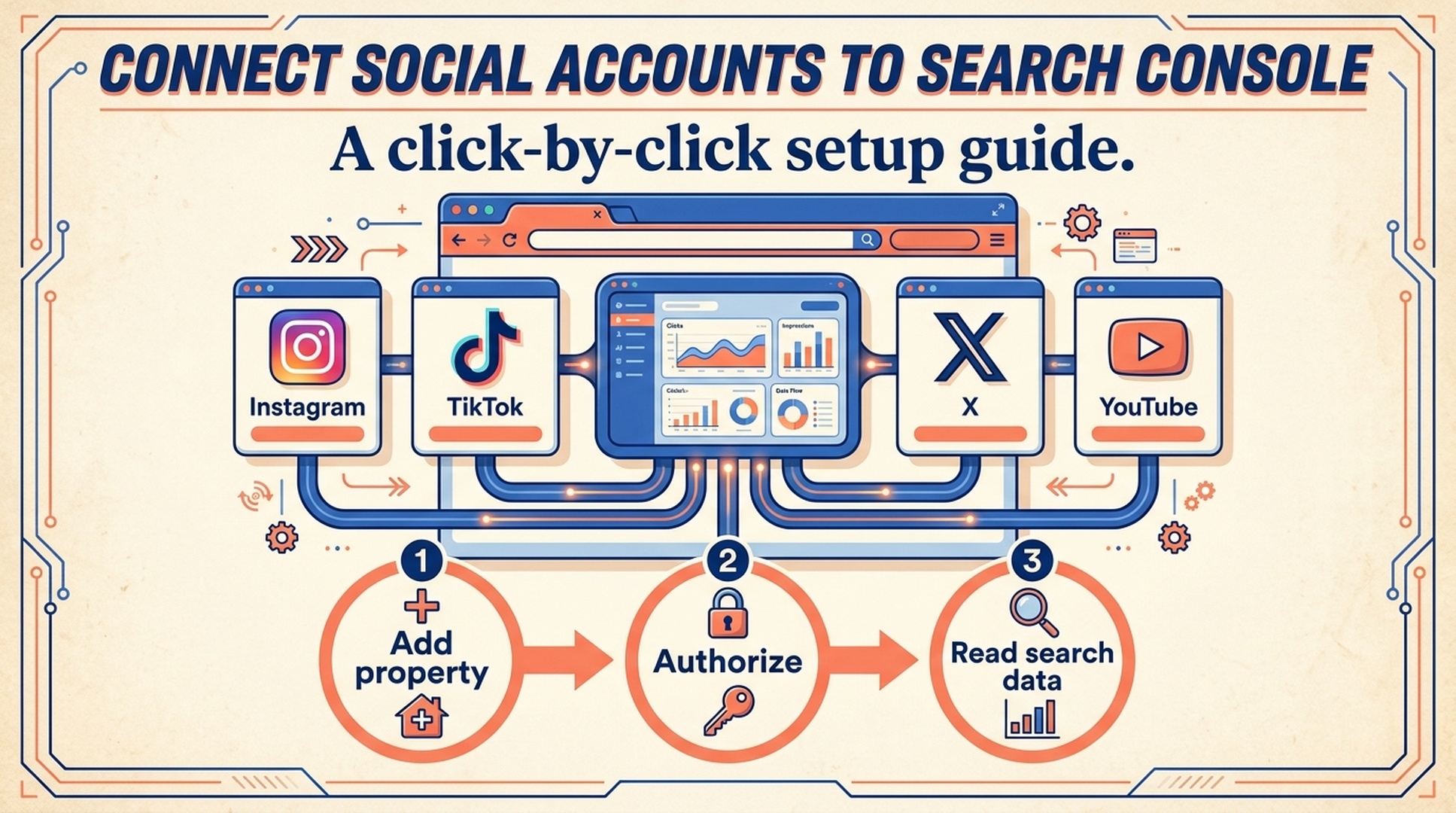
Google Search Console now lets eligible creators add a social or video account as a platform property. That means you can see how people find your Instagram, TikTok, X, or YouTube content through Google Search, and, where applicable, Google Discover or Google News.
You do not add a social profile inside your website property. You create a separate property for each account or channel, then approve a secure connection with that platform. Google says the feature is rolling out gradually, so the option may not appear in every Search Console account yet.
A platform property is a separate Search Console view for one social account or video channel.
Before you click anything: what this setup does and does not do
This setup answers one specific question: how did people discover your content through Google? It does not replace Instagram Insights, TikTok Analytics, X Analytics, or YouTube Studio.
You will be able to see | You will not be able to see |
|---|---|
Google Search clicks to a supported account's posts or videos | Total views, likes, comments, or followers inside the social platform |
Impressions, queries, CTR, and average position in Search Console's Performance report | How often a TikTok, Instagram post, or YouTube video was shown inside that platform's own feed |
Recent search trends and top content in Insights | A combined report for all of your social accounts |
Milestones in Achievements | Instant reports the moment you finish verification |
Google's current supported-platform list is: Instagram, TikTok, X, and YouTube. One account or channel equals one platform property. If you run two YouTube channels, for example, add them separately.
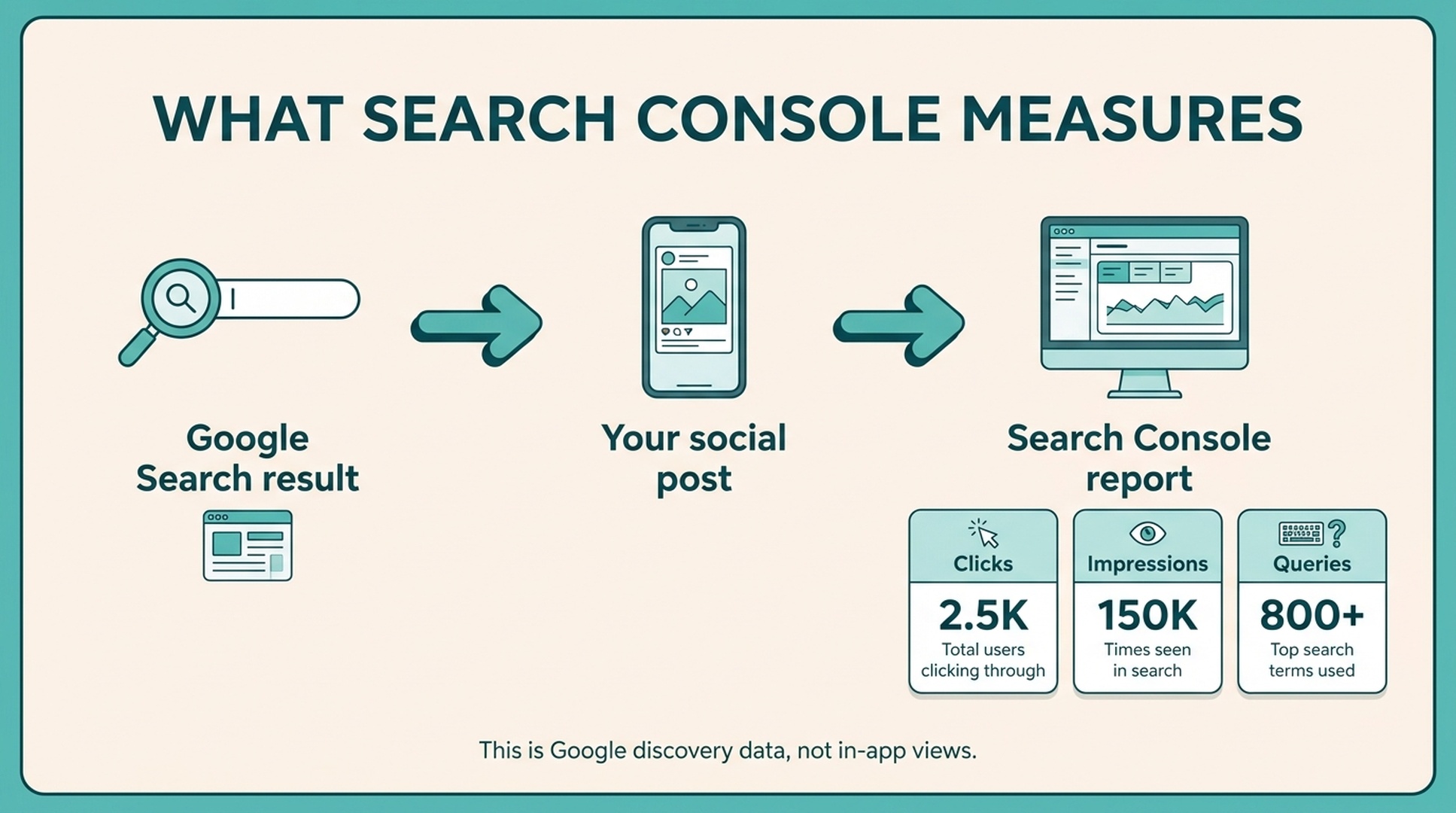
Search Console records Google discovery data. It does not report in-app feed views.
What you need before starting
Do this setup on a computer if possible. The screens are easier to read, and switching between Google and a social login is less awkward.
Have these four things ready:
- A Google account that can sign in to Google Search Console.
- The login for the exact Instagram account, TikTok account, X account, or YouTube channel you want to measure.
- Permission to approve the connection. If an agency, colleague, or client owns the social account, ask that owner to be present or to authorize it themselves.
- A minute to confirm which account is selected before you approve anything. If you manage several brands, this is the step most likely to go wrong.
Important: You do not need to own a website to create a platform property. Google introduced the property type for creators and publishers, including people who publish only on supported platforms.
Detailed setup: add your first platform property
The labels below are based on Google's July 2026 platform-property instructions. Google can adjust small UI details over time, but the route and choices should remain the same.
Step 1: Open Google Search Console and sign in
- Open a new browser tab.
- Go to search.google.com/search-console.
- If Google asks you to sign in, use the Google account that you want to use for reporting.
- Wait for the Search Console welcome page or an existing property dashboard to load.
What you should see: either a welcome screen asking you to add a property, or a dashboard with a property name near the top-left corner.
If you see the wrong Google account: click your profile image in the top-right corner, switch accounts, and return to Search Console before continuing. Do not start verification from a shared Google account unless that account should keep access to the reports.
Step 2: Open the Add property screen
Use the route that matches what is currently on your screen.
If this is your first Search Console property
- Stay on the welcome screen.
- Look for the property-add options.
- Continue until you reach the screen that lists property types or platforms.
If you already use Search Console for a website
- Find the property selector near the top-left of the Search Console interface. It normally shows the website property you are currently viewing.
- Click the property selector to open the dropdown.
- Click Add property.
What you should see: an Add property screen. Do not enter a website URL here when your goal is to connect a social account. Look for the available platform options instead.
Step 3: Choose the platform, not the account name
- Find the list of supported platforms.
- Locate the platform you use: Instagram, TikTok, X, or YouTube.
- Click Add beside that platform.
At this stage, you are choosing the type of account. You have not connected a specific profile yet. The next authorization screen will let you select or sign in to the exact account.
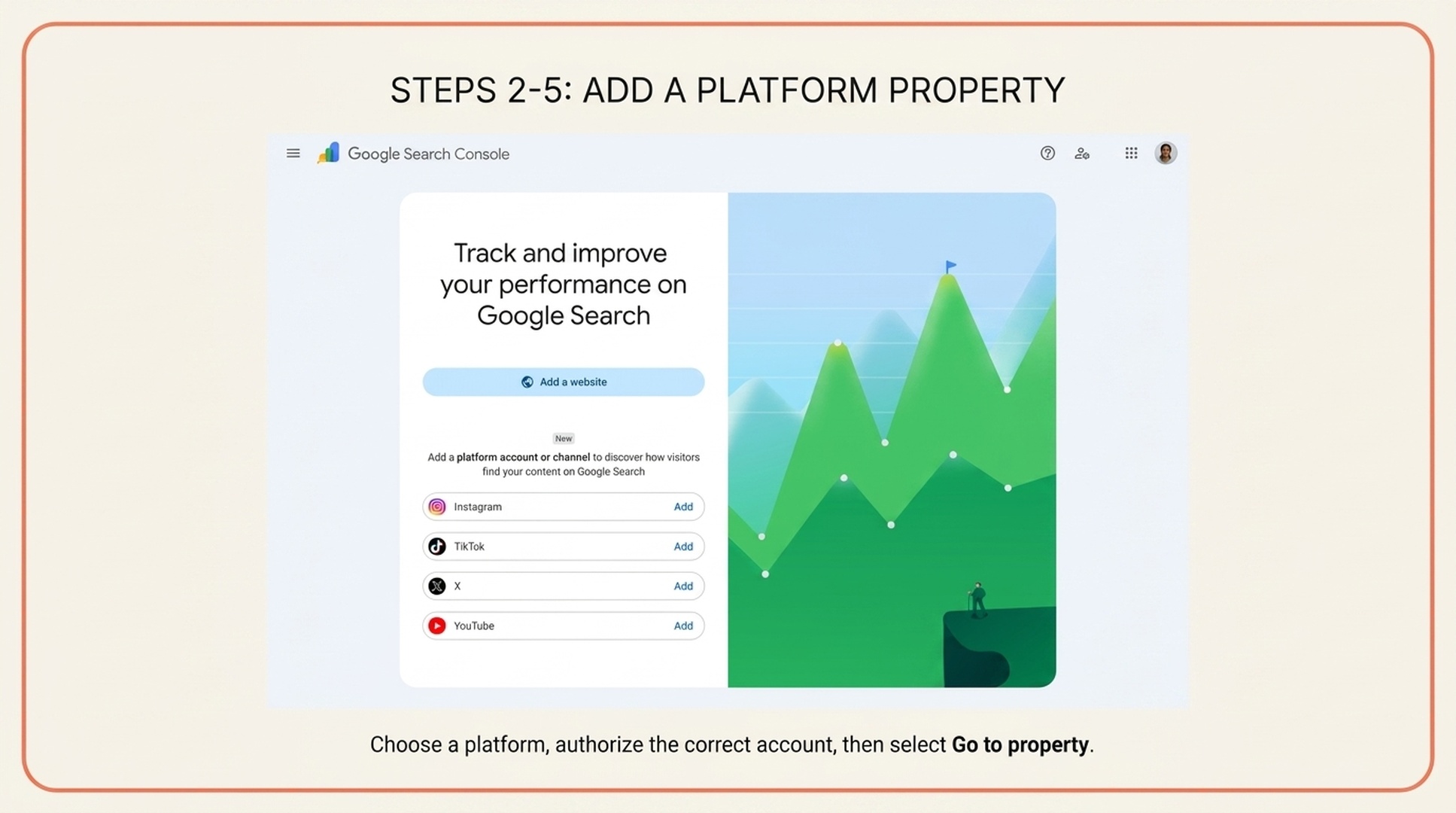
Choose one platform, approve access with the correct account, then wait for the confirmation screen.
Step 4: Sign in to the exact social account or channel
After you press Add, Search Console opens an authorization flow for the selected platform. This is a security check that proves you can manage the account.
- Read the account name or email shown on the sign-in screen.
- If it is the correct account, continue with the sign-in or approval flow.
- If it is not the correct account, use the platform's account-switch option, sign out, or choose another account before you grant access.
- Complete any two-factor authentication prompt if the platform asks for it.
- Read the requested access notice and approve the connection only when you are sure the selected account belongs to the brand or creator you intend to measure.
Do not rush this step. Search Console reports on the account you authorize, not the account you meant to choose. If you manage a personal profile and a business profile, check the visible handle or channel name before you click the final approval button.
Step 5: Finish verification and open the new property
- When authorization succeeds, Search Console should show a confirmation message that ownership has been verified.
- Click Go to property.
- Look at the property selector in the top-left corner again.
- Confirm that the selected property is your social account or channel, rather than your website.
What success looks like: the new property opens and its name reflects the connected platform account or channel. You now have a separate Search Console reporting space for that account.
If you get an error: do not keep clicking through the same prompt. First check whether you signed in to the account that actually owns the channel or profile. Then close the authorization window, return to Add property, and start again. If your business uses a shared login or an organization-owned channel, the administrator may need to approve the connection.
Step 6: Wait for data, then find the reports
Verification gives you access to the property. It does not mean that reports will instantly contain numbers.
Google's help documentation says it can take a few days for data to appear. When you return to the property, start with these reports:
- Performance: use this for totals and detail. You can review clicks, impressions, average CTR, and average position, then filter by query or content.
- Insights: use this for a quick read on recent traffic trends, top content, and how people discover your account through Google.
- Achievements: use this to see Google Search click milestones as the property builds a history.
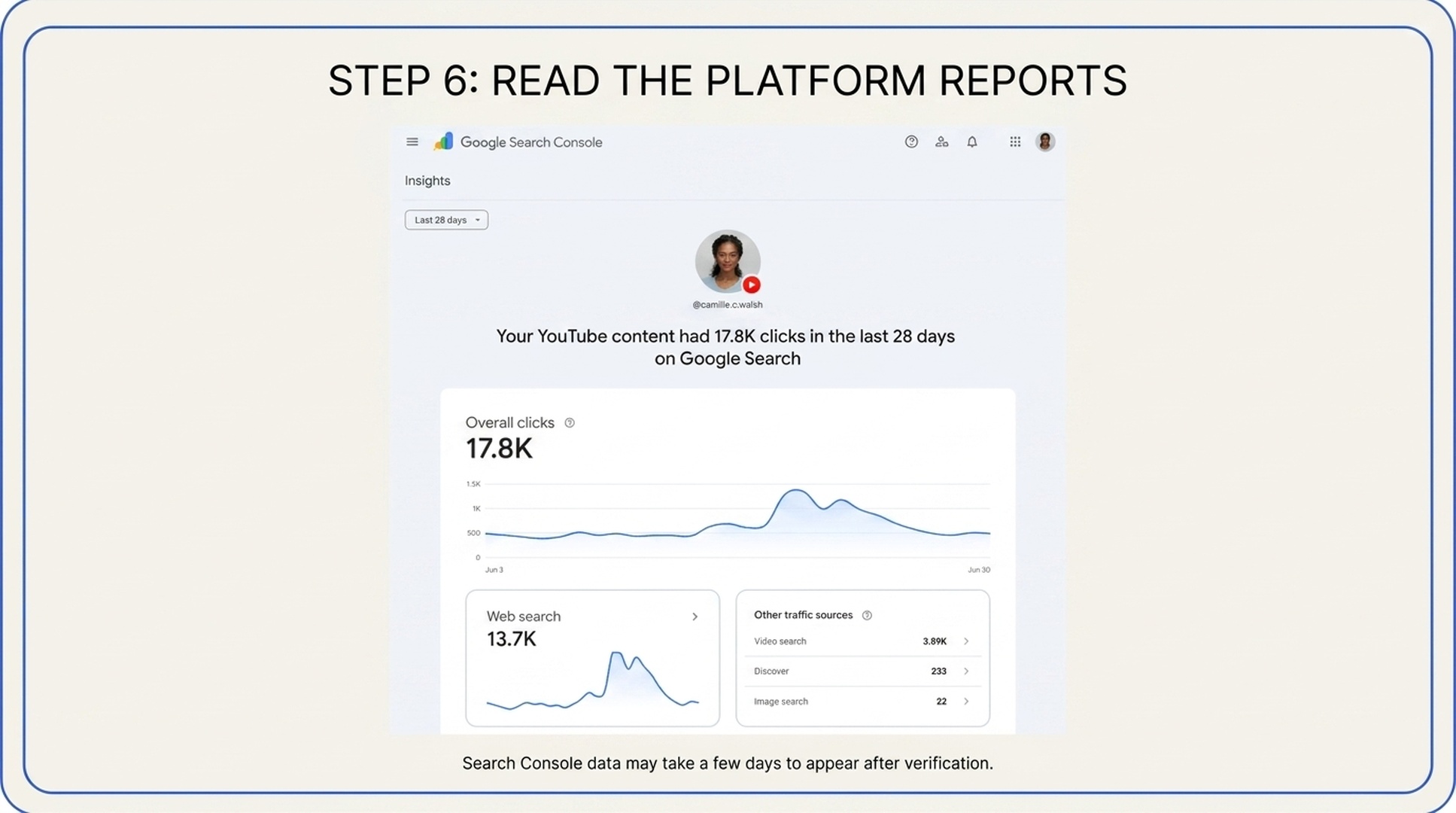
After setup, use Performance for detail and Insights for a faster overview.
How to read the first data without getting confused
Begin with the default date range rather than changing five filters at once. Google says platform-property Insights and Performance reports default to 28 days.
Start in Performance
Open the Performance report and read the metrics in this order:
- Clicks: how many times people clicked your supported-platform content from Google surfaces included in the report.
- Impressions: how often that content appeared in Google results.
- Average CTR: clicks divided by impressions. Treat it as a clue, not a score to chase on day one.
- Average position: the average search-result position recorded for applicable impressions.
Then look for two detail views:
- Queries tells you the words people searched before they saw or clicked your content.
- Pages/content helps identify the posts or videos that received the discovery traffic.
Do not expect every platform post to be present. This report measures appearances in Google, not every item you have published on the social network.
Then open Insights
Insights is useful when you want the story before the spreadsheet: recent trend direction, top content, and discovery patterns.
There is one easy detail to miss. Google's help documentation says the top Insights summary card can include clicks across Google, including web, image, video, and news searches. The detailed lists below focus on web-search traffic. Those detailed totals can therefore be lower than the headline card. That difference is expected; it is not automatically a tracking problem.
Check Discover and Google News only if they appear
Google may show Discover or Google News reports only when the connected content receives traffic from those surfaces. If you do not see those reports, do not assume setup failed. It can simply mean Google has not recorded qualifying traffic for that property.
A simple first-week routine
Do not make sweeping content decisions from the first few days. Start by building a small observation habit.
When | What to do | What to write down |
|---|---|---|
Day 1 | Confirm the correct platform property is selected and verification is complete | Account/channel name and setup date |
Day 3-5 | Open Performance | Whether data has appeared; total clicks and impressions |
End of week 1 | Review queries and top content | Three search terms and three posts/videos worth inspecting |
Weekly after that | Compare the latest 28 days with the previous period | What rose, what fell, and whether a specific post explains the change |
For a YouTube channel, a useful note might be: “This tutorial video gets Google clicks from a problem-focused search.” For an Instagram account, it might be: “This post appears for a product category query.” Keep the note concrete. You are looking for repeatable topics and formats, not a magical universal metric.
Troubleshooting: the three issues beginners hit most often
“I cannot see Instagram, TikTok, X, or YouTube in Add property.”
Google says platform properties are becoming available gradually. If the platform choices are absent, check that you are signed in to Search Console, refresh once, and try again later. Do not create a fake URL-prefix property as a substitute; that will not produce the platform-property reports described here.
“The authorization page selected the wrong account.”
Stop before granting permission. Sign out of the wrong social account or switch to the intended one, then restart the Add flow. This is safer than hoping you can correct the account after approval.
“My property is verified, but there are no numbers.”
Wait a few days. A verified property can be empty while Search Console begins reporting. Also remember that the feature reports Google discovery only. A post with many in-app views may have no Search Console data if it did not appear in Google Search, Discover, or Google News.
“The property used to work, but now access is paused.”
Google periodically checks ownership. If an external login expires or the connection is lost, re-verify when Search Console asks. Google says re-verification restores access to the same report; you do not need to wait for the property to collect data from scratch again.
The one thing to do after setup
Pick one account, get the connection right, and let the first data arrive. Then use the query and top-content views to answer a practical question: which of my posts or videos already help people who are searching on Google?
That is the useful bridge between social publishing and SEO. You are not trying to turn every post into a ranking page. You are learning which content already earns search discovery, so your next ideas can be more deliberate.
Frequently asked questions
Do I need a website to use a platform property?
No. Google describes platform properties as a Search Console property type for creators and publishers, including people who publish on supported social and video platforms.
Which platforms can I add to Search Console?
Google currently lists Instagram, TikTok, X, and YouTube. Add each account or channel as its own property.
Does this show my TikTok or Instagram views?
No. It shows how your content performs when people discover it through Google. Use each platform's native analytics for in-app views and engagement.
How long does data take to appear after verification?
Google says it can take a few days. Check back rather than assuming the property is broken immediately after setup.
Can I connect more than one social account?
Yes. Repeat the Add property and authorization process for each supported account or channel you manage.
Source and update note
This walkthrough is based on Google's July 7, 2026 announcement, “See how content from social and video platforms performs on Google Search”, and Google's platform properties help documentation. Interface wording can change as Google expands the rollout.
Author: Martin Hayes, GEO Playbook Builder for 200+ Execution Checklists at Auspia. Martin writes step-by-step search workflows that help small teams move from setup screens to useful reporting.