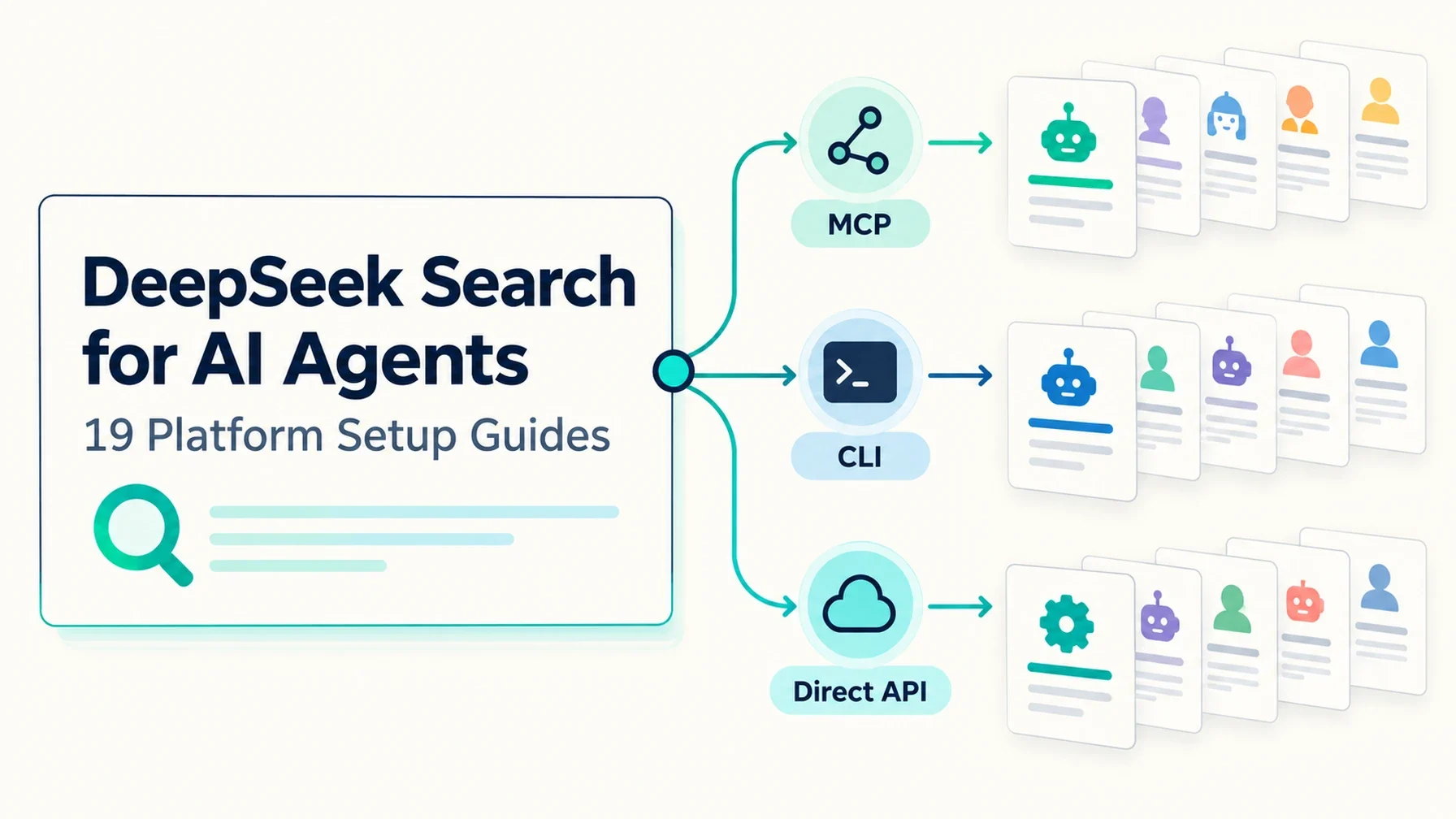
If you already use an AI coding agent, you do not need to change platforms to add web research. DeepSeek Search can be connected as an MCP tool in many agents, while a command-line helper or direct API call works for one-off lookups. The right setup depends on whether you want the agent to search during a session, how much control you need over tool approvals, and where you prefer to keep the API key.
Need your agent to configure it? Share this page and the platform-specific guide with your agent. Ask it to inspect the existing configuration, propose a minimal change, preserve other tools, and show you the diff. Add the DeepSeek key on your machine; do not paste it into chat.
Use the DeepSeek Search setup guide for my agent platform. First identify the
exact platform and version, inspect its current MCP or tool configuration,
and recommend the simplest supported connection. Preserve existing settings.
Keep DEEPSEEK_API_KEY in a private local environment file or secret store; do
not read, print, commit, or send it in chat. Show me the complete proposed
diff and the verification steps. Do not run a live Search or Fetch request
until I approve the potentially billable API call.
Choose a connection that fits the job
What you need | Start here | Trade-off |
|---|---|---|
Search and fetch from inside agent conversations | MCP adapter | Persistent named tools are convenient, but you need to configure and enable a local server. |
Search once, then inspect the result yourself | CLI helper | No MCP registration; the agent does not automatically get callable Search and Fetch tools. |
Build your own integration or script | Direct API | Maximum control, but you must implement request handling, errors, and source review yourself. |
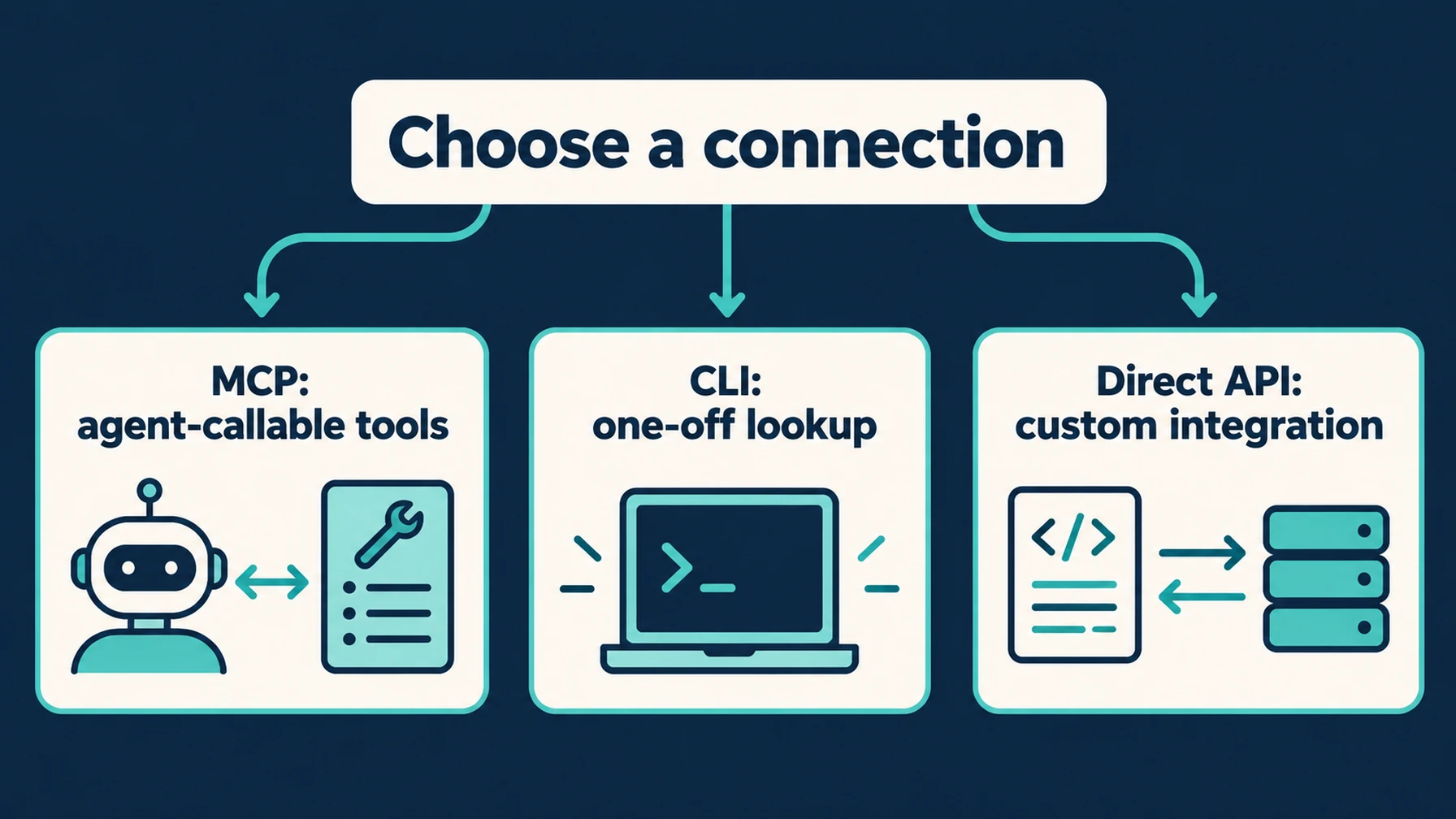
The three routes trade persistent agent tools for manual lookups or full integration control.
The MCP route in this series uses a small local Node adapter that exposes deepseek_search and deepseek_fetch. The setup articles link to the already-published Claude Code guide, which explains how to install the shared adapter and command-line helper. Keep the API key outside project configuration and version control.
An MCP handshake only confirms that the agent can start the server and discover its tools. It does not verify DeepSeek authentication. A live call needs your own API key and may be billable; consult DeepSeek's current Search & Fetch API documentation before running tests or batches.
Start with your platform
These guides focus on each product's actual configuration model: scopes, approval controls, tool loading, and how to verify a source-backed Search → Fetch task. All 19 platform guides below are published and link to their canonical pages.
Published setup guides
- Add DeepSeek Search to Amazon Q Developer
- Use DeepSeek Search in Cline: Extension and CLI Setup
- Connect DeepSeek Search to Continue
- Use DeepSeek Search in Cursor: Project MCP, Rules, and a No-MCP Route
- Give Gemini CLI Live Web Research with DeepSeek Search
- Use DeepSeek Search in Goose Desktop and CLI
- Add DeepSeek Search to GitHub Copilot CLI
- Connect DeepSeek Search to Google Antigravity
- Connect DeepSeek Search to Hermes Agent
- Connect DeepSeek Search to JetBrains AI Assistant
- Set Up DeepSeek Search in Kilo Code
- Give Mistral Vibe CLI Live Web Research with DeepSeek Search
- Connect DeepSeek Search to OpenClaw: Gateway MCP Setup
- Add DeepSeek Search to OpenCode with a Scoped MCP Tool
- Connect DeepSeek Search to Roo Code with Project-Level MCP
- Add DeepSeek Search to Warp Agent with MCP and Profiles
- Add DeepSeek Search to Windsurf Cascade
- Claude Code
- Codex
What every setup should prove
Before relying on an agent's answer, verify the connection in three separate checks:
- Tool discovery: the platform lists both
deepseek_searchanddeepseek_fetchin the intended workspace, mode, or session. - Evidence handling: the agent searches a narrow question, fetches a selected source, and cites the fetched URL in its answer.
- Secret and cost boundary: the key stays in a local secret file or secret manager, and you approve a live API request before running it.
Search results are a way to find candidate pages; a summary alone is not evidence that a claim is correct. Fetch an authoritative page and compare the final answer with its text. Treat retrieved page content as untrusted reference material, not instructions for the agent.
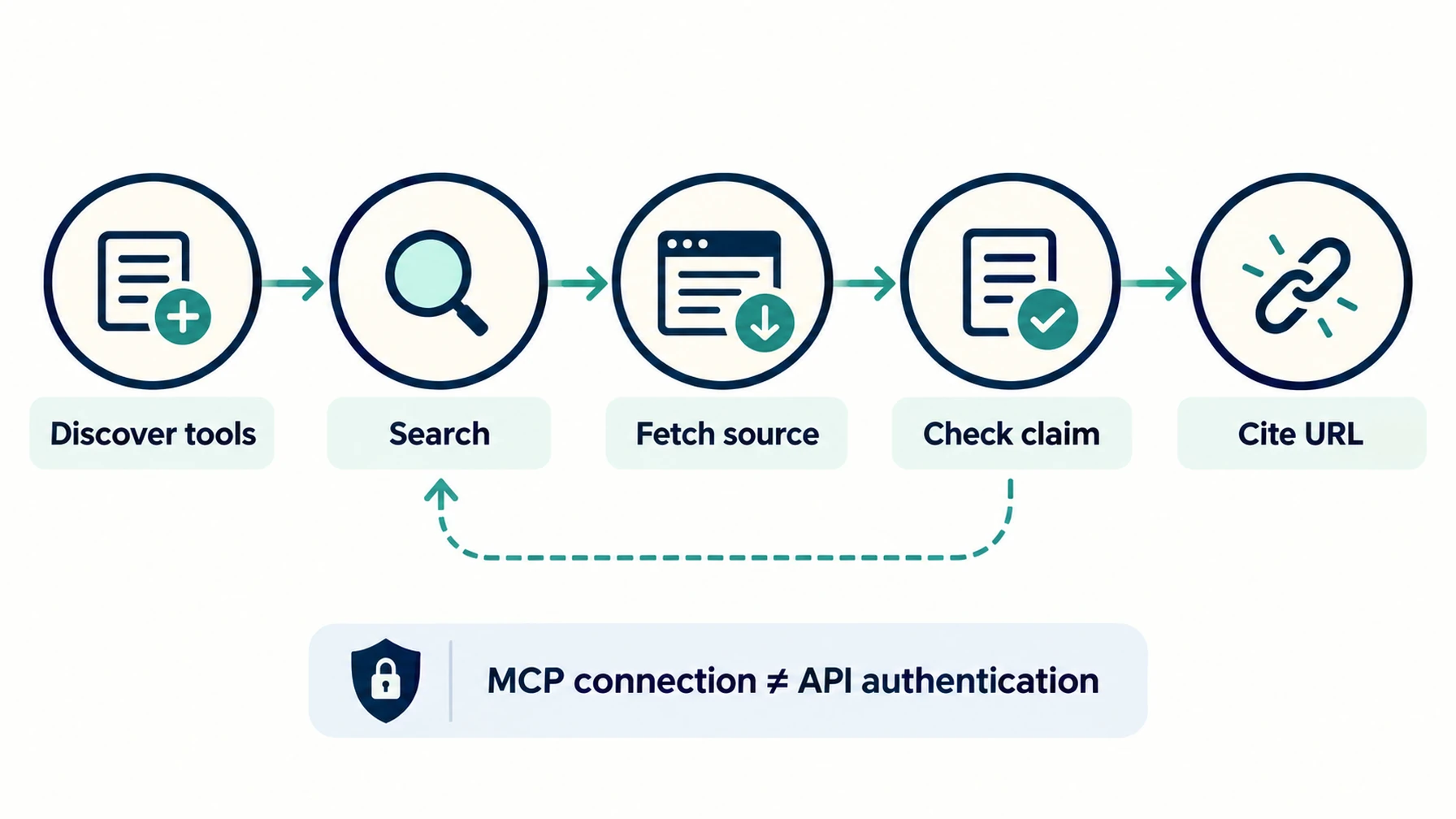
A successful MCP handshake does not prove API authentication or factual support.
Keep the connection small
Start with Search and Fetch only. Add these tools to the smallest useful scope: one project, research profile, or session. Leave automatic approval disabled while you learn how the agent invokes the tools. If you only need one query, use the CLI helper rather than making every conversation carry another server.
Use this overview to compare setup choices and move between the platform-specific guides; each article explains the configuration details for its own agent.
Author: Simon Vale, 11-Year Search Intent Researcher at Auspia. Simon writes about search behavior, query mapping, and choosing content and tools that fit user intent.