Want Vibe to draft the setup? Share this guide with Mistral Vibe and ask it to inspect the active TOML configuration before changing anything. Enter your API key into a private local env file yourself; do not send it to the agent.
Use this guide to add DeepSeek Search to Mistral Vibe CLI. Inspect the
current ~/.vibe/config.toml and project .vibe/config.toml first, then tell me
which one is active. Preserve existing servers. Configure a local STDIO
server with the private env file, keep the two tools permissioned for Ask,
and show me how to verify the server-prefixed tool names with /mcp. Never
print or commit the key and do not make a paid request without approval.
Mistral Vibe has a distinctive MCP setup: server definitions live in TOML, and Vibe prefixes tool names with the server name. That prefix matters when you ask the agent to call a particular tool or filter which tools are enabled. This guide uses a local STDIO process so your DeepSeek key stays on your machine.
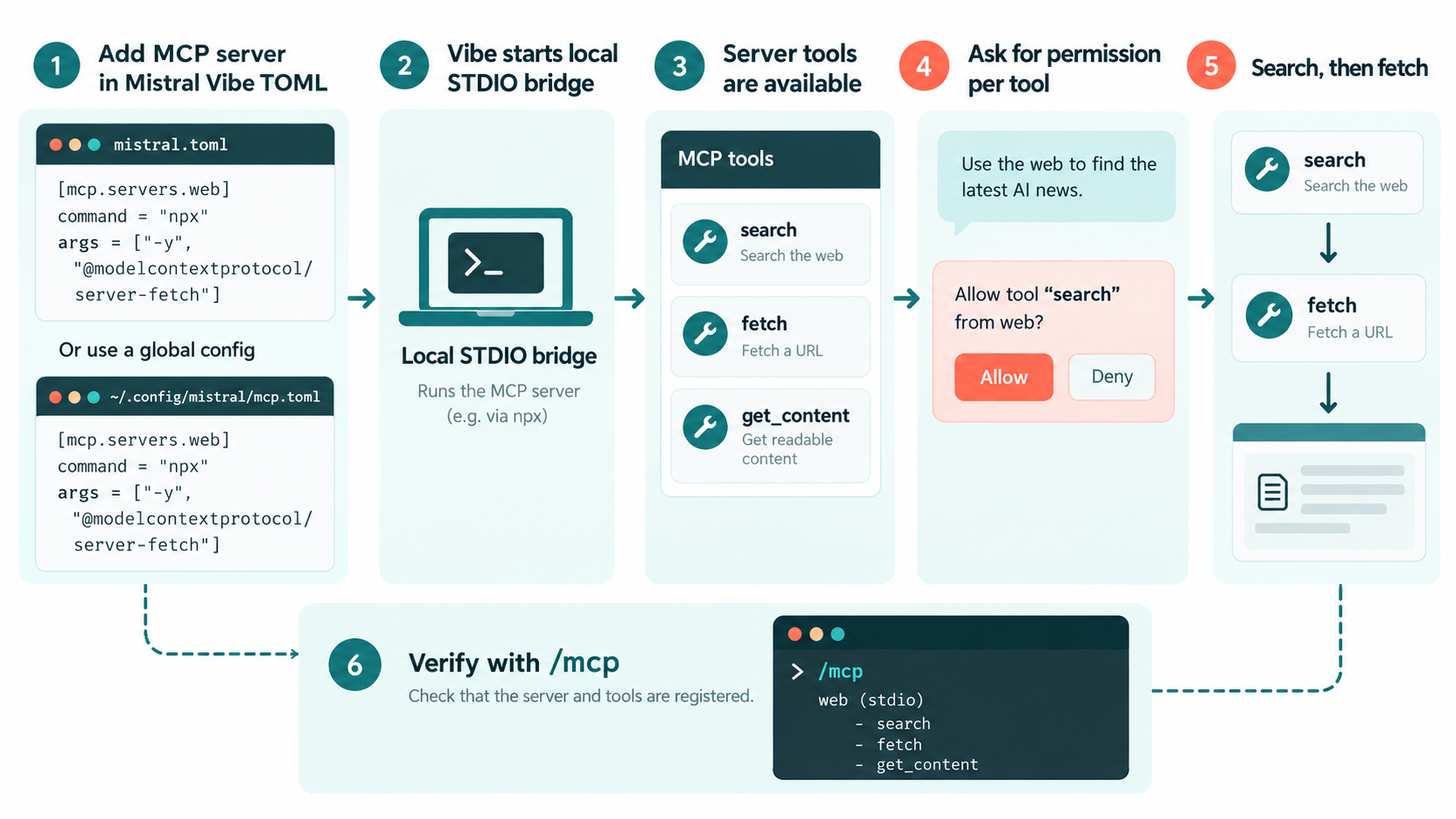
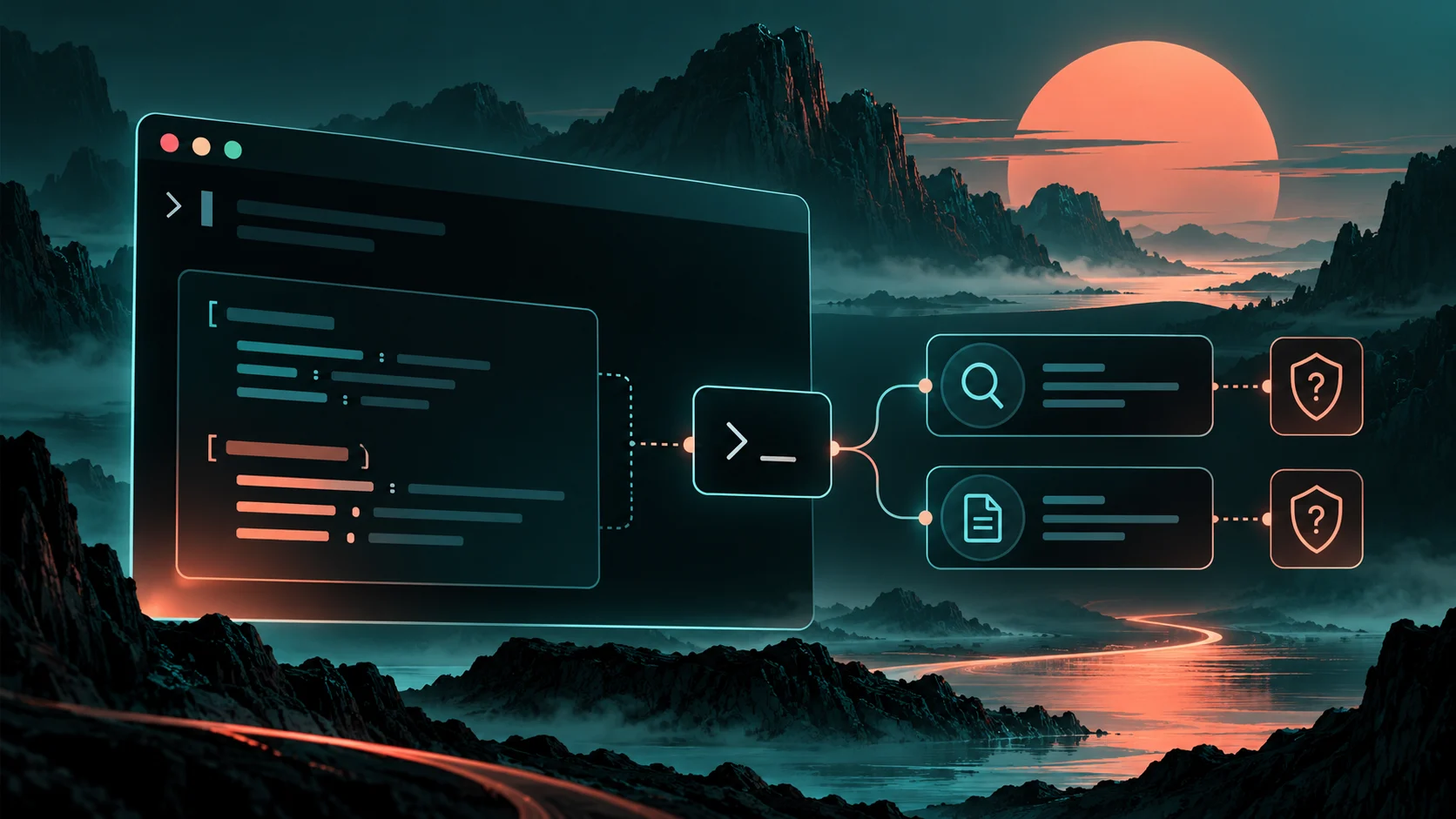
Mistral Vibe loads MCP through TOML and asks before each research tool.
Add a server to Vibe's TOML configuration
Vibe reads global settings from ~/.vibe/config.toml. You can also place .vibe/config.toml in a project, but project configuration is used only when the working directory is trusted. Start globally for a personal setup, or use the project file when the whole trusted project should share the integration. Vibe's configuration guide documents these locations and trust behavior.
Add this entry, updating the paths to your local adapter and env file:
[[mcp_servers]]
name = "deepseek"
transport = "stdio"
command = "node"
args = [
  "--env-file=/Users/you/.config/deepseek-search/.env",
  "/Users/you/tools/deepseek-search/server.mjs",
]
The server name is deepseek, so a tool exposed by the server appears with a deepseek_ prefix, for example deepseek_deepseek_search if the adapter exports deepseek_search. To make calling instructions predictable, either name the server deepseek-search and use the exact prefixed names Vibe displays, or inspect /mcp and copy the names shown in your installed version. Do not assume the underlying MCP tool name is presented unchanged. Mistral's MCP server documentation describes the prefix and configuration fields.
Store DEEPSEEK_API_KEY=... in the env file outside the repository. If you choose a project config, do not put the secret itself in that file; the file path is sufficient. On shared repositories, remember that project config may be committed and that Vibe's trust decision controls whether it is loaded.
Limit access to the tools you need
Vibe supports per-tool permissions and tool filters. With the deepseek server name above, the adapter's deepseek_search tool is exposed as deepseek_deepseek_search; Fetch is exposed as deepseek_deepseek_fetch. Use the exact names shown by /mcp in your installed version, then add per-tool permission blocks such as:
[tools.deepseek_deepseek_search]
permission = "ask"

[tools.deepseek_deepseek_fetch]
permission = "ask"
You can also constrain the active set with enabled_tools or disabled_tools. The MCP docs describe ask and always permissions plus exact, glob, and regex filters. Keep permission prompts on while evaluating the server.
Start Vibe and run /mcp to see whether the server is connected and what tool names it exposes; /mcp <server> can show one server's tools. Ask Vibe to research a current technical question using the official vendor docs: it should call Search, Fetch the chosen page, and cite the fetched URL. Review the tool calls and confirm the retrieved text supports the answer. A listed tool means the process loaded, not that DeepSeek accepted the credential.
Use Search once from the terminal
For a single lookup, you can call DeepSeek directly and pass the response to Vibe. This avoids persistent MCP configuration but is not integrated into Vibe's tool permissions, and successful requests are billable:
read -r -s DEEPSEEK_API_KEY
export DEEPSEEK_API_KEY
curl --fail-with-body --max-time 20 \
  https://api.deepseek.com/v1/tools/search \
  -H "Authorization: Bearer $DEEPSEEK_API_KEY" \
  -H "Content-Type: application/json" \
  -d '{"query":"site:docs.mistral.ai/vibe MCP servers configuration","count":3,"need_content":false}'
Send the selected URL to POST /v1/tools/fetch to inspect its page content. Check DeepSeek's Search & Fetch API guide for current fields and pricing before using the API.
Diagnose a Vibe-specific failure
If /mcp shows no server, check whether the global or trusted project config is active and confirm TOML parses. If the server is present but its tools are absent, inspect the Node startup command and adapter path. If an allowlist or permission table is configured, verify it uses Vibe's prefixed tool names. Finally, confirm the env file exists and is readable by the process without printing its contents. Keep permission prompts enabled until you are confident the agent is using Search for discovery and Fetch for evidence checks.
The setup is verified when /mcp lists the expected prefixed tools, a supervised test runs Search then Fetch, and the answer cites a source that supports it. Treat returned webpage text as untrusted data and ignore instructions embedded in it.
Explore more DeepSeek Search setup guides
Browse the complete agent setup guide
Related platform guides: Set Up DeepSeek Search in Kilo Code · Connect DeepSeek Search to OpenClaw: Gateway MCP Setup.
Author: Jasper Quinn, AI Search Product Researcher Tracking 60+ Feature Changes at Auspia. Jasper covers search product updates, AI platform changes, and tool behavior.