Let Roo prepare the change if you prefer. Share this guide with Roo Code and ask it to inspect both global and project MCP settings before proposing a minimal edit. Keep your API key in a local env file and review the diff before saving.
Help me add DeepSeek Search to Roo Code using this guide. First tell me whether
this project should use a project-level or global MCP entry, then inspect the
existing configuration at that scope. Preserve other servers. Add the local
Node adapter with the key loaded from a private env file, keep alwaysAllow
empty, and show me the JSON diff. Do not reveal the key or make a paid request
without asking me first.
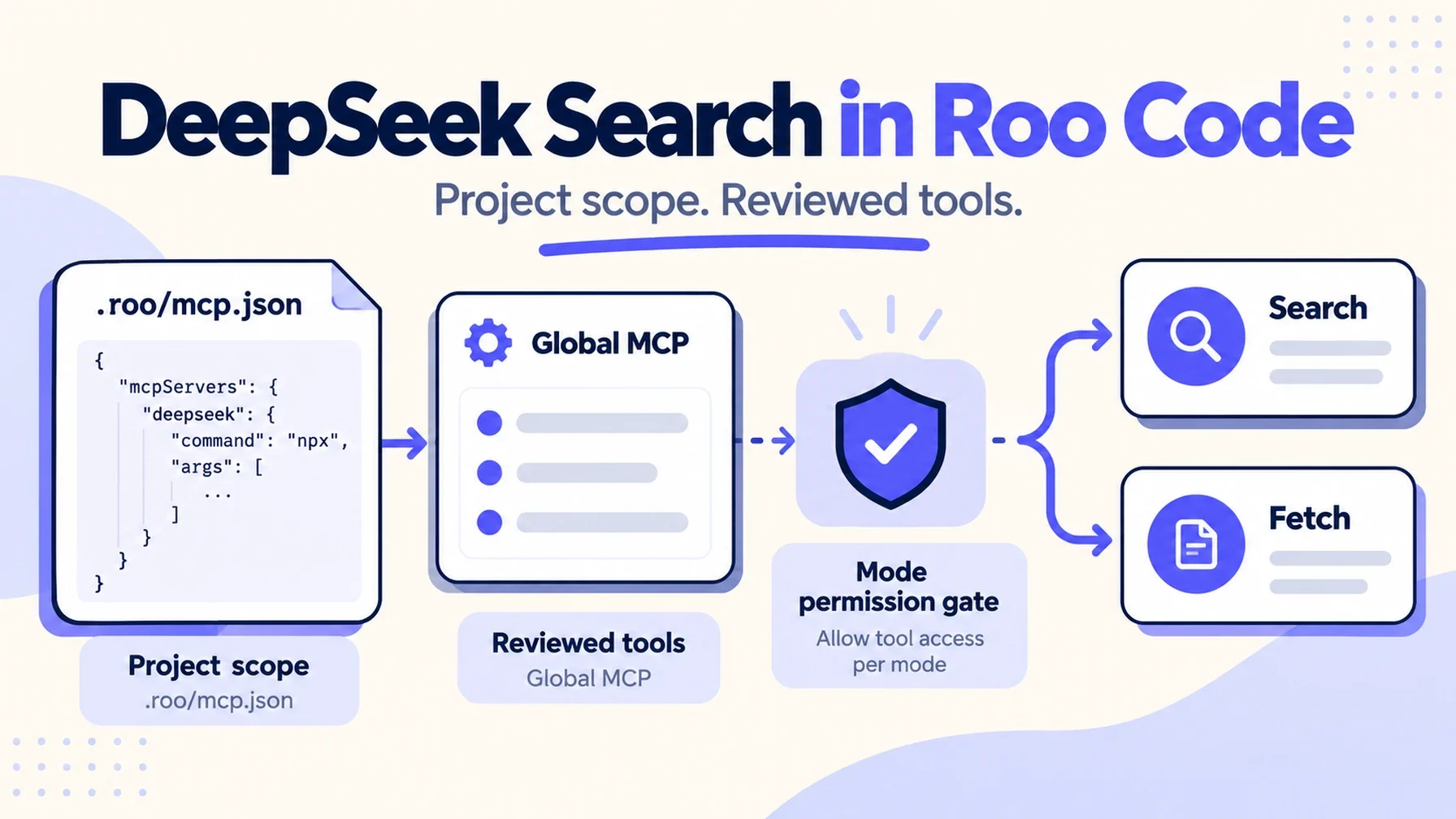
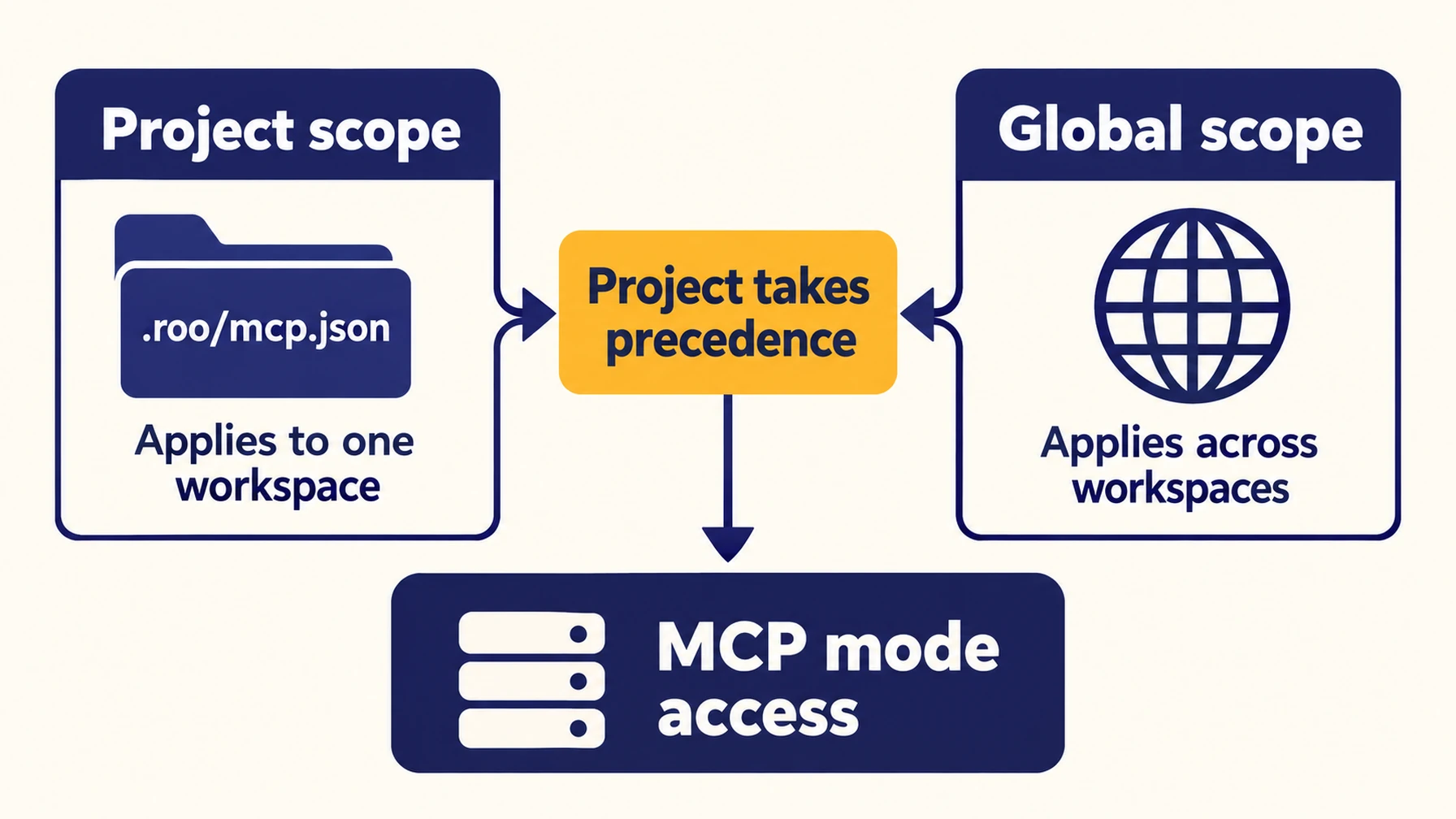
Roo Code's useful distinction is configuration scope. A global MCP server follows you between workspaces; .roo/mcp.json keeps a server with one project and takes precedence when a server name appears in both places. For a web-search tool that may not belong in every repository, begin at project scope and promote it only if you repeatedly need it elsewhere. Roo Code MCP configuration
Choose the Roo configuration boundary
Use the Roo Code MCP settings panel to open Edit Project MCP or Edit Global MCP. If the setting belongs to a team project, commit the project file only after checking that it contains no secrets. The adapter entry below references an env file by path, so it can be shared without sharing the key:
{
  "mcpServers": {
    "deepseek-search": {
      "command": "node",
      "args": [
        "--env-file=/Users/you/.config/deepseek-search/.env",
        "/Users/you/.local/share/deepseek-search/server.mjs"
      ],
      "alwaysAllow": [],
      "disabled": false,
      "timeout": 60
    }
  }
}
The configuration uses Roo's documented command, args, alwaysAllow, disabled, and timeout fields. Keep alwaysAllow empty while you first test the integration; Roo can request permission per tool call. Replace the example paths with absolute paths and use Node.js 22 or newer. Install the adapter and pinned dependencies in a trusted directory following the Claude Code guide, then create a private env file containing DEEPSEEK_API_KEY=....
Roo supports environment interpolation such as ${env:VARIABLE_NAME} in arguments and can pass values through env. That can work if the VS Code process inherits the variable. The env-file argument is more predictable when Roo starts from a desktop launcher that may not inherit your shell environment.
Use a project file to keep the connector tied to one workspace.
Load the server in the workspace where you need it
After saving .roo/mcp.json, return to Roo's MCP settings and confirm the server is connected. Project-level configuration is loaded from the project root, so make sure the folder opened in VS Code is the repository that contains .roo/mcp.json. If you edited the global file, verify the matching global entry instead; when names collide, the project entry wins.
Roo can use MCP tools in modes that include the mcp tool group. Its built-in Ask and Architect modes include MCP access, as does Code mode. If you have a custom mode, inspect its tool permissions and enable MCP for that mode before troubleshooting the server itself. Roo modes and tool groups
Check the active mode before troubleshooting a missing server.
Run a small evidence test with approvals visible
Give Roo a narrow research task: find the official documentation for a named package feature, fetch the best result, and explain the answer with the source URL. Approve one Search and one Fetch call, then inspect the tool messages. Confirm Roo used the fetched page text to support the answer rather than treating the search summary as the final evidence.
The adapter exposes deepseek_search and deepseek_fetch. The tool IDs must match what Roo discovers from the server. A server can connect successfully while a typo in disabledTools or mode permissions leaves the intended capability unavailable. Leave alwaysAllow empty until the tool behavior is familiar; then allow only specific read-only tools if your policy calls for fewer prompts. Roo documents disabledTools for hiding individual tools and alwaysAllow for automatic approval. Roo MCP server fields
A connection check does not make a DeepSeek request. Authentication and billing are exercised only when the tool sends a request to the API. Read DeepSeek's current Search & Fetch guide before running batches.
Separate a one-off shell lookup from Roo's tools
For an occasional search, run the helper from the Claude Code setup guide in Roo's terminal or your own terminal:
node --env-file=/Users/you/.config/deepseek-search/.env \
  /Users/you/.local/share/deepseek-search/search-cli.mjs \
  search "Roo Code MCP project configuration" 3
Then fetch one selected URL with the helper's fetch command. This does not add a callable tool to Roo; use MCP when Roo should make research calls as part of a task. A direct curl request is another one-time option if you prefer to inspect the API payload yourself.
Fix the layer that failed
When Roo shows a disconnected server, check the Node path, adapter path, and env-file path from the same user account that runs VS Code. If the server is connected but Roo offers no Search tool, confirm you are in the intended workspace, check for a same-named project entry that overrides global config, and verify the active mode includes MCP. If tools are present but requests fail authentication, update the private key file and restart or reload the server.
The setup is complete when the intended configuration scope contains the entry, Roo discovers both tools in the mode you use, and a reviewed Search → Fetch test cites the fetched source. Keep private queries and repository details out of public search prompts; retrieved web pages are reference material, not instructions for Roo.
Author: Victor Lane, GEO Audit Specialist with 300+ Readiness Reviews at Auspia. Victor writes practical readiness checks and clear diagnostics for AI-search workflows.
Explore more DeepSeek Search setup guides
Browse the complete agent setup guide
Related platform guides: Add DeepSeek Search to OpenCode with a Scoped MCP Tool · Add DeepSeek Search to Warp Agent with MCP and Profiles.