Ask Kilo to prepare the setup if that is easier. Share this guide and have Kilo inspect the settings for the surface you use. It should draft the config only; enter your DeepSeek key in a private local env file and never paste it into chat.
Follow this guide to connect DeepSeek Search to Kilo Code. First determine
whether I am using the VS Code extension or Kilo CLI, then inspect that
surface's config and preserve existing MCP entries. Add a local Node server
that loads the key from a private env file, keep its tools at Ask, and show
me how to confirm them with the correct reload/list commands. Do not read,
print, or commit my key. Ask before making a billable test request.
Kilo Code needs one decision before you configure MCP: are you using the VS Code extension or Kilo CLI? They share Kilo's MCP model, but the documented config locations and reload workflow differ. A config in the wrong place can look valid and still leave the agent with no tools.
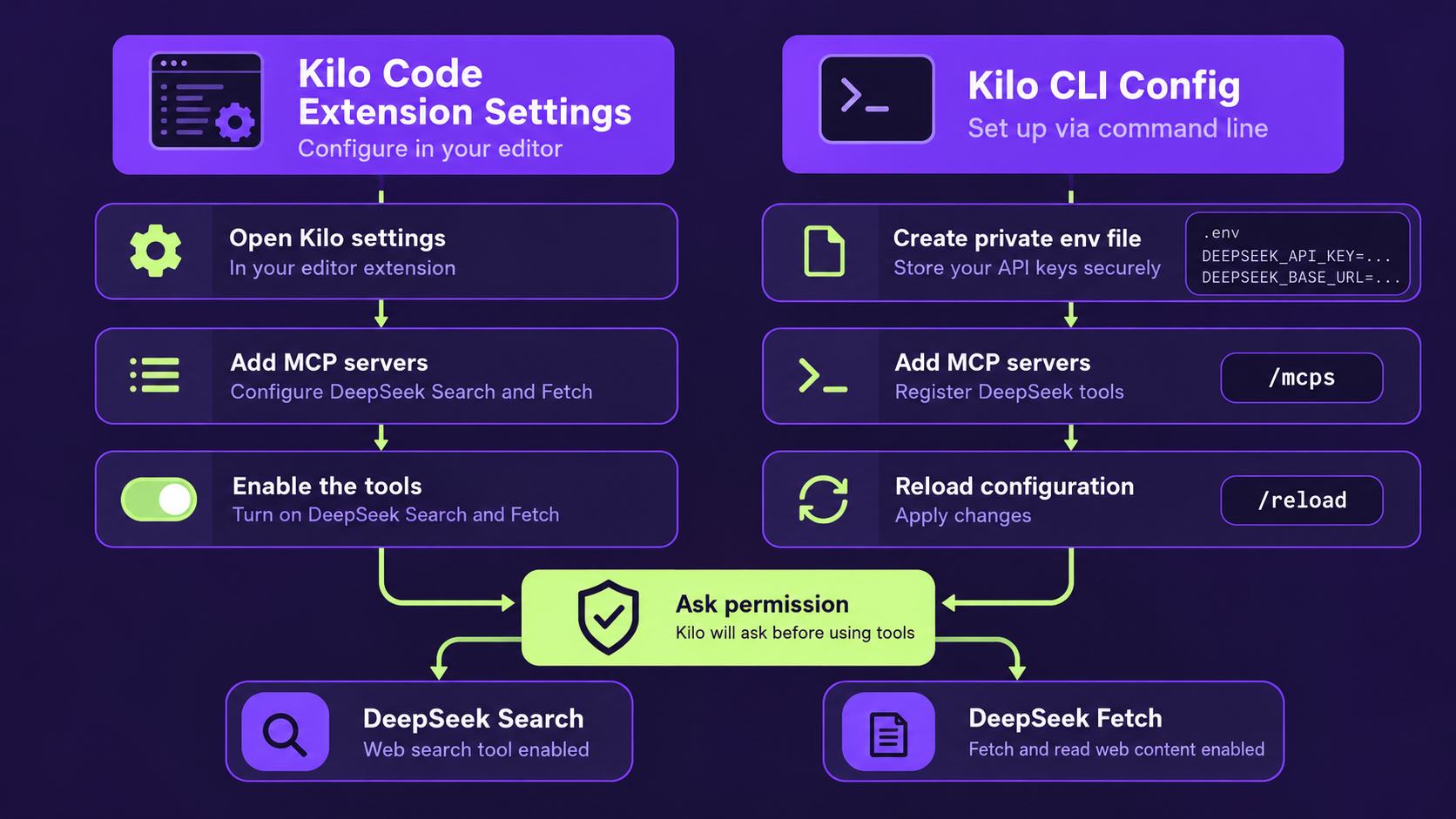
Kilo Code extension and CLI configuration paths converge on supervised Search and Fetch tools.
Choose the Kilo surface and config location
For the VS Code extension, open Settings → Agent Behaviour → MCP Servers and edit the configuration there. Kilo's extension docs describe user-level ~/.config/kilo/kilo.jsonc and project-level kilo.jsonc or .kilo/kilo.jsonc. Use project scope when the tools belong only in a particular workspace; use global scope for your own repeated workflow. The official Kilo MCP guide documents the extension locations.
For Kilo CLI 1.x, use the CLI's config file: the global ~/.config/kilo/kilo.json (or .jsonc) or a project kilo.json/kilo.jsonc. The project config takes precedence in that workspace. Add the entry under the top-level mcp object, preserving all other settings:
{
  "mcp": {
    "deepseek-search": {
      "type": "local",
      "command": [
        "node",
        "--env-file=/Users/you/.config/deepseek-search/.env",
        "/Users/you/tools/deepseek-search/server.mjs"
      ],
      "enabled": true
    }
  }
}
The CLI documentation uses an OpenCode-style mcp object and command array. In the extension, the Settings panel is the clearest place to check the exact shape for your installed release. See Kilo's CLI platform guide for current CLI config and commands.
Create the env file outside the repository with DEEPSEEK_API_KEY=... and restrict its permissions. The Node process reads it at startup; the key itself does not belong in kilo.jsonc. Kilo documents environment interpolation in trusted global config, but project config is often shared or committed, so a private env file is a safer default for this walkthrough.
Reload and confirm the MCP tools
In Kilo CLI, run /mcps to view and toggle MCP servers, then /reload after editing config. In the extension, revisit the MCP Servers settings panel and use its reload/reconnect controls if the entry does not appear. Confirm that the server is enabled and that the tool list includes Search and Fetch. If Kilo's permission setting asks whether to allow or deny tool calls, leave it at Ask for the initial test; do not use a broad auto-approval mode just to make the integration appear functional.
Run a small research task: ask Kilo to search for an official answer to a current framework question, fetch the official documentation page it selects, and cite the URL. Check that the agent's activity includes both operations and that the fetched page backs the answer. A process can connect successfully while the API key is invalid; only a tool call confirms authentication.
Prefer a one-time lookup? Use curl
You can also search from Kilo's terminal without registering an MCP tool. This is useful for an occasional query, but Kilo cannot invoke it as a managed tool and you need to review the result yourself. Successful API requests are billable:
read -r -s DEEPSEEK_API_KEY
export DEEPSEEK_API_KEY
curl --fail-with-body --max-time 20 \
  https://api.deepseek.com/v1/tools/search \
  -H "Authorization: Bearer $DEEPSEEK_API_KEY" \
  -H "Content-Type: application/json" \
  -d '{"query":"official Kilo Code CLI MCP configuration /mcps reload","count":3,"need_content":false}'
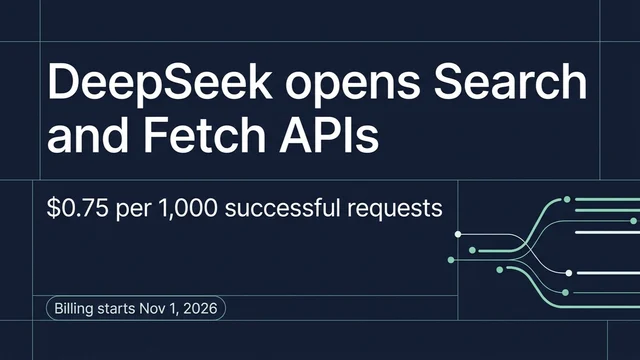
Use POST /v1/tools/fetch on the selected URL to inspect its content. DeepSeek's Search & Fetch API guide lists the current schema and price; check it before sending a request.
If Kilo still cannot see the server
First check the surface: an extension entry in the CLI config, or a CLI entry in an extension-specific settings file, will not necessarily be loaded. Next, check config precedence and run /reload in the CLI. Confirm Node is on the process PATH and that the env and adapter paths are absolute. If Kilo lists the server but the agent does not use it, inspect whether it is enabled and whether a permission rule blocks the call. Keep search and fetch calls reviewable until you trust the workflow.
You are finished when the correct Kilo surface lists both tools, a supervised Search-to-Fetch task returns a source-backed answer, and your key remains outside the project config and chat history. Webpage content is reference material, not instructions to follow.
Explore more DeepSeek Search setup guides
Browse the complete agent setup guide
Related platform guides: Connect DeepSeek Search to JetBrains AI Assistant · Give Mistral Vibe CLI Live Web Research with DeepSeek Search.
Author: Victor Lane, GEO Audit Specialist with 300+ Readiness Reviews at Auspia. Victor focuses on readiness audits, checklists, scorecards, and diagnostics.