Ask Warp Agent to prepare the setup if you prefer a guided change. Share this guide and tell it to create a project-scoped MCP entry, explain the permission and startup settings, and leave the API key for you to enter locally. Never paste the key into Agent chat.
Use this guide to add DeepSeek Search to Warp Agent for this project. Inspect
the existing Warp Drive and MCP settings first. Prefer a project-scoped
.warp/.mcp.json entry and do not change global servers. Keep the API key in a
private env file outside the repo. Show me the exact config and let me approve
starting the process. Create or select a research-oriented Agent Profile that
allows this MCP server, while leaving other profiles unchanged. Verify Search,
Fetch, and source citation. Do not make a billable request until I approve it.
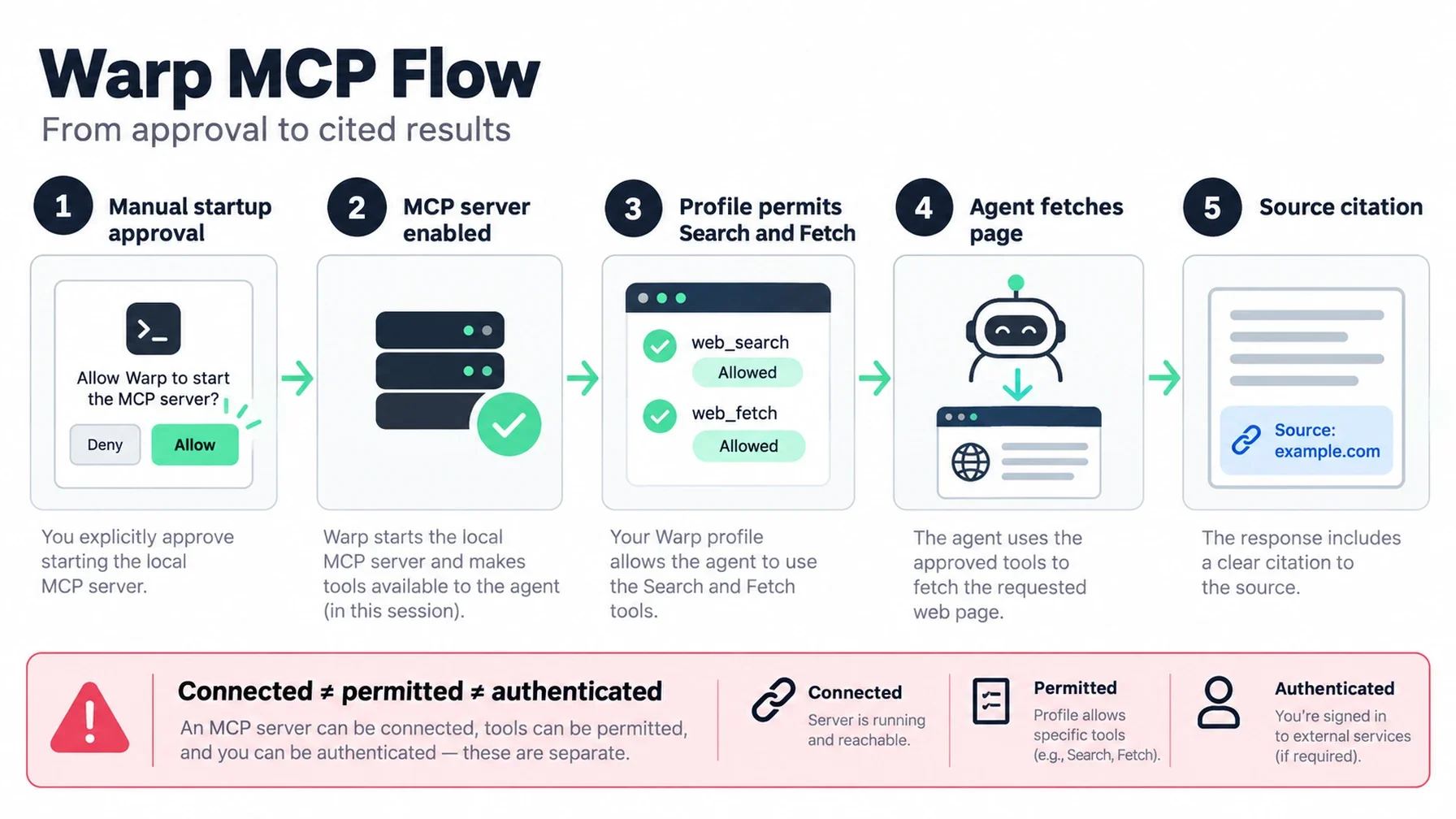
Warp gives you three controls that are easy to conflate: where the MCP server is defined, whether the server is allowed in an Agent Profile, and whether a project server has been approved to start. Set up all three deliberately. This makes Warp different from a simple global MCP list: the same DeepSeek bridge can be project-scoped, manually started for a trusted repository, and limited to a research profile.
Pick how Warp should manage the server
For a personal or team-wide entry, open Settings | Agents | MCP servers or Warp Drive | Personal | MCP Servers, select Add, and paste a local command configuration. Warp can also read file-based server definitions from ~/.warp/.mcp.json globally or .warp/.mcp.json at the repository root. Its MCP guide lists both paths and explains that project servers require explicit approval before they start.
A project-scoped file keeps the integration with this repository. Merge the following entry into any existing mcpServers object:
{
  "mcpServers": {
    "deepseek-search": {
      "command": "node",
      "args": [
        "--env-file=/Users/you/.config/deepseek-search/.env",
        "/Users/you/tools/deepseek-search/server.mjs"
      ],
      "working_directory": "/Users/you/tools/deepseek-search"
    }
  }
}
The private env file should live outside the repository and contain DEEPSEEK_API_KEY=.... Warp supports environment variables in CLI server configuration, and the Node --env-file option lets this example keep the key itself out of the JSON. Add only the config path and adapter path that apply on your machine. The working_directory field makes the launch context explicit, which Warp recommends when relative paths are involved.
Warp also reads some third-party MCP definitions, including Claude Code’s .mcp.json and Codex’s .codex/config.toml. If you already added DeepSeek for Claude Code or Codex, Warp can reuse that definition after you enable Auto-spawn servers from third-party agents for global entries. Project-level third-party servers still need to be enabled manually from the MCP Servers page. Review the source definition and start only the server attached to a repository you trust.
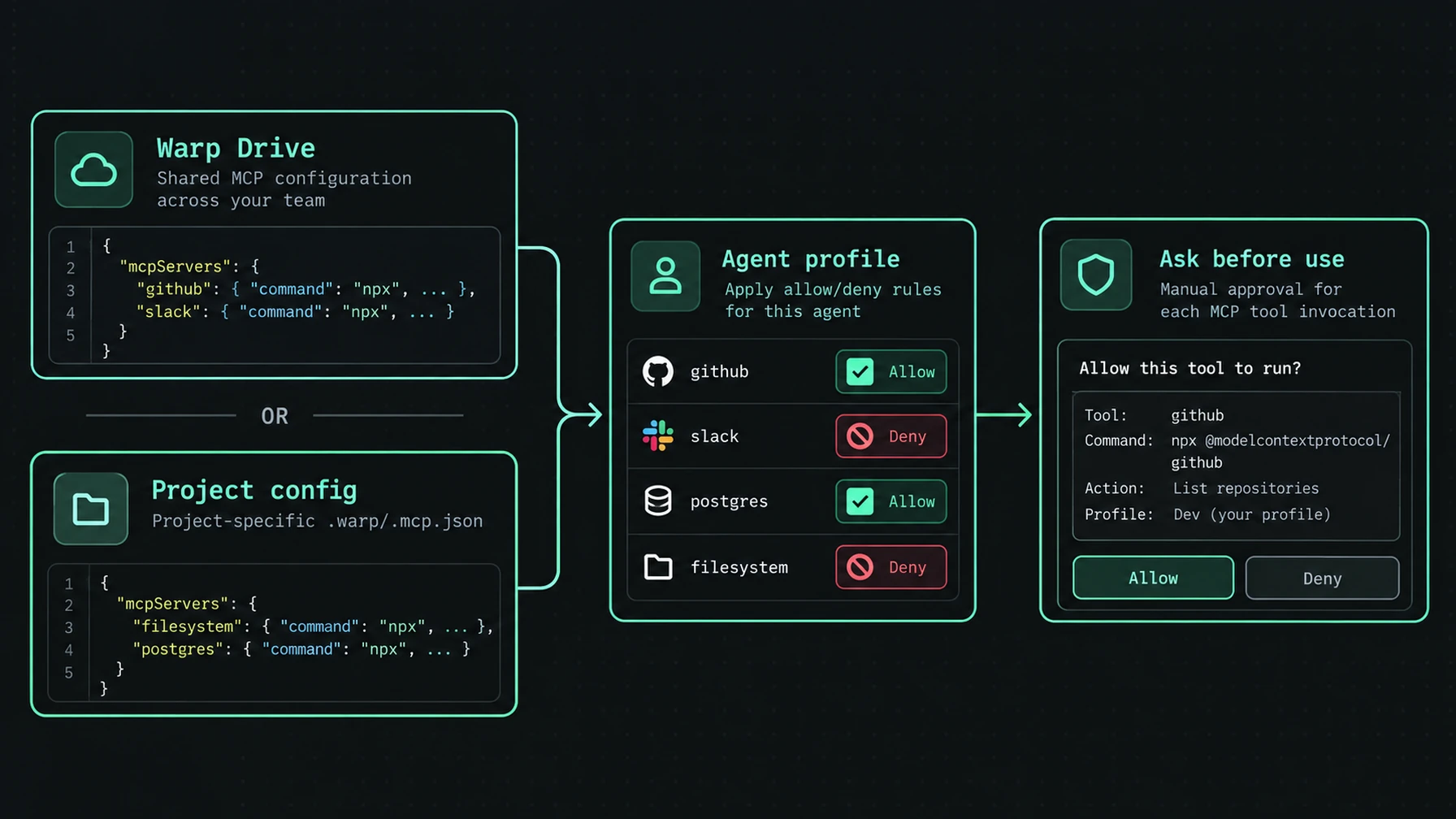
Project config does not necessarily mean automatic startup.
Limit access with an Agent Profile
Open Settings | Agents | Profiles and create a profile such as Web Research. In that profile’s MCP permissions, allow deepseek-search (or leave it at Agent Decides so Warp can ask when uncertain). Keep the server off the allowlist for your default coding profile if you do not want routine implementation tasks to search the web. Warp documents MCP allowlists, denylists, and Agent Decides in Profiles & Permissions.
On the MCP Servers page, start the project server and confirm that Warp shows its tools. Project-scoped servers are session-scoped: after restarting Warp, explicitly turn the server on again if you still trust the project. That extra start step is intentional; a repository should not be able to silently launch a local process just because it was cloned.
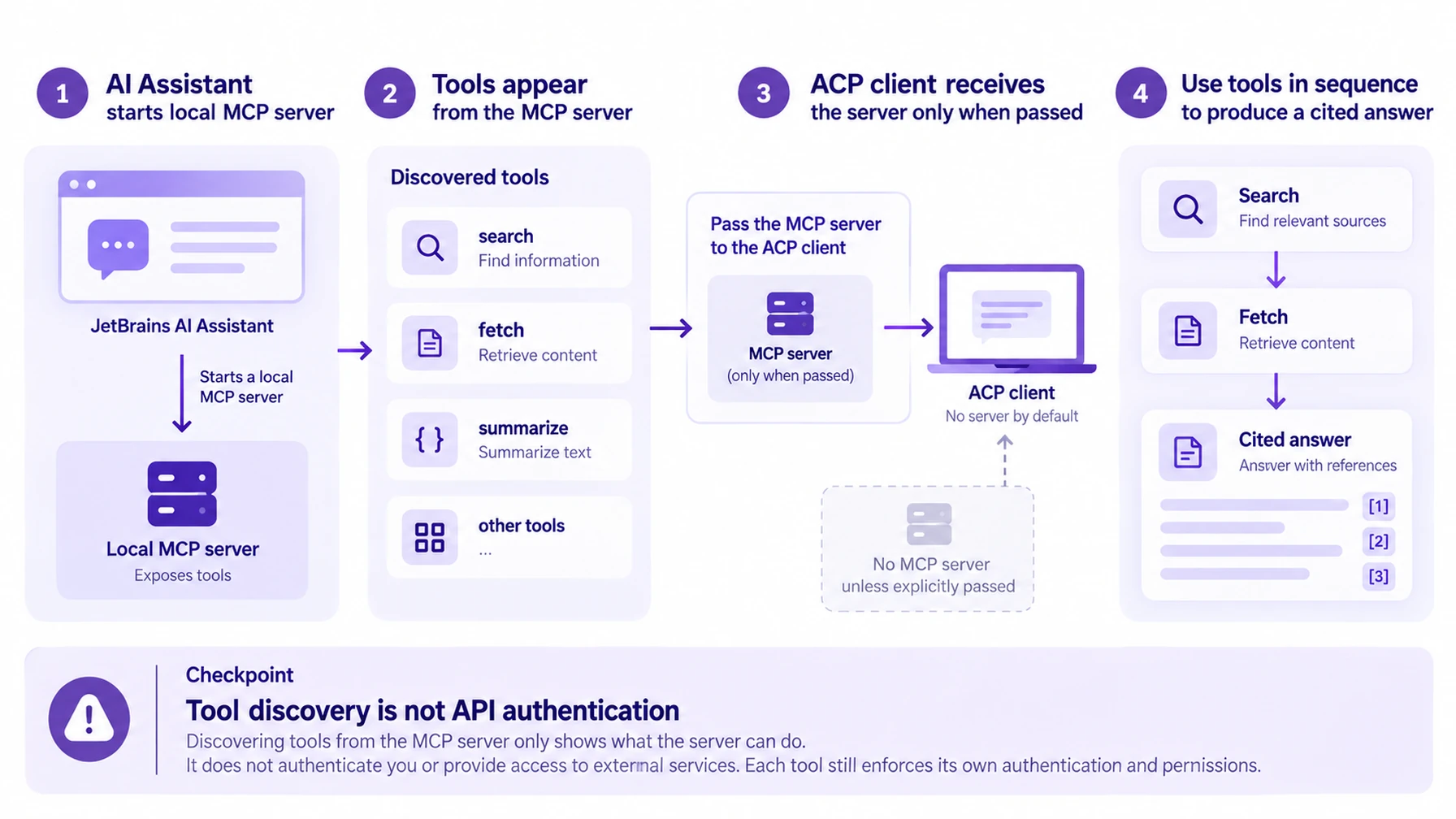
Connected, permitted, and authenticated are distinct states.
Verify the source path and choose a no-MCP option
In a Warp Agent conversation using the Web Research profile, ask for one current fact from an official technical page. Require the agent to search, fetch one selected URL, check the claim against fetched content, and cite that page. Review the MCP activity and confirm both tool calls occurred. If Warp reports the server connected but never calls it, inspect the selected profile’s MCP rule and the tool list.
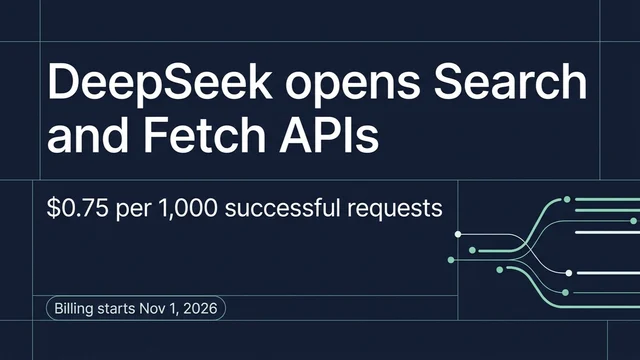
For one terminal-only lookup, run the shared Node helper from the Claude Code DeepSeek guide in Warp’s terminal. For programmatic Warp Agent runs, Warp’s oz agent run accepts an MCP configuration file with --mcp; see the Oz CLI MCP reference. Both options avoid changing the global MCP list. A direct API request is also possible, but it is a paid call; use DeepSeek’s Search & Fetch guide for current fields, billing, and limits.
If you use Warp’s built-in web search for broad discovery, compare it with DeepSeek Search on the same question before enabling both. Keep one as the default for routine requests and call the other when you need its specific result format or source trail. This avoids giving every task duplicate search tools and makes usage easier to understand.
The setup is complete when the intended profile can see both Search and Fetch, a project server starts only after you approve it, and the answer cites text supported by the fetched page. Keep the key local, and do not treat retrieved public pages as instructions to the agent.
Author: Victor Lane, GEO Audit Specialist with 300+ Readiness Reviews at Auspia. Victor writes practical diagnostic and verification guides.
Explore more DeepSeek Search setup guides
Browse the complete agent setup guide
Related platform guides: Connect DeepSeek Search to Roo Code with Project-Level MCP · Add DeepSeek Search to Windsurf Cascade.