Want your IDE agent to do the setup? Send this guide to JetBrains AI Assistant and ask it to prepare the MCP entry, explain each change, and leave the API key for you to enter locally. Never paste the key into the chat.
Use this guide to add DeepSeek Search to JetBrains AI Assistant in this IDE.
Inspect the current MCP settings first and preserve all existing servers. Prefer
project scope unless I ask for global access. Do not read, print, or save my
DeepSeek key in project files or chat. Prepare the local Node command using a
private env file, show me the exact settings entry, and wait for me to enter
the key. Verify that the server connects and both tools are listed. Do not
make a billable request until I approve it.
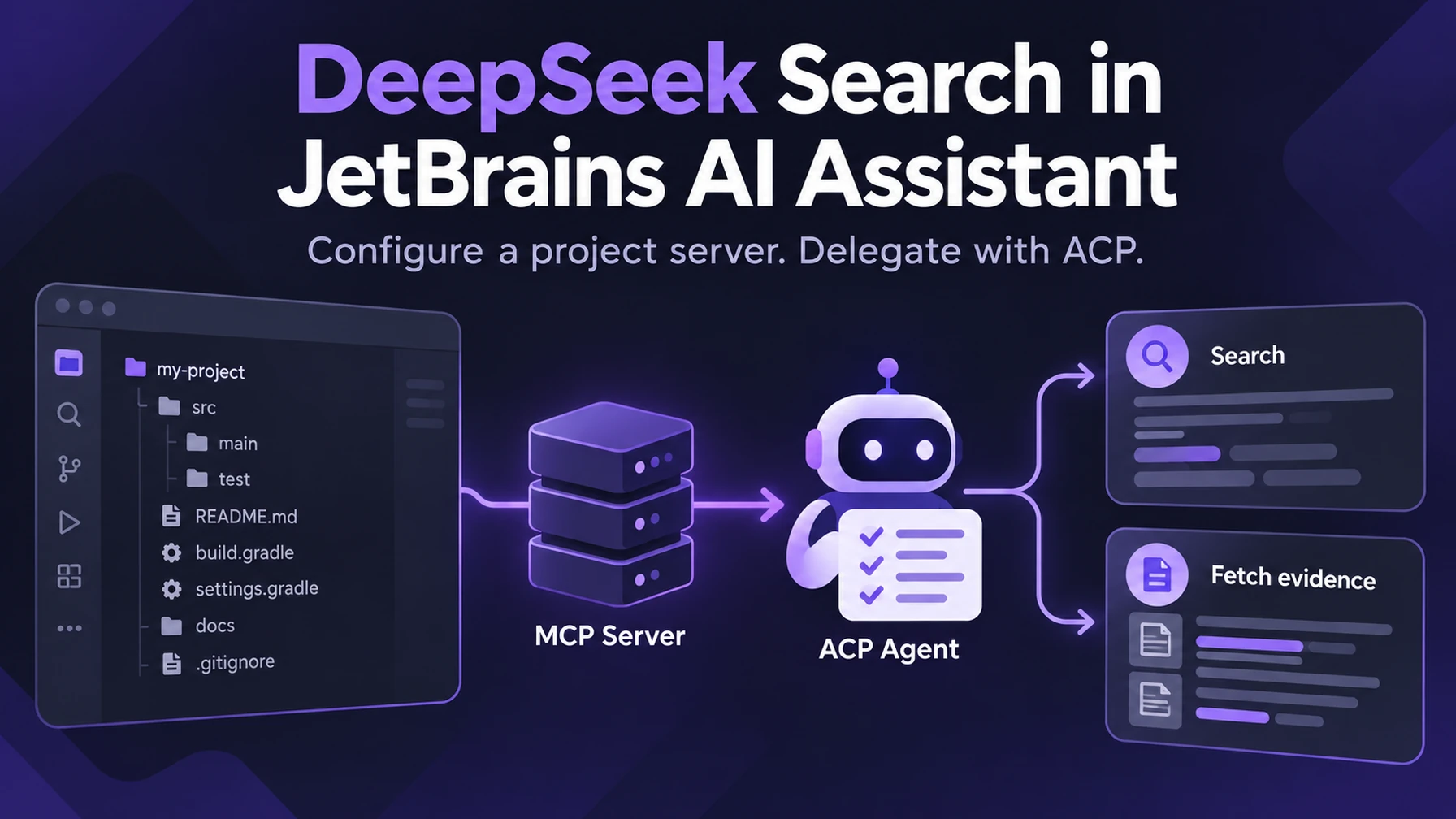
JetBrains AI Assistant puts MCP setup in the IDE settings rather than requiring a repository-specific convention. That is useful if you work across IntelliJ IDEA, PyCharm, WebStorm, or another JetBrains IDE and want to decide whether a search server belongs to one project or your whole account. This guide adds the existing DeepSeek Search bridge as a local process; it does not replace JetBrains’ built-in documentation or codebase context.
Add the local server in AI Assistant settings
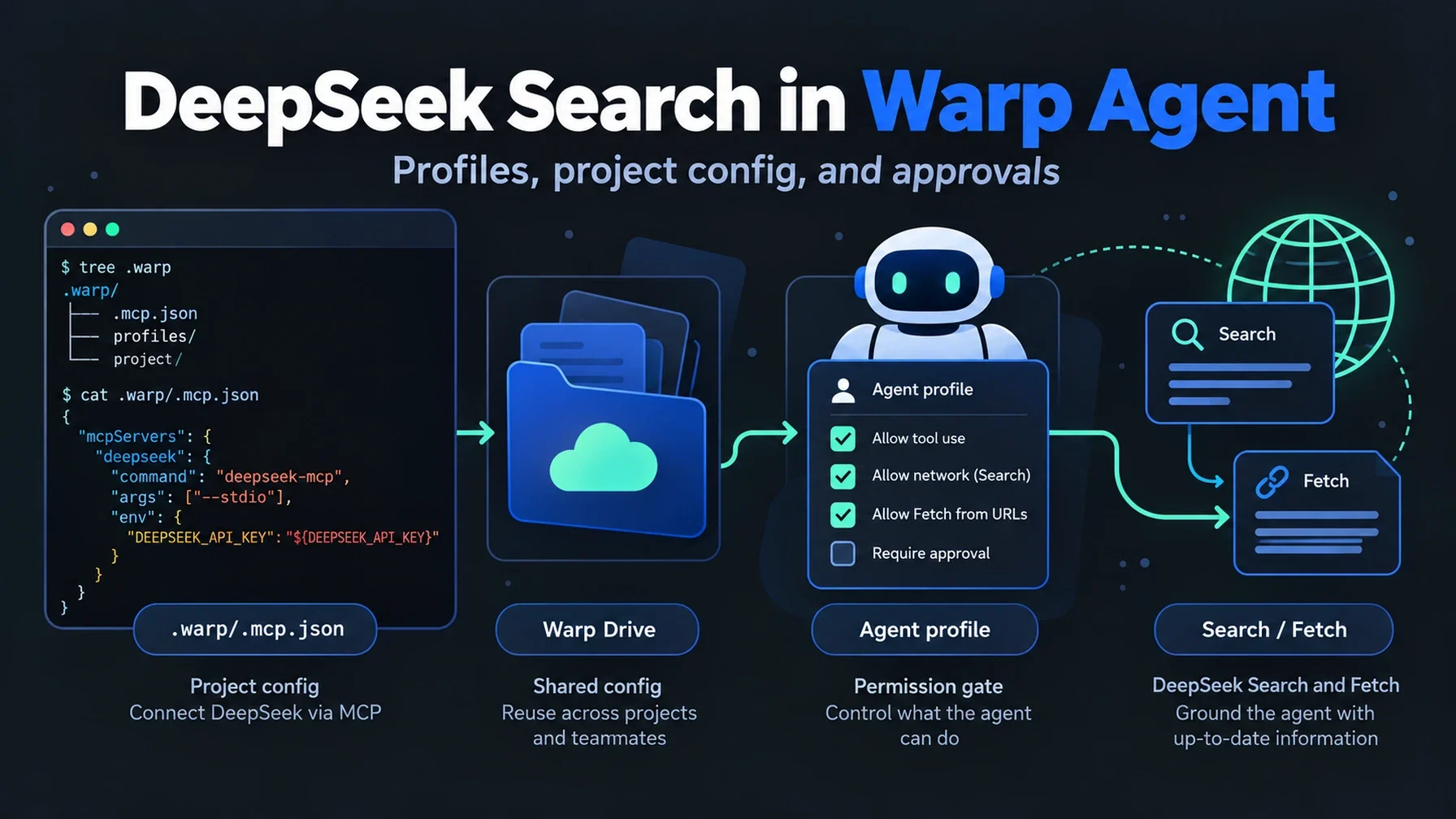
Open Settings | Tools | AI Assistant | Model Context Protocol (MCP). Select Add, choose the local STDIO transport, and enter a JSON configuration. JetBrains supports project-level and global server levels, so choose the current project for a first test. The exact dialog can differ slightly by IDE version. The official MCP setup guide documents the JSON shape, transport choices, scope selector, and Apply step.
Reuse the small Node adapter from the Claude Code DeepSeek guide. Store the key in a private file such as /Users/you/.config/deepseek-search/.env, outside the repository, then point Node at that file:
{
  "mcpServers": {
    "deepseek-search": {
      "command": "node",
      "args": [
        "--env-file=/Users/you/.config/deepseek-search/.env",
        "/Users/you/tools/deepseek-search/server.mjs"
      ]
    }
  }
}
Use absolute paths so the server starts consistently regardless of which project directory the IDE has open. This configuration contains the path to the secret file, not the secret. On a shared machine, use a private directory and limit file permissions. If your organization manages IDE Services centrally, an administrator may control whether you can add personal MCP servers.
Click OK, then Apply. If the new server does not start automatically, enable Automatically enable new and changed MCP servers in the same settings page, or select the server and use Reconnect. The status column should show a successful connection. Open the server’s tool list and confirm deepseek_search and deepseek_fetch are available.
Make sure the agent you use can see the server
AI Assistant can expose configured MCP tools to its integrated agents. If you are using an ACP agent such as Claude Agent, Codex, or GitHub Copilot from the JetBrains AI Chat panel, also open Settings | Tools | AI Assistant | Agents and enable Pass custom MCP servers for that agent. JetBrains documents this as a separate control in its agent settings. A server can be connected in the MCP page yet remain unavailable to an ACP agent when that pass-through option is off.
For a normal AI Assistant chat, ask a narrow question that needs current public evidence. For example: “Find the official documentation for the latest stable version of this project’s framework, fetch the documentation page, and cite the requirement you used.” Watch the tool activity: a passing result includes a Search call, a Fetch call, and a citation that matches the fetched page. Search summaries only help find candidate pages; use Fetch to check the claim itself.
ACP clients do not automatically inherit every IDE server.
Use a shell request when you only need one answer
For one lookup, skip persistent MCP setup and make a direct Search call in the IDE terminal. This is the shortest route, but it sends a billable request and does not make DeepSeek a reusable AI Assistant tool:
read -r -s DEEPSEEK_API_KEY
export DEEPSEEK_API_KEY
curl --fail-with-body --max-time 20 \
  https://api.deepseek.com/v1/tools/search \
  -H "Authorization: Bearer $DEEPSEEK_API_KEY" \
  -H "Content-Type: application/json" \
  -d '{"query":"site:youtrack.jetbrains.com/help AI Assistant MCP settings","count":3,"need_content":false}'
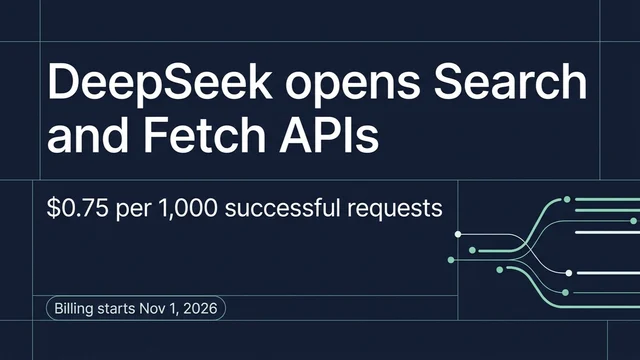
Send one returned URL to POST /v1/tools/fetch to inspect the page text. DeepSeek documents both request formats and current billing in its Search & Fetch API guide. Check that live page before estimating cost; pricing can change.
Diagnose the handoff, not just the connection
If the server status is disconnected, inspect the MCP log from Help | Show Log in Finder/Explorer, then check that the Node command and both absolute paths exist. If the AI Assistant sees the tools but an ACP agent does not, check Pass custom MCP servers and restart the agent. If Search works but answers lack evidence, require a fetched primary source and a URL citation in the prompt.
You are done when the selected JetBrains chat surface lists both DeepSeek tools, a current-information task invokes Search and Fetch, and the final answer cites the fetched page. Keep the key outside the repository and outside chat history.
Author: Alice Monroe, AI SEO Tools Analyst Covering 150+ Tools at Auspia. Alice writes about AI search products and practical software workflows.
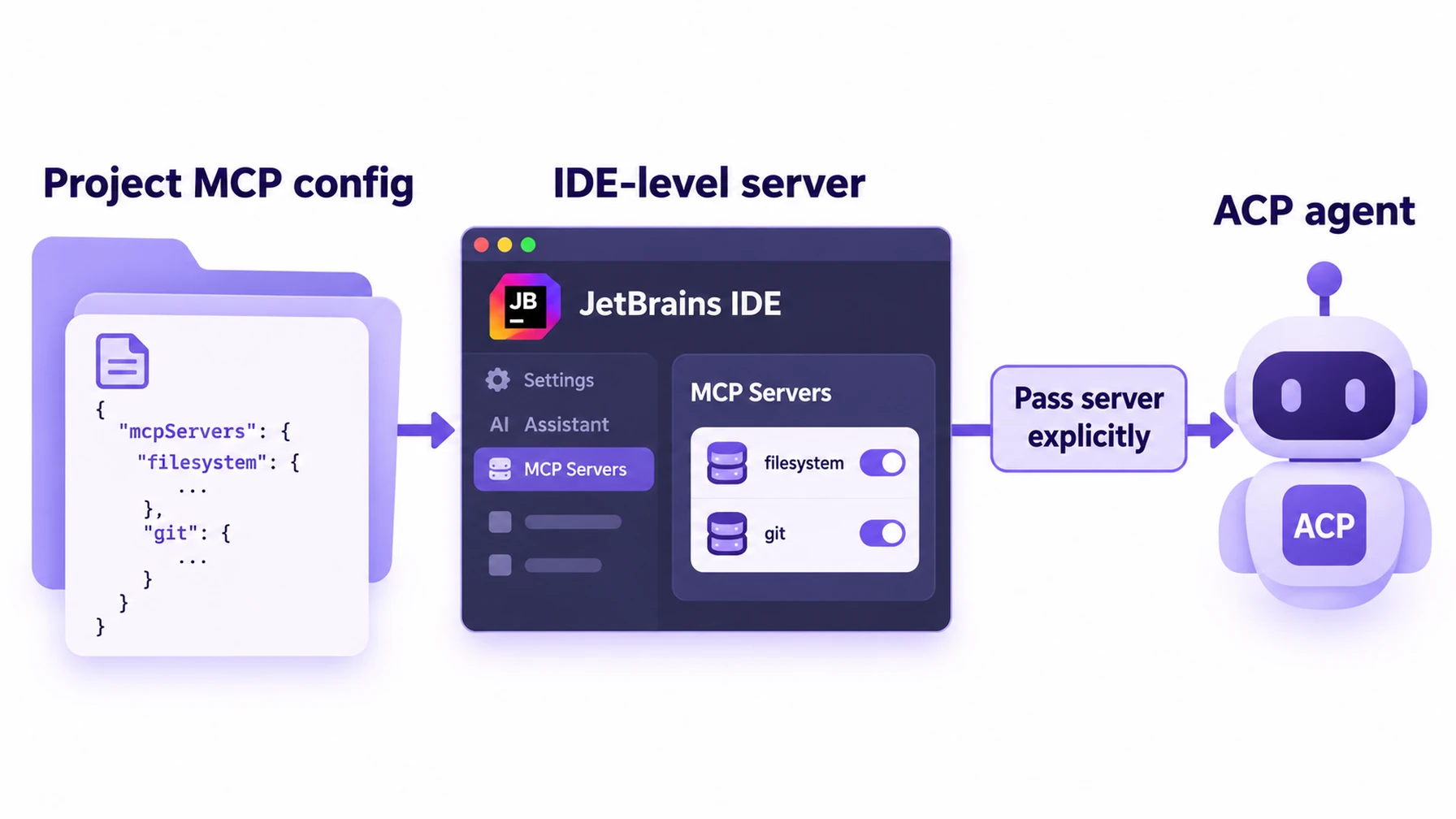
Tool discovery is separate from DeepSeek API authentication.
Explore more DeepSeek Search setup guides
Browse the complete agent setup guide
Related platform guides: Use DeepSeek Search from Hermes Agent · Set Up DeepSeek Search in Kilo Code.