Want Amazon Q to prepare the setup? Give Q this article and ask it to inspect the existing MCP configuration and draft the change. Enter your API key yourself in a private local file; do not paste it into a chat or commit it.
Use this guide to add DeepSeek Search to Amazon Q Developer in my IDE.
Check the current MCP servers first and preserve them. Ask whether I want
project or global scope if it is unclear. Put the key in a private env file
and reference that file from the local Node command; never print or commit
the key. Keep the new tools at Ask to run until I change their permissions.
Show me how to confirm the server and tools are available. Do not make a
billable search request without asking me first.
Amazon Q Developer has a built-in MCP management flow in its IDE integrations. For a first setup, use that interface rather than copying a CLI configuration from another Q surface: the IDE flow lets you choose whether the server applies to your user or the current workspace, then review permissions for each tool. This tutorial connects a local DeepSeek Search bridge; it does not change Q's model or built-in AWS capabilities.
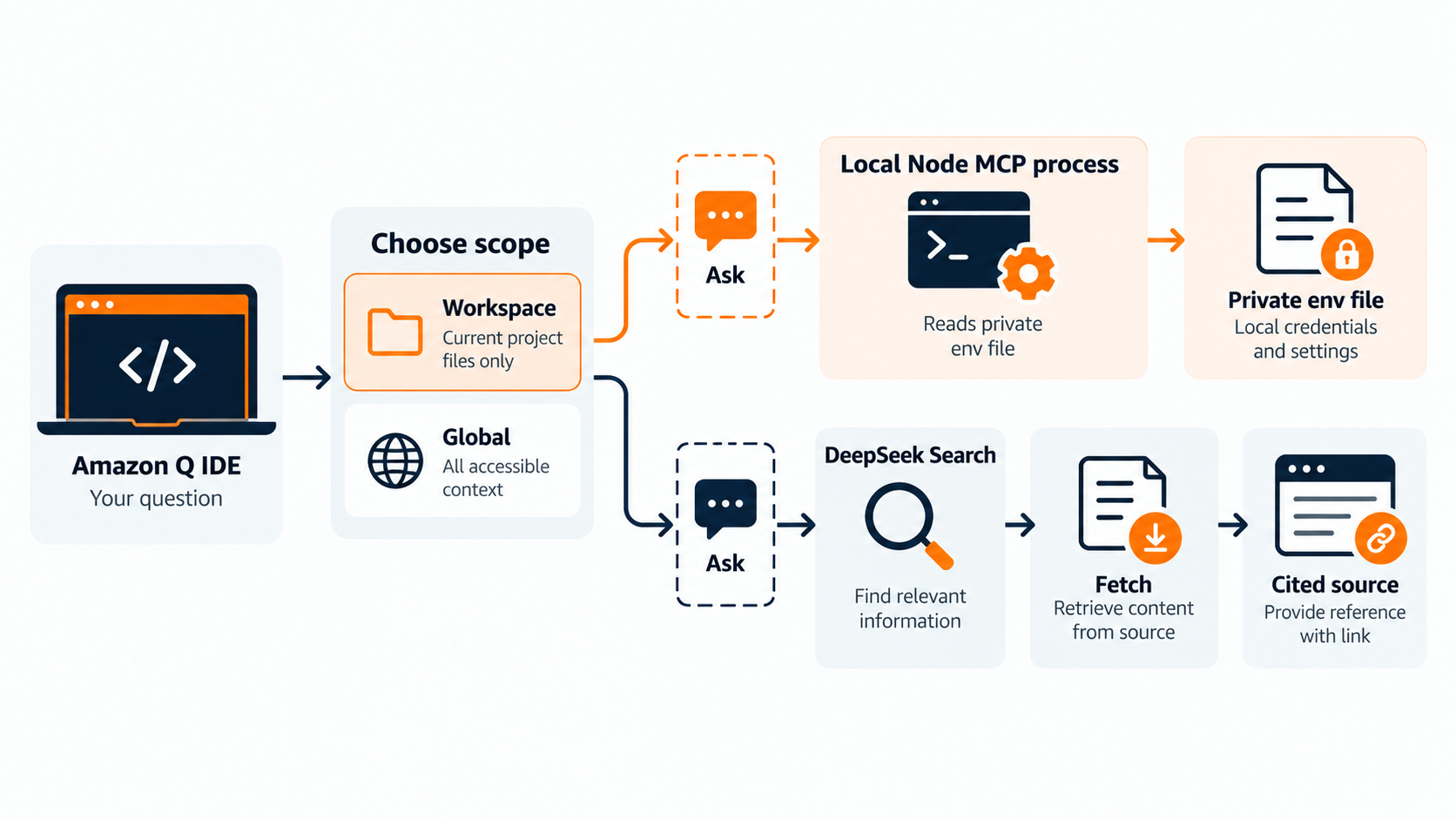
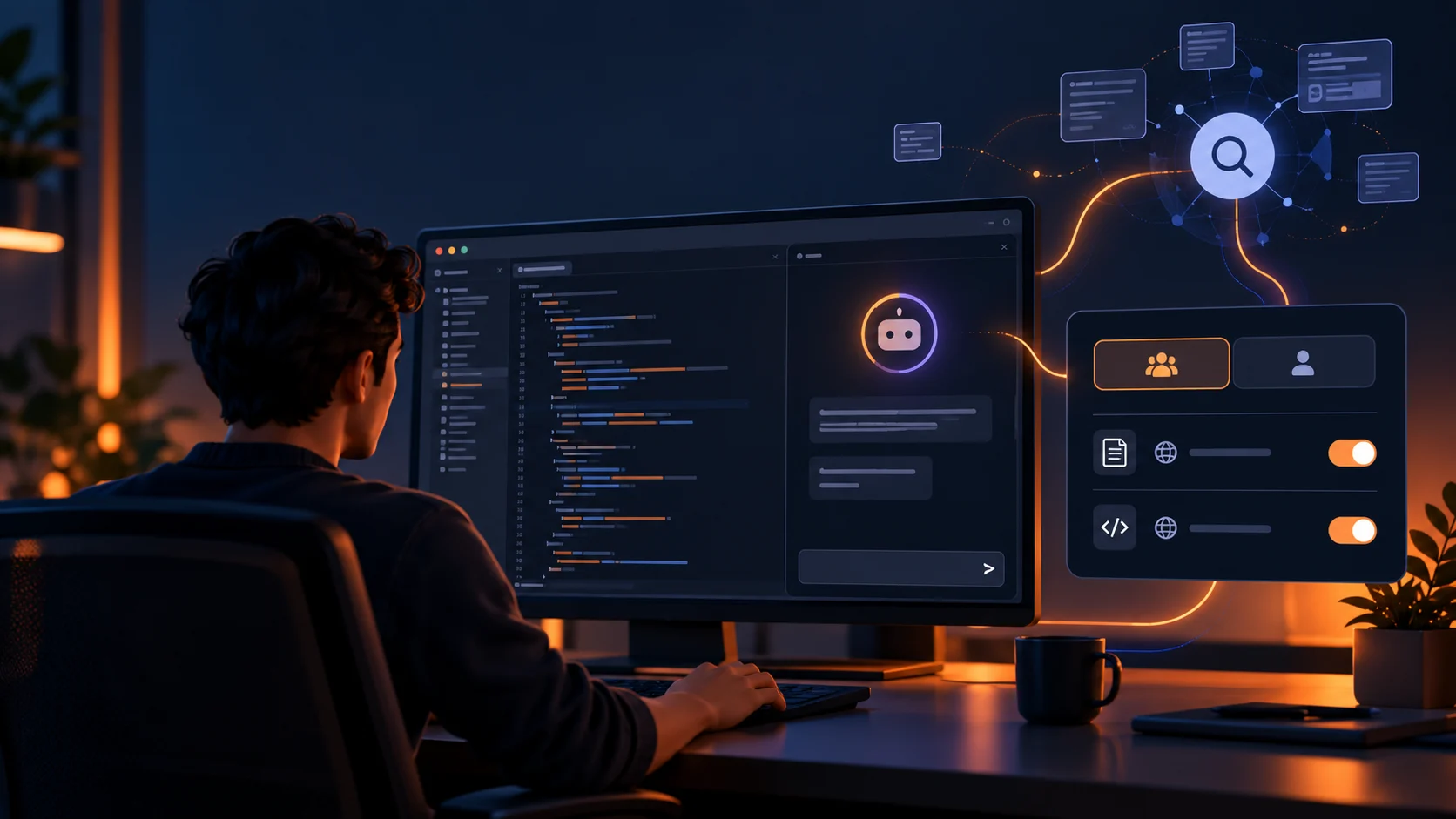
How Amazon Q connects a scoped MCP server to DeepSeek Search and Fetch.
Add a local MCP server in the IDE
Open the Amazon Q chat panel, use its MCP server control, and choose Add MCP server. Select a local/STDIO server and choose a scope. Use workspace scope when only this repository needs web research. Use global scope when you want the same tools in your IDE projects. AWS documents the IDE locations as ~/.aws/amazonq/default.json for global configuration and .amazonq/default.json for workspace configuration; the IDE wizard is the safer way to create the correct file and preserve its existing entries. See AWS's IDE MCP setup guide.
Use the Node adapter from the Claude Code walkthrough, or install the same server.mjs and its dependencies locally. Configure the command as node, with arguments like these (replace both paths):
{
  "command": "node",
  "args": [
    "--env-file=/Users/you/.config/deepseek-search/.env",
    "/Users/you/tools/deepseek-search/server.mjs"
  ]
}
If the dialog presents a full JSON editor, put that process entry under the MCP server name in the format it generates. Keep the .env outside the repository and set DEEPSEEK_API_KEY in it locally. The command points to the file, while the key itself stays off screen and out of Q's prompt context. Node's --env-file requires a supported Node release; if your installation is older, update Node or use a private wrapper script that loads the environment.
Set permissions for Search and Fetch
After saving, enable or reconnect the server. Amazon Q's MCP tool permission panel lets you choose Ask to run, Always run, or Deny per tool. Leave both deepseek_search and deepseek_fetch at Ask to run for the first session. Search sends a query to DeepSeek; Fetch sends a selected URL for page extraction. Review the tool request and returned page before deciding whether either should run automatically. AWS describes these controls in its MCP usage documentation.
Confirm the server shows as connected and both tools appear in the available tool list. Then ask Q to find the official documentation for one current dependency question, fetch the most relevant official result, and answer with the source URL. Check the activity log for one Search call followed by Fetch. A green connection indicator only confirms process startup; the cited page must support the answer.
One-off search without registering MCP
For a single lookup, run the Search endpoint from a terminal instead. This bypasses Q's persistent tool interface, so you must review the response yourself, and a successful API request is billable:
read -r -s DEEPSEEK_API_KEY
export DEEPSEEK_API_KEY
curl --fail-with-body --max-time 20 \
  https://api.deepseek.com/v1/tools/search \
  -H "Authorization: Bearer $DEEPSEEK_API_KEY" \
  -H "Content-Type: application/json" \
  -d '{"query":"site:docs.aws.amazon.com/amazonq MCP server permissions","count":3,"need_content":false}'
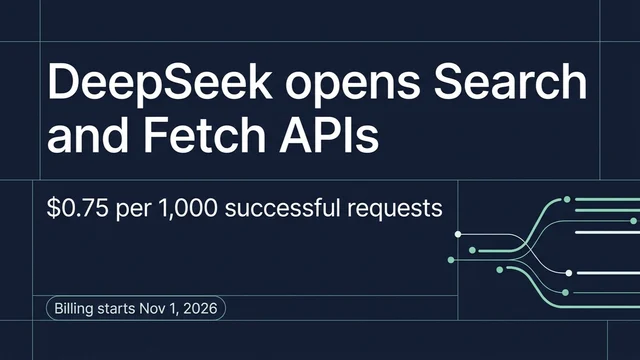
Use a returned URL with POST /v1/tools/fetch to inspect page text. DeepSeek's Search & Fetch guide is the source of truth for request fields and current pricing; confirm those details before running paid requests.
Troubleshoot scope and startup
If Q cannot see the server, first check the scope you chose. A workspace server should be in that repository's .amazonq configuration; a global server belongs in the user-level Amazon Q configuration. Then verify that node and both absolute paths work from a terminal. If Q sees the server but not a tool, reopen the server's tool list and check that the tool is enabled rather than denied. When changing a permission, make the choice for the specific tool instead of allowing every MCP tool by default.
Setup is complete when Amazon Q reports the server connected, lists both DeepSeek tools, and can answer a test question using a fetched official page with a matching citation. Keep the key local, and treat retrieved page content as evidence to assess rather than instructions for the agent.
Explore more DeepSeek Search setup guides
Browse the complete agent setup guide
Related platform guides: Codex · Use DeepSeek Search in Cline: Extension and CLI Setup.
Author: Camille Rhodes, Architect of 300+ AI Content Workflows at Auspia. Camille focuses on AI-assisted workflows, automation, publishing systems, and editorial quality control.