Prefer to delegate the setup? Give this guide to Goose and ask it to check your existing extension list, prepare the adapter entry, and leave the key for you to add in the local secret field. Do not paste the key into the conversation.
Use this guide to add DeepSeek Search to Goose. Inspect my existing extension
configuration first and preserve it. Add the local adapter as a stdio MCP
extension, read the API key from a private env file or Goose's extension
secrets, and keep it disabled by default until I choose a session. Do not
print the secret or make any billable request without my approval. Show me how
to verify Search and Fetch.
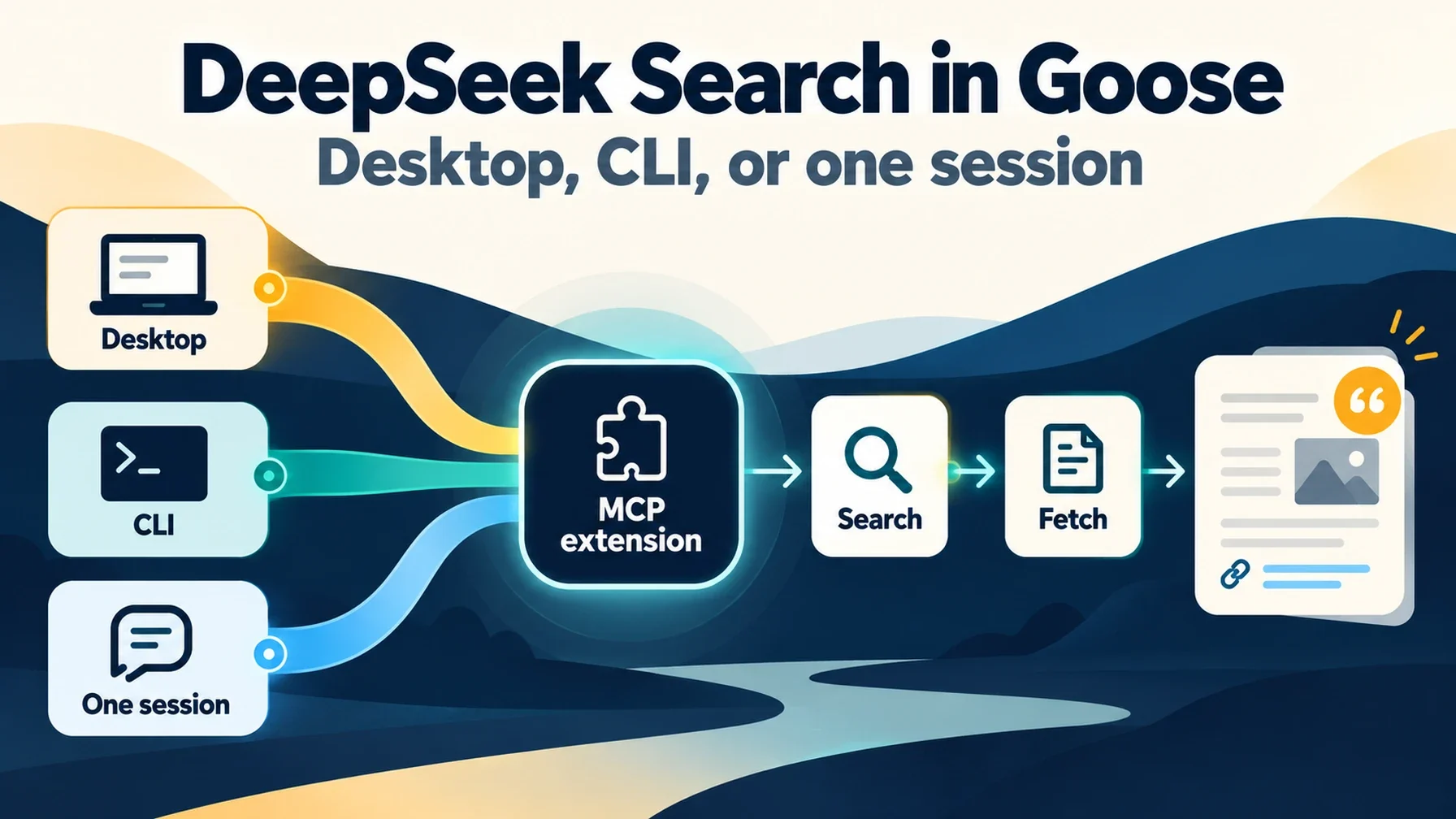
Goose treats an MCP server as an extension, and that changes the setup decision: you can install it persistently in the extension list, enable it only in selected sessions, or attach it to a single CLI run. The last option is handy for occasional research because it does not require changing your default extension set. Goose supports both a Desktop extension manager and goose configure in the CLI. Goose extension documentation
Install the adapter once
DeepSeek Search is an HTTP API. To make it available as two callable Goose tools, use the local MCP adapter and terminal helper described in the Claude Code DeepSeek Search guide. Install its pinned dependencies in a private directory with Node.js 22 or newer. Create a private env file with DEEPSEEK_API_KEY=...; do not save the key in the Goose YAML file or a shared project.
For a durable installation, Goose's ~/.config/goose/config.yaml supports an extensions map. Merge this entry into the existing file and substitute your absolute paths:
extensions:
  deepseek-search:
    name: DeepSeek Search
    cmd: node
    args:
      - --env-file=/Users/you/.config/deepseek-search/.env
      - /Users/you/.local/share/deepseek-search/server.mjs
    enabled: false
    type: stdio
    timeout: 60
The enabled: false setting prevents the extension from joining every new session by default. It is an MCP server, so Goose's extension configuration does not need an API-specific plugin. The docs describe cmd, args, type, enabled, and timeout fields for standard input/output extensions. Goose extension config
Choose the surface where you want it
In Goose Desktop, open Extensions, choose Add custom extension, and enter the adapter command and arguments as a Standard IO extension. Add the environment variable only if you choose to inject the key through the extension form; otherwise keep the env-file path in the command arguments. Set a reasonable timeout and save. The Extensions panel lets you toggle the extension for the app.
In Goose CLI, run goose configure, choose Add Extension, then Command-Line Extension. Give it an ID such as deepseek-search, use node as the command, and add each argument separately. If you leave this extension disabled in the default list, enable it with the Toggle Extensions flow when you want it across future sessions. Goose CLI extension setup
For a single session, avoid installing a persistent default. The current CLI supports starting a session with a local extension command:
goose session --with-extension "deepseek-search: node --env-file=/Users/you/.config/deepseek-search/.env /Users/you/.local/share/deepseek-search/server.mjs"Goose's CLI reference documents --with-extension for standard-input/output extensions and also has a --with-streamable-http-extension option for remote MCP endpoints. This adapter is a local stdio process, so use --with-extension. Goose CLI commands
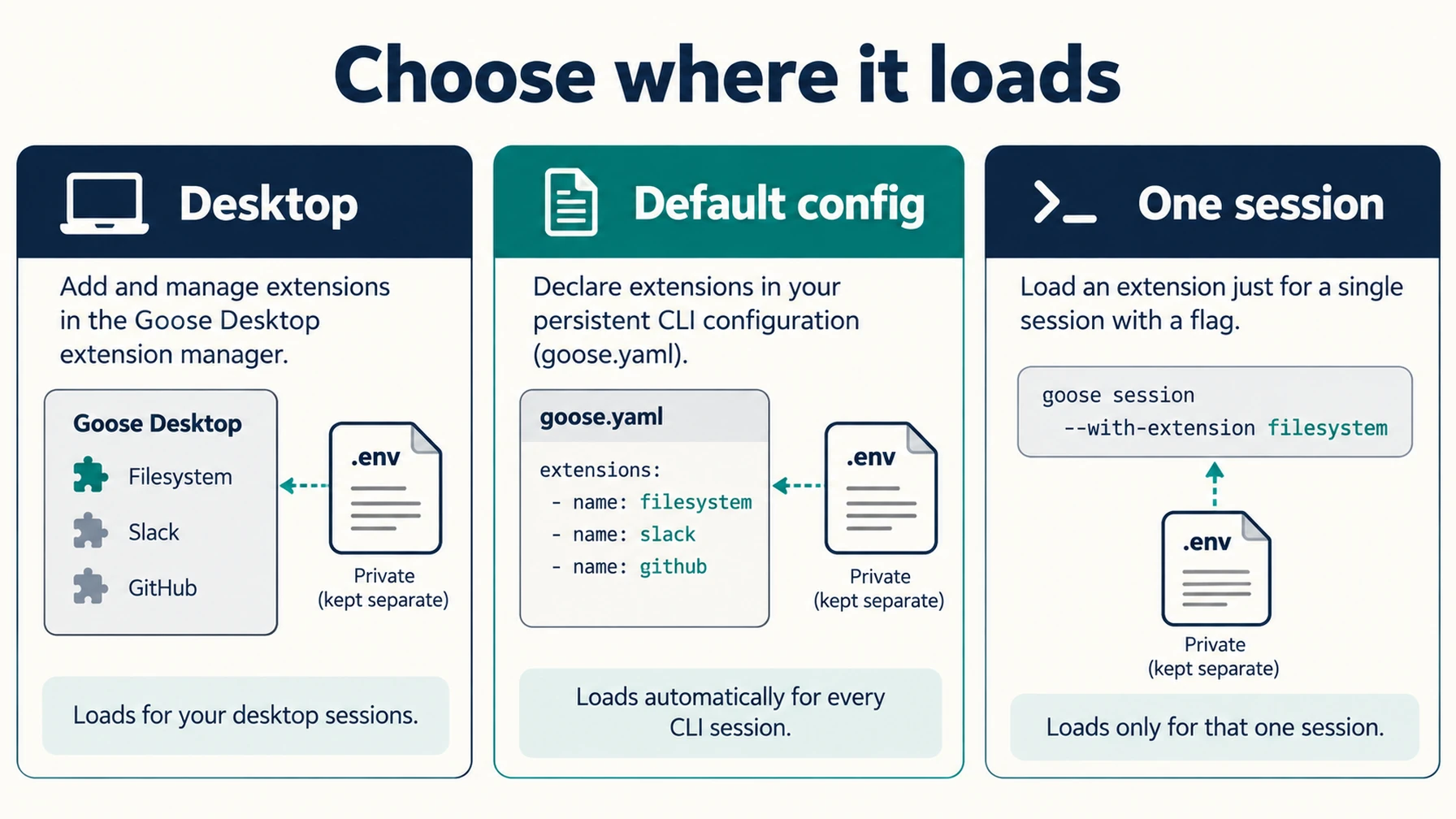
Choose whether DeepSeek Search should load by default or only for selected sessions.
Check discovery before using a paid call
Start a fresh Goose session with the extension enabled and ask it to list the available DeepSeek tools. The adapter should expose deepseek_search and deepseek_fetch. Then request one narrowly scoped search for an official document, ask Goose to fetch one result, and require the final answer to cite the fetched URL.
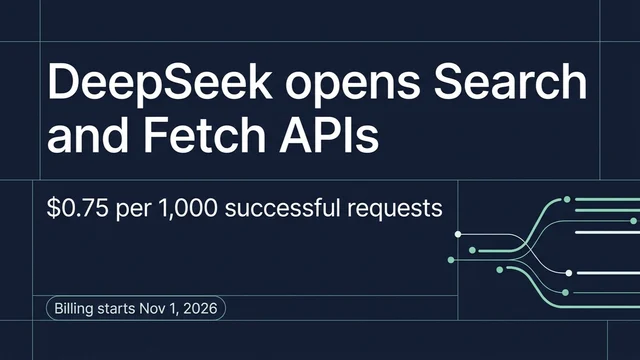
Goose can change extension availability during a session, but its docs distinguish session-only changes from defaults for future sessions. Verify the extension toggle in the current session rather than assuming that a successful config edit changed an already-open chat. A successful extension launch only proves that Goose can start the adapter and discover tools; it does not authenticate against DeepSeek. A live call needs your key and may incur charges under DeepSeek's current Search & Fetch API pricing.
An extension connection check does not authenticate a live DeepSeek API request.
Use the CLI helper when Goose does not need a tool
For manual research, call the shared search-cli.mjs utility from the Claude Code tutorial:
node --env-file=/Users/you/.config/deepseek-search/.env \
  /Users/you/.local/share/deepseek-search/search-cli.mjs \
  search "Goose custom MCP extension configuration" 3
Fetch the chosen URL with the helper's fetch command. This route is useful when you want to inspect results yourself or avoid enabling another Goose extension. Goose cannot call that shell command as a named tool unless you deliberately build a command extension around it; the MCP adapter is the direct route for agent-initiated search.
If the extension fails to start, check that the command and paths work in a terminal and that the Goose process can read the env file. If the tools do not appear, confirm the extension is enabled in the current session and that the server ID and command were saved correctly. If the API rejects the call, fix the key locally, then restart the extension. Do not share the env file or copy request headers into Goose.
The setup is finished when Goose can discover both tools on the surface you chose and complete one reviewed Search → Fetch check with a source URL. Keep only the extension access you need: Goose's developer tools can make file and command changes, so use its permission controls when combining web research with code execution.
Author: Camille Rhodes, Architect of 300+ AI Content Workflows at Auspia. Camille writes about practical AI-assisted workflows, automation, and reliable publishing systems.
Explore more DeepSeek Search setup guides
Browse the complete agent setup guide
Related platform guides: Connect DeepSeek Search to Google Antigravity · Use DeepSeek Search from Hermes Agent.