Would you rather let Cline prepare the setup? Share this guide with Cline and ask it to inspect the existing MCP configuration, draft the adapter entry, and explain where you should enter the key locally. Do not send the key in chat.
Follow this guide to set up DeepSeek Search in my Cline surface. First ask
whether I mean the editor extension or Cline CLI, then inspect that surface's
current MCP settings and merge rather than overwrite. Use the local Node
adapter and load the API key from a private env file. Never read, print, or
commit the key. Leave auto-approval empty so I can review tool calls. Show me
how to verify Search and Fetch, and ask before making any paid request.
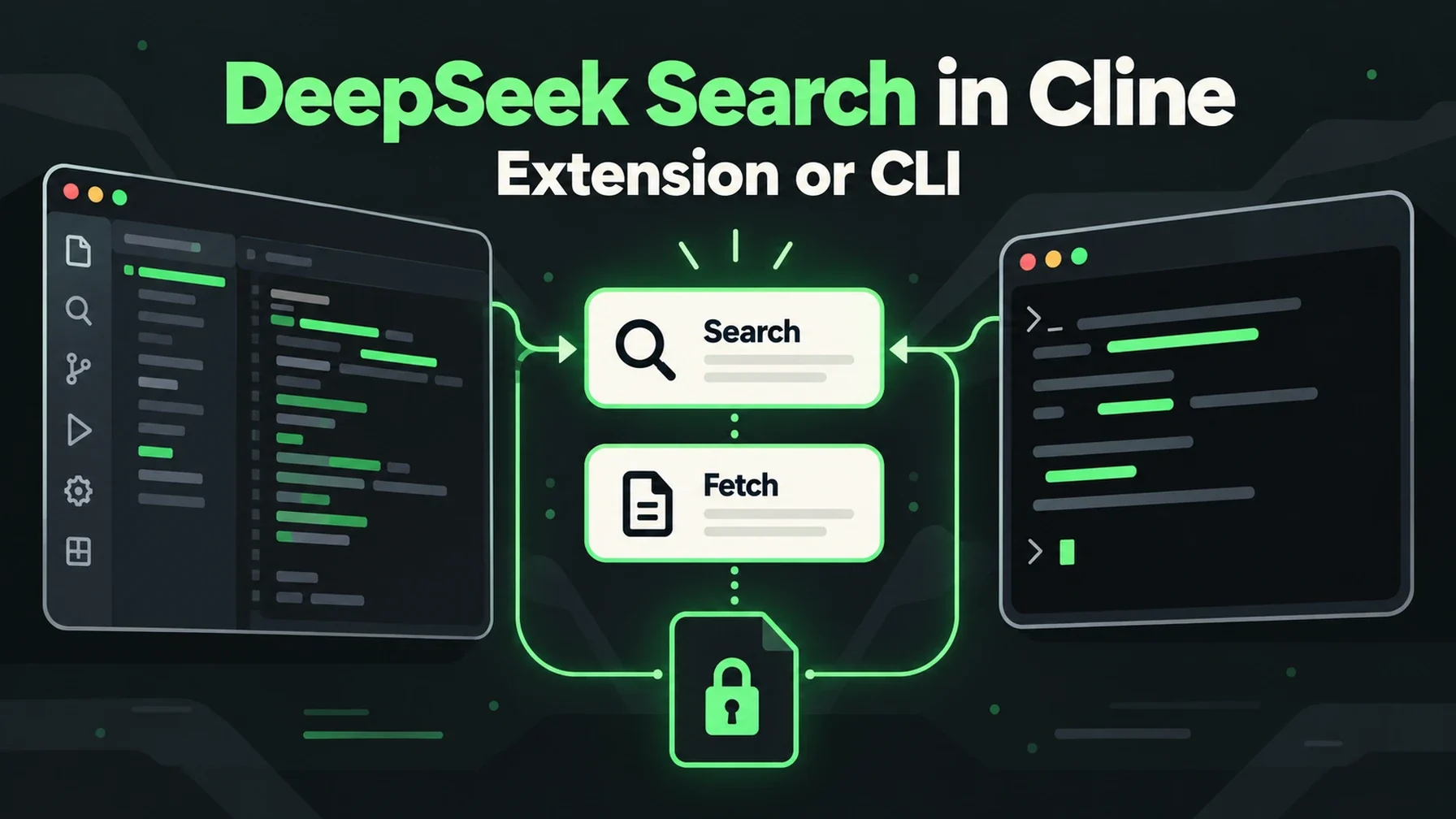
Cline’s key setup detail is that it has more than one surface. In the editor extension, you add a server from the MCP Servers panel. In Cline CLI, you can use the interactive cline mcp manager or the cline mcp install wizard. Decide which one you are configuring before you edit a file; the extension and CLI may use different settings locations. Cline’s current MCP overview describes both interfaces and the server format.
Editor extension: configure MCP from the panel
Open the Cline panel, select the MCP Servers icon, choose Configure, then Configure MCP Servers. This opens the JSON settings used by that extension. Preserve any existing entries and add the DeepSeek server beneath mcpServers:
{
  "mcpServers": {
    "deepseek-search": {
      "command": "node",
      "args": [
        "--env-file=/Users/you/.config/deepseek-search/.env",
        "/Users/you/tools/deepseek-search/server.mjs"
      ],
      "disabled": false,
      "autoApprove": []
    }
  }
}
Create the .env file outside the repository and restrict its permissions. It should contain DEEPSEEK_API_KEY=...; the configuration above names its path without storing the key itself. Leave autoApprove empty for this read-only search connection so Cline still asks before using it. If your installed Cline version exposes the Remote Servers form, that is for hosted endpoints; the adapter in this article is local STDIO.
Save the config, then return to the MCP panel. Enable or restart deepseek-search if needed. The server row should become active and show deepseek_search plus deepseek_fetch in its tool list. Cline’s MCP docs also explain where the panel exposes its config and how to manage server status.
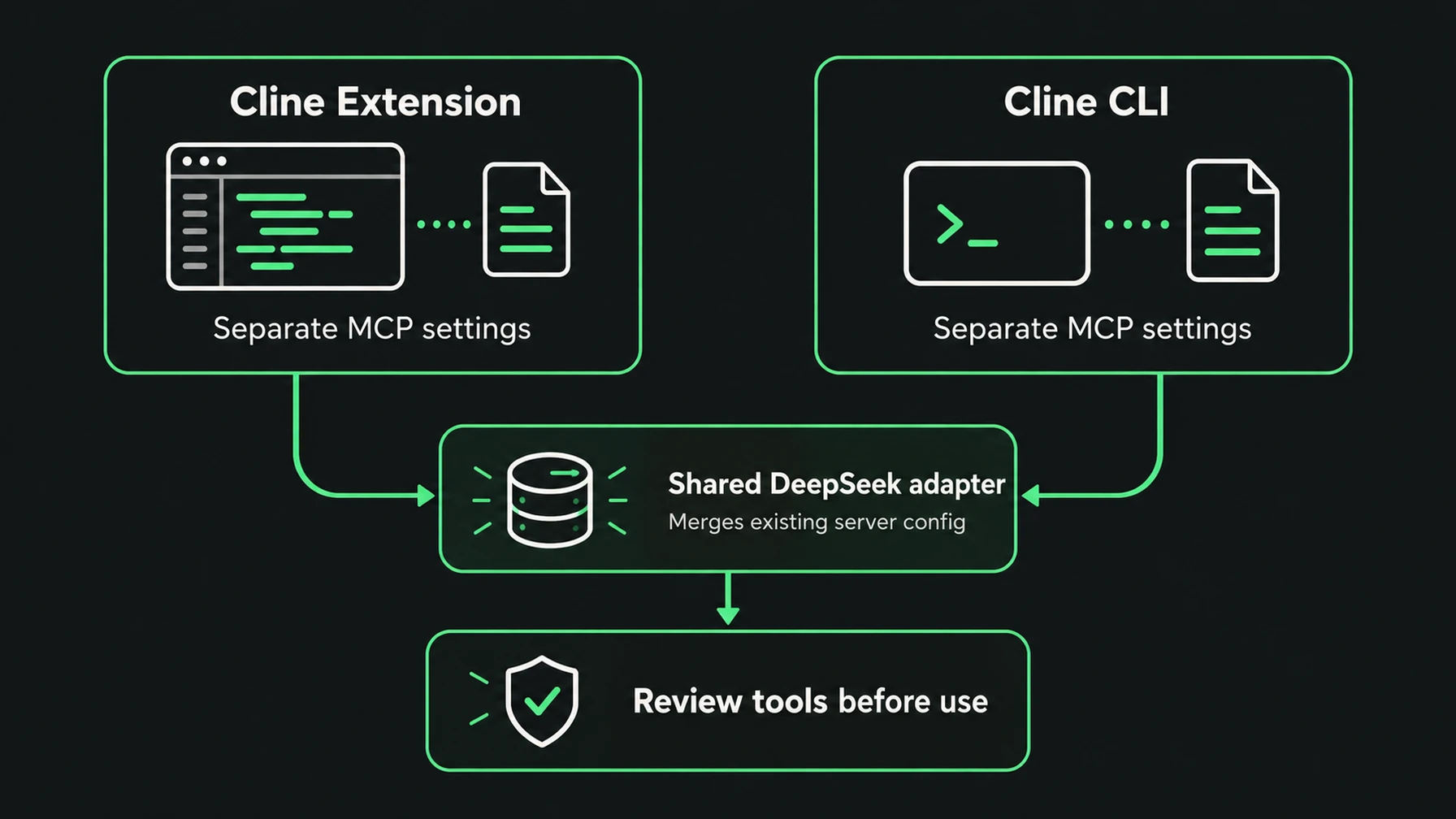
Pick the settings surface that matches the Cline client you actually run.
Cline CLI: use the MCP manager
If you work in the terminal, first check cline --version. The CLI’s interactive manager is cline mcp; for a quick local server registration, use the add wizard from your project directory:
cline mcp install deepseek-search -- \
  node --env-file=/Users/you/.config/deepseek-search/.env \
  /Users/you/tools/deepseek-search/server.mjs
The -- separates Cline’s server arguments from the command that launches the MCP process. The wizard asks for the server name and command details, then saves the configuration. Run cline mcp again to inspect the server and its enabled state. The current Cline CLI reference documents the interactive manager and cline mcp install command; the CLI configuration guide lists ~/.cline/data/settings/cline_mcp_settings.json as its settings location. Verify the path for your installed release instead of assuming the editor extension uses that same file.
Test evidence and permissions in one small task
Ask Cline to research one current question about a dependency in your project. Tell it to search for the official documentation, fetch one result, quote or paraphrase only what the fetched text supports, and include the URL. In the tool activity, confirm one deepseek_search call followed by one deepseek_fetch call. A connected server proves that the process started; it does not prove that the result supports the answer.
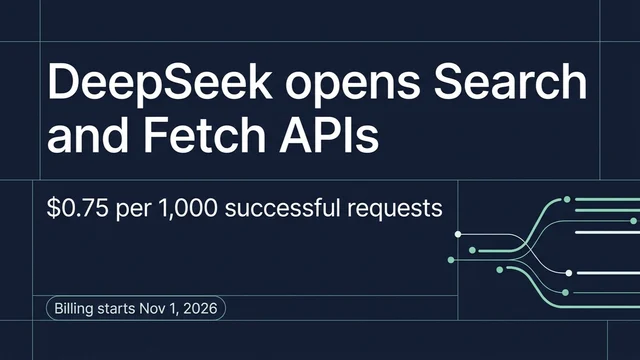
For a quick check without registering MCP, run the shared search-cli.mjs utility described in the Claude Code walkthrough from a terminal Cline can access. Search once, fetch the selected URL, and review the output yourself. A direct curl call to https://api.deepseek.com/v1/tools/search is another one-off route, but it bills a successful request and leaves no persistent Cline tool. Use DeepSeek’s Search & Fetch API docs for the current endpoint fields and pricing.
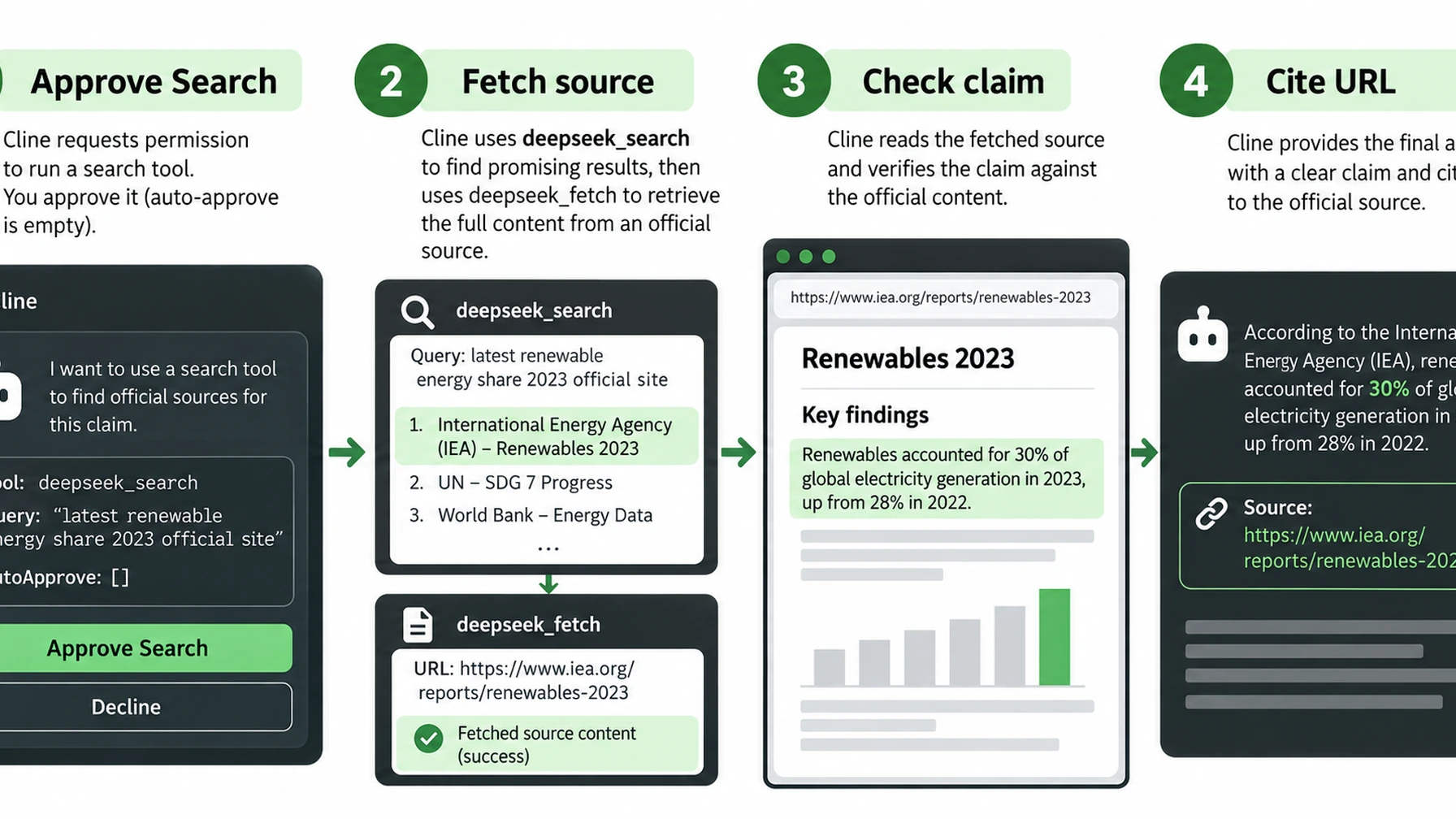
Keep automatic approval off until the tool behavior is understood.
When a server is missing or fails
If the Cline panel shows no server, check that you edited the extension config opened from that panel, not a similarly named file from another Cline surface. For CLI, run cline mcp and inspect its configured server list. If it is disconnected, verify Node is available to the process, the env-file path exists, and the adapter can start from the terminal. For authentication errors, check the local key and account status without printing the key or sharing logs that contain headers.
A safe setup has the server enabled only where you need it, autoApprove empty until you intentionally change it, both tools visible, and a test answer grounded in fetched source text. Treat public pages returned by Search and Fetch as untrusted content, not as instructions to Cline.
Author: Jasper Quinn, AI Search Product Researcher Tracking 60+ Feature Changes at Auspia. Jasper writes about changing AI search products and their practical behavior.
Explore more DeepSeek Search setup guides
Browse the complete agent setup guide
Related platform guides: Add DeepSeek Search to Amazon Q Developer · Connect DeepSeek Search to Continue.