The better setup: ask OpenClaw to create a dedicated SEO agent
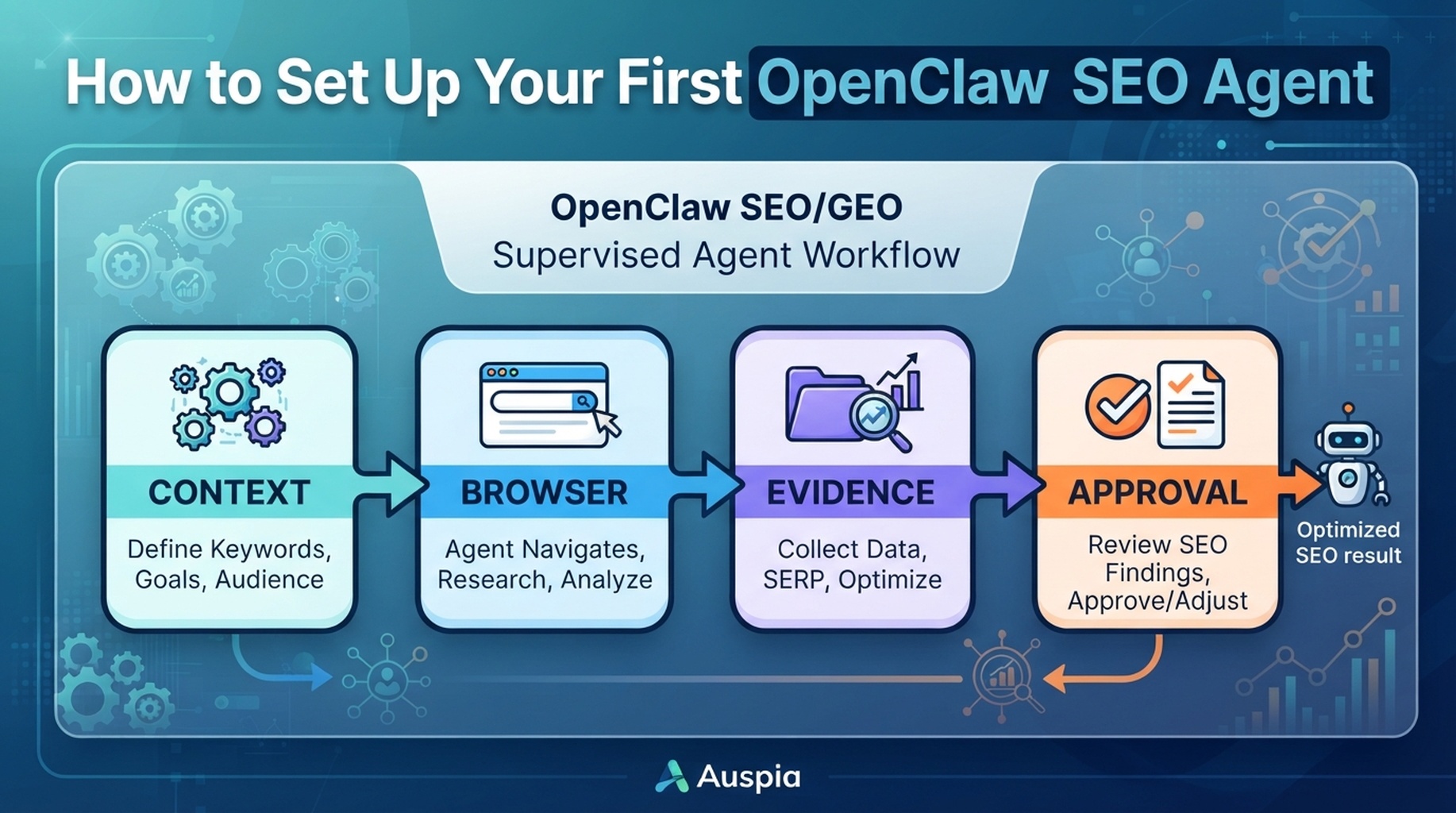
The right way to set up OpenClaw for SEO is not to keep pasting SEO prompts into your main assistant. Use OpenClaw's own multi-agent model: create a separate SEO agent, give it its own workspace, define its role and safety rules, install the skills it needs, then schedule recurring jobs for monitoring.
By the end of this guide, you should have one dedicated agent, for example seo-operator, that can:
- work from a clean SEO workspace instead of your general chat history
- read site context, target URLs, exports, and evidence logs
- use public OpenClaw skills or MCP connectors for GSC, Bing Webmaster Tools, GA4, keyword data, browser checks, crawling, and reporting
- create missing helper skills only after you approve the scope
- run weekly SEO/GEO monitoring through OpenClaw scheduled tasks
- stop before publishing, editing production files, submitting forms, or changing account settings
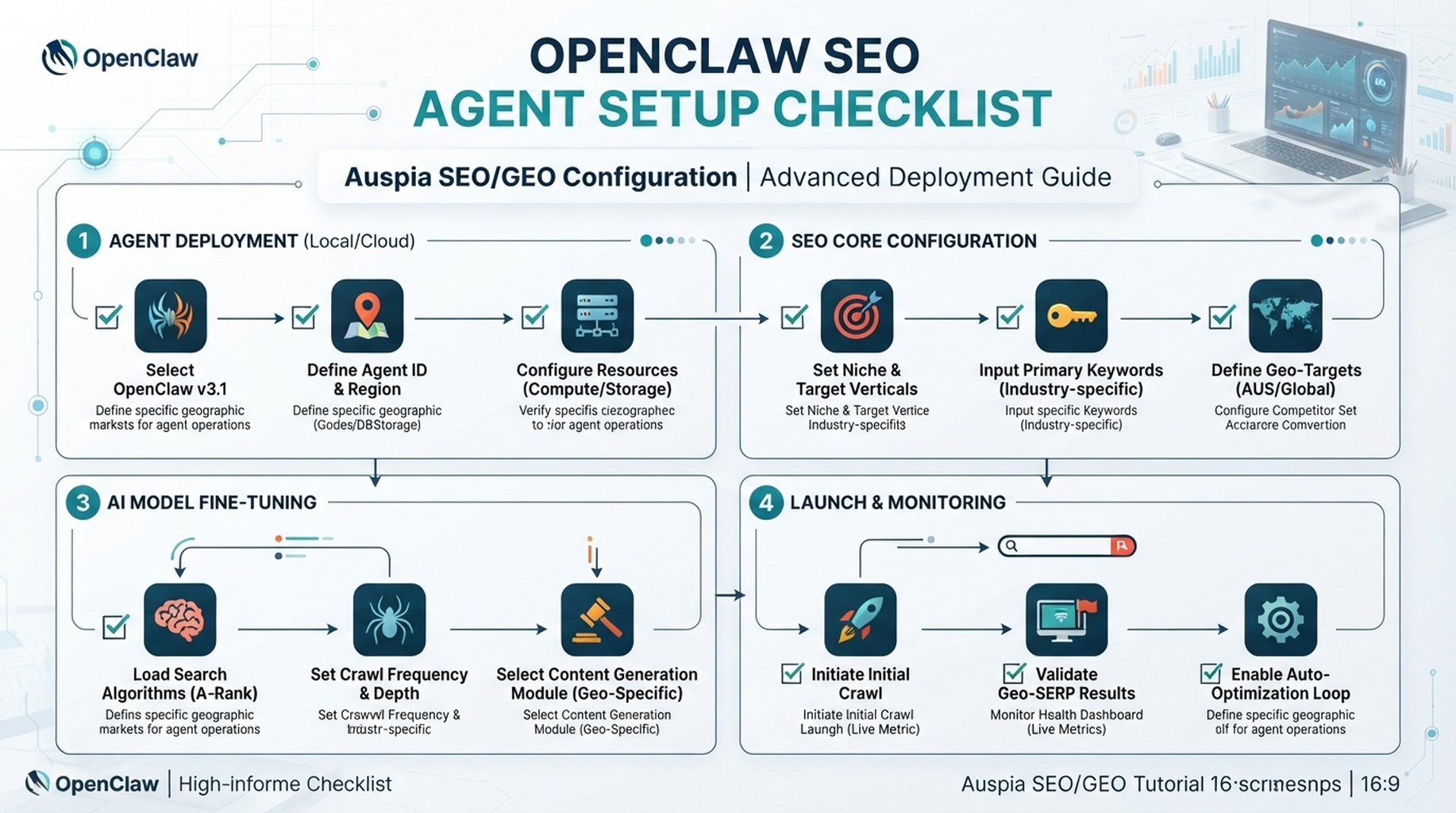
OpenClaw SEO Agent Setup Checklist.
This tutorial is written for beginners. You can run the first version with public URLs and CSV exports. Later, when the workflow is useful, you can add read-only API connectors.
What OpenClaw feature you are using
OpenClaw supports isolated agents with their own workspaces, state, auth profiles, and routing. The public CLI docs show openclaw agents add for creating agents and assigning a workspace. The cron docs show openclaw cron create for scheduled jobs that can run a prompt against a chosen agent.
That combination is exactly what an SEO/GEO workflow needs:
OpenClaw capability | How you use it for SEO/GEO |
|---|---|
Dedicated agent | Keep SEO memory, skills, and rules separate from your personal assistant |
Agent workspace | Store |
Skills and ClawHub | Add browser, crawler, analytics, search, spreadsheet, and reporting abilities |
MCP connectors | Let the agent read data sources without copying CSVs forever |
Cron jobs | Ask the SEO agent to run weekly monitoring and send a summary |
Approval policy | Make the agent draft tickets and briefs instead of changing the site directly |
You can use direct CLI commands, or you can ask OpenClaw to help you generate and run the setup. For a beginner, the query-led approach is easier: tell OpenClaw what you want, ask it to propose the exact commands and files, review them, then let it execute only the safe parts.
Step 1: send OpenClaw the agent-creation query
Start in your normal OpenClaw chat or CLI session. Ask OpenClaw to create a dedicated SEO agent and workspace. Do not ask it to "do SEO" yet. First ask it to build the operating environment.
Use this query:
Create a new dedicated OpenClaw agent for my website SEO and GEO work.

Agent name: seo-operator
Workspace name: openclaw-seo-workspace
Goal: create a supervised SEO/GEO operator that can inspect public pages, read approved exports, use read-only data connectors, draft action queues, and run scheduled monitoring.

Please do three things before making changes:
1. Show me the exact OpenClaw commands you plan to run.
2. Show me the workspace files you plan to create.
3. Mark which actions are read-only, which actions write local workspace files, and which actions would need my approval.

Do not connect any private account, install any skill, edit production files, or schedule cron jobs until I approve the plan.
OpenClaw should return a plan. A typical command plan may look like this, but you should treat the current OpenClaw docs as the source of truth:
openclaw agents add seo-operator --workspace ~/.openclaw/workspace-seo-operator
openclaw agents list --bindings
If you use channel routing, you can later bind a Telegram, Discord, or other channel account to the SEO agent. If you are just starting, skip channel routing and use the agent locally first.
Step 2: require a new workspace, not a shared folder
The workspace is what makes the SEO agent repeatable. Ask OpenClaw to create a clean workspace with files that separate context, policy, tasks, outputs, and evidence.
Use this follow-up query after approving the agent creation:
Initialize the `seo-operator` workspace.

Create only local workspace files. Do not edit my website, CMS, repo, analytics settings, robots.txt, sitemap, or production configuration.

Create these files:
- site-context.md
- seo-agent-role.md
- browser-safety-policy.md
- data-connectors.md
- skill-install-plan.md
- task-templates.md
- weekly-monitoring-plan.md
- action-queue.md
- evidence-log.md
- change-approval-log.md

For each file, write practical starter content for a small website owner who wants SEO and GEO monitoring.
The important rule is simple: the new agent owns its workspace. Your production website does not become the agent's playground.
Your first workspace can look like this:
openclaw-seo-workspace/
  site-context.md
  seo-agent-role.md
  browser-safety-policy.md
  data-connectors.md
  skill-install-plan.md
  task-templates.md
  weekly-monitoring-plan.md
  action-queue.md
  evidence-log.md
  change-approval-log.md
Step 3: initialize the SEO agent role
Now define the agent's job. This should live inside seo-agent-role.md, but you can ask OpenClaw to write and refine it.
Use this query:
Write the role file for the `seo-operator` agent.

The agent should act as a supervised SEO/GEO operator for my website. It should help with:
- SEO audits
- GEO prompt maps
- keyword clustering
- content refresh briefs
- internal link recommendations
- technical SEO triage
- weekly monitoring
- GSC, Bing Webmaster Tools, GA4, and keyword data review when approved

Rules:
- Work from evidence, not guesses.
- Read public pages and approved exports.
- Use read-only connectors first.
- Produce action queues, briefs, and reports.
- Ask for approval before installing skills, connecting accounts, scheduling jobs, or writing outside the workspace.
- Never publish content, edit production files, change robots.txt, change redirects, change canonicals, update schema, submit forms, or modify account settings without explicit human approval.

Every recommendation must include:
1. finding
2. source or evidence
3. affected URL
4. recommended fix
5. expected impact
6. risk level
7. approval needed
A good role file should be boring and strict. If the role file sounds like marketing copy, rewrite it. You want predictable behavior, not personality.
Step 4: create the site context file
Next, give the agent stable website context. Ask OpenClaw to interview you if needed.
Create `site-context.md` for the `seo-operator` workspace.

Ask me for missing information if needed, then write a concise context file with:
- brand summary
- products or services
- target audience
- target countries or languages
- top conversion goals
- important URLs
- competitors
- topics we want to rank for
- topics we should avoid
- brand claims that must be verified before use

Keep it short enough that the SEO agent can reuse it every week.
Starter format:
## Brand
[One-paragraph description]

## Audience
[Who the site serves]

## Primary goals
- Increase qualified organic traffic
- Improve AI-answer citation readiness
- Identify pages that need refreshes
- Turn findings into human-approved tasks

## Important URLs
- Homepage: https://example.com/
- Blog: https://example.com/blog/
- Product pages: https://example.com/product/

## Competitors
- Competitor A
- Competitor B
- Competitor C

## Approval rules
No claim, number, comparison, or integration promise should be used unless it appears on an approved source page or an approved internal document.
Do not paste confidential sales data, private customer names, or unreleased roadmap details into the agent unless your OpenClaw environment and access policy are designed for that.
Step 5: install public skills in the right order
Do not install every shiny skill you find. Ask the SEO agent to create a skill plan first, then approve the skills one by one.
Use this query:
Create a skill installation plan for the `seo-operator` agent.

Search OpenClaw public skills and ClawHub categories for tools that help with this SEO/GEO workflow. Recommend only public skills or read-only MCP connectors.

I need capabilities in this order:
1. browser automation for public page inspection
2. web search or SERP research
3. web fetch or crawler for extracting page content
4. spreadsheet or CSV helper for exports
5. Google Search Console connector or export reader
6. Bing Webmaster Tools connector or export reader
7. GA4 or analytics connector or export reader
8. keyword research data connector, such as DataForSEO API or a CSV import flow
9. reporting or notification connector
10. approval or policy checker

For each recommendation, return:
- skill or connector name
- public source or ClawHub page
- what it reads
- what it writes
- required permissions
- whether it can run read-only
- why it is needed
- install command or setup instruction

Do not install anything until I approve the list.
OpenClaw's public docs show skill discovery and installation through ClawHub. The exact package names will change, so use the current docs and the public skill page as the source of truth. The pattern usually looks like this:
openclaw skills search "Google Search Console"
openclaw skills install @owner/<slug>
openclaw skills list
openclaw skills verify @owner/<slug>
openclaw skills update --all
For a beginner, the best first setup is often:
Capability | Beginner version | Automated version |
|---|---|---|
GSC | CSV export uploaded to workspace | Read-only GSC API or MCP connector |
Bing Webmaster Tools | CSV export uploaded to workspace | Read-only Bing Webmaster API or MCP connector |
GA4 | Landing page report export | Read-only analytics connector |
Keyword data | DataForSEO export, Ahrefs/Semrush export, or manual keyword sheet | API connector or scheduled export |
Browser checks | OpenClaw browser automation on public URLs | Scheduled browser snapshot jobs |
Reporting | Markdown report in workspace | Notification or webhook delivery |
Step 6: if a needed skill does not exist, ask OpenClaw to write one safely
Sometimes you will not find the exact connector you need. For example, there may not be a public skill for your preferred rank tracker, internal spreadsheet format, or niche SEO API.
Do not ask the agent to create a powerful production connector immediately. Ask it to draft a minimal read-only skill proposal.
I cannot find a public OpenClaw skill for [data source or workflow].

Create a minimal read-only skill proposal for the `seo-operator` agent.

The skill should:
- read only the approved data source
- accept credentials through the standard OpenClaw secret mechanism or environment configuration
- write outputs only to the SEO workspace
- log source, timestamp, request parameters, and errors
- never submit forms, change settings, delete data, publish content, or write to production systems
- include a test command using fake/sample data
- include uninstall instructions

Before writing files, show me:
1. the proposed skill name
2. the files it would create
3. the permissions it needs
4. the commands needed to test it
5. the rollback plan
This is the practical difference between a safe agent and a risky agent. A safe agent can help you build missing tooling, but it does so through a proposal, a test, and a rollback plan.
Step 7: connect SEO data in read-only mode
Once the role and skills are ready, connect data gradually. Start with exports if you are new. Move to API connectors after the reports are useful.
Ask OpenClaw:
Set up the data sources for the `seo-operator` agent in read-only mode.

Use this priority:
1. Start with CSV exports if no API credentials are configured.
2. If a read-only connector exists, show the setup steps and required permission scopes.
3. Validate the connection with a small query.
4. Save the test result summary to `evidence-log.md`.
5. Save any recurring data pull instructions to `weekly-monitoring-plan.md`.

Data sources:
- Google Search Console: queries, pages, clicks, impressions, CTR, position
- Bing Webmaster Tools: queries, pages, crawl or index signals where available
- GA4: landing pages, engagement, conversions where available
- Keyword database: keyword, volume, difficulty, intent, SERP features where available

Do not request write permissions. Do not submit URLs. Do not change account settings.
A useful first validation table should look like this:
Source | Test query | Result | Risk | Next action |
|---|---|---|---|---|
GSC | Last 28 days top pages | 20 rows returned | Low | Use in weekly report |
Bing Webmaster Tools | Last 28 days top queries | Export loaded | Low | Compare against GSC |
GA4 | Landing pages by conversion | Missing credentials | Medium | Use CSV export for now |
Keyword data | Seed keyword suggestions | 200 rows returned | Low | Use for clustering |
Step 8: give the agent its first real job
Now ask the new SEO agent to run one supervised audit. This confirms that the workspace, role, browser rules, and output format work together.
Run the first supervised SEO/GEO audit as `seo-operator`.

Use:
- site-context.md
- seo-agent-role.md
- browser-safety-policy.md
- any approved data exports in the workspace

Audit this URL: [paste one public URL]

Check:
- search intent match
- title and meta description
- H1 and heading structure
- answer-first clarity
- internal links
- schema or structured data hints visible from the page
- GEO readiness for AI answer extraction
- missing evidence or examples
- risky claims

Return:
1. short diagnosis
2. evidence table
3. action queue
4. what you need from me before the next run

Do not edit the page. Do not publish anything. Do not log into private accounts.
Review the result manually. Mark each recommendation as useful, vague, wrong, unsafe, or approved. Then ask the agent to update seo-agent-role.md and task-templates.md based on your review.
Step 9: create a scheduled weekly SEO/GEO monitoring job
After the first audit works, schedule a recurring monitoring task. OpenClaw's cron docs show openclaw cron create for scheduled jobs and the --agent flag for targeting a specific agent.
Ask OpenClaw to propose the scheduled task first:
Create a weekly monitoring plan for the `seo-operator` agent.

Do not schedule it yet. First show me the exact cron command and the prompt that will run.

The weekly job should:
- run every Monday morning
- use the `seo-operator` agent
- read only approved workspace files and read-only data connectors
- compare the last 7 days and last 28 days where available
- check GSC, Bing Webmaster Tools, GA4, keyword exports, and manual GEO prompt results if available
- identify pages with traffic drops, CTR opportunities, ranking gains, indexing/crawl warnings, and GEO visibility gaps
- create `weekly-report-YYYY-MM-DD.md`
- append critical items to `action-queue.md`
- never publish, edit files outside the workspace, submit URLs, or change account settings
A command may look like this:
openclaw cron create "0 9 * * 1" \
  "Run the weekly SEO/GEO monitoring workflow from weekly-monitoring-plan.md. Produce a report and update the action queue. Do not change production systems." \
  --name "Weekly SEO/GEO monitoring" \
  --agent seo-operator
After the job is created, ask OpenClaw to list and test it:
Show me the scheduled SEO/GEO jobs for `seo-operator`, then run a manual test if OpenClaw supports a safe test run. Wait for the result and summarize any errors.
The CLI pattern from the docs is:
openclaw cron list --agent seo-operator
openclaw cron get <job-id>
openclaw cron run <job-id> --wait --wait-timeout 10m
openclaw cron runs --id <job-id> --limit 10
If the test report is vague, do not add more automation. Fix the role, data source, or report template first.
Step 10: use this weekly report template
Ask the agent to write reports in a consistent format. This makes the output easy to review and compare over time.
## Weekly SEO/GEO Monitoring Report

Date:
Agent: seo-operator
Data window:
Sources used:
Sources missing:

## Executive summary
- What changed?
- What needs human attention?
- What can wait?

## SEO changes
| URL | Signal | Evidence | Recommendation | Priority | Approval |
| --- | --- | --- | --- | --- | --- |

## GEO changes
| Prompt or topic | Current answer behavior | Citation gap | Recommended content fix | Priority |
| --- | --- | --- | --- | --- |

## Data quality notes
- Missing exports or failed connectors
- Suspicious numbers
- Assumptions

## Action queue updates
- Added:
- Changed:
- Closed:

## Do not automate yet
- Any item that requires publishing
- Any item that requires account changes
- Any item that requires engineering review
The report should create decisions, not noise. If every item is marked high priority, the agent is not prioritizing.
Skill and MCP safety checklist
Before you let the SEO agent use a public skill, custom skill, or MCP connector, check these five things:
- It is read-only for the first run.
- It asks for the minimum API key or account scope needed.
- It writes outputs to the SEO workspace, not directly to your CMS, repo, analytics account, or production server.
- It logs the source, timestamp, query parameters, and assumptions behind every recommendation.
- It stops before publishing, changing settings, submitting forms, editing technical SEO files, or submitting URLs.
If a skill cannot explain what it is about to read or write, do not add it to the SEO agent yet.
Common beginner mistakes
Mistake | Why it causes problems | Better approach |
|---|---|---|
Using the main assistant for SEO operations | Context, memory, and permissions get mixed | Create a dedicated |
Installing every skill at once | Hard to debug errors and permissions | Install one capability at a time |
Giving write access too early | Agent can make risky site or account changes | Start read-only and produce action queues |
Scheduling jobs before testing one manual run | Weekly reports become vague noise | Run one supervised audit first |
Asking for rankings without data | Agent guesses | Connect GSC, Bing, GA4, or keyword exports |
Letting the agent create custom skills without review | Permissions can sprawl | Require a skill proposal, test, and rollback plan |
FAQ
Should I create a new OpenClaw agent or use my main agent?
Create a new agent. SEO/GEO work needs stable context, repeatable reports, account boundaries, and scheduled jobs. A dedicated agent keeps that work separate.
Do I need GSC, Bing Webmaster Tools, and GA4 on day one?
No. Start with public URLs and CSV exports. Add read-only connectors after the manual workflow produces useful recommendations.
Can OpenClaw create missing SEO skills for me?
Yes, but treat that as a software change. Ask for a read-only proposal, review the files and permissions, test with sample data, and keep rollback instructions.
Should the weekly cron job publish recommendations automatically?
No. The scheduled job should produce reports and action queues. Publishing, technical SEO changes, URL submissions, and account setting changes should stay human-approved.
What makes this different from a one-off SEO audit prompt?
The agent has a workspace, role file, skill plan, data connectors, evidence log, and scheduled monitoring loop. That turns SEO work into an operating system instead of a one-time answer.
OpenClaw SEO/GEO learning path
This article is part of the OpenClaw SEO/GEO operator series. Follow the sequence if you are building the workflow from scratch:
- Use OpenClaw as an SEO/GEO operator
- Set up your first OpenClaw SEO agent
- Connect OpenClaw to GSC, Bing Webmaster, GA4, and SEO data
- Use OpenClaw browser automation for SEO and GEO research
- Build keyword clusters and a 90-day content calendar
- Use Google Trends for daily content ideas
- Create a GEO prompt map
- Refresh old content for SEO and GEO
- Improve internal linking and site architecture
- Run a technical SEO/GEO audit
- Build an OpenClaw SEO/GEO agent swarm
- Run daily SEO/GEO monitoring
- Add SEO/GEO quality gates
Where to go next
- Previous: How to Use OpenClaw as an SEO/GEO Operator
- Next: How to Connect OpenClaw to GSC, Bing Webmaster, GA4, and SEO Data
- Series hub: How to Use OpenClaw as an SEO/GEO Operator
- Safety layer: OpenClaw SEO/GEO Quality Gates: Avoid AI Spam and Risky Agent Actions
Sources and notes
Use the official OpenClaw docs as the source of truth for command syntax and current capabilities:
- OpenClaw official site: https://openclaw.ai/
- OpenClaw GitHub README: https://github.com/openclaw/openclaw
- OpenClaw agents CLI docs: https://docs.openclaw.ai/cli/agents
- OpenClaw multi-agent routing docs: https://docs.openclaw.ai/concepts/multi-agent
- OpenClaw agent workspace docs: https://docs.openclaw.ai/concepts/agent-workspace
- OpenClaw cron CLI docs: https://docs.openclaw.ai/cli/cron
- OpenClaw scheduled tasks docs: https://docs.openclaw.ai/automation/cron-jobs
- OpenClaw Skills docs: https://docs.openclaw.ai/tools/skills
- OpenClaw ClawHub docs: https://docs.openclaw.ai/clawhub
Author: Mara Venn, 14-Year Technical SEO Practitioner at Auspia. She writes practical SEO/GEO workflows that turn AI agents into supervised operating systems rather than unsupervised publishing bots.