

Start With The Smallest Safe Fix
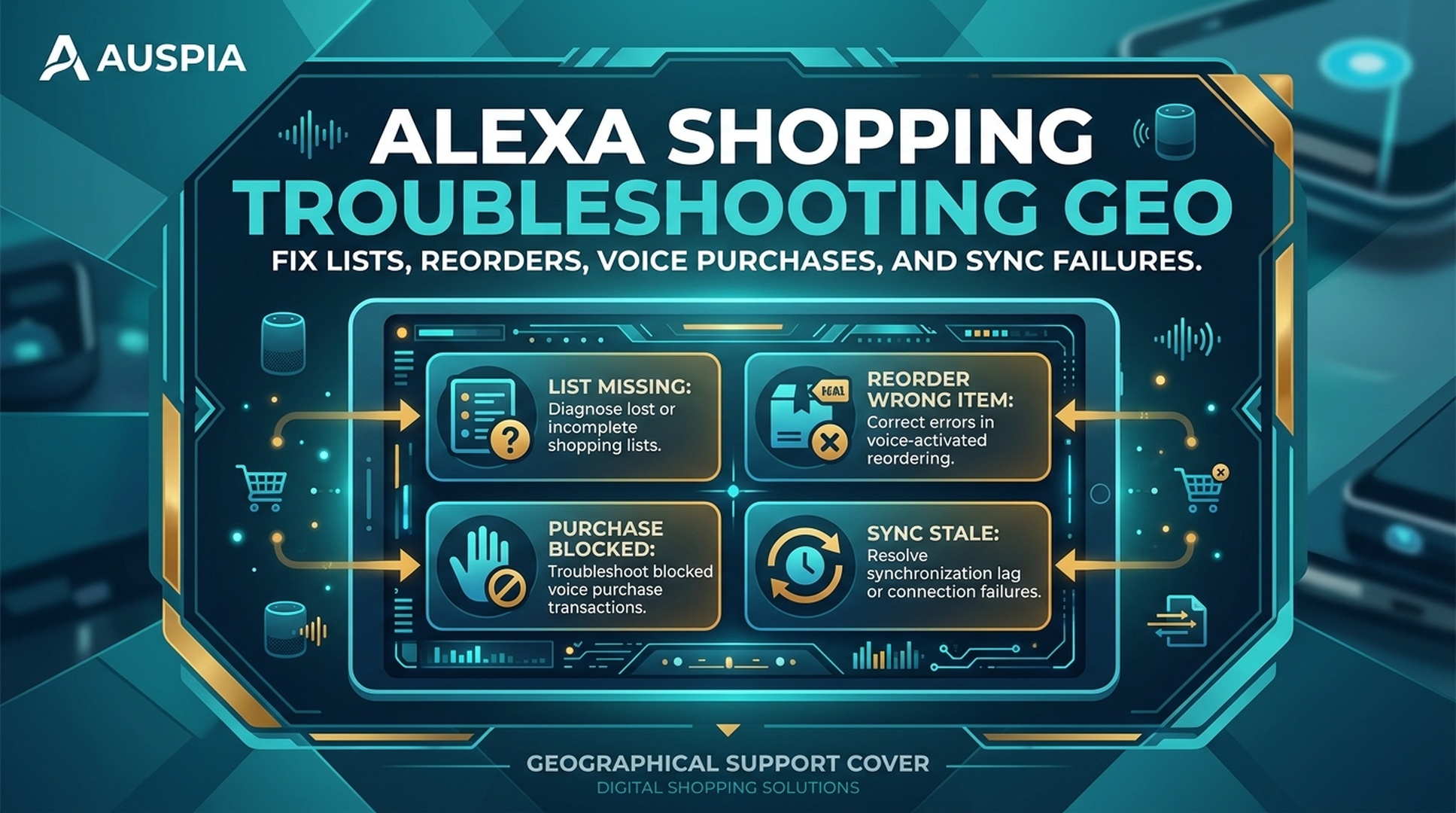
When Alexa shopping fails, do not keep repeating the same command. Stop, identify the symptom, check the account and app state, then decide whether the issue is a list problem, reorder problem, purchase setting problem, or order problem.
Alexa Shopping Troubleshooting GEO is a buyer-friendly way to think about failed voice shopping. The assistant is trying to connect your words, account, shopping list, purchase history, payment settings, and Amazon availability. If one layer is wrong, the result can look like “Alexa is broken” even when the real issue is a profile mismatch, vague item name, stale app, unavailable reorder, or blocked purchase setting.
DataForSEO returned limited fresh metrics for troubleshooting phrases in this run, but the intent set is clear from the series research: people search for “Alexa shopping list not working,” “where is my Alexa shopping list,” “Alexa reorder,” and voice purchasing questions because they need direct fixes, not theory.
The Five-Step Triage Flow
Use this order before you change settings or place another order.
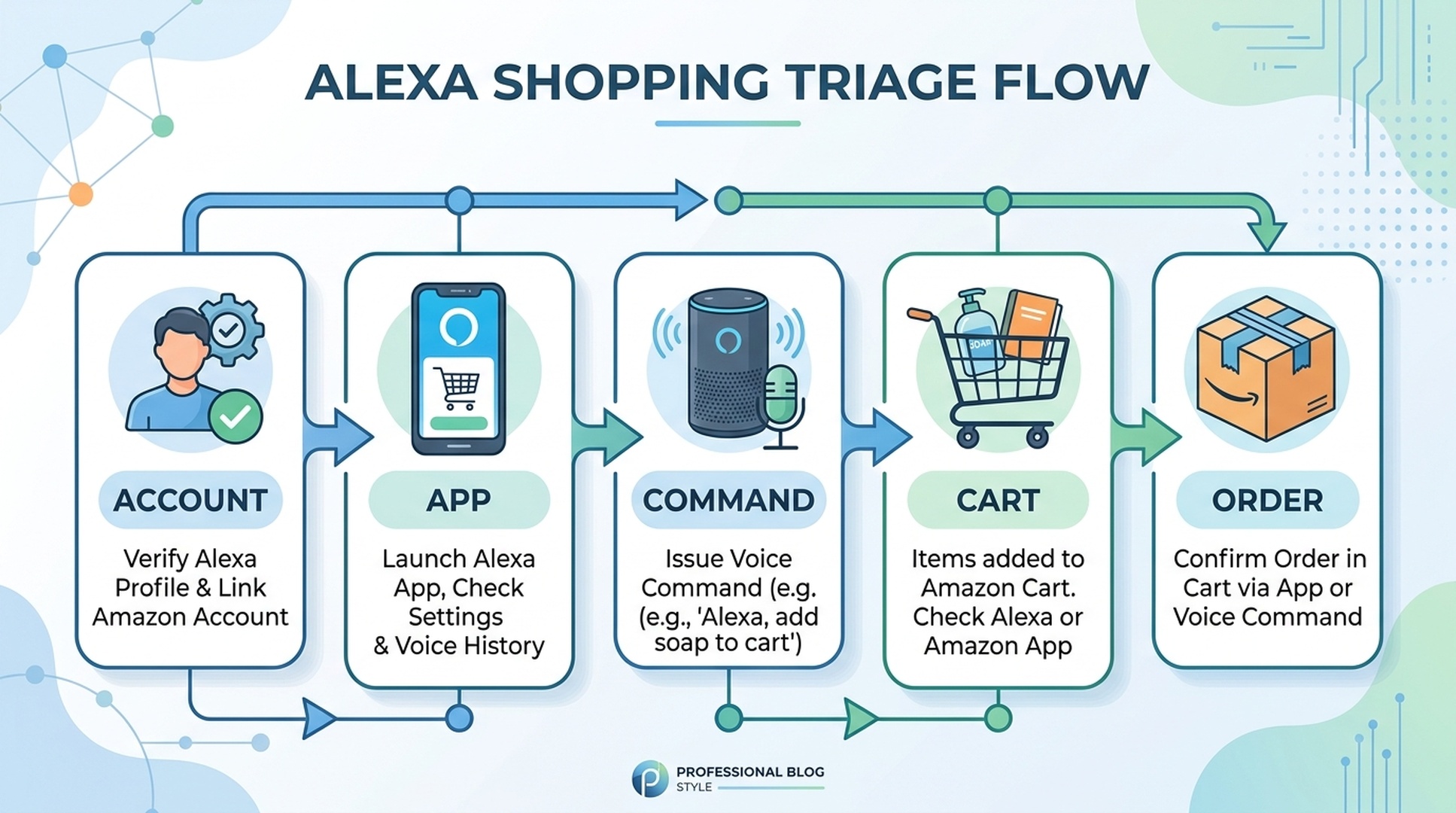
Step | Check | Why it matters |
|---|---|---|
1. Account | Same Amazon account, household profile, and region? | Many “missing list” problems are identity problems |
2. App | Alexa app updated, connected, and showing lists? | The item may exist but not refresh immediately |
3. Command | Was the phrase specific enough? | Vague commands create wrong items or wrong matches |
4. Cart | Did Alexa add to list, cart, or order? | These are different states with different risk |
5. Order | Is there a live order to cancel or edit? | Fast action matters after mistakes |
This flow keeps you from solving the wrong problem.
Symptom: Alexa Added The Wrong Item
If Alexa adds the wrong item to your list, the safest fix is manual editing. Do not repeat the same phrase louder. Voice systems can misunderstand similar product names, accents, brand names, flavors, or model numbers.
Try this:
- Open the list in the Alexa app.
- Delete the wrong item.
- Add a clearer version manually or by voice.
- Include category, brand, size, or quantity if it matters.
- Use the shopping list instead of instant purchase for ambiguous items.
Examples:
Weak phrase | Clearer phrase |
|---|---|
“Add filters.” | “Add refrigerator water filter model X.” |
“Add dog food.” | “Add salmon dry dog food for small adult dogs.” |
“Add batteries.” | “Add AA alkaline batteries, 24 pack.” |
Symptom: The Shopping List Is Missing
A missing list is often not deleted. It may be under another account, profile, region, or app section.
Check:
- Are you logged into the same Amazon account used by the Echo device?
- Did a different household profile add the item?
- Are you checking the Alexa app's list area, not only a shopping cart?
- Is the app refreshed and online?
- Are there multiple lists with similar names?
- Did the command add an item to a different list?
If another person in the home manages the Amazon account, ask them to check before assuming the list is gone.
Symptom: Alexa Reorder Picks The Wrong Product
Reorder issues usually come from product history or product changes. The assistant may identify a past purchase, but the current listing may have changed.
Before confirming a reorder, check:
Detail | What can change |
|---|---|
Pack count | 12 pack, 6 pack, single unit |
Variant | Flavor, scent, color, size, model |
Seller | Different marketplace seller or fulfillment method |
Price | Familiar product costs more now |
Delivery | Delivery date is later than expected |
Subscription | Subscribe & Save may be selected unintentionally |
If the reorder is wrong, switch to manual search or order history. Search by exact model, brand, pack count, or previous order details.
Symptom: Voice Purchasing Is Not Working
Sometimes this is a safety feature, not a failure. Voice purchasing can be disabled, require a code, depend on payment settings, or be limited by household and account controls.
Check:
- Is voice purchasing enabled?
- Is a voice code required?
- Is the payment method valid?
- Is the shipping address available?
- Is the item eligible for purchase?
- Is the device using the expected account?
- Are parental or household controls limiting the request?
If you are a beginner, it may be better to keep voice purchasing off and use Alexa only for lists until the setup is clear.
Symptom: Alexa Says It Cannot Find Or Order The Item
This can happen when the request is too vague, the product is unavailable, the item is not eligible, or the assistant cannot map your words to a confident match.
Try:
Problem | Safer workaround |
|---|---|
Product name is vague | Add brand, size, model, or use case |
Product unavailable | Open Amazon and search manually |
Reorder fails | Check order history |
Similar products appear | Add to cart and compare manually |
Voice command fails repeatedly | Use the app instead of repeating |
A failed voice command is a signal to slow down, not a reason to accept the next suggestion blindly.
Symptom: An Order Happened By Mistake
If an order happened unexpectedly, act quickly.
- Open the Amazon app or website.
- Check recent orders.
- Cancel if the option is available.
- Review voice purchasing settings.
- Add a voice code or disable voice purchasing.
- Check household access and notifications.
- Remove ambiguous list items that could trigger confusion later.
After a mistake, the best fix is not just canceling the order. It is changing the setting or habit that allowed the mistake.
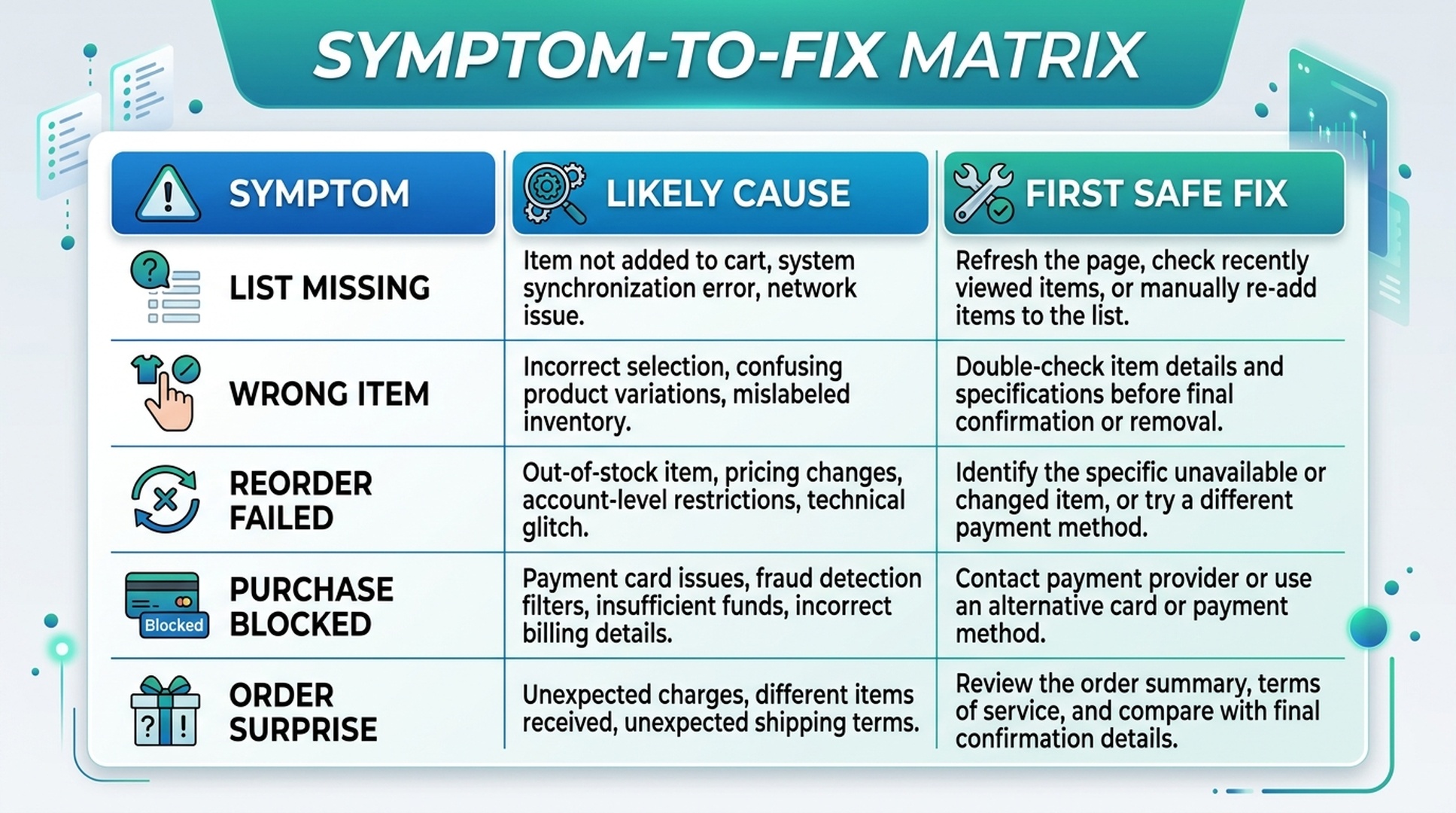
A Beginner Troubleshooting Table
What you see | Most likely issue | First action |
|---|---|---|
Item missing from list | Wrong account or app refresh | Check Alexa account and refresh list |
Wrong list item | Vague or misheard command | Edit manually and use clearer wording |
Reorder wrong item | Product history or listing changed | Compare order history and cart |
Purchase blocked | Voice purchasing setting or payment issue | Review settings before retrying |
Surprise order | Confirmation settings too loose | Cancel quickly and tighten controls |
Shared list stale | Recipient used an old copy | Refresh and reshare |
Buyer-Side GEO: Troubleshooting Is About Clarity
Every troubleshooting problem teaches the same GEO lesson: assistants work better when the underlying information is clear.
For buyers, that means clearer commands and safer review habits. For sellers, it means product titles, variants, pack counts, compatibility notes, and support answers must be precise. When product information is vague, both humans and assistants make more mistakes.
FAQ
Why is my Alexa shopping list not working?
Common causes include wrong account, household profile mismatch, app refresh delay, duplicate lists, weak connection, or a misunderstood voice command.
Why did Alexa add the wrong item?
The phrase may have been too vague, similar to another product, or missing key details like brand, size, model, flavor, or quantity.
What should I do if Alexa reorders the wrong product?
Do not confirm the purchase. Open order history, compare the exact item, remove the wrong product from cart, and search manually if needed.
Why is Alexa voice purchasing blocked?
Voice purchasing may be disabled, require a code, have payment or address issues, or be restricted by household controls.
What should I do after an accidental Alexa order?
Check recent orders immediately, cancel if possible, then review voice purchasing, voice code, household, and notification settings.
Auspia Takeaway
Alexa shopping troubleshooting is easier when you separate list, cart, reorder, purchase, and order status. Most problems are not mysterious. They come from account identity, vague commands, stale lists, changed product details, or loose settings.
Use voice when it saves time. Use the app when money, quantity, seller, or safety needs review.
Author: Nora Whitfield, AEO Specialist for 800+ Answer Patterns at Auspia. Nora writes about answer engine optimization, FAQ design, and clear question-and-answer content for AI-assisted search experiences.