Quick answer
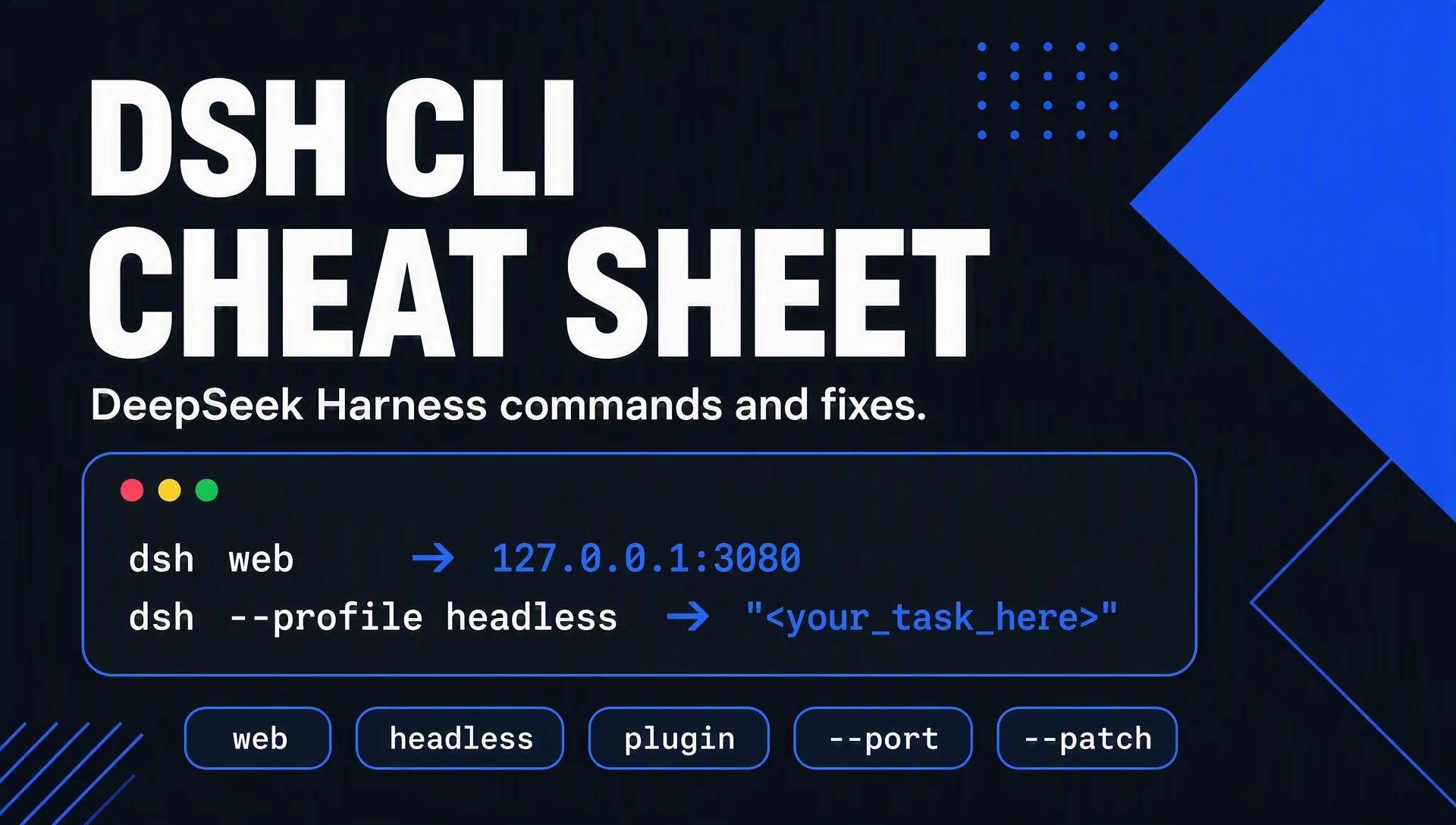
dsh is the command line for DeepSeek Harness. One mental model covers most of it: `dsh` boots a profile, and a profile is a named stack of plugins. dsh web boots the browser UI. dsh --profile headless "task" boots an agent that answers one task and exits. Everything else is flags around those two.
This cheat sheet is verified against the current release (0.1.0-rc.6, checked 2026-08-15) — the help output below is real, not paraphrased from memory.
The command cheat table
What you want | Command | Notes |
|---|---|---|
Boot the browser UI |
| Same as |
Run a one-shot task |
| Prints the answer, exits. The automation building block |
Boot UI on another port |
| Pass |
Bind a specific host |
| For network access; the browser-trust fence needs |
Allow another host through the UI fence |
| Repeatable |
List plugins in a profile |
| Forwards to pnpm inside the profile directory |
Add a plugin |
| Community plugins live under the |
See a profile's composed config |
| Prints the full tree — contains provider details; keep it private |
See the same without your overrides |
| Useful for comparing what changed |
Add an overlay on top of a profile |
| Repeatable; layered after the profile |
Resume a session |
| Flags after the profile name reach the app |
Check the version |
|
|
Get help |
| Real output; the app's own flags follow the profile |
Profiles explained
A profile is a folder under ~/.dsh/profiles/ containing its plugin stack. Two ship with the tool:
- `web` — the browser UI on
127.0.0.1:3080. Settings, sessions, workspace, Trajectory logs. - `headless` — one task, one answer, exit. No UI at all.
The official help shows dsh --profile tui --resume <session> as an example, which is the pattern for custom profiles: any folder you put under ~/.dsh/profiles/ becomes a bootable profile, and you can stack --patch overlays on top without editing the base. If you build a workflow you run weekly, keeping it as its own profile (or as a patch file) beats pasting the same flags every time.
Where config lives
~/.dsh/ (or $DSH_HOME if you set it) is the whole state directory:
Path | What's in it |
|---|---|
| One folder per profile, each with its plugin stack |
| Saved session data |
| User-level settings |
| Workspace registry and other stored state |
Two practical consequences. First, the directory is plain text and portable — copying it is how you'd replicate a setup on another machine. Second, provider credentials live here too, so treat ~/.dsh/ the way you treat your SSH folder: backed up, not shared, and never pasted into a prompt.
The 10 most common problems
Symptom | Cause | Fix |
|---|---|---|
| Node.js not installed | Install Node.js 18+ from nodejs.org, restart the terminal, retry |
Port 3080 already in use | Another instance or app on the port |
|
Headless says the session failed to attach | Workspace path resolves differently than written (macOS | Use the real path ( |
Composer stays locked in the UI | No workspace selected | Add a workspace in the sidebar first |
"API key" error on send | Key missing or wrong | Settings → Models → Edit → paste → Apply |
Task hangs on first run | Cold start (plugin load, model warm-up) | Normal; later runs are faster |
| It's the full composed tree | It's for debugging; never paste it into a chat or ticket |
A prompt that worked last week fails | Dev preview update changed behavior |
|
A plugin you enabled stopped working | Version drift in the plugin stack |
|
Two machines disagree on config | Different | Copy |
Cost expectations
The tool itself is free (MIT). You pay only for model tokens at the provider's rate:
- A single headless task typically costs fractions of a cent.
- The weekly monitoring setup from the automation article in this series costs less than a cup of coffee a year.
- There is no per-seat fee, no subscription, no usage fee from DeepSeek Harness itself.
The expensive habits are human ones: re-running the same vague prompt five times, or using the web UI to chat when a headless one-shot would do. Format discipline in prompts (see the prompt library article in this series) is the cheapest optimization available.
Safety notes
- Credentials stay local. Provider keys live in
~/.dsh/and are write-only in the UI. Never paste them into a prompt, a ticket, or a shared log.dsh --dump-configprints the composed tree, including provider settings — keep that output private. - Approvals and permissions. The agent asks before destructive actions; that's the approval policy working. If you're testing risky commands, do it in a throwaway workspace folder, not your real content directory.
- The preview caveat. Everything in this table was verified on 0.1.0-rc.6. Plugin and API changes are coming; the README says so, and the first-run dialog repeats it. Pin versions for anything you automate.
FAQ
What's the difference between `dsh web` and `dsh --profile web`? Nothing. web is a convenience alias for --profile web. The long form exists because --profile is the general mechanism for any profile.
Can I run the web UI and headless at the same time? Yes. They're separate profiles; they don't interfere. The automation article schedules headless runs while the UI sits unused.
Is `dsh` the model or the tool? The tool. The model is whatever provider you configure in Settings → Models. DeepSeek's own formula: Model + Harness = Agent.
How do I update DeepSeek Harness? The install article in this series covers it: npx @deepseek-ai/dsh@latest web for the newest build, or pin a specific version for stable automations.
Where can I get help beyond this cheat sheet? The official docs in the repository (docs/ folder), dsh --help for the launcher, and dsh web --help for the UI's own flags. The repository issue tracker is the right place for bugs.
Other articles in this series
- What is DeepSeek Harness? A Beginner's Guide to the 93k-Star Open-Source Agent Platform
- How to Install DeepSeek Harness and Run Your First Task (2026 Walkthrough)
- DeepSeek Harness for SEO: 7 Workflows with Copy-Paste Prompts
- DeepSeek Harness for GEO: How to Get Cited by ChatGPT, Perplexity & Google AI Overviews
- 35 Copy-Paste Prompts for SEO & GEO Work in DeepSeek Harness
- Build Your First Automation: Weekly GEO & SEO Monitoring with dsh Headless Mode
Author: Julian Mercer, CLI Workflow Researcher Testing 60+ Developer Tools at Auspia. Julian writes about command-line tools, automation patterns, and the parts of software most people scroll past.