The target state
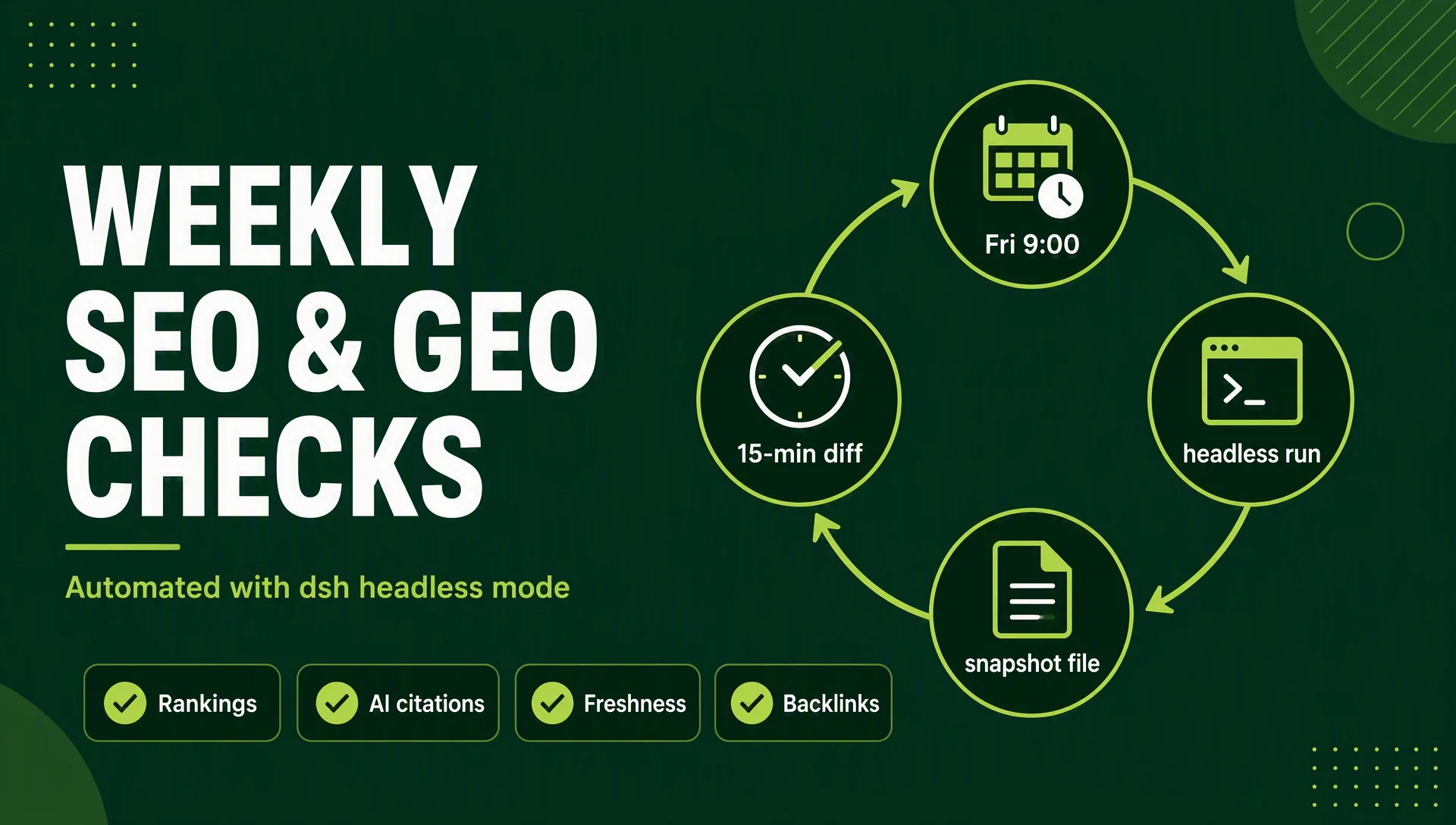
By the end of this guide you'll have a weekly check that runs itself. Every Friday at 9am, DeepSeek Harness wakes up headless, runs four checks (rankings, AI answer presence, content freshness, backlinks), appends the results to a dated file in your workspace, and does it all in about three minutes. You spend fifteen reading the diff over coffee.
Who this is for: anyone who already ran the install article in this series and has the harness working headless. What you need: a workspace folder, a prompt set (provided below), and a computer that's on when the schedule fires. What "done" looks like: a weekly-snapshots/ folder with one dated file per run, and a one-screen summary of what changed.
The demo site throughout is Moonlight Roasters (moonlightroasters.example), the same fictional Portland roastery used elsewhere in this series.
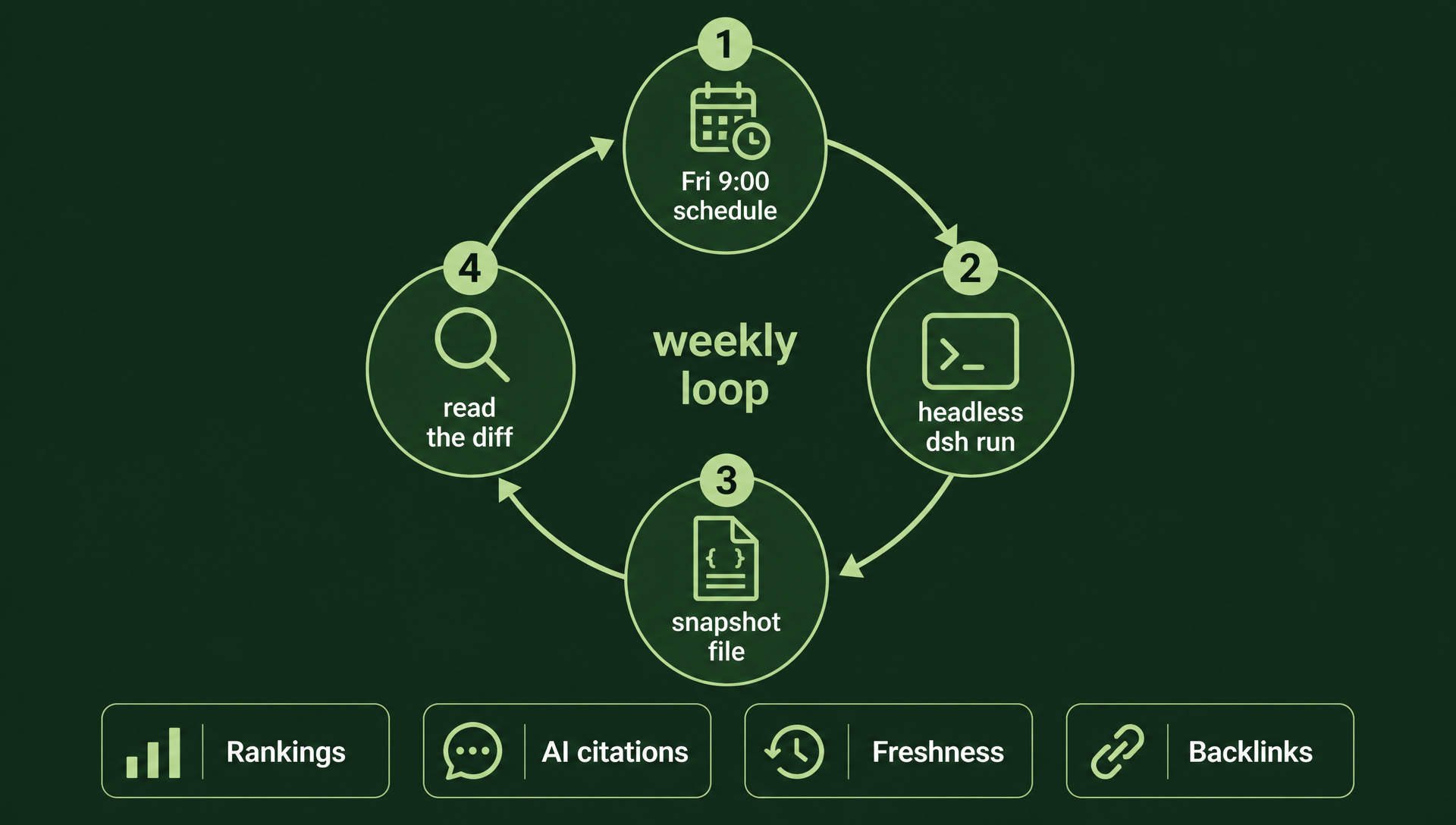
The whole automation in one picture: schedule, run, save, read the diff.
Before you automate: the baseline
Automation is only as good as the prompt set behind it. Get this right once, and the weekly runs become boring. Start with the four checks from the prompt library in this series, which a live headless run turned into a ready-made checklist:
Check | dsh task | Expected output |
|---|---|---|
Rankings |
| Table: keyword → position → URL → change vs last week |
AI answer presence |
| Surface → cited (yes/no) → quoted context |
Content freshness |
| Page → last modified → stale flag → action needed |
Backlinks |
| Referring domain → anchor text → status (new/lost) |
Two design rules baked into that table. First, every check has a defined output shape (a table with named columns), so week-over-week comparisons are apples to apples. Second, the checks match the escalation rules: a ranking drop of more than five positions, a lost citation, or stale core pages each mean something different and should be handled differently.
Save this table as weekly-checklist.md in your workspace, with your real keywords replacing the examples. The agent can then reload it, which is exactly what the scheduled run will do.
Step 1 — Run headless once, save to a file
Before scheduling anything, run the set manually exactly once and confirm the output lands in a file. Create the snapshot folder and run a single headless task, redirecting output:
mkdir -p weekly-snapshots
dsh --profile headless "generate the weekly GEO snapshot for moonlightroasters.example and 3 target queries: for each query, paste the current AI answer, note whether we are mentioned or cited, and list any new sources that appeared. Output as a table. Keep the answer under 200 words." > weekly-snapshots/2026-08-14.md
Check the file: you should see a table like this (the actual output from the baseline run in this series):
Check | dsh task | Expected output |
|---|---|---|
Rankings | check rankings: report where moonlightroasters.example ranks on Google | keyword → position → URL → change vs last week |
AI answer presence | check AI visibility in ChatGPT, Perplexity, Google AI Overviews | surface → cited (yes/no) → quoted context |
Content freshness | audit content freshness: pages with lastmod older than 90 days | page → last modified → stale flag → action needed |
Backlinks | audit backlinks: referring domains and links | domain → anchor → status (new/lost) |
If the file is empty or the run errored, fix it now, while you're watching. Common first-run problems: the workspace path isn't what headless expects (macOS resolves /tmp to /private/tmp — use the real path), or the profile name differs (list profiles with dsh --help or check ~/.dsh/profiles/).
One honest note about the AI answer check: the harness can't see into ChatGPT's or Perplexity's interfaces directly. The prompt asks the model to report what it knows about AI visibility, which is a proxy, not a crawl. It's a perfectly good trend signal week over week; it is not ground truth. If you want harder evidence, paste a real AI answer you captured yourself into the prompt (the citation-gap prompt from the GEO article does exactly this).
Step 2 — Schedule it
Now wrap the weekly set in one script, and point a scheduler at the script. This keeps the schedule simple and the logic in one editable file.
Create geo-weekly.sh in your workspace:
#!/bin/bash
cd /path/to/your/workspace
dsh --profile headless "read weekly-checklist.md, then generate today's weekly SEO snapshot for the checks listed, output as tables" >> weekly-snapshots/$(date +%Y-%m-%d).md
Make it executable: chmod +x geo-weekly.sh. Test it once — a second dated file should appear.
Linux: cron
crontab -eAdd one line (fires every Friday at 9am; in cron, 5 means Friday):
0 9 * * 5 /path/to/your/workspace/geo-weekly.shmacOS: launchd
macOS runs launchd, not cron. Create ~/Library/LaunchAgents/com.moonlight.geo-weekly.plist:
<?xml version="1.0" encoding="UTF-8"?>
<!DOCTYPE plist PUBLIC "-//Apple//DTD PLIST 1.0//EN" "http://www.apple.com/DTDs/PropertyList-1.0.dtd">
<plist version="1.0">
<dict>
    <key>Label</key>
    <string>com.moonlight.geo-weekly</string>
    <key>ProgramArguments</key>
    <array>
        <string>/bin/bash</string>
        <string>/path/to/your/workspace/geo-weekly.sh</string>
    </array>
    <key>StartCalendarInterval</key>
    <dict>
        <key>Weekday</key>
        <integer>5</integer>
        <key>Hour</key>
        <integer>9</integer>
        <key>Minute</key>
        <integer>0</integer>
    </dict>
</dict>
</plist>
Load it:
launchctl load ~/Library/LaunchAgents/com.moonlight.geo-weekly.plistTo unload later: launchctl unload ~/Library/LaunchAgents/com.moonlight.geo-weekly.plist.
Important: on a laptop, the Friday 9am run only happens if the machine is awake. A desktop or server you leave on gives you reliable runs; a laptop gets whatever it was awake for. That's a property of your hardware, not the tool — adjust the day and time to when your machine is actually on.
Step 3 — Read the weekly diff
The snapshot files accumulate; the value is in the differences. Each week, diff the new file against the previous one:
diff weekly-snapshots/2026-08-14.md weekly-snapshots/2026-08-21.mdOr use diff --side-by-side / a merge tool for a nicer view. The changes worth acting on:
- Citation appeared — your GEO fixes worked. Note which fix you applied the week before; that's your evidence.
- Citation lost — a model update or a new competitor. Re-run the citation-gap audit from the GEO article with the current answer.
- New source in the answer — a brand you've never seen. That's a coverage target for the coming month.
- Ranking drop > 5 positions — the one check that overrides everything else. Investigate before the next scheduled run.
- Stale pages — content freshness triage prompt from the SEO workflows article.
Keep the diff reading to a fixed time (say, 15 minutes on Friday). If the ritual takes longer than that for more than two weeks running, the prompt set needs tightening, not the schedule.
Handling breaking changes
DeepSeek Harness is a developer preview. Plugins and APIs change between versions, and a prompt that ran last month can fail after an update. Three cheap habits keep the automation alive:
- Pin the version. If the repo bumps the version and your workflow breaks, you can step back. When you install deliberately instead of always taking
@latest:
npx @deepseek-ai/dsh@0.1.0-rc.6 --version- Keep last good output. Never delete the previous snapshot before the new run succeeds. The diff ritual depends on the old file anyway; if a run fails, the prior file is also your record of what the agent used to do.
- Test after updates. When you do upgrade the harness, run the script once manually before trusting the schedule again. Two minutes, zero surprises.
Maintenance
- The weekly snapshot files grow by a few hundred bytes a week; clean up anything older than a year if you like.
- Revisit the keyword set quarterly. The checklist file is plain text, so updating the schedule is editing one file.
- If a check stops being useful (say, backlinks never change), cut it. A monitoring ritual you trust is better than a comprehensive one you ignore.
FAQ
Will this cost much? Four short headless runs a week cost fractions of a cent in tokens. The real cost is your 15 minutes of diff-reading, which is why the format discipline matters.
Do I need to keep the web UI open? No. Headless mode is a separate process; the schedule fires it directly. The UI and the scheduler don't interact.
My machine is a laptop and off at 9am. What now? Pick a time your laptop is actually on, or run the script on a machine that's always up (a server, a home NAS, a cloud VM). The script is portable.
What if the harness update breaks my prompts? Pin the version and keep last-good output (the habits above). When you upgrade, re-run manually before trusting the schedule.
Can it do the full SEO job automatically? It can gather and analyze; it can't publish for you. The weekly snapshot tells you what changed and what to do about it. The actions stay human, which is how it should be.
Other articles in this series
- What is DeepSeek Harness? A Beginner's Guide to the 93k-Star Open-Source Agent Platform
- How to Install DeepSeek Harness and Run Your First Task (2026 Walkthrough)
- DeepSeek Harness for SEO: 7 Workflows with Copy-Paste Prompts
- DeepSeek Harness for GEO: How to Get Cited by ChatGPT, Perplexity & Google AI Overviews
- 35 Copy-Paste Prompts for SEO & GEO Work in DeepSeek Harness
- DeepSeek Harness CLI Cheat Sheet + Troubleshooting for Beginners
Author: Camille Rhodes, Automation Workflow Lead for 30+ Growth Systems at Auspia. Camille writes about scheduled AI workflows, monitoring setups, and systems that run themselves.