What you will build
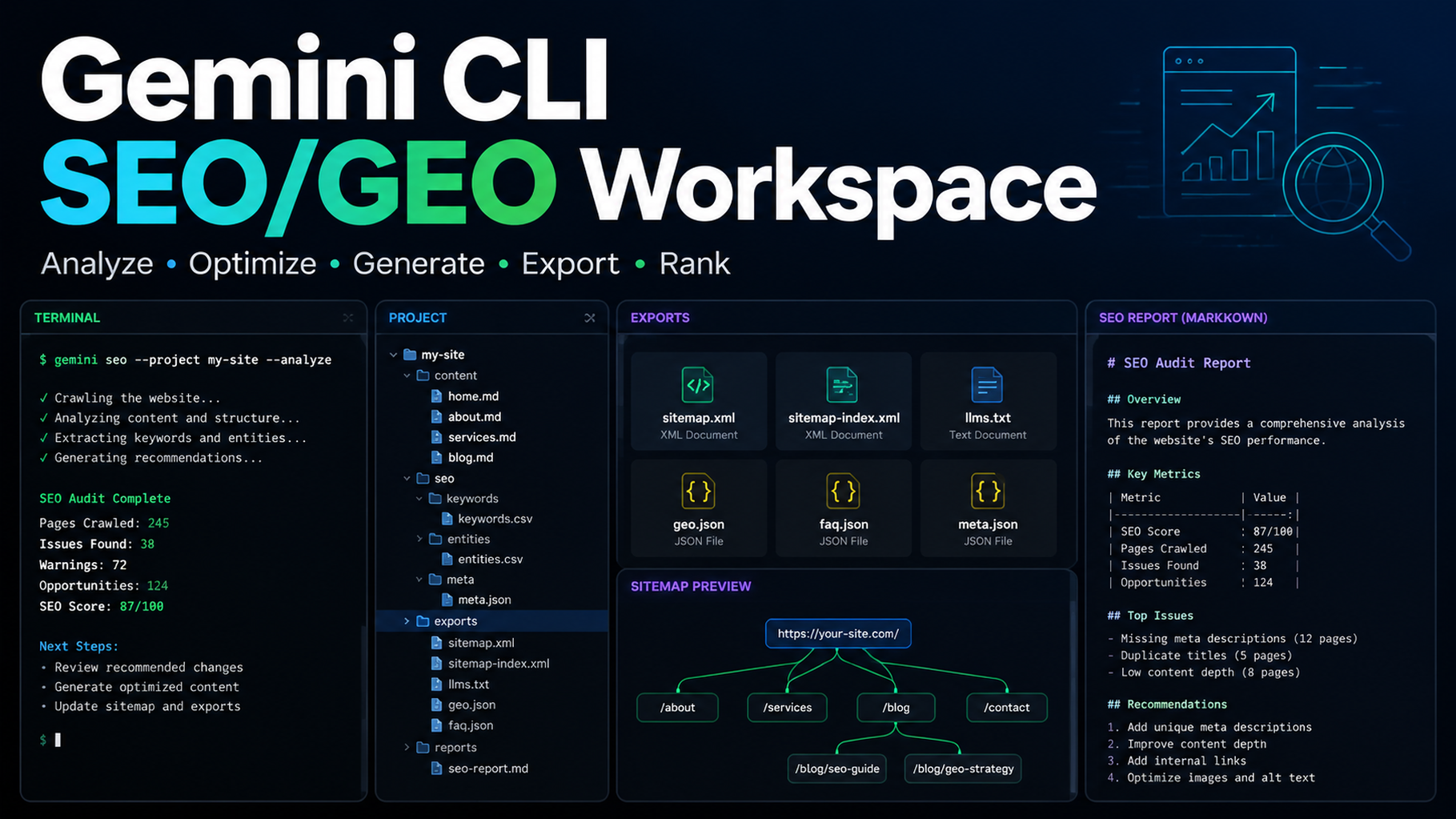
This tutorial turns Gemini CLI into a simple SEO/GEO terminal workspace that a beginner can actually run. You will create folders, add a prompt library, save search exports, ask Gemini CLI for a read-only report, and learn what “success” looks like before you let the tool edit anything.
Gemini CLI is useful here because it works in a terminal REPL and can operate on files, shell commands, and web/API-oriented workflows. For SEO/GEO, that means it is best used as a data and monitoring operator first, not as a visual page editor.
By the end you should have this structure:
seo-geo/
  exports/
    gsc/
    bing/
    ga4/
    ai-visibility/
  prompts/
    core-prompts.md
  scripts/
    crawl-sitemap.mjs
    compare-snapshots.mjs
  reports/
    first-readonly-report.md
Before you start
You need three things:
Requirement | Beginner fallback | Better version |
|---|---|---|
Website repo | Any local folder with site files | Git repo with build command |
Gemini CLI | Installed and authenticated | Installed with project settings |
SEO data | Manual CSV exports | GSC, Bing, GA4, AI visibility snapshots |
If you do not have API access, start with CSV files and markdown notes. The workflow is the same.
Step 1: create the workspace folders
From your website repository root, run:
mkdir -p seo-geo/exports/gsc seo-geo/exports/bing seo-geo/exports/ga4 seo-geo/exports/ai-visibility
mkdir -p seo-geo/prompts seo-geo/scripts seo-geo/reports seo-geo/qa
Create a prompt library:
cat > seo-geo/prompts/core-prompts.md <<'EOF'
# Core AI visibility prompts

## Category discovery
- What are the best tools for [your category]?
- How do I solve [main problem] for [audience]?

## Brand evaluation
- What does [brand] do?
- Who is [brand] best for?

## Buying comparison
- [brand] vs [competitor]
- Best [category] software for [audience]
EOF
Replace the brackets with your actual category, audience, and competitors.
Step 2: add one small data sample
If you have Google Search Console, export a page or query CSV and save it here:
seo-geo/exports/gsc/2026-07-06-pages.csv
If you do not have GSC, create a manual file:
cat > seo-geo/exports/gsc/manual-pages.csv <<'EOF'
url,query,impressions,clicks,ctr,notes
https://example.com/,your category,100,3,3%,homepage query example
https://example.com/blog/example,how to solve problem,50,1,2%,blog example
EOF
For AI visibility, create:
cat > seo-geo/exports/ai-visibility/manual-ai-answers.csv <<'EOF'
prompt,surface,brand_mentioned,citation_url,competitors,notes
best tools for your category,manual,false,,Competitor A;Competitor B,brand missing from category answer
what does brand do,manual,true,https://example.com/about,,answer misses primary audience
EOF
This small structured sample lets you test the workflow before connecting real APIs.
Step 3: run Gemini CLI in read-only mode first
Open Gemini CLI in the repo root. Your first prompt should not ask for edits.
Inspect this repository as a read-only SEO/GEO terminal workspace.

Do not edit files.
Read:
- seo-geo/prompts/core-prompts.md
- seo-geo/exports/gsc/
- seo-geo/exports/bing/
- seo-geo/exports/ga4/
- seo-geo/exports/ai-visibility/

Return:
1. What data exists.
2. What data is missing.
3. Which pages or prompts look most important.
4. What scripts would be useful later.
5. A safe report format for seo-geo/reports/first-readonly-report.md.
A good answer should name your actual files. If it talks generally about SEO but does not mention manual-pages.csv or core-prompts.md, stop and ask it to inspect the folder again.
Step 4: ask Gemini CLI to write the first report
Create seo-geo/reports/first-readonly-report.md.

Use only the available exports and prompt library.
Include:
- Data files reviewed
- Top search opportunities
- AI visibility gaps
- Pages that need a future review
- Missing data
- Recommended next action

Do not edit website files.
Expected output:
# First SEO/GEO Read-Only Report

## Data reviewed
- seo-geo/exports/gsc/manual-pages.csv
- seo-geo/exports/ai-visibility/manual-ai-answers.csv

## Top opportunity
| URL | Signal | Why it matters | Next action |

## AI visibility gaps
| Prompt | Brand mentioned? | Citation | Recommended page |

## Missing data
- Bing export missing
- GA4 landing-page export missing

## Next action
Review the homepage for category clarity before editing.
Step 5: add a simple sitemap crawl script
cat > seo-geo/scripts/crawl-sitemap.mjs <<'EOF'
const sitemapUrl = process.argv[2];
if (!sitemapUrl) {
  console.error('Usage: node seo-geo/scripts/crawl-sitemap.mjs https://example.com/sitemap.xml');
  process.exit(1);
}
console.log(JSON.stringify({ sitemapUrl, status: 'TODO: implement fetch and URL checks' }, null, 2));
EOF
Ask Gemini CLI:
Review seo-geo/scripts/crawl-sitemap.mjs.
Do not run network requests yet.
Explain how this script should eventually check sitemap URLs, HTTP status, noindex risk, and canonical issues.
Step 6: define when edits are allowed
cat > seo-geo/qa/gemini-cli-safety.md <<'EOF'
# Gemini CLI SEO/GEO safety rules

Allowed in read-only mode:
- read exports
- summarize snapshots
- write reports under seo-geo/reports/
- propose scripts

Ask before:
- editing website pages
- changing metadata helpers
- changing schema
- changing redirects, robots, canonicals, sitemap, or analytics

Never invent:
- customers
- testimonials
- awards
- revenue numbers
- rankings
- legal claims
EOF
Then prompt:
Read seo-geo/qa/gemini-cli-safety.md and summarize what you are allowed to do in this project. Do not edit files.
Beginner copy-paste prompt
If you want the safest first run, paste this into Gemini CLI from the root of your website repo:
I want to set up a beginner-safe SEO/GEO workspace in this repo.

Please do only read-only setup and reporting first:
1. Inspect the repo structure.
2. Confirm whether `seo-geo/` folders already exist.
3. Read `seo-geo/prompts/core-prompts.md` and the exports under `seo-geo/exports/` if they exist.
4. Create or update only `seo-geo/reports/first-readonly-report.md`.
5. Do not edit website pages, metadata helpers, schema, redirects, robots.txt, sitemap, analytics, or deployment files.
6. If data is missing, list the exact CSV or snapshot files I should add next.

Return changed files, data gaps, and the first page I should review manually.
Step 7: success checklist
Check | Pass condition |
|---|---|
Folder setup |
|
Prompt library |
|
Data sample | At least one CSV or AI visibility snapshot exists |
Read-only report | Gemini CLI creates a report without editing site files |
Safety rules | It can summarize what it must not edit |
Next action | The report names one page to review next |
Common beginner mistakes
- Asking Gemini CLI to edit the site before it has read the data.
- Mixing raw credentials into prompts.
- Saving snapshots without dates.
- Treating one AI answer as a reliable trend.
- Letting the CLI change robots, canonicals, or redirects without review.
FAQ
Is Gemini CLI good for page copy edits?
It can edit files, but it is not the easiest first choice for visual page diffs. Use it first for terminal reports, data analysis, and scripts.
What should the first automation be?
A read-only report that reads exports and produces an action queue.
Can I do this without GSC or GA4?
Yes. Use manual CSV files and AI answer notes first. Replace them with real exports later.
AI coding agents for SEO/GEO learning path
This page belongs to the Gemini CLI SEO/GEO track. Follow these terminal-focused tutorials first, then use the operating model to combine it with editor and workflow agents:
- Cursor vs Windsurf vs Gemini CLI for SEO/GEO Automation
- How to Set Up Gemini CLI for SEO/GEO Automation
- How to Connect Gemini CLI to SEO Data with MCP
- How to Run Daily SEO/GEO Monitoring with Gemini CLI
- How to Use Gemini CLI Checkpointing for Safer SEO Fixes
- The SEO/GEO Operating Model for Cursor, Windsurf, Gemini CLI, Codex, and Claude Code
Where to go next
Next in this path: How to Connect Gemini CLI to SEO Data with MCP
Sources and notes
- Gemini CLI documentation: Gemini CLI Docs and MCP servers with Gemini CLI.
- Related Auspia guide: Cursor vs Windsurf vs Gemini CLI for SEO/GEO Automation.
Author: Gabriel Finch, Search Retrieval Researcher, 1,200+ AI Answers Reviewed at Auspia. Gabriel writes about retrieval systems, AI discovery, and search infrastructure workflows.