What you will build
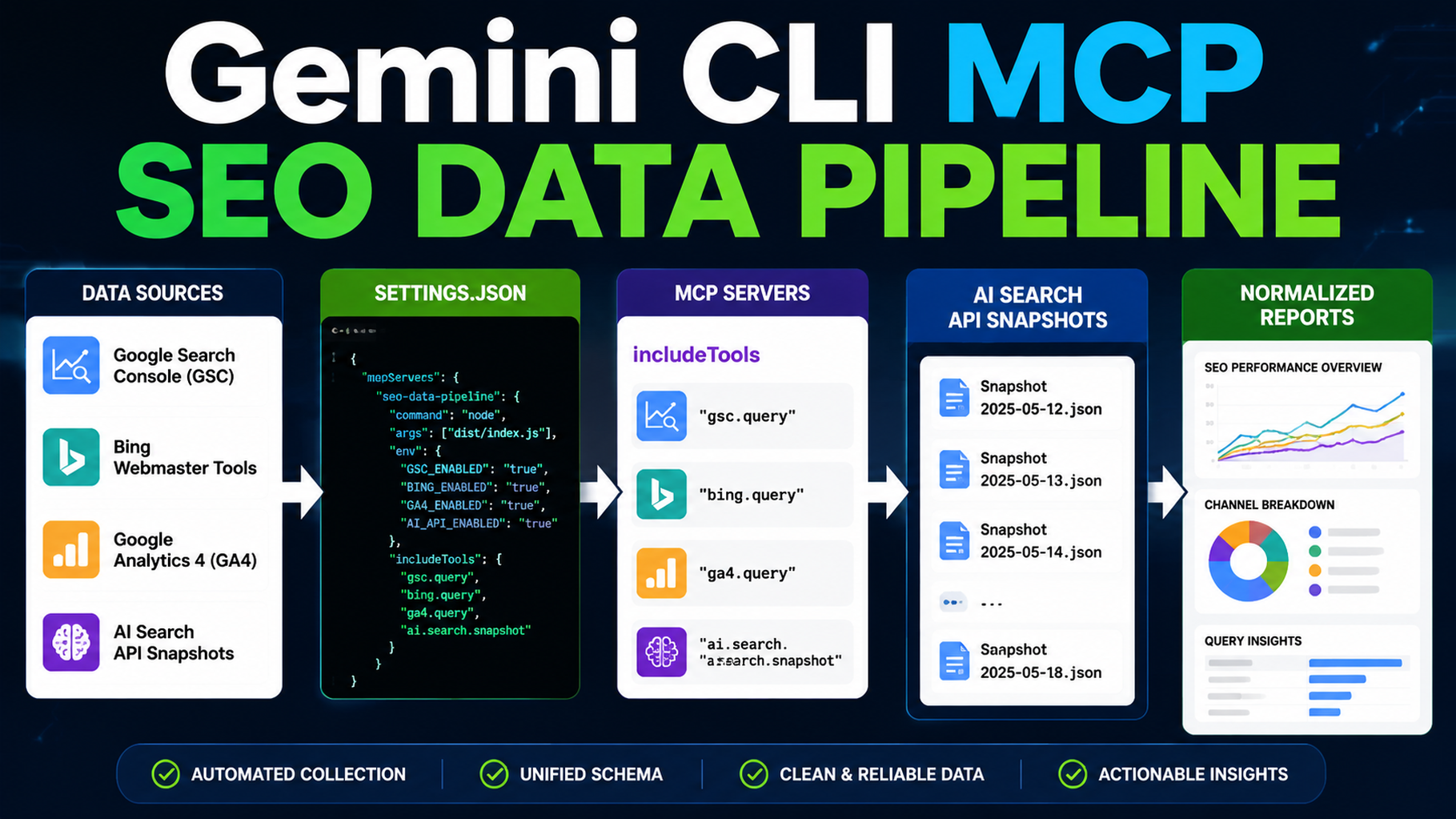
This tutorial upgrades the basic Gemini CLI workspace into a read-only SEO/GEO data pipeline using MCP. The goal is not to give the CLI every possible action. The goal is to expose only the data tools Gemini needs to create reports from GSC, Bing, GA4, SERP snapshots, and AI visibility checks.
By the end, you will have:
.gemini/settings.json
seo-geo/exports/YYYY-MM-DD/
seo-geo/reports/YYYY-MM-DD-mcp-report.md
scripts/mcp-seo-data-server.mjs
Step 1: decide what tools Gemini CLI may use
Tool type | First version | Why |
|---|---|---|
Read GSC pages | Allow | Needed for opportunity reports |
Read Bing queries | Allow | Adds non-Google search signal |
Read GA4 landing pages | Allow aggregated only | Avoid raw user data |
Read AI visibility snapshots | Allow | Needed for GEO tracking |
Submit URLs | Block | Write action |
Publish CMS post | Block | Production action |
Delete or redirect pages | Block | High-risk action |
Step 2: create a placeholder MCP server
mkdir -p scripts .gemini
cat > scripts/mcp-seo-data-server.mjs <<'EOF'
#!/usr/bin/env node
// Placeholder MCP server for planning. Replace with a real MCP implementation later.
console.error('TODO: implement MCP tools: get_gsc_pages, get_bing_queries, get_ai_visibility_snapshot');
setInterval(() => {}, 1000);
EOF
chmod +x scripts/mcp-seo-data-server.mjs
This placeholder will not fetch real data. It exists so your team can discuss tool names, permissions, and data shapes before touching credentials.
Step 3: create .gemini/settings.json
Gemini CLI MCP docs explain that MCP servers expose tools and resources so the CLI can interact with external systems and data sources. Start with a conservative settings file:
{
  "mcpServers": {
    "seo-data": {
      "command": "node",
      "args": ["scripts/mcp-seo-data-server.mjs"],
      "includeTools": [
        "get_gsc_pages",
        "get_bing_queries",
        "get_ga4_landing_pages",
        "get_ai_visibility_snapshot"
      ],
      "excludeTools": [
        "submit_url",
        "publish_post",
        "delete_page",
        "create_redirect"
      ]
    }
  }
}
If your Gemini CLI version or MCP server uses a different config shape, keep the same principle: allow data reads first; block write actions.
Step 4: define normalized output
mkdir -p seo-geo/exports/schema
cat > seo-geo/exports/schema/normalized-seo-geo-snapshot.json <<'EOF'
{
  "date": "YYYY-MM-DD",
  "pages": [
    {
      "url": "https://example.com/page",
      "gsc_impressions": 0,
      "gsc_clicks": 0,
      "bing_clicks": 0,
      "ga4_sessions": 0,
      "ai_prompts_mentioned": 0,
      "ai_citations": [],
      "notes": ""
    }
  ]
}
EOF
Gemini CLI should write reports from normalized snapshots, not from five unrelated raw formats.
Step 5: first MCP prompt
Use only read-only SEO/GEO MCP tools.
Do not submit URLs, publish CMS content, delete pages, create redirects, or edit website files.

Task:
1. Inspect the configured MCP server names and available read tools.
2. Tell me which tools are available and which expected tools are missing.
3. Propose the normalized snapshot shape for today's SEO/GEO report.
4. Do not call any write-capable tool.
A good answer should mention the allowed tool names and the blocked actions.
Step 6: generate the first MCP-based report
After real read tools exist, use:
Use read-only MCP tools to fetch today's GSC pages, Bing queries, GA4 landing page summary, and AI visibility snapshot.

Save normalized output under:
seo-geo/exports/YYYY-MM-DD/normalized-seo-geo-snapshot.json

Then create:
seo-geo/reports/YYYY-MM-DD-mcp-report.md

The report must include:
- data sources used;
- missing data;
- top page opportunities;
- prompt/citation gaps;
- technical or indexing risks;
- recommended next actions;
- actions that require human approval.

Do not edit website files.
Expected report format
# MCP SEO/GEO Report - YYYY-MM-DD

## Data sources
| Source | Tool | Status | Notes |

## Top opportunities
| URL | Signal | Diagnosis | Recommended action | Risk |

## AI visibility gaps
| Prompt | Brand mentioned | Citation | Competitors | Next page action |

## Approval-needed actions
- Any URL submission
- Any CMS publish
- Any robots/canonical/redirect change
Troubleshooting
Problem | Likely cause | Fix |
|---|---|---|
Gemini cannot see MCP tools | settings path wrong or server failed | Reopen CLI and check config path |
Tool exposes write actions | allowlist missing | Add include/exclude policy |
Report mixes raw formats | no normalized schema | Force output to snapshot JSON |
API keys appear in chat | unsafe credential handling | Move keys to env/config, never prompts |
FAQ
Should MCP tools submit URLs or publish CMS changes?
Not in the beginner setup. Keep MCP read-only until reporting is reliable and approval gates are mature.
Can I start without MCP?
Yes. Use CSV exports first. MCP is a transport upgrade, not the workflow itself.
What is the success signal?
Gemini CLI can fetch or read data, normalize it into one snapshot, and create a report without touching production files.
AI coding agents for SEO/GEO learning path
This page belongs to the Gemini CLI SEO/GEO track. Follow these terminal-focused tutorials first, then use the operating model to combine it with editor and workflow agents:
- Cursor vs Windsurf vs Gemini CLI for SEO/GEO Automation
- How to Set Up Gemini CLI for SEO/GEO Automation
- How to Connect Gemini CLI to SEO Data with MCP
- How to Run Daily SEO/GEO Monitoring with Gemini CLI
- How to Use Gemini CLI Checkpointing for Safer SEO Fixes
- The SEO/GEO Operating Model for Cursor, Windsurf, Gemini CLI, Codex, and Claude Code
Where to go next
Previous in this path: How to Set Up Gemini CLI for SEO/GEO Automation
Next in this path: How to Run Daily SEO/GEO Monitoring with Gemini CLI
Sources and notes
- Gemini CLI documentation: Gemini CLI Docs and MCP servers with Gemini CLI.
- Related Auspia guide: Cursor vs Windsurf vs Gemini CLI for SEO/GEO Automation.
Author: Gabriel Finch, Search Retrieval Researcher, 1,200+ AI Answers Reviewed at Auspia. Gabriel writes about retrieval systems, AI discovery, and search infrastructure workflows.