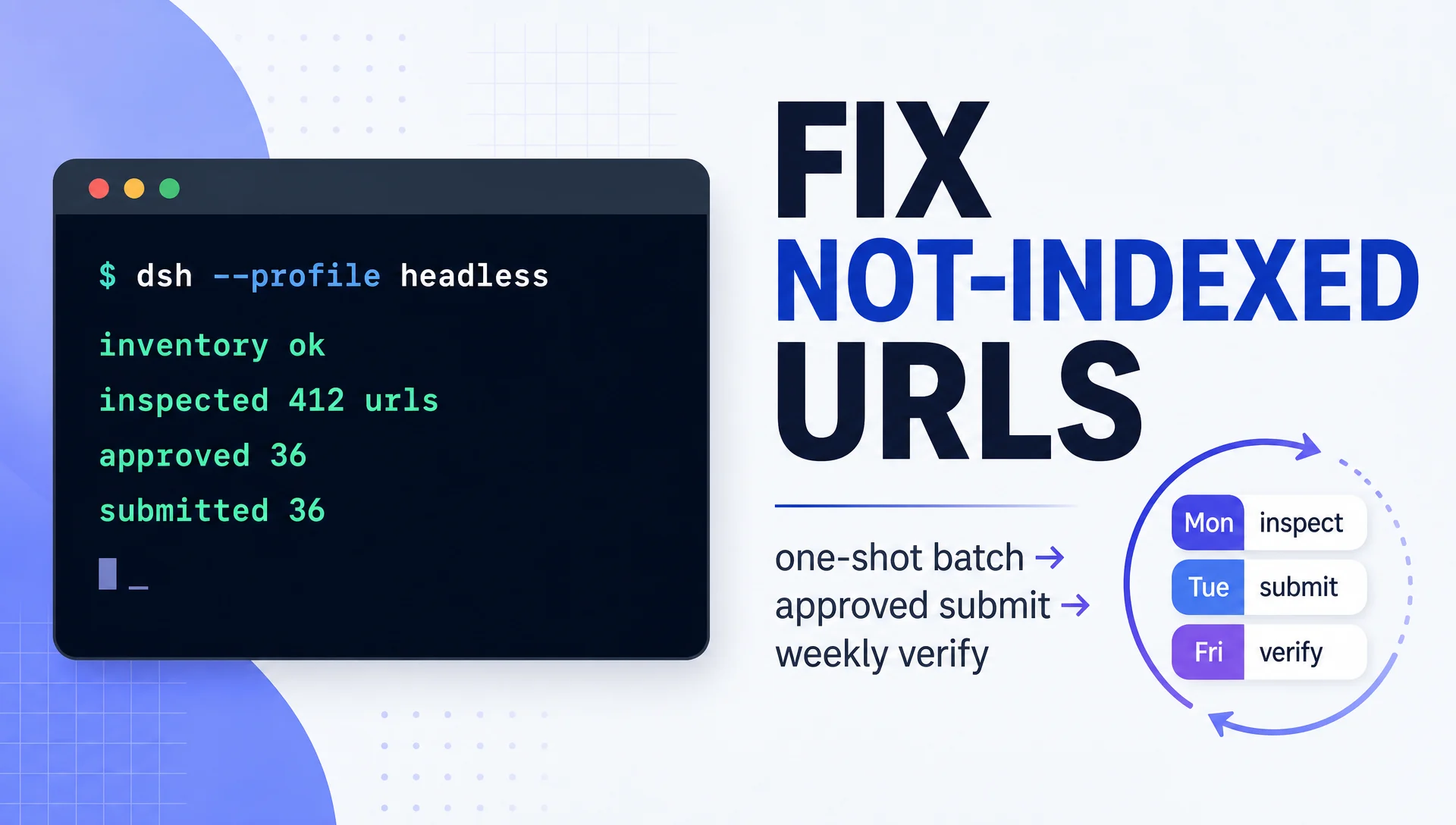
DeepSeek Harness (dsh) runs agents that can do real work, and few SEO jobs are better suited to it than the not-indexed URL pipeline: read a list, inspect each URL, classify, wait for approval, submit, verify. Every stage is a command or a file, which is exactly what a harness agent is good at.
Two questions decide how you set this up. Do you want a one-shot batch you can script and put in cron? Run it headless. Do you want to watch it work, answer its questions, and approve each batch in a chat window? Use the web UI. This guide shows both paths, and the pipeline underneath is the same for each. If you want the deep explanation of what "Discovered – currently not indexed" and "Crawled – currently not indexed" actually mean and how to read them, we covered that in the Hermes Agent version of this workflow; here we focus on the dsh execution.
Pick your path
Headless one-shot | Web UI + schedule | |
|---|---|---|
Best for | Scripted batches, cron, CI-style runs, testing | Interactive triage, first-time setup, learning what the agent decides |
Launch |
|
|
Approvals | Pre-approved lists in files; the agent asks via its question tool when a rule needs a human | Ask questions inline in chat, approve per batch |
Scheduling | cron (or dsh's schedule tool if your profile loads the Schedule plugin) | Same, but you see every run |
Output | Report files in the project folder | Report files plus the chat transcript |
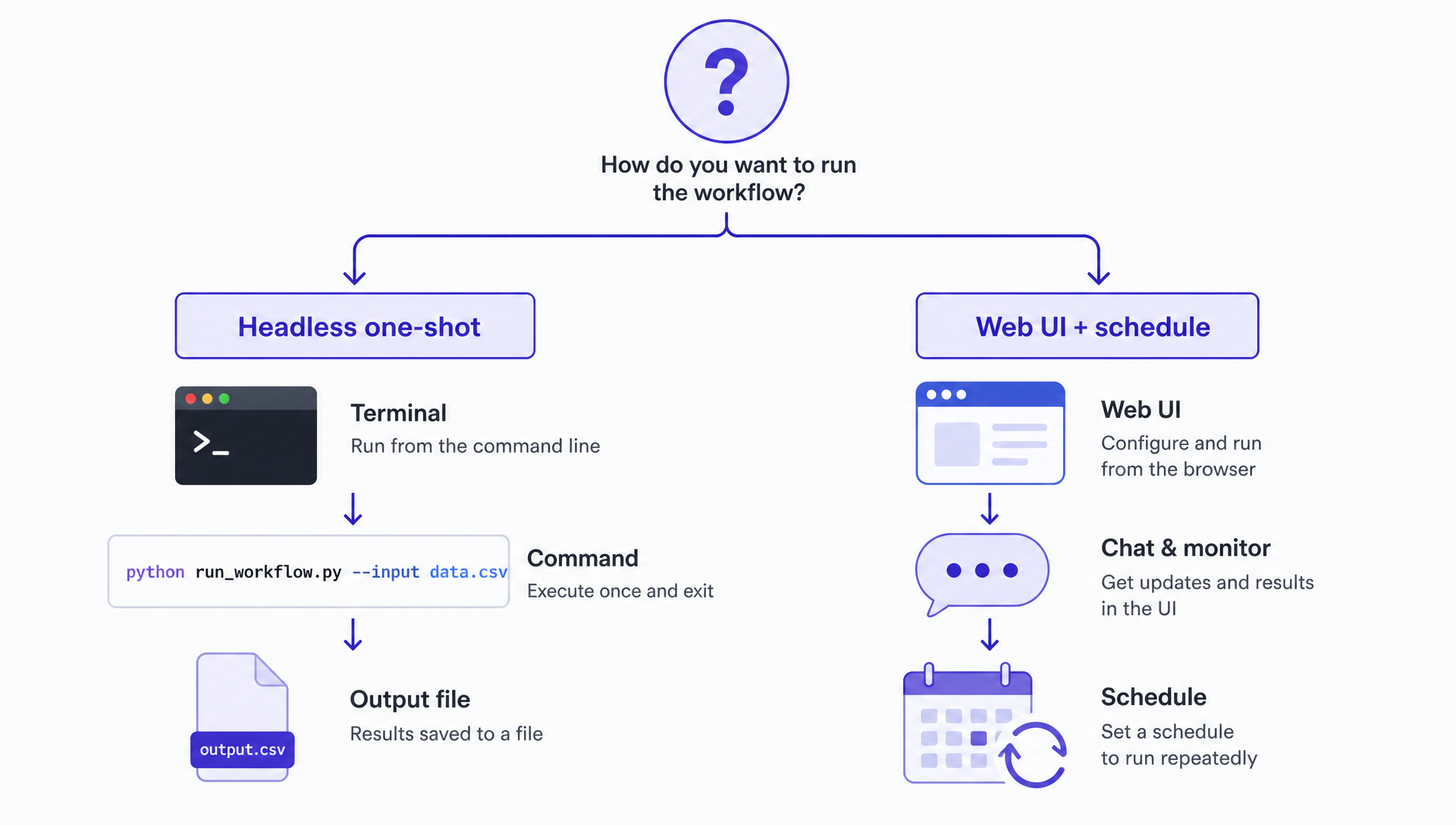
Headless for batches, web UI for first runs — same pipeline underneath.
Both paths share one rule: the write step (submitting to Google) stays behind a human approval gate. In headless mode that means you review the file the agent produced before letting it run the submit command; in web mode you approve in chat.
What you end up with
An indexing/ project folder containing: the URL inventory, the classified lists (to-submit.txt, skip.txt, needs-fix.txt), the approved submission queue, and a run log. On each run dsh produces a short report: how many submitted, how many skipped and why, and what changed since last time. First-time setup takes 60–90 minutes (most of it Google-side credentials); a weekly run takes 15 minutes.
Before you start
- dsh installed and configured. Update to the current release with
npx @deepseek-ai/dsh@latest webif needed. Your API key and settings live under~/.dsh/(profiles, sessions,settings.yaml), and a workingdsh webor a successful headless task confirms the install. - A GSC property you own, in
sc-domain:example.comformat. - Read credentials: an OAuth client for the Search Console API (client ID + secret) for the read scripts.
- Write credentials: a Google Cloud project with the Indexing API enabled, a service account JSON key, and the service account email added as Owner under GSC → Settings → Users and permissions. A 403 on submission means this step failed.
- The two GSC script folders in your workspace: the read skill (sitemaps, search analytics, URL inspection) and the indexing skill (
index_submit.py). Python 3 withpip install google-auth google-api-python-client. - A project folder, e.g.
~/gsc-indexing-projectwithdata/,scripts/,logs/.
The Google-side setup is identical for every agent, and the gsc-indexing skill's own docs walk through the Cloud Console steps: enable Indexing API, create service account, download key, add as Owner.
Path A: one-shot headless run
Headless mode is dsh --profile headless "task": one task, one answer, exit. Put the whole pipeline in one prompt, or stage it across a few runs while you debug.
First run, from the project folder:
dsh --profile headless "Run stage 1 of the GSC indexing pipeline. List sitemaps for sc-domain:example.com using the gsc_query.py script, fetch every URL with lastmod, deduplicate, and write data/url-inventory.csv. Report the total count."What good output looks like: a real CSV with a count that matches the GSC sitemap report, and no invented columns. Quality check: open the file and spot-check five URLs. If the agent reports an auth error, re-run the GSC OAuth flow and retry; the read scripts need a fresh token.
Stage 2:
dsh --profile headless "Inspect the URLs in data/url-inventory.csv via the URL Inspection API and split them into data/to-submit.txt, data/skip.txt (with one-line reasons), and data/needs-fix.txt. Only include URLs with lastmod in the last 90 days."The agent runs the inspection script in batches (the API is rate-limited per property; check your current quota in Google Cloud Console). Sanity-check the split: the skip list should be dominated by noindex, canonical-away, and duplicate pages. If a site with thousands of URLs produces an empty needs-fix list, widen the input window.
Stage 3 is the approval gate, and it never runs unattended:
dsh --profile headless "Read data/needs-fix.txt and data/skip.txt. Draft a fix-and-submit queue as a table: URL, suspected cause (no internal links, duplicate, canonical, noindex, thin, soft 404), evidence, proposed action, risk level. Do not submit anything."You review the table in the report it prints, edit data/to-submit.txt to contain only the URLs you approve, then run stage 4:
dsh --profile headless "Submit the URLs in data/approved-urls.txt through the indexing script (index_submit.py submit --urls-file data/approved-urls.txt). Use check-auth first. Log every result to logs/submissions.log."Expected output: a line per URL with the notification result, no 403s. Recovery paths: a 403 means the service account is not an Owner of the property; a 429 means you hit the 200-per-day or 600-per-minute quota; split the list across days. If a run dies midway, dsh --profile headless --resume <session> picks it back up.
Path B: web UI plus a weekly schedule
dsh web opens the browser UI at 127.0.0.1:3080. Chat through the same stages, but interactively: the agent asks you to confirm the classified lists before drafting the queue, and again before running the submit command. That live approval flow is the main reason to choose this path on a first setup: you see what the agent is about to do to your Google property before it does it.
Once the pipeline works, add the cadence. dsh's Schedule plugin registers schedule_create, which re-runs a task on a timer inside a live session:
schedule_create: every 7 days, run "Inspect data/url-inventory.csv, classify new and changed URLs, and draft the submission queue. Do not submit."
If your profile does not load the Schedule plugin, the same result is a cron line wrapping the headless command:
0 9 * * 1 cd ~/gsc-indexing-project && dsh --profile headless "Run the weekly GSC indexing inspection and draft the submission queue." >> logs/weekly.log 2>&1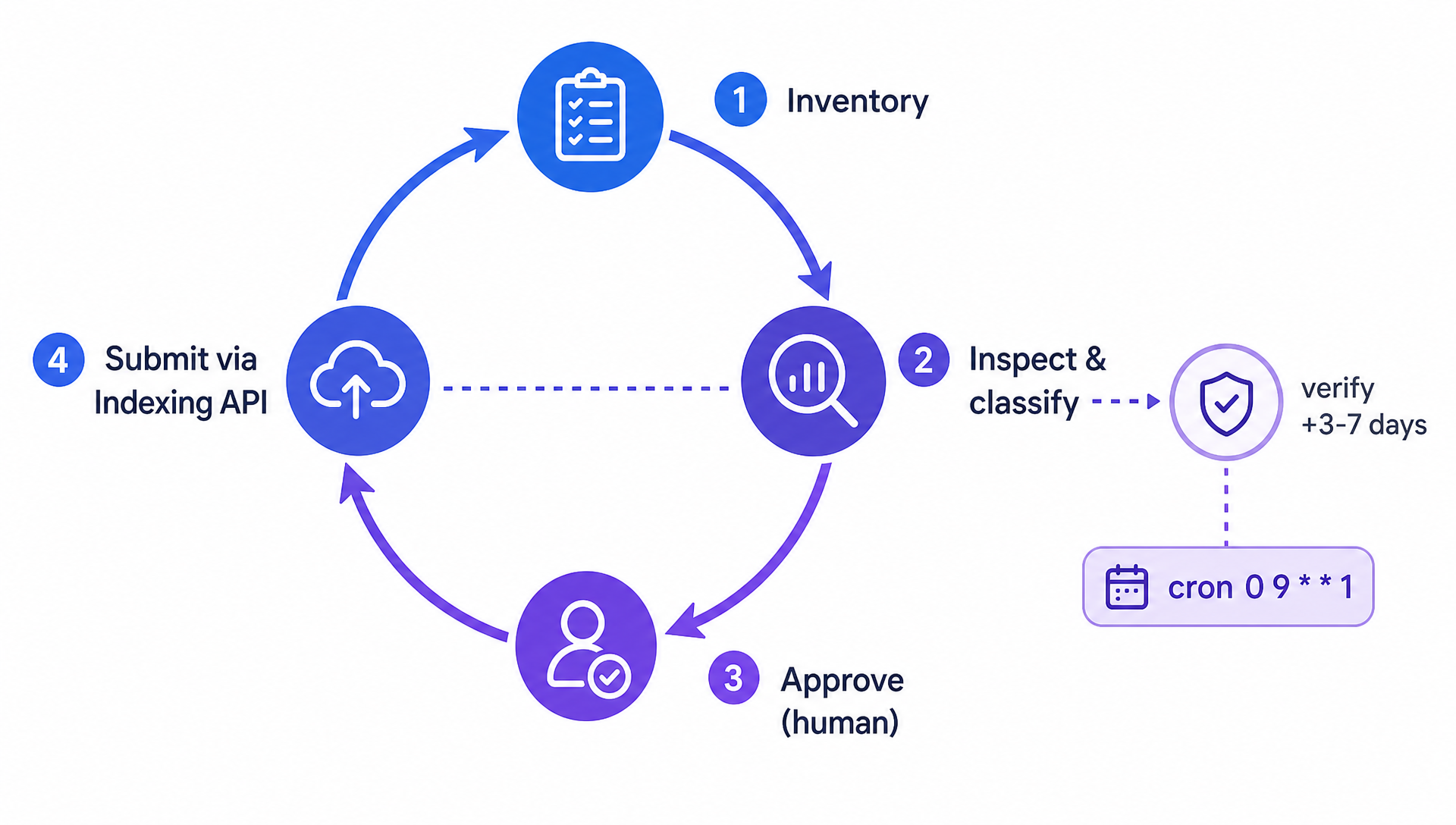
The schedule runs the first three stops; submission stays human-gated.
Keep the submit step out of the schedule. Weekly inspection, classification, and queue drafting can be unattended; submission waits for a human.
The triage rules the agent applies
The classification and the queue depend on a small table, and you should put it in the project folder so every run uses the same rules:
Cause | Fix | Submit after fix? |
|---|---|---|
No internal links point to the page | Add contextual links from indexed pages | Yes |
Brand-new page | Nothing to fix; submit once, wait 1–2 weeks | Yes, once |
Blocked by robots.txt | Unblock the path | Yes |
Duplicate or thin content | Rewrite, merge, or remove | Only after a real change |
Canonical points elsewhere | Fix if wrong; if intentional, drop the URL | Only if fixed |
noindex at crawl time | Remove noindex | Yes, after removal |
Soft 404, archive, facet without value | Fix or remove; skip permanently | No |
The deeper reading of the two statuses, including why Google crawls some pages and not others, is in the Hermes Agent guide. The causes are the same regardless of which harness runs the pipeline.
Verify, then wait
After each batch, confirm the notification with status: that only proves Google has metadata for it, not that the page is indexed. Three to seven days later, re-inspect the submitted URLs and compare states. The healthy pattern is discovered → crawled → indexed over a week or two. GSC data lags a few days, and Google re-crawls on its own schedule, so a URL still stuck at "Crawled – currently not indexed" after 10–14 days with a real fix behind it is a content-quality verdict, not a submission problem. The log file is where this gets visible: date, URL, notification type, and the inspection state at next run. That is also the measurement: the not-indexed list should shrink over time, not the notification count grow.
Honest limits
- The Indexing API is officially documented for
JobPostingandBroadcastEventpages. Sending regular pages through it is common practice, but Google gives no guarantee and offers no support promise for every page type. - No public API exists for the Search Console "Request indexing" button. The Indexing API is the closest scriptable channel, not a replica of the button.
- Automation does not create priority. If a page stays not-indexed after you fixed it and submitted it, the next move is content work, not another scheduled run.
FAQ
Can I run headless mode without the web UI at all? Yes. dsh --profile headless "task" runs one task and exits; credentials still live in ~/.dsh/, and the read scripts work the same. Use the web UI once to verify the pipeline end to end, then script it.
A run died mid-batch. Do I lose the work? No. Resume with dsh --profile headless --resume <session>, and re-run the submit script; it deduplicates repeated URLs, so re-submitting an already-notified URL in the same batch is harmless.
I manage several GSC properties. Do I repeat everything per site? The scripts take a --site sc-domain:... argument, so one workspace can hold several property inventories and logs. Keep one approved-queue file per property and one submit command per property, so a quota error on one site never blocks the others.
Author: Camille Rhodes, Architect of 300+ AI Content Workflows at Auspia. Camille writes about content automation, publishing systems, and the workflows that turn AI agents into reliable growth operations.