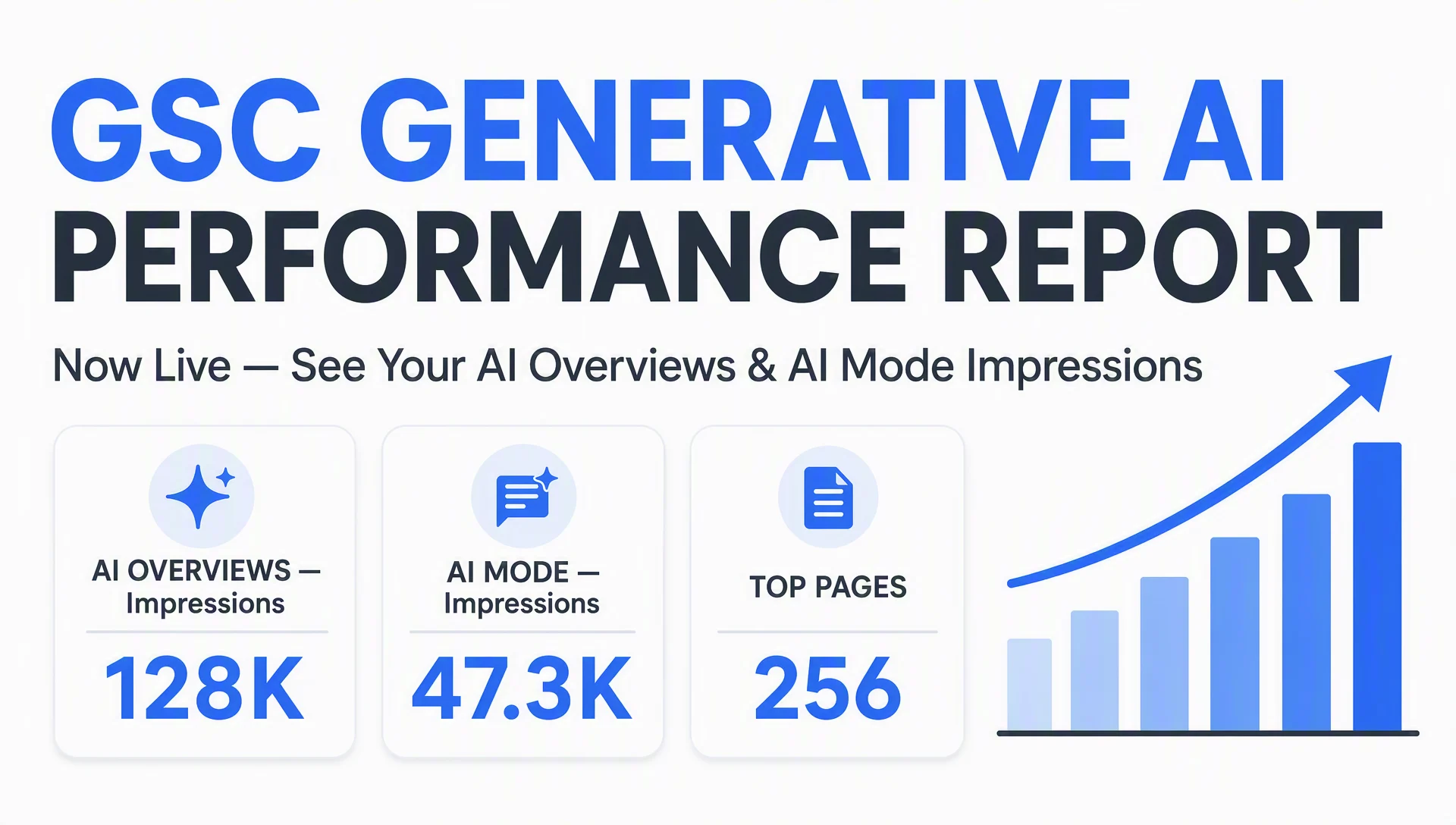
What you'll finish with
This guide is for anyone who just heard about Search Console's Generative AI performance report and wants to find it without digging through menus. It takes about ten minutes.
By the end you will be able to:
- Find the report in your Search Console in under a minute
- See which of your pages appear in AI Overviews and AI Mode, with impression counts
- Spot your top five AI-appearing pages and know whether that number is growing
Done means you can name your top five AI-appearing pages, explain what one of their impression numbers means, and describe the trend over the last 30 days.
Step 1: Find the report (this is where it lives)
The report is hiding in a menu you already know. Follow this path and you're there:
Performance → Search results → Generative AI
In more detail:
- Log in to Google Search Console.
- Pick your property.
- In the left sidebar, open Performance.
- Click Search results.
- Look at the left menu inside that report — the entry is called Generative AI.
You should land on a page with an impressions chart, summary cards, and the same tabs as the regular report: Pages, Countries, Devices, Dates. This is where your AI Overviews and AI Mode data lives.
Shortcut: if you want to skip the menu entirely, paste this address into your browser and sign in — it opens the report directly:
https://search.google.com/search-console/performance/search-analytics/ai
Can't find it? Make sure you're on the Search results view, then refresh. The rollout only wrapped up in August 2026, so UI updates can lag a few days. If it still isn't there after a restart, see the FAQ at the bottom — Google's help page lists three specific reasons a report can be missing.
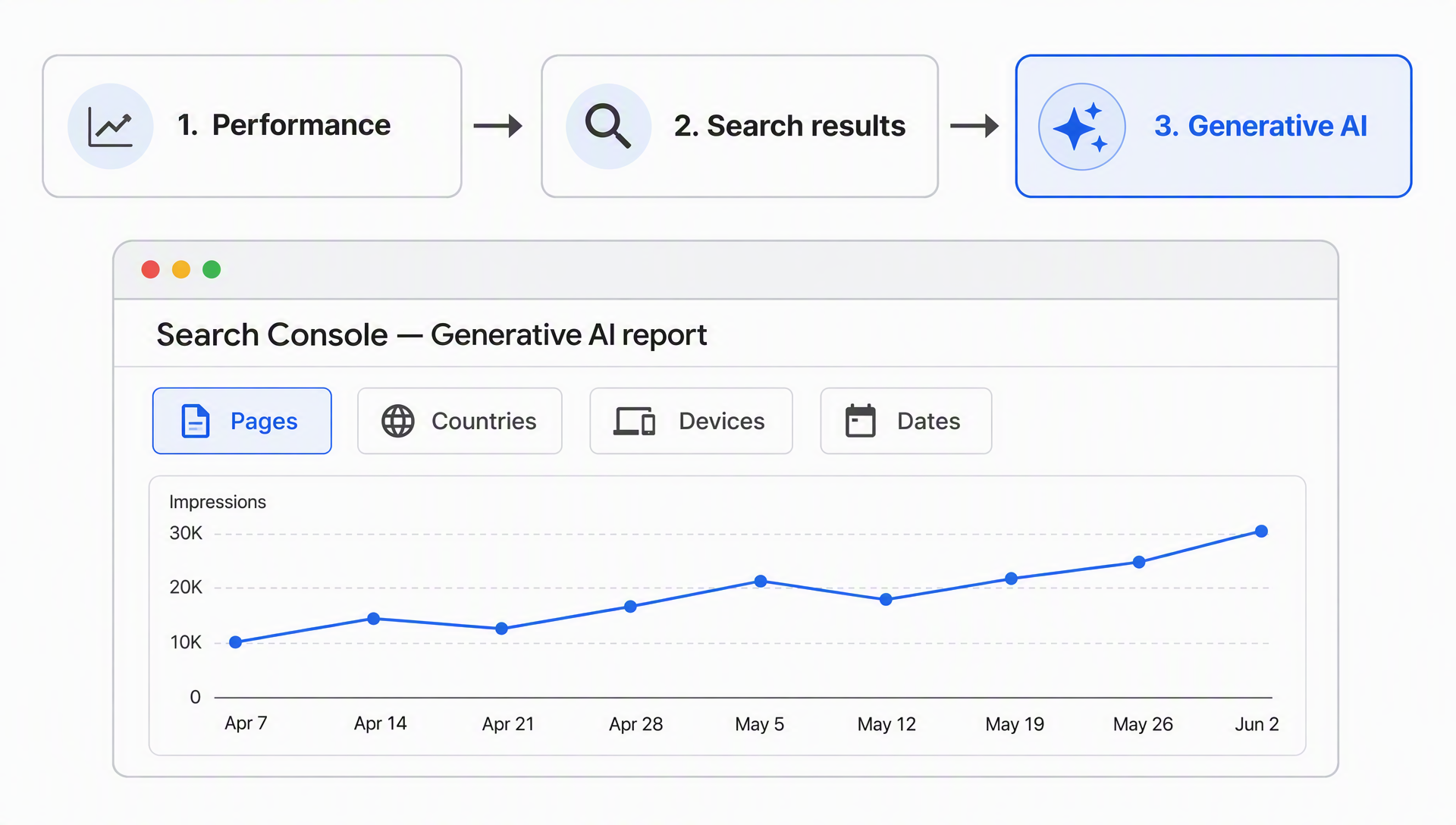
The click path: Performance → Search results → Generative AI.
Why you can open it today
Google started rolling this report out on June 3, 2026, in waves — UK properties first, then more markets. As of August 2026 it's live for everyone. No beta, no waitlist. If your property is verified, the report should be in your menu today.
It doesn't replace your normal performance report. AI data still feeds into your overall Search numbers; what changed is that you can finally isolate it. One date to remember: data starts May 18, 2026, and there's no history before that.
What's inside, per Google's own help page: the report covers AI Overviews and AI Mode, and Google says the feature list will grow over time. Discover's generative AI data lives in a separate report, and Search Labs experiments are not included.
Three things to know before you read the numbers
The report is easy to misread, so set expectations first.
- It's impressions only for now. No clicks, no CTR, no average position, and no query list. Google has said more metrics will come over time.
- An impression, in Google's own definition, is "how many times links to your site were shown to a user in a generative AI feature." It counts even if the person never clicks or reacts — no action required. Treat it as a resonance signal: Google's models consider your page worth citing for that topic, and that alone is worth tracking.
- The chart and the table count differently, and that's by design. The chart aggregates by property — if two results from the same site appear in one generative AI result, they count as a single impression on the chart. The table counts per page when you group by Pages. So chart totals and table totals can differ, and small numbers do not mean you're invisible.
The report shows | The report does not show (yet) |
|---|---|
AI Overviews and AI Mode impressions | Clicks and CTR |
Pages that appeared in AI answers | Queries that triggered them |
Countries | Average position |
Devices (Search report only) | Historical data before May 18, 2026 |
Date ranges from hourly to monthly |
Step 2: Set a date range you can actually compare
Use the Date filter to set a range. Sensible starting points:
- Last 3 months for a first look at the trend
- Last 7 days once you move to weekly checks
- Compare AI Mode versus AI Overviews individually if your account shows the toggle; the two surfaces behave very differently
Before you compare anything, check that the range starts no earlier than May 18, 2026. Any earlier date returns no data, and it's the most common source of "my report is broken" panic. If the chart looks empty, widen the range forward, not backward. If it stays flat, skip to Step 4: the Pages tab can still have rows when the totals look tiny.
Two small official details that save confusion: you can group by day, week, or month, and all dates are in Pacific Time (same as the regular report).
Step 3: Read the impressions trend
The line chart is your quickest health check. Look at the shape: is it trending up, flat, or down since May? Watch for jumps. Which weeks spike, and what did you publish or change that week? New answer-style content often produces its first AI impressions within a week or two. And mind the scale: don't expect organic-scale numbers. AI impressions are a fraction of total search impressions for almost every site; a few hundred a month can still mean you're the page a model cites for a money question.
One official detail worth knowing: the most recent days can be preliminary — Google marks that with a dotted line on the chart, and those numbers may still shift within a few hours. Give the newest point a day or two before acting on it.
The most useful habit here is brutal honesty. If a page gets steady AI impressions but you can't see why, the answer is usually that a competitor's page answers the same question more directly. That's your rewrite queue.
Step 4: Find the pages that appear in AI answers
Click the Pages tab and sort by impressions. You now have your actual list of "pages Google's AI features show." The tab groups data by the final URL after redirects and assigns it to the canonical URL, exactly like the regular report, and the usual 1,000-row limit applies.
Walk down the list and ask three questions about each of the top five:
- Is this a page I actually want to be known for? (If a stale product page is your top AI page, that's a signal, not a reward.)
- Does this page answer a complete question on its own, or does it assume the reader came from somewhere else?
- Would an AI assistant find a quotable answer within the first few paragraphs? A definition, a comparison, a step, a number.
Pages that check all three boxes are your AI anchors. Pages that get impressions but fail these checks are the most valuable rewrite targets you have: the model already cites them, so better answer structure converts faster than you'd expect.
Step 5: Check which countries see you
The Countries tab shows where AI impressions come from. Compare it with your organic country split in the regular report.
US traffic often over-indexes on AI Mode because it rolled out there first and has the longest adoption curve. If your AI impressions are all US but your organic traffic is mostly Europe, you're early in a market that will grow, not underperforming.
Step 6: Devices (Search report only)
The Devices tab exists for the Search report (AI Overviews and AI Mode). It's worth one glance: in the accounts I've seen, AI Mode gets used heavily on desktop for research-style queries, while AI Overviews skew more mobile. If your device split looks inverted from your organic split, that's normal.
Step 7: What the report won't tell you, and where to find the rest
Three gaps trip up beginners.
- No queries. You can't see which questions triggered your AI impressions inside this report. Your best source for the why is the regular Performance report, where AI Mode follow-up questions (for example "yes, go on") appear as normal queries with their own impressions and clicks. Search those queries and you'll learn what people keep asking after your page gets cited.
- No clicks. To judge whether AI visibility pays off, open the same pages in the regular Performance report and compare organic clicks. Three combinations worth acting on:
- High AI impressions plus healthy organic clicks: double winner. Protect it, add internal links to it.
- High AI impressions plus weak organic clicks: the models like the page, searchers don't. Improve the title, the intro, and the answer structure before you publish anything new.
- AI impressions with no organic visibility: the page is citable but not competing. A fresh, better-structured version is your highest-leverage rewrite.
- Dedup. A URL shown in both an AI Overview and a blue link counts once. Don't read the total as a "how much did AI cost me" number. Use it as a coverage signal.
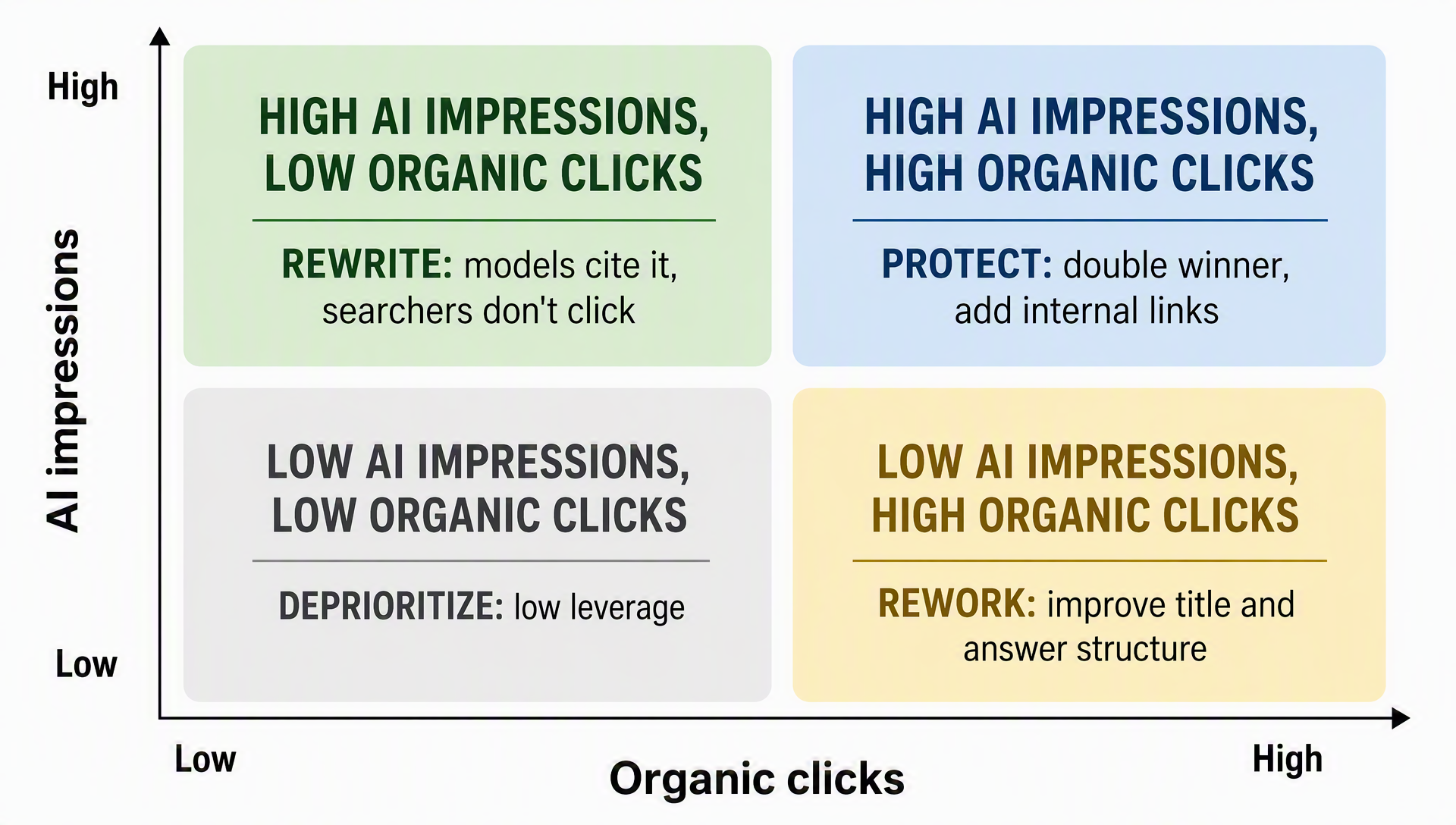
How to act on each AI-versus-organic combination.
Step 8: Turn it into a 15-minute weekly routine
The report only helps if it changes what you do. This is the version I'd run every Monday:
- Open the Generative AI report, set Last 7 days, screenshot the trend.
- Copy the top 5 pages from the Pages tab into a sheet: date, page, impressions.
- Open the same 5 pages in the regular Performance report and note their organic clicks.
- Pick one page where the gap is widest (AI impressions without clicks, or steady impressions on a weak page) and add it to your content queue with a specific change: rewrite the intro, add a direct answer paragraph, tighten the title.
- Monthly, compare the 90-day trend instead of the 7-day one.
Fifteen minutes once a week. That's more than most site owners spend, and you're now tracking the surface Google just gave everyone.
Related, in case you want control: Search Console's AI controls (Settings → AI controls → Search generative AI) let you opt out of AI features entirely. Google has confirmed the toggle is not a ranking signal for traditional search results, but it does remove you from AI visibility, so think before you flip it.
Step 9 (optional): Pull this data with Claude Code
If you already let Claude Code handle your Search Console data — the kind of skill that queries the Search Analytics API with OAuth — you're probably wondering whether it can pull this new report too. As of August 2026, the honest answer is: not directly. The official Search Console API reference still only lists the classic search types (web, image, video, news, discover, googleNews) — there's no AI Overviews or AI Mode type, so no script or MCP server can fetch the Generative AI report on its own. This is a familiar pattern: the UI ships first, and the API catches up months later, exactly what happened with the Discover and News reports.
What works today, in three steps:
- Export the report. In the Generative AI report, click the export icon at the top right. The download includes both the chart and the table data, and Google's help page confirms that values shown as "~" or "-" are exported as zeros, so nothing breaks your analysis.
- Save the file somewhere Claude Code can reach, for example
~/seo/gsc-ai-report.csv. Any folder works. - Open Claude Code in that folder and say:
Read gsc-ai-report.csv. List the top pages by AI impressions, flag any page whose impressions are growing, and suggest the three most valuable rewrites, using the AI-vs-organic logic from this article.You should get back a ranked table of pages by AI impressions plus concrete rewrite candidates with reasons. Check the numbers against the UI: both the API and the report show final data, but remember GSC data settles with a few days of delay, so today's totals may still shift slightly. If anything looks off, re-export and make sure you didn't mix the last-7-days view with the last-3-months one.
One more thing to know: the same skill that queries your regular report keeps working right now, and that data already includes AI Mode follow-up questions (the "yes, go on" type), so that side isn't missing. The day Google adds AI Overviews and AI Mode to the API, the change is a one-line searchType argument — your skill setup stays as is.
Verify you did it right
- [ ] You can open Performance → Search Results → Generative AI on your property
- [ ] Your date range starts at or after May 18, 2026
- [ ] You can name your top five AI-appearing pages from the Pages tab
- [ ] You can explain what one impression number means (appeared in an AI answer, not a view)
- [ ] You have one page queued with a specific rewrite based on the AI-vs-organic gap
- [ ] Your Monday check is on the calendar
Beginner mistakes to avoid
- Expecting click data. It's impressions-only for now; the report is still worth your time.
- Reading impressions as views. An impression is a citation, not a reader.
- Comparing before May 18, 2026. There's no history, so year-over-year comparisons don't exist yet.
- Treating dedup as a bug. One impression per URL per search is by design.
- Abandoning the regular report. AI and organic numbers only make sense together.
FAQ
I don't see the Generative AI report in my Search Console. Why?
Google's own help page lists three reasons a report can be missing, and it's worth checking all three:
- Rollout. Google is still enabling the report property by property. Refresh and check back over the next few days; if your account is a later wave, it appears on its own.
- Not enough impressions. If your site has very little generative AI activity, the report can be empty or absent. The regular Search results report will still show your overall data.
- Your site is excluded from generative AI features. Check the Search generative AI eligibility settings (Settings → AI controls → Search generative AI) and make sure your site is included if you want to be considered.
What counts as an impression in this report?
Google's official definition: an impression is "how many times links to your site were shown to a user in a generative AI feature." It counts even if the person never clicks, which is why it reads as a relevance signal rather than a traffic number. And remember: the chart counts by property (two results from the same site = one impression), while the Pages tab counts per page — so the two totals can differ.
Will clicks, CTR, and queries be added?
Google has said more metrics are coming over time, but there's no published date. Plan your workflow around impressions now and treat the report as a baseline you'll upgrade later.
Does opting out of AI features hurt my organic rankings?
Google has stated the AI controls toggle is not used as a ranking signal for traditional search results. What you lose is AI visibility itself, which is the point of the toggle.
My AI impression numbers are tiny. Is something wrong?
Almost certainly not. AI impressions are a small fraction of search impressions for most sites, and small absolute numbers are normal right after the data window opened. Watch the trend, not the scale.
Can I automate the weekly check?
Yes, once you're comfortable with the report. The routine above is deliberately manual because you need to build the instinct for what the numbers mean first. After a month, exporting the report data and folding it into your usual reporting workflow is straightforward (Step 9 shows the Claude Code version).
Can I pull this report with the Search Console API or Claude Code?
Not yet. As of August 2026, the Search Analytics API has no AI Overviews or AI Mode search type, so scripts and MCP servers can't fetch the Generative AI report on their own. The workaround that works today: export the report as CSV and let Claude Code analyze the file (see Step 9). Google typically opens API access months after shipping a report in the UI, so this is likely to change.
Go one step further: see what the AI Overview actually cites
The GSC report tells you which of your pages get AI impressions, but not what the AI answer for your keyword actually says — or which domains Google chose to cite inside it. Auspia's free AI Overview Citation Checker closes that gap: paste an English keyword and it runs a live Google US search, then maps the domains cited in the AI Overview and compares them against the organic top 10.
The pairing is simple. A page showing AI impressions in GSC that doesn't appear in the citation map is a targeted rewrite candidate. A domain outside the top 10 that keeps getting cited is the "independent win" signal worth studying. The tool needs a signed-in Auspia account, only handles English keywords for now, and reports honestly when no AI Overview appears for a query — no invented citation lists.
Author: Owen Hartwell, Google AI Overview Tracker Across 40+ Verticals at Auspia. Owen writes about Google AI Overviews, search AI features, and how site owners can turn SERP changes into traffic decisions.