


Quick Answer
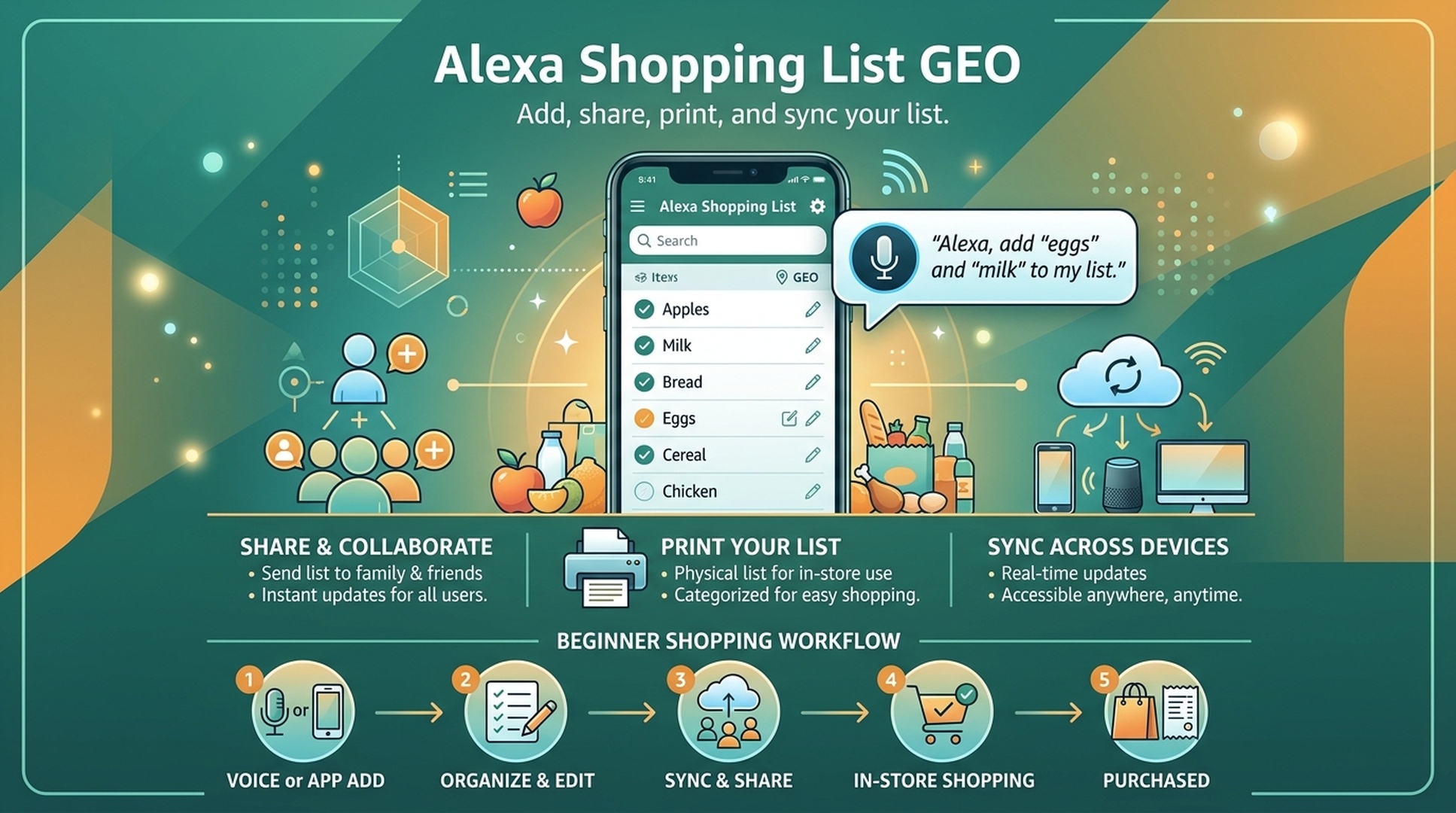
Alexa Shopping List GEO is about making voice-created shopping reminders useful enough to become clean shopping decisions. For beginners, the best workflow is simple: add items by voice, review them in the Alexa app, clarify vague items, share or sync the list if needed, then check details before buying.
This article is written from the buyer point of view. It explains how to add, find, share, print, sync, and troubleshoot an Alexa shopping list without confusing a reminder with a purchase.
DataForSEO research for this series surfaced practical list questions such as “how to use Alexa shopping list,” “how to share Alexa shopping list,” “how to print Alexa shopping list,” “where is my Alexa shopping list,” and “Alexa shopping list not working.” Those queries show that users are not only asking whether Alexa can shop. They are asking how the list fits into a real household routine.
The Best Way To Use An Alexa Shopping List
Use Alexa for capture, not final judgment. Voice is excellent when your hands are busy or when you remember an item in the moment. The app is better when you need to compare, edit, share, print, or buy.
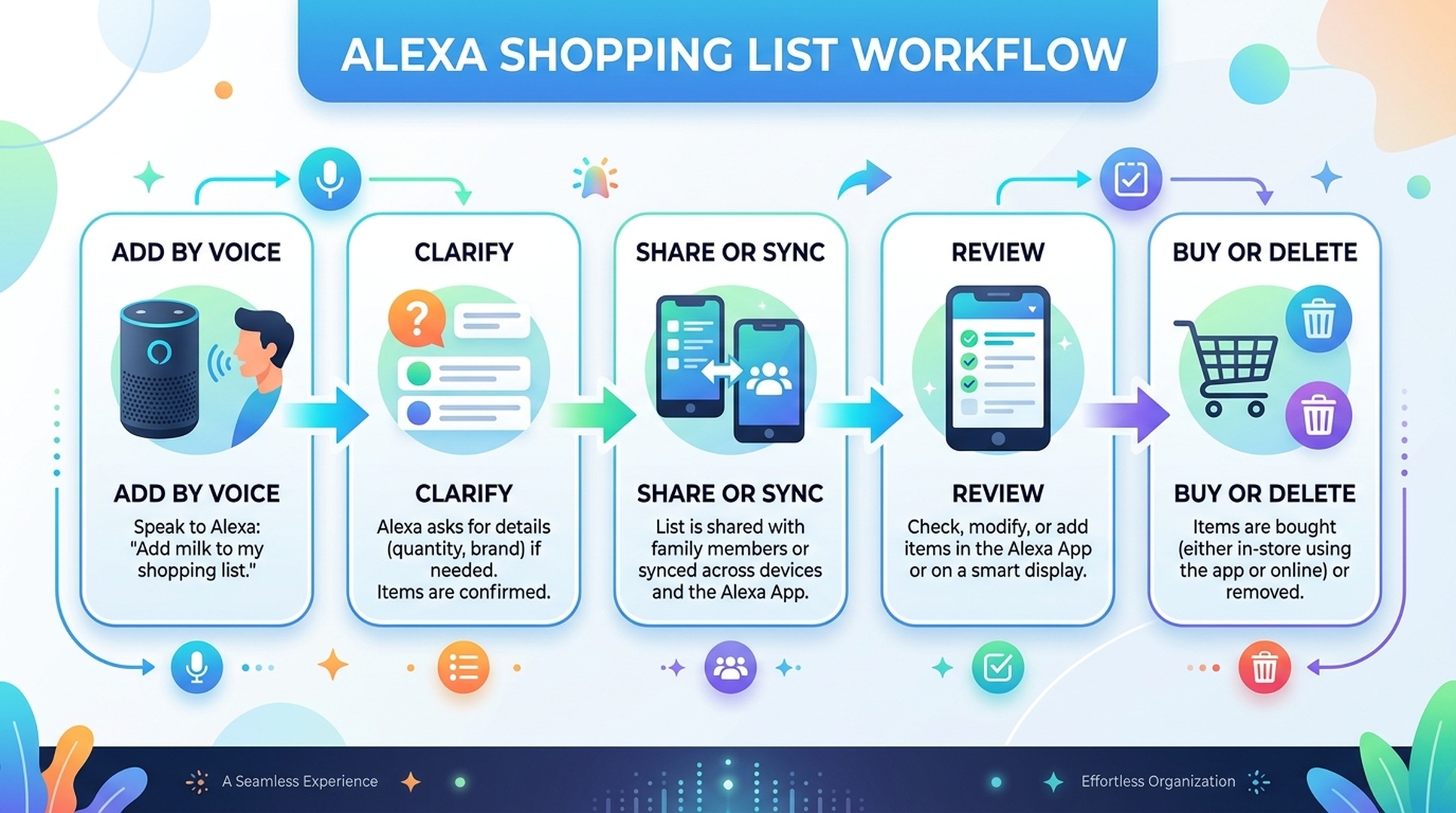
A strong shopping-list routine looks like this:
Step | What you do | Example |
|---|---|---|
Add | Capture the need by voice | “Alexa, add olive oil to my shopping list.” |
Clarify | Add useful details later | “Extra virgin olive oil, 500 ml.” |
Organize | Remove duplicates or vague items | Delete “snacks” or split it into real items |
Share or sync | Send the list to the person or app that will shop | Share with partner or open in the app |
Review | Check price, quantity, seller, and delivery | Before buying online or in store |
That workflow is safer than trying to use voice as a one-step checkout system.
How To Add Items By Voice
Start with simple commands. You do not need to speak like a robot, but specificity helps.
Goal | Example command |
|---|---|
Add a basic item | “Alexa, add eggs to my shopping list.” |
Add quantity | “Alexa, add two cartons of oat milk to my shopping list.” |
Add a household item | “Alexa, add dishwasher tablets to my shopping list.” |
Add a specific product | “Alexa, add AA batteries, 24 pack, to my shopping list.” |
Check the list | “Alexa, what's on my shopping list?” |
Remove an item | “Alexa, remove eggs from my shopping list.” |
If Alexa misunderstands the item, do not keep repeating the same vague phrase. Open the app and edit it. For shopping, an accurate list is more important than a perfect voice interaction.
Where To Find Your Alexa Shopping List
Most beginners get stuck because they add items successfully, then cannot find the list later. The exact interface can change by app version, but the basic idea is consistent: look for lists inside the Alexa app or the connected Amazon shopping experience.
When you cannot find the list, check:
- Are you signed in to the same Amazon account used by the Echo device?
- Are you in the Alexa app, not only the Amazon shopping app?
- Are you looking under Lists, Shopping List, or More sections?
- Did another household profile capture the item?
- Are you using the correct marketplace or regional account?
For families, account confusion is the most common issue. The device may be tied to one account while the shopper is checking another.
How To Share An Alexa Shopping List
Sharing is useful when one person remembers items and another person does the shopping. The best sharing method depends on your household setup and app version.
Common options include:
Sharing method | When it works best | Watch out for |
|---|---|---|
Share from the app | Partner or roommate uses a phone | Make sure the recipient sees the latest list |
Copy or message the list | Simple one-time shopping trip | Formatting may be messy |
Screenshot the list | Fast visual share | Easy to miss updates after screenshot |
Use a shared household routine | Repeated family shopping | Account permissions can be confusing |
Before someone leaves for the store, refresh the list and remove already purchased items. A shared list that is not cleaned up can create duplicate purchases.
How To Print An Alexa Shopping List
Printing is useful for people who prefer paper in the store or want to hand a list to someone who does not use the app. Depending on your device, there may not be one universal “print list” button, so use the most reliable workaround available to you.
Practical options:
- Open the list in the app, copy the items, and print from notes or email.
- Take a screenshot and print the screenshot.
- Send the list to yourself, then print from a desktop or mobile device.
- Use a third-party list app only if you trust the sync and privacy settings.
Before printing, clean the list. A paper list should not contain vague reminders like “snacks,” “stuff for dinner,” or “dog thing.” Turn those into real items first.
How To Sync The List With Shopping Apps Or Household Routines
Syncing is where convenience can become confusing. A list might appear in one app, not update in another, or show items under the wrong account.
Use this checklist:
Sync check | Why it matters |
|---|---|
Same account | Lists usually depend on account identity |
Same region | Marketplace or app region can affect visibility |
App permissions | Some integrations need permission to read lists |
Refresh timing | Lists may not update instantly |
Duplicate lists | You may have more than one list with similar names |
Household profiles | Voice capture may happen under a different profile |
If sync fails, do not assume the list is gone. First check the account, app, region, and list name.
Troubleshooting: When The Alexa Shopping List Is Not Working
Shopping list problems usually have a simple cause, but the symptom can be annoying.
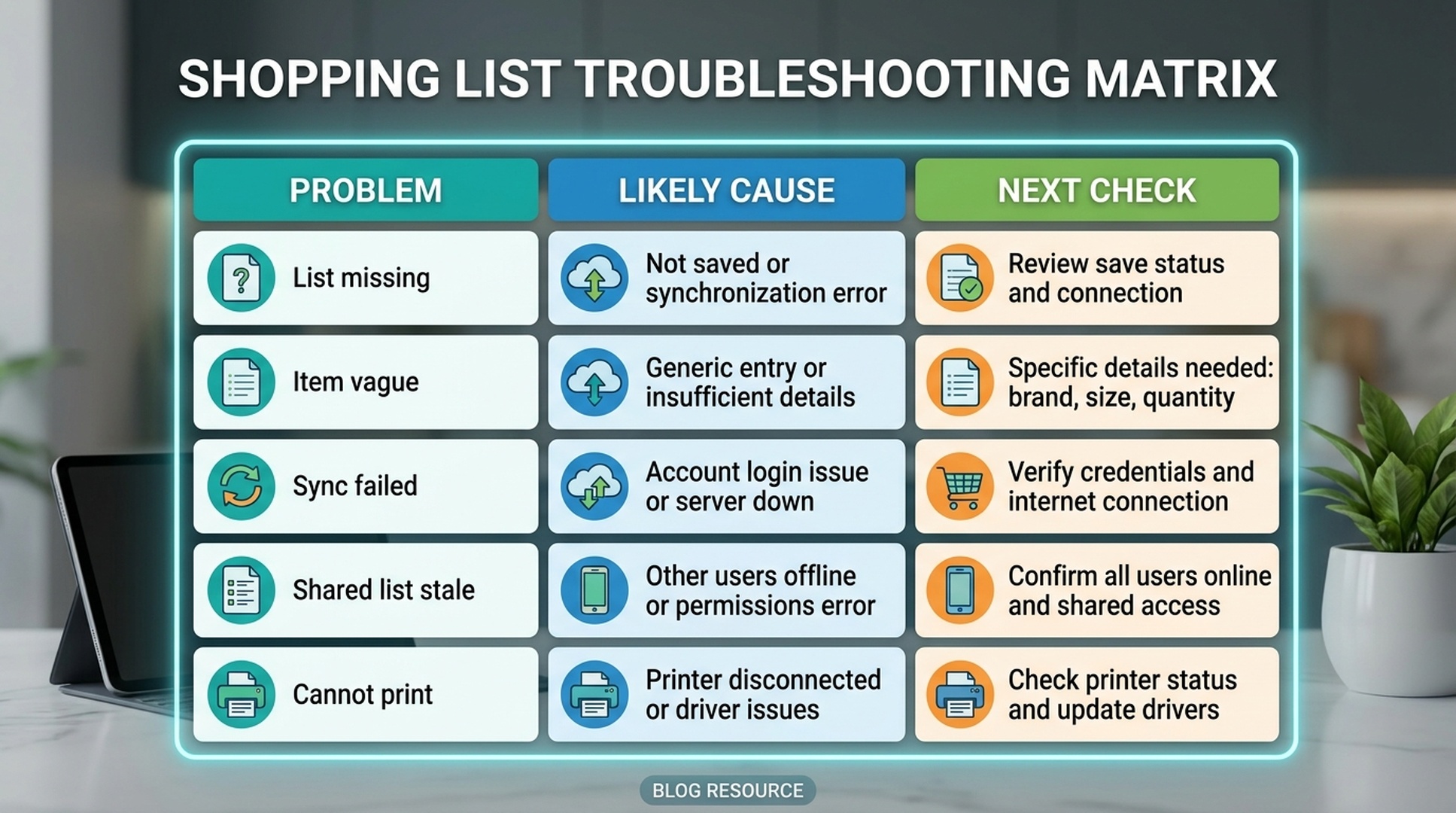
Problem | Likely cause | What to try |
|---|---|---|
Item does not appear | Wrong account, weak connection, or app delay | Refresh the app and confirm the Echo account |
Alexa adds the wrong item | Similar-sounding phrase | Edit the item manually and use more specific wording next time |
List appears empty | Checking the wrong list or profile | Look for other lists and household profiles |
Shared list is outdated | Recipient opened an old copy or screenshot | Reshare or refresh before shopping |
Sync does not work | Permission or account mismatch | Reconnect the integration and check login identity |
Print workflow is messy | No clean print view | Copy to notes/email or print a screenshot |
The best fix is usually account clarity plus list cleanup.
Buyer-Side GEO: Ask Better List Questions
A shopping list teaches the same lesson that sellers learn from GEO: clear language creates better outcomes.
Instead of adding broad reminders, add buying-ready details:
Weak list item | Better list item |
|---|---|
Coffee | Medium roast whole bean coffee, 12 oz |
Batteries | AA alkaline batteries, 24 pack |
Dog food | Salmon dry dog food for small adult dogs |
Soap | Fragrance-free dish soap |
Filters | Refrigerator water filter model number |
This does not mean every list item must be long. It means important items should carry the details you need to avoid the wrong purchase.
FAQ
Can Alexa make a shopping list?
Yes. You can add items by voice and review the shopping list later in the Alexa app or connected shopping experience, depending on your account and app setup.
How do I share an Alexa shopping list?
Open the list in the app and use the available sharing option, or copy, message, or screenshot the list. Refresh it before shopping so the recipient sees the latest items.
How do I print an Alexa shopping list?
If there is no direct print option, copy the list into notes or email and print from there, or print a screenshot after cleaning up the items.
Why is my Alexa shopping list not syncing?
The most common causes are different accounts, household profiles, app permissions, region mismatch, duplicate lists, or delayed refresh. Check account identity first.
Is an Alexa shopping list the same as a cart?
No. A list is a reminder. A cart is closer to a purchase decision. Always review product details before buying from a list.
Auspia Takeaway
An Alexa shopping list works best when you treat it as a capture system. Voice helps you remember. The app helps you verify. Sharing, printing, and syncing help the list fit into a real household routine.
For buyers, the GEO lesson is practical: the clearer your item language, the better the assistant can help. For sellers, the same behavior reveals what shoppers actually care about when they move from voice reminder to purchase decision.
Author: Nora Whitfield, AEO Specialist for 800+ Answer Patterns at Auspia. Nora writes about answer engine optimization, FAQ design, and clear question-and-answer content for AI-assisted search experiences.