What You'll Finish With
Watch the Video Summary — An 83-second narrated walkthrough of this entire guide is at the top of this page. Prefer to watch rather than read? Hit play.
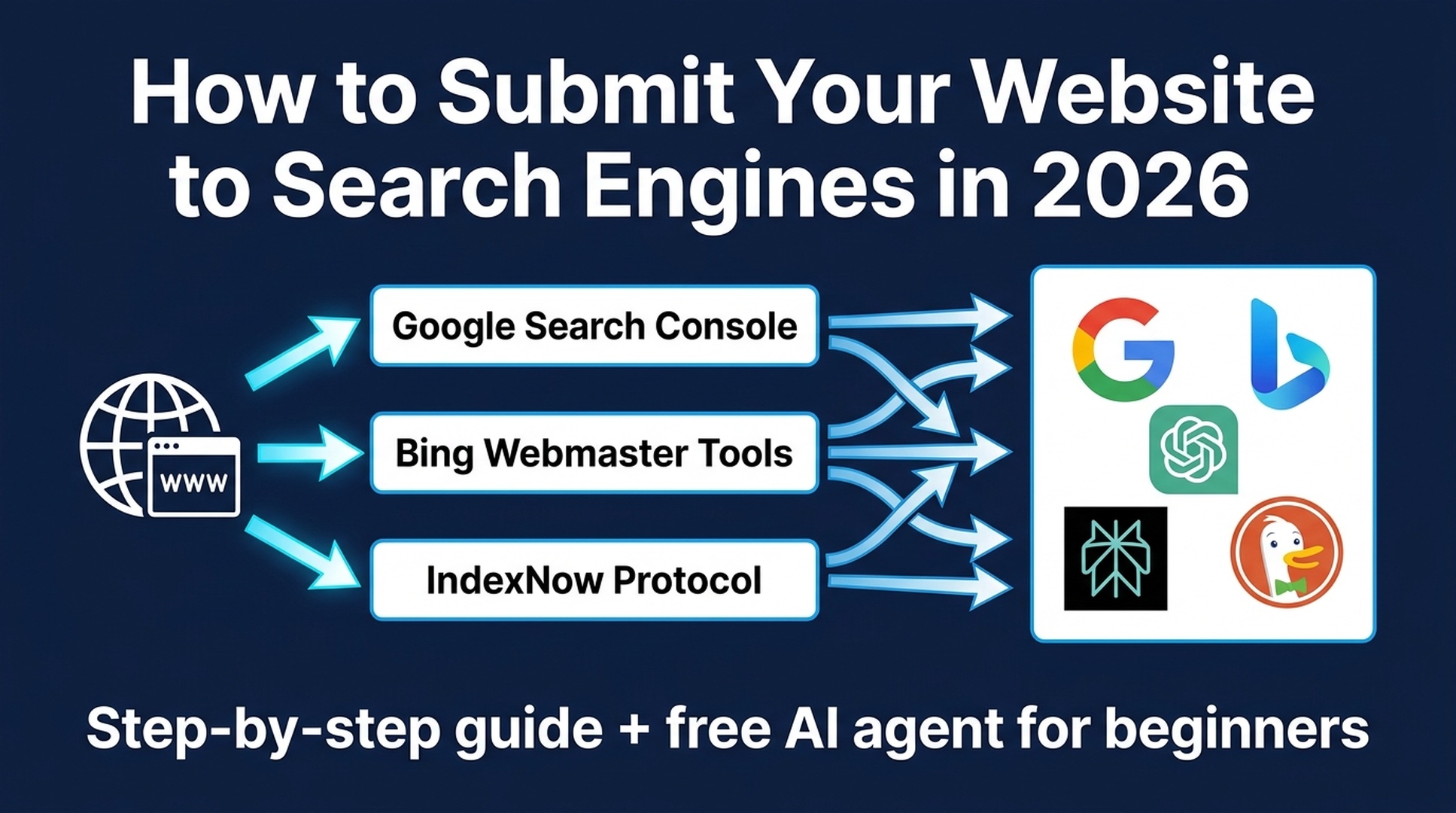
By the end of this guide, your website will be submitted to Google, Bing, and the search engines that power ChatGPT, Copilot, DuckDuckGo, and Perplexity. You'll also have a reusable Codex agent that repeats the whole process whenever you publish new content.
Who this is for: Anyone who just launched a website — or has one that isn't showing up in search results yet.
Time required: 20 minutes for manual setup. 5 minutes with the Codex agent at the end.
What "done" looks like: Your sitemap is accepted by Google Search Console and Bing Webmaster Tools. IndexNow is active. AI crawlers can access your site. You can verify your pages appear in search results.
Prerequisites:
- A live, publicly accessible website (not password-protected, not "coming soon")
- Access to your domain's DNS settings (for verification)
- A free Google account and a free Microsoft/Google/Facebook account
Before You Start: The Pre-Submission Checklist
Most first-time submission failures have nothing to do with the submission step. The site just isn't ready. Run these five checks before you open a single search console.
# | Check | How to Verify | If It Fails |
|---|---|---|---|
1 | Site is live and public | Open your site in an incognito/private window | Fix hosting, remove "coming soon" page |
2 | HTTPS is working | The lock icon shows in your browser's address bar | Install an SSL certificate (most hosts offer free ones via Let's Encrypt) |
3 | robots.txt isn't blocking everything | Visit | Edit robots.txt to allow crawling |
4 | No `noindex` meta tags | View page source ( | Remove |
5 | You have an XML sitemap | Visit | Generate one (see below) |
If you don't have a sitemap: Most CMS platforms generate one automatically. WordPress with Yoast or Rank Math: look for sitemap_index.xml. Shopify, Wix, Squarespace: generated automatically at sitemap.xml. If you're on a custom-built site, use a sitemap generator tool or ask your developer to create one. Your sitemap must be accessible at a public URL — search engines can't read files on your computer.
Once you've confirmed all five checks pass, you're ready to submit.
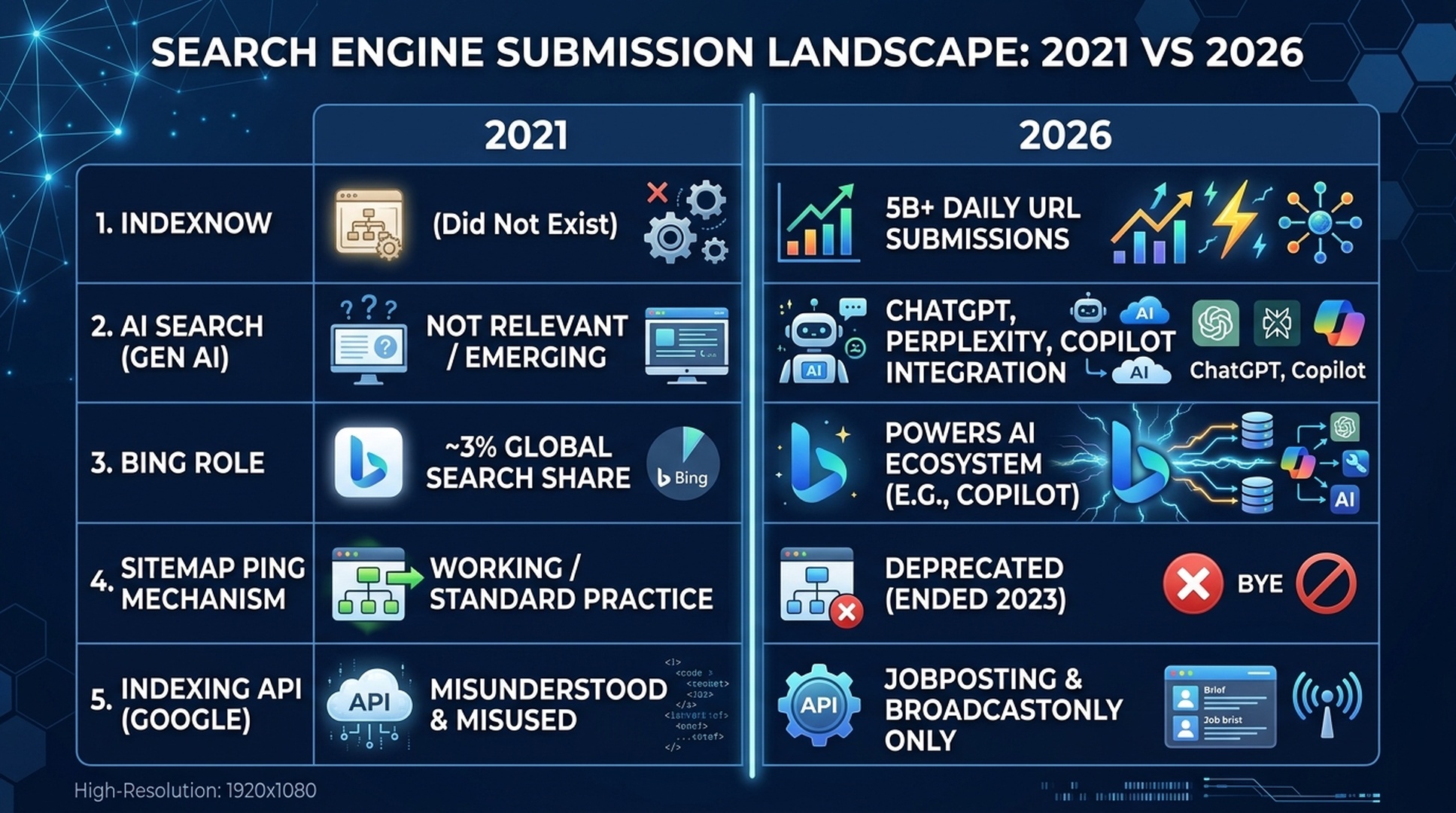
How Search Engine Submission Changed: 2021 vs 2026
Back in 2021, you needed to worry about five search engines and two webmaster consoles. The core engines haven't changed, but how you reach them has — in three specific ways:
What Changed | 2021 | 2026 |
|---|---|---|
IndexNow | Didn't exist | Processes 5B+ URLs/day across Bing, Yandex, Naver, Seznam, Yep |
AI search engines | Not a consideration | ChatGPT Search, Perplexity, Copilot, Google AI Overviews are major traffic sources |
Bing's importance | ~3% of global search | Powers ChatGPT Search, Copilot, DuckDuckGo, and Yahoo — Bing indexing unlocks AI visibility |
Google sitemap ping | Still working | Deprecated in 2023 — doesn't do anything anymore |
Google Indexing API | Widely misunderstood | Confirmed restricted to JobPosting and BroadcastEvent only |
GSC features | Basic reports | AI Mode data, Query Groups, Chart Annotations, AI-assisted configuration |
The basics are the same: submit your sitemap, prove you own the site, request indexing for key pages. What's different is which engines matter and how fast you can reach them.
How to Submit Your Website to Google
Google handles roughly 85% of global search traffic. If you only do one thing from this guide, do this section.
Step 1: Add Your Property to Google Search Console
- Go to search.google.com/search-console and sign in with a Google account.
- Click "Add property" in the top-left dropdown.
- Choose your property type:
Domain property (recommended): Covers all subdomains (www., blog., etc.) and both HTTP and HTTPS. Verification requires adding a TXT record to your DNS configuration. This is more work upfront but means you won't need separate properties later.
URL Prefix property: Covers only the exact URL you enter. Easier to verify (HTML file upload, meta tag, Google Analytics, or Google Tag Manager), but you'll need separate properties for https://www. and https:// if your site serves both.
Expected output: A verified property in your GSC dashboard. Verification can take a few minutes for DNS changes to propagate.
Quality check: GSC shows your property with a green "verified" status. If DNS verification doesn't work after 10 minutes, try the HTML file upload method instead — it's usually faster.
Step 2: Submit Your XML Sitemap
- In the left sidebar, click Sitemaps (under the Indexing section).
- In the "Add a new sitemap" field, enter your sitemap URL (just the path — e.g.,
sitemap.xmlorsitemap_index.xml). - Click Submit.
Expected output: A submitted sitemap showing "Success" status. Google can take anywhere from a few hours to a few days to process all the URLs inside it.
Heads up: A submitted sitemap is a hint, not a command. Google may decide some URLs aren't worth indexing. Check the "Submitted vs. Indexed" ratio in GSC's Pages report to see how many Google actually kept. A healthy site gets 85-95% of its public pages indexed. If you're below 70%, you have a content quality or crawl budget problem, not a submission problem.
Step 3: Request Indexing for Key Pages
For your most important pages (homepage, key landing pages, cornerstone content):
- In the left sidebar, click URL Inspection (it's at the top of the sidebar).
- Paste your full URL into the search bar and press Enter.
- If the page says "URL is not on Google," click Request Indexing.
- If the page is already indexed, you can still request indexing after significant content updates.
Quota: You get about 10 indexing requests per property per day. Don't burn them on routine blog posts. Save them for new pages, major content updates, or pages you just fixed a problem on.
If it's greyed out: You hit the daily quota. Wait 24 hours, or try a different page.
How to Submit to Bing (And Why It Now Unlocks ChatGPT, Copilot, and DuckDuckGo)
Bing matters in 2026 for reasons that have nothing to do with its ~7% direct search share. Microsoft's search index is the plumbing behind:
- ChatGPT Search — OpenAI queries Bing in real time
- Microsoft Copilot — integrated into Windows, Edge, and Office
- DuckDuckGo — uses Bing's index alongside its own crawler
- Yahoo — powered by Bing since 2010
One submission to Bing means your page can show up in ChatGPT's web results, Copilot's answers, and DuckDuckGo's listings. Bing Webmaster Tools now has an AI Performance report that breaks down exactly how your content performs inside ChatGPT and Copilot.
Step 1: Set Up Bing Webmaster Tools
Fastest method — Import from Google Search Console:
- Go to bing.com/webmasters and sign in (Microsoft, Google, or Facebook account).
- Click Add a site.
- Choose Import from Google Search Console.
- Select your GSC property and confirm. Bing copies your verified sites, sitemaps, and settings in about 2 minutes.
Manual method: Add your site URL, then verify via XML file upload, meta tag, or CNAME DNS record — same options as GSC.
Step 2: Submit Your Sitemap
- In the left sidebar, go to Sitemaps.
- Click Submit sitemap, paste your sitemap URL.
- Click Submit.
Bing accepts XML, RSS 2.0, Atom, and plain text sitemap formats.
Expected output: Your sitemap appears in the sitemap list with a submission date. Bing typically begins crawling within hours.
Step 3: Enable IndexNow (Do Not Skip This)
IndexNow is the fastest path to getting content into Bing — and it's free. See the next section for the full setup.
IndexNow: One Ping, Five-Plus Search Engines
IndexNow is an open protocol built by Microsoft Bing and Yandex. It flips the usual discovery model: instead of hoping a crawler eventually notices your new page, you push a notification the moment something changes.
Engines that support IndexNow (as of mid-2026):
- Microsoft Bing
- Yandex
- Naver (South Korea)
- Seznam (Czech Republic)
- Yep (Ahrefs' privacy-focused engine)
Submit to any one engine and your notification forwards to all the others in about 10 seconds. One ping, five-plus engines.
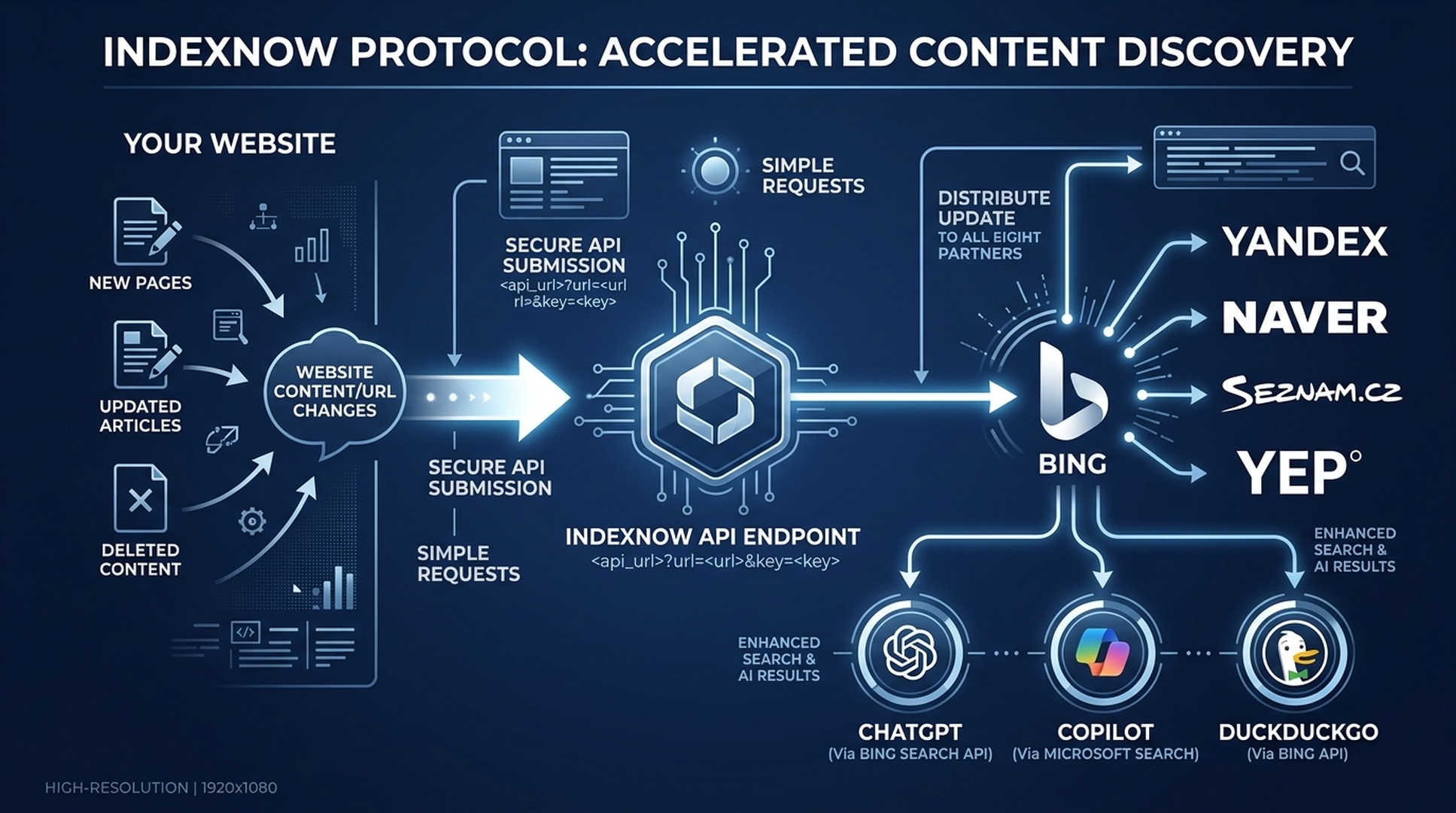
Google doesn't support IndexNow and has said publicly it has no plans to. That's fine. IndexNow covers the Bing ecosystem, which as of 2026 is also the AI search ecosystem.
How to Set Up IndexNow in 3 Steps
Step 1: Generate an API key.
Run this in your terminal (Mac/Linux) or use any random hex generator:
openssl rand -hex 32Your key should be 8-128 alphanumeric characters with optional hyphens. Save it — you'll need it for every submission.
Step 2: Host the key file.
Create a text file named {your-key}.txt at the root of your domain, containing only your key. For example, if your key is a1b2c3d4e5f6..., create:
https://yourdomain.com/a1b2c3d4e5f6....txtThe file should contain exactly that key string and nothing else. This proves you own the domain.
Step 3: Submit URLs.
Whenever you publish or update a page, POST to any IndexNow endpoint:
curl -X POST "https://api.indexnow.org/indexnow" \
  -H "Content-Type: application/json" \
  -d '{
    "host": "yourdomain.com",
    "key": "your-api-key",
    "keyLocation": "https://yourdomain.com/your-api-key.txt",
    "urlList": [
      "https://yourdomain.com/new-page",
      "https://yourdomain.com/updated-page"
    ]
  }'
You can submit up to 10,000 URLs per request. There's no meaningful daily cap.
CMS Plugins That Automate IndexNow
If you don't want to run curl commands manually, these platforms handle IndexNow automatically:
Platform | How to Enable |
|---|---|
WordPress | Install Rank Math (free, includes IndexNow) or the official IndexNow plugin |
Cloudflare | Enabled on all paid plans (Q4 2025); automatic URL submission |
Shopify | Native integration since May 2025; automatic on publish |
Ghost CMS | Built-in since December 2025 |
Wix / Yoast SEO | Native support included |
Expected output: URLs submitted via IndexNow typically appear in Bing within minutes to 24 hours, compared to days or weeks without it. As of late 2025, IndexNow accounted for 22% of all clicked URLs in Bing.
Quality check: After submitting, use Bing Webmaster Tools' URL Inspection to confirm the URL is indexed. If it isn't within 24 hours, check that your key file is accessible and the URL returns a 200 status code.
How to Make AI Search Engines Discover Your Site
ChatGPT Search, Perplexity, Google AI Overviews, and Claude don't have submit buttons. No webmaster consoles, no sitemap forms. But they all find content the same way traditional engines do — through crawlers. And you control whether those crawlers get in.
Step 1: Allow AI Crawlers in robots.txt
Many sites accidentally block AI crawlers through aggressive bot-blocking rules or security plugins. Add these lines to your robots.txt:
# AI search crawlers — allow these
User-agent: GPTBot
Allow: /

User-agent: OAI-SearchBot
Allow: /

User-agent: PerplexityBot
Allow: /

User-agent: Claude-SearchBot
Allow: /

User-agent: Google-Extended
Allow: /

# Traditional search crawlers
User-agent: Googlebot
Allow: /

User-agent: Bingbot
Allow: /
What each one does:
Crawler | Used By | What It Affects |
|---|---|---|
Googlebot | Google Search, Google AI Overviews, Google AI Mode | Traditional search + AI answers |
Bingbot | Bing Search, ChatGPT Search, Microsoft Copilot | Bing ecosystem + ChatGPT web results |
OAI-SearchBot | ChatGPT Search specifically | ChatGPT's live web browsing |
GPTBot | OpenAI's training data collection | Whether your content trains future models |
PerplexityBot | Perplexity AI | Perplexity's search index |
Claude-SearchBot | Claude (Anthropic) | Claude's web search feature |
Google-Extended | Google's AI training (separate from search) | Whether Google uses your content for AI training |
Important distinction: Allowing GPTBot lets OpenAI train on your content. If you want your site in ChatGPT Search results but DON'T want your content used for training, allow OAI-SearchBot and block GPTBot. They're separate decisions.
Step 2: Create an llms.txt File
llms.txt is an emerging standard, essentially a table of contents written for AI systems. Create one at yourdomain.com/llms.txt with a short site summary and links to your most important pages:
# Your Site Name
A one-sentence description of what your site offers and who it's for.

## Key Pages
- [About Us](https://yourdomain.com/about): Your story and credentials.
- [Main Product/Service](https://yourdomain.com/product): What you offer.
- [Blog](https://yourdomain.com/blog): Latest articles and guides.
- [Contact](https://yourdomain.com/contact): How to reach you.
This helps AI systems understand what your site is about without parsing every page.
For SEO beginners: Creating an llms.txt file takes 60 seconds. It won't move your rankings, but it gives AI systems a clear map of your site, which can affect how your content shows up in AI-generated answers. If you want a pre-formatted version, grab Auspia's free LLMs.txt Generator.
Step 3: What Actually Gets You Into AI Search Results
Getting crawled is table stakes. Getting cited is the hard part. Practitioner data from 2025-2026 points to a few patterns that actually move the needle:
- Lead with the answer in the first 150-300 words — content that front-loads direct responses is cited 35% more often.
- Use question-format H2 headings — pages structured around real questions get cited 3.2x more in ChatGPT and 38% more in Perplexity.
- Include a 40-80 word "answer capsule" near the top — a compact summary of your main claim correlates with 40% higher Perplexity citation rates.
- Keep content fresh — content updated within the last 30 days receives 3.2x more AI citations than content older than 6 months.
- Add author bylines with credentials — articles with named authors and stated expertise see 18% higher citation rates.
None of this is guaranteed. But paired with the technical access setup above, it stacks the odds in your favor.
How to Check If Your Website Is Indexed
Submission is the first step. Verification tells you whether it worked.
For your entire site: In GSC, go to Pages (under Indexing). This report categorizes every known URL as indexed, excluded, or erroring. Look at the "Indexed" count and compare it to your total published pages.
For a specific page: Use the URL Inspection tool. Paste the URL and it tells you:
- Whether the page is indexed
- When Google last crawled it
- Which canonical URL Google chose
- Any mobile usability or structured data issues
Quick check without GSC: Search site:yourdomain.com/specific-page in Google. If the page appears in results, it's indexed. If nothing shows, it's not.
Bing
Bing Webmaster Tools has the same tools: Site Explorer for full-site indexing status and URL Inspection for individual pages.
Quick check: Search site:yourdomain.com on Bing.
Perplexity
Perplexity doesn't provide a webmaster console, but you can check indirectly:
- Monitor your GA4 for
perplexity.aiin the referral traffic report - Search for your brand or key pages on Perplexity directly
ChatGPT Search
ChatGPT Search uses Bing's index, so if your page is indexed in Bing, it's accessible to ChatGPT. Monitor visibility through Bing Webmaster Tools' AI Performance report (found under "Search Performance" → filter by "ChatGPT" or "Copilot").
How to Fix Common Indexing Problems
If your pages aren't appearing after submission, work through these issues in order:
Problem 1: "Discovered — currently not indexed"
What it means: Google found your URL but hasn't crawled it yet. This is the most common issue for new sites.
Fix: This is usually a crawl budget problem. Google allocates limited crawl resources per site, and new sites with low authority get very little. Speed it up by:
- Adding internal links from your already-indexed pages to the unindexed ones
- Getting a link from an established site (Reddit, Medium, an industry blog) — Google crawls pages that are linked from frequently-crawled domains
- Submitting the URL through the URL Inspection tool
Problem 2: "Crawled — currently not indexed"
What it means: Google crawled the page but decided not to index it. Unlike Problem 1, this is a quality signal.
Fix: Google thinks the page isn't worth indexing. Improve it by:
- Adding substantially more unique content (a 200-word page with duplicate boilerplate is unlikely to be indexed)
- Removing thin or duplicate pages that dilute your site's overall quality signal
- Strengthening internal links and adding external citations where appropriate
Problem 3: "Excluded by noindex tag"
What it means: Your page has a noindex meta tag or HTTP header telling search engines not to index it.
Fix: Check your page source for <meta name="robots" content="noindex"> and remove it. If you're on WordPress, check Settings → Reading → "Discourage search engines from indexing this site" — this box should be unchecked.
Problem 4: "Blocked by robots.txt"
What it means: Your robots.txt file disallows crawling of that URL.
Fix: Edit your robots.txt and remove the blocking rule. Then use GSC's URL Inspection tool to re-request indexing.
Problem 5: Redirects and Canonical Conflicts
What it means: Google found a redirect chain or a conflicting canonical tag that points away from your preferred URL.
Fix: Ensure each page has a self-referencing canonical tag (<link rel="canonical" href="https://yourdomain.com/this-page">). Remove unnecessary redirect chains — every extra hop consumes crawl budget.
Automate Everything With a Codex Agent
Everything above matters. But running through it by hand every time you publish a new page gets old fast. The Codex agent below handles the full submission workflow for you. It works even if today is the first time you've heard of an AI agent.
What the Agent Does
When you run this agent on your site, it will:
- Verify your robots.txt allows search crawlers
- Find or generate your XML sitemap
- Submit your sitemap to Google Search Console
- Submit your sitemap to Bing Webmaster Tools
- Set up IndexNow with auto-submission on publish
- Generate or update your llms.txt file
- Check indexing status across Google and Bing
- Report any pages that aren't indexed and tell you why
How to Use It
If you have Codex (OpenAI's agent CLI): Copy the skill file below into your project's .codex/skills/ directory. Codex will auto-load it when you run codex in your project directory.
If you have Claude Code: The same skill file works — save it to .claude/skills/ instead.
If you have neither: The prompt version below works with any AI agent that can access your terminal and browser. Paste it as-is.
Option A: Full Codex Skill (Recommended)
Create a file at .codex/skills/submit-site-search-engines/SKILL.md:
---
name: submit-site-search-engines
description: Submit a website to Google, Bing, and AI search engines. Sets up GSC, Bing Webmaster Tools, IndexNow, sitemaps, robots.txt, and llms.txt. Checks indexing status and reports issues. Built for beginners.
---

# Submit Website to Search Engines

Submit any website to Google, Bing, and the AI search ecosystem. This skill automates the full submission pipeline — sitemaps, IndexNow, AI crawler access, and indexing verification.

## When to Use

- You just launched a new website
- You published major new content and want it indexed faster
- Your site isn't showing up in Google or Bing
- You want to ensure AI search engines (ChatGPT, Perplexity) can find your content

## What You Need

- Your website's domain name
- Access to your DNS settings (for ownership verification)
- A free Google account
- A free Microsoft account (or Google/Facebook account for Bing login)

## Workflow

### Phase 1: Pre-Flight Audit

Before submitting anywhere, verify the site is ready:

1. **Check the site loads over HTTPS** — open `https://[domain]` in a browser. If the lock icon doesn't show, stop and fix SSL first.
2. **Verify robots.txt is not blocking crawlers** — fetch `https://[domain]/robots.txt`. If it contains `Disallow: /` without specific path exceptions, flag it as a blocker.
3. **Scan for noindex tags** — fetch the homepage HTML and search for `noindex`. If found, identify the source (meta tag, HTTP header, CMS setting).
4. **Find the XML sitemap** — try `https://[domain]/sitemap.xml`, `https://[domain]/sitemap_index.xml`, and check robots.txt for a `Sitemap:` directive. If no sitemap exists, generate one.

Report findings before proceeding. If any of checks 1-3 fail, stop and tell the user to fix them first.

### Phase 2: Google Search Console Setup

1. Direct the user to https://search.google.com/search-console
2. Instruct them to click "Add property" and choose "Domain" (recommended) or "URL prefix"
3. Provide the exact verification method:
   - For Domain: the DNS TXT record value to add
   - For URL Prefix: the HTML file, meta tag, or other method
4. Wait for user confirmation that verification succeeded
5. Once verified, instruct the user to navigate to Sitemaps and submit their sitemap URL

**Important:** You cannot perform GSC verification on the user's behalf. Guide them through it step by step. After they confirm verification, proceed to sitemap submission guidance.

### Phase 3: Bing Webmaster Tools + IndexNow Setup

1. Direct the user to https://bing.com/webmasters
2. Tell them to sign in and click "Add a site"
3. Recommend importing from Google Search Console (faster, auto-verifies)
4. Guide sitemap submission inside Bing Webmaster Tools

**For IndexNow:**
1. Generate an API key: `openssl rand -hex 32` (run this locally)
2. Create the key file at `https://[domain]/[key].txt` containing only the key value
3. Verify the key file is publicly accessible: `curl -I https://[domain]/[key].txt` should return 200

Provide the user with:
- A reusable curl command for submitting new URLs to IndexNow
- A shell script that auto-submits when they publish new content

### Phase 4: AI Crawler Access

1. Fetch the current robots.txt
2. Check for these user-agents: GPTBot, OAI-SearchBot, PerplexityBot, Claude-SearchBot, Google-Extended
3. If any are blocked or missing, propose a revised robots.txt that allows them
4. Ask the user to confirm before applying changes

Generate an llms.txt file for the domain:
- Include a one-sentence site description
- Link to 5-10 key pages (about, main products/services, blog, contact)
- Format as clean markdown
- Instruct the user to place it at `https://[domain]/llms.txt`

### Phase 5: Indexing Verification

After the user completes all submissions:

1. Instruct them to check GSC → Pages report for indexed page count
2. For any important pages not indexed, use URL Inspection to diagnose
3. In Bing Webmaster Tools, check Site Explorer for indexed count
4. Report: total pages submitted, indexed (Google), indexed (Bing), and any issues found

### Phase 6: Scheduled Resubmission (Optional)

Create a cron job or scheduled task that:
- Runs weekly
- Submits any new or updated sitemap URLs to IndexNow
- Logs submission results
- Can be configured by the user (frequency, specific URLs to monitor)

## Safety Rules

- Never ask for or store the user's Google/Microsoft passwords
- Never request API keys to be committed to version control
- Never claim the agent can bypass GSC verification — it cannot
- All DNS changes and verification steps require explicit user confirmation
- Report any indexing API usage restrictions honestly (Google Indexing API is for JobPosting/BroadcastEvent only)
- When generating the robots.txt, explain what each crawler entry does and let the user decide
Option B: Single-Prompt Version
If you don't use Codex or Claude Code, copy this entire prompt into any AI agent with shell access. It produces the same result:
You are an SEO submission agent. Your task is to help me submit my website to search engines and ensure AI search crawlers can access it. Work through these phases one at a time, explaining what you find at each step:

PHASE 1 — PRE-FLIGHT:
- Check that [MY_DOMAIN] loads over HTTPS
- Fetch robots.txt and verify it allows Googlebot, Bingbot, GPTBot, OAI-SearchBot, PerplexityBot, Claude-SearchBot
- Check homepage HTML for noindex tags
- Find my XML sitemap (try /sitemap.xml, /sitemap_index.xml, and check robots.txt)

PHASE 2 — GOOGLE SETUP:
- Give me exact step-by-step instructions to verify my site in Google Search Console
- Once verified, tell me exactly where to submit my sitemap

PHASE 3 — BING + IndexNow:
- Give me instructions to set up Bing Webmaster Tools (prefer import from GSC)
- Generate an IndexNow API key and key file for my domain
- Give me a reusable curl command for IndexNow submissions

PHASE 4 — AI CRAWLER ACCESS:
- Propose a complete robots.txt that allows all search and AI crawlers
- Generate an llms.txt file with my site's description and key page links
- Tell me where to upload each file

PHASE 5 — VERIFICATION:
- After I confirm submission, tell me how to check indexing status in GSC and Bing
- For any unindexed pages, help me diagnose the cause using GSC's URL Inspection tool

My domain: [REPLACE WITH YOUR DOMAIN]
Which Option Should You Choose?
If you... | Use |
|---|---|
Have Codex installed and want a reusable workflow | Option A (Skill file) |
Use Claude Code or another agent CLI | Option A (Skill file — same format) |
Want a one-time setup with any AI agent | Option B (Single prompt) |
Prefer to do it all manually | Follow the step-by-step sections above |
Why Submitting Isn't Enough
Submitting gets search engines to know about your pages. It doesn't make them rank.
After submission, three things determine whether your pages attract traffic:
1. Content quality. A page that gets indexed but answers no one's questions will never send you traffic. Google's crawling has gotten pickier. It now prioritizes "information gain" — content that actually adds something new instead of rehashing what's already in the index. When you see "Crawled — currently not indexed" in GSC, that's often a quality rejection, not a bug.
2. Authority. New sites start at zero. Links from established sites, mentions in industry publications, and reputation built over time are what move pages from page 10 to page 1. This plays out over months, not days.
3. Freshness. Traditional engines and AI answer engines both favor recently updated content. Publish a page once and ignore it for two years, and it slowly fades — not because its ranking dropped, but because competitors with fresher takes are stealing the clicks.
What to Do After Submission
Timeframe | Action |
|---|---|
Week 1 | Verify indexing in GSC and Bing. Fix any coverage errors. Submit new pages to IndexNow. |
Month 1 | Publish at least 4-6 quality pages. Build internal links between them. Share on social media and relevant communities. |
Month 2-3 | Check GSC Performance report for early query data. Identify which pages get impressions but few clicks — improve their titles and meta descriptions. |
Ongoing | Update existing content every 3-6 months. Remove or consolidate thin pages. Monitor the Indexed vs. Submitted ratio and investigate drops. |
Submitting gets you to the starting line. Everything after that is the actual race.
FAQ
Do I need to resubmit my sitemap every time I publish a new page?
No. Once your sitemap is submitted, search engines will periodically re-crawl it. However, if you want a new page indexed quickly, use IndexNow (for Bing/Yandex/Naver/Seznam/Yep) or the GSC URL Inspection tool (for Google). These per-page methods are much faster than waiting for the next sitemap recrawl.
How long does indexing take for a brand new site?
In 2026, expect 3-14 days for Google to index your first pages, and 1-7 days for Bing with IndexNow. New sites have minimal crawl budget, so your first few pages are the hardest. After you've earned some crawl history and external links, new pages on the same domain can index within 24-72 hours.
Can I pay to get indexed faster?
No. Google does not accept payment for indexing or ranking. Any service claiming to offer "paid priority indexing" for regular web pages is either submitting through IndexNow (which is free) or using methods that violate search engine guidelines. The exception: the Google Indexing API for JobPosting and BroadcastEvent pages is free and legitimate, but only for those specific content types.
What about Baidu if my audience is in China?
Baidu holds roughly 72% of the Chinese search market. Its submission platform at ziyuan.baidu.com requires real-name authentication and offers multiple submission methods (API push, sitemap, manual submission). However, Baidu primarily indexes Simplified Chinese content hosted on China-based servers. If your primary market isn't China, Baidu submission isn't necessary.
I submitted everything but my pages still aren't ranking. What's wrong?
Indexing and ranking are different things. Being indexed means your page can appear in results. Ranking determines where it appears. If you're indexed but not ranking, the issue is content quality, relevance, or authority — not submission. Check GSC's Performance report to see which queries your pages are appearing for and at what average position.
Do I need to submit my site to Perplexity or ChatGPT Search directly?
No. Neither platform offers a direct URL submission tool. ChatGPT Search uses Bing's index, so Bing submission covers it. Perplexity crawls the web independently using PerplexityBot — ensure it's allowed in your robots.txt and focus on getting links from pages Perplexity already indexes.
Will using Schema markup help my pages get indexed?
Schema (structured data) helps search engines understand your content, but it doesn't directly cause indexing. It's worth adding — particularly Article, WebSite, Organization, and FAQPage schema (even though FAQ rich results were removed from Google in May 2026, the schema still helps AI systems parse your content). But schema alone won't fix an indexing problem.
Author: Julian Mercer, 14-Year Technical SEO Practitioner at Auspia. Julian writes about crawlability, indexing, schema, site architecture, and the technical foundations that make content discoverable by both traditional and AI-powered search engines.