What You'll Finish With
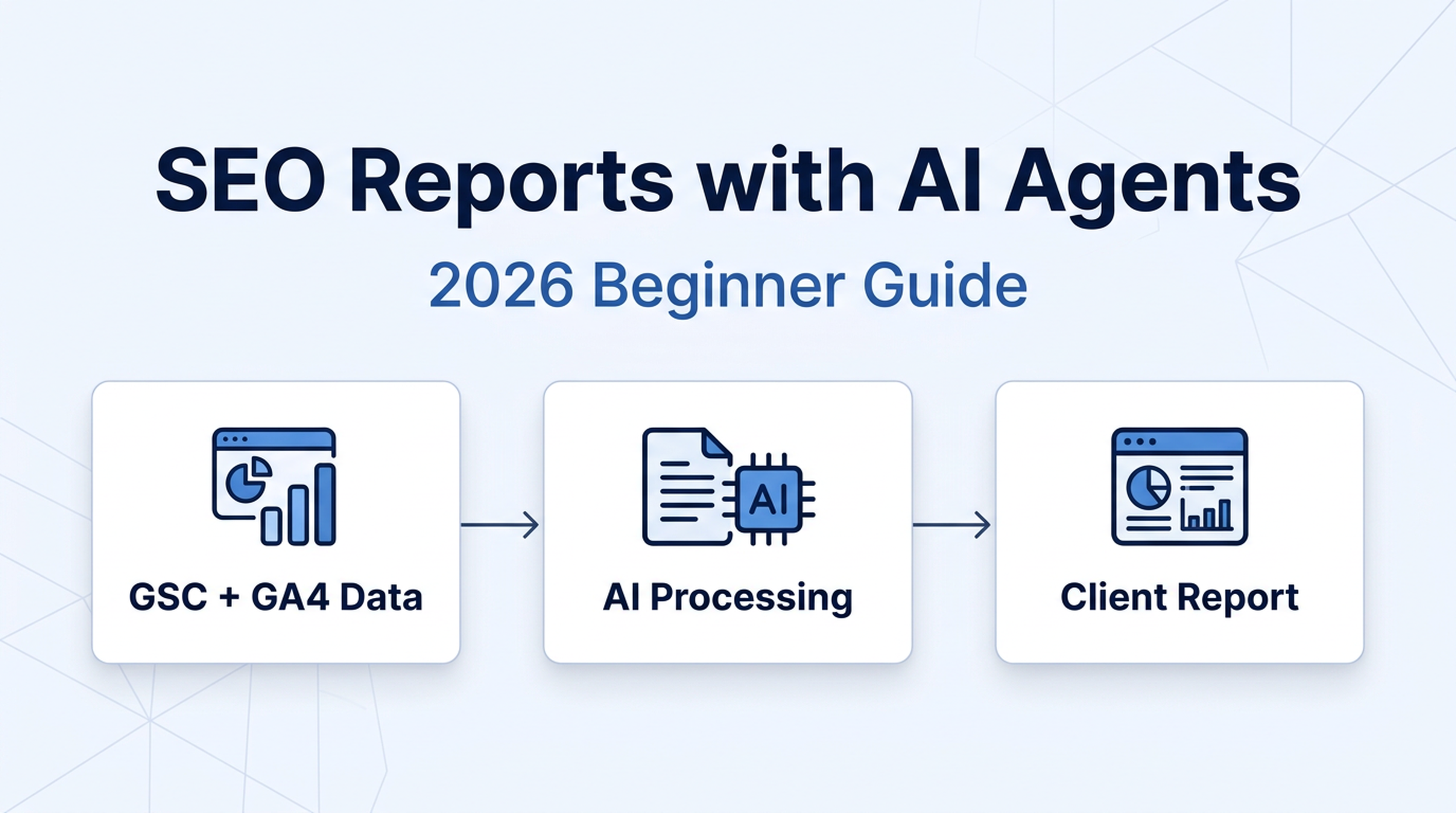
By the end of this guide, you'll have a working system to generate client SEO reports. Either by pasting one prompt into any AI tool, or by setting up a reusable Codex skill that pulls real data from Search Console and Google Analytics.
Who this is for: SEO beginners, freelancers running their first client projects, small agency owners who want to stop spending Sunday afternoons assembling reports by hand.
What you need:
- Access to Google Search Console (GSC) for the site you're reporting on
- Access to Google Analytics 4 (GA4) for the same site
- A free Google account (for Path A) or Codex installed (for Path B)
- 15 minutes for your first one-prompt report; about 45 minutes to set up the full automated workflow
What "done" looks like: A report your client can open and understand without you in the room explaining every chart. It covers rankings, traffic, site health, backlinks, conversions, and AI visibility — with plain-English explanations, not just data exports.
🎥 Video Walkthrough Available — A 2-minute narrated summary of this guide is now available. Watch it above or scroll down for the full step-by-step article.
Before You Start: Two Paths, Same Destination
You can build an SEO report in 2026 one of two ways. Neither is wrong. They solve different problems.
Path A: One Prompt | Path B: Codex Automated | |
|---|---|---|
Best for | One-off reports, your first client, testing what to include | Monthly retainers, 3+ clients, recurring reports |
Time per report | 15–25 minutes | 5–10 minutes after setup |
Data source | You paste exported data into the prompt | Codex pulls data live via MCP or CSV |
Technical requirement | Copy and paste | Codex installed, MCP or CSV files ready |
Output | Text report you format yourself | Structured report with consistent sections |
If you've never created an SEO report before, start with Path A. You'll learn what each section means and why it belongs in a client report. Once you're comfortable, move to Path B to automate the repeat work.
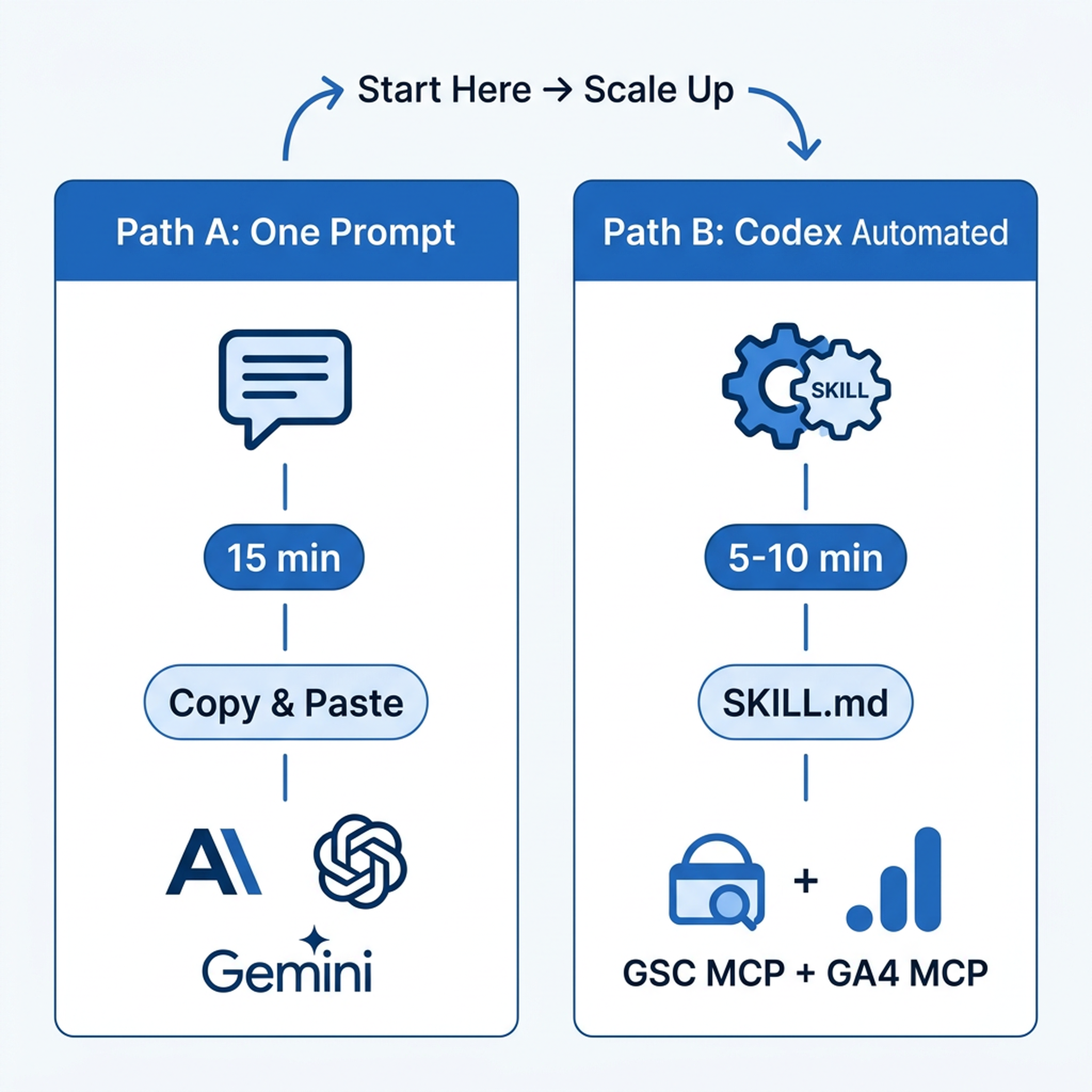
Path A: One Prompt, One Report (15 Minutes)
This approach works with Claude, ChatGPT, Gemini, or any AI tool that handles long prompts. The key insight most beginners miss: an AI can't read your GSC data unless you give it the data. A vague prompt like "analyze my website's SEO" produces generic advice you can't show a client.
Here's what to do instead.
Step 1: Export Three Data Files
Open three tabs and download these exports for the reporting period (typically last month):
- Google Search Console → Performance report → export as CSV. Include total clicks, impressions, average CTR, and average position. Also export the top 20 queries and top 20 pages separately.
- Google Analytics 4 → Reports → Acquisition → Traffic acquisition → filter by "Organic Search" → export as CSV. Include sessions, engagement rate, and conversions.
- Site health snapshot — if you use a tool like Ahrefs, Semrush, or SE Ranking, export the site audit score and top issues. If you don't have a paid tool, run a free crawl with Screaming Frog (up to 500 URLs) or use Google's PageSpeed Insights for the top 5 landing pages and note any scores below 50.
Step 2: Use This Prompt
Copy the prompt below, paste it into your AI tool, and attach the three CSV files (or paste the key numbers if your tool doesn't support file uploads).
You are an SEO analyst preparing a monthly client report. I will give you exported data from Google Search Console, Google Analytics 4, and a site health check.

GSC data: [paste key rows or attach CSV]
GA4 organic data: [paste key rows or attach CSV]
Site health notes: [paste issues or attach file]
Reporting period: [month, year]
Client industry: [e.g., B2B SaaS, local service, ecommerce]

Create a client-ready SEO report with these 7 sections:

1. EXECUTIVE SUMMARY: 3-4 sentences covering the most important change this month, the likely reason, and the recommended next action. Write this for a busy business owner, not an SEO specialist.

2. KEYWORD RANKINGS: Summarize average position change month-over-month. List the top 3 winners (biggest position gains) and top 3 losers (biggest drops). For each, suggest a likely cause based on the data — don't guess if you don't have enough information.

3. ORGANIC TRAFFIC: Report total organic sessions, month-over-month change (percentage), top 3 landing pages by traffic, engagement rate, and any notable shifts. Flag any page that gained or lost more than 20% of traffic.

4. SITE HEALTH: Summarize the overall health status. Group issues into three categories: Critical (affecting rankings), Important (affecting user experience), and Nice-to-Fix (minor improvements). Give a specific fix for each critical issue.

5. CONVERSIONS: Report total organic conversions, conversion rate, and top-converting pages. If conversion data is unavailable, state this clearly and recommend setting up GA4 conversion tracking.

6. BACKLINK SUMMARY: If backlink data is available, report new referring domains, lost domains, and net change. Flag any unusually high-authority links gained or lost. If no backlink data is available, state this and suggest a free option (like Google's own backlink report in Search Console).

7. AI VISIBILITY NOTE: Add a short section explaining that AI search visibility is still an emerging metric. If you track it (via SE Ranking, Semrush, or manual checks), include the data. If not, note that setting up AI visibility tracking is a recommended next step, and suggest checking GSC's Search Generative AI tab (if available) for impressions from AI Overviews.

RULES:
- Use plain English. Avoid jargon. Explain any term a non-SEO might not know.
- When data is missing, say so honestly. Don't fabricate numbers.
- For every problem you identify, suggest a concrete fix.
- Keep the report concise — target 800-1200 words.
- End with a "Next Month Priority" section: 2-3 recommended actions ranked by expected impact.
Step 3: Review and Verify
Before sending the report to a client:
- Spot-check 3 numbers against your raw exports. AI can miscount or misattribute.
- Read the executive summary out loud. If it sounds like a robot wrote it, rewrite it in your own voice.
- Check for hallucinated data. Look for any specific number the AI couldn't have known from your exports — like "your domain rating increased by 5 points" when you didn't provide domain rating data.
- Remove any hedging the AI added. Phrases like "it appears that" or "it seems like" make you sound unsure. Replace them with direct statements.
Step 4: Format and Deliver
Export the AI output into whatever format your client prefers. For most beginners, a Google Doc or Notion page works better than a PDF — it's faster to create and easier for clients to ask questions inline.
If you want to step up the presentation, copy the report into Canva's "Report" template or Google Slides. Add your logo, the client's logo, and one screenshot of their top-performing page. That turns a 15-minute AI report into something that looks like it took an afternoon.
Path B: Automated SEO Reporting with Codex
Once you're generating reports regularly — monthly for 3+ clients is the typical trigger — the one-prompt workflow becomes repetitive. You paste the same structure, export the same files, check the same things. Codex can handle most of that repetition.
Step 1: Install the SEO Report Skill
Create a new folder in your Codex project:
mkdir -p .codex/skills/seo-report-generatorThen create the skill file. Copy the entire block below into .codex/skills/seo-report-generator/SKILL.md:
---
name: seo-report-generator
description: Generate a client-ready monthly SEO report from GSC, GA4, and optional site audit data. Use when the user asks for an SEO report, monthly report, client report, or ranking report.
---

You are an SEO reporting specialist working inside Codex. When the user asks for a report, follow this workflow exactly.

## Prerequisites Check

Before starting, confirm the user has provided or you can access:

- [ ] GSC data (CSV file, MCP connection, or pasted numbers)
- [ ] GA4 organic data (CSV file, MCP connection, or pasted numbers)
- [ ] Reporting month and year
- [ ] Client name and industry (for context in the summary)
- [ ] Optional: site audit data, backlink data, AI visibility data

If any required data source is missing, ask the user for it. Do not fabricate numbers.

## Workflow

### 1. Read the Data

If GSC MCP is connected, query:
- Total clicks, impressions, CTR, and average position for the reporting period
- Compare to the previous period (month-over-month)
- Top 20 queries by clicks
- Top 20 pages by clicks

If GA4 MCP is connected, query:
- Total organic sessions for the reporting period
- Previous period for comparison
- Engagement rate
- Conversions from organic traffic (if configured)
- Top 10 landing pages by organic sessions

If using CSV files instead of MCP, read the files and extract the same metrics.

### 2. Calculate Changes

For each metric, calculate:
- Absolute change (this month minus last month)
- Percentage change ((this month - last month) / last month × 100)
- Direction (up, down, or flat — flat means less than 3% change)

### 3. Generate the Report

Write the report with these exact sections. For each section, use the data you extracted. When a data point is missing, state that it's unavailable — don't guess.

#### Executive Summary

3-4 sentences. Format:
1. The most important metric change this month (with direction and magnitude)
2. What likely caused it (based on the data, not speculation)
3. The recommended next action

#### Keyword Rankings

- Average position and month-over-month change
- Top 3 queries that gained positions (with before/after and possible reason)
- Top 3 queries that lost positions (with before/after and possible reason)
- If the client tracks specific target keywords, report those separately

#### Organic Traffic

- Total organic sessions and month-over-month percentage change
- Engagement rate
- Top 3 landing pages by traffic
- Any page with a traffic change greater than 20% — flag it with a hypothesis

#### Site Health

If audit data is available:
- Overall health score and trend
- Critical issues (affecting rankings) with specific fixes
- Important issues (affecting user experience) with specific fixes
- Nice-to-fix items

If no audit data: state that a site audit is recommended and suggest running one.

#### Conversions

- Total organic conversions (if tracked)
- Conversion rate
- Top-converting landing pages
- If conversions aren't tracked: recommend setting up GA4 conversion events and explain why in one sentence.

#### Backlinks

If data available:
- New referring domains this month
- Lost referring domains
- Net change
- Notable links (unusually high or low authority)

If no data: note that backlink monitoring is recommended and suggest free options.

#### AI Visibility

- If data available: report AI Overview impressions from GSC, AI Assistant channel traffic from GA4, or tool-based citation data
- If no data: explain in one sentence why AI visibility matters and recommend a tracking setup

#### Next Month Priorities

List 2-3 actions ranked by expected impact, each with a one-sentence rationale.

### 4. Format Rules

- Write in plain English. A busy business owner should understand every sentence.
- When you use a technical term (like "CTR" or "impressions"), define it the first time.
- Keep the report between 800 and 1,200 words.
- For each problem you identify, include a concrete fix — not just "improve this."
- End each section with a one-line takeaway for the client.

### 5. Quality Check

Before presenting the report, verify:
- Every number in the report appears in the source data
- The direction of every change (up/down/flat) matches the data
- The executive summary references a real metric change, not a vague observation
- No fabricated tool names, metric names, or specific numbers
- The reading level is appropriate for a non-SEO audience

### 6. Output

Present the report as formatted Markdown. After the report, add a short note listing any data that was missing or any assumption you made so the user can verify it.
Step 2: Connect Your Data Sources
The skill above works best when Codex can access live data instead of static CSVs. Two options:
Option A: MCP (simplest once configured). Connect GSC and GA4 MCP servers to Codex. After setup, the skill queries data directly — no exports needed. The GSC MCP server typically exposes search_analytics and list_sites; the GA4 MCP server exposes run_report with your property ID.
Option B: CSV files in a data folder (more portable). Create a _data/ folder in your project. Each month, drop your exports there with consistent filenames:
_data/
  gsc-2026-08.csv
  ga4-2026-08.csv
  audit-2026-08.csv
The skill reads the latest files automatically. This option requires 5 minutes of export work each month but avoids MCP setup.
Step 3: Run Your First Report
In Codex, with the skill installed and data connected, type:
Generate the monthly SEO report for [client name] for [month] [year].Codex will read the data, run the workflow, and output a formatted report. Review it against the quality checklist in the skill (Step 5), make any corrections in plain English ("rewrite the executive summary to be more direct"), and the report is ready.
Step 4: Customize Per Client
After your first report, you'll notice patterns. Some clients want more detail on rankings, others only care about traffic and conversions. Edit the skill to match:
- Add a client-specific section. For an ecommerce client, add a "Top Products by Organic Revenue" section. For a local business, add "Google Business Profile Metrics."
- Adjust the tone. Some clients prefer bullet points, others want narrative paragraphs. Edit the "Format Rules" section to match.
- Set a recurring schedule. If you use Codex with cron or a scheduled task, set the report to generate on the 1st of each month automatically.
The advantage of a skill over a one-time prompt: you edit the rules once and every future report follows them. No re-pasting, no forgetting to include the AI visibility section, no inconsistent formatting across clients.
The 7 Sections Every SEO Report Needs in 2026
Whether you use Path A or Path B, your report should cover these sections. They're ordered by what most clients care about, not by SEO importance.
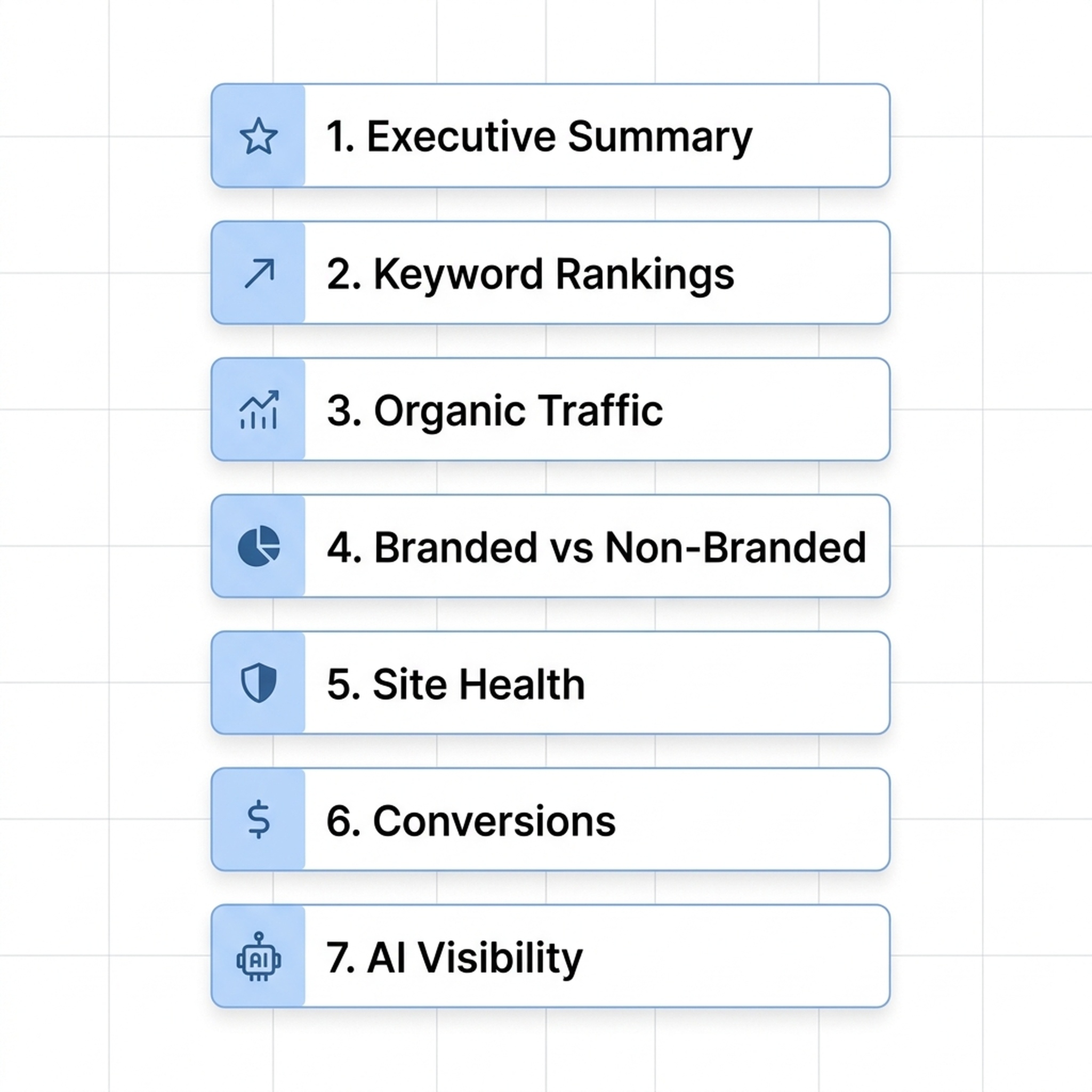
1. Executive Summary
This is the only section most clients read carefully. Put the most important finding in the first sentence — not "SEO work was performed this month" but "Organic traffic increased 18% this month, driven primarily by three blog posts that moved from page 2 to page 1 for buyer-intent keywords."
A strong executive summary follows a three-beat rhythm: what changed → why it matters → what happens next.
2. Keyword Rankings
Clients understand rankings intuitively. Show them average position trend, the queries that moved, and connect ranking changes to traffic changes. This last part is what most beginners skip. A keyword moving from position 7 to position 3 only matters if it drove more clicks. If you report a ranking gain without the traffic impact, you're telling half the story.
In 2026, also check whether ranking pages trigger AI Overviews. If a page ranks #1 but an AI Overview pushes all organic results below the fold, that #1 ranking is worth less than it was in 2024. SE Ranking, Semrush, and AccuRanker now include AI Overview presence in ranking reports.
3. Organic Traffic (GA4)
Report sessions, engagement rate, and the top landing pages. Compare month-over-month and year-over-year if you have the data.
One 2026-specific check: in GA4, look at the AI Assistant channel (Reports → Acquisition → Traffic acquisition → filter by "AI Assistant"). This channel, launched in May 2026, captures traffic arriving from ChatGPT, Gemini, and Claude. If it shows traffic, your content is being cited by AI systems. If it's empty, that's normal. AI referral traffic is still under 0.5% of most sites' total traffic. But it's worth watching.
4. Branded vs. Non-Branded Traffic Split
GSC makes this split one click away: in the Performance report, apply the "Search type" filter or use GSC's built-in query classification. Branded traffic (searches containing the client's company or product name) tells you about brand awareness. Non-branded traffic tells you about SEO performance. If non-branded traffic is growing, SEO is working. If only branded traffic moves, your rankings — or the market's search volume — might have shifted.
5. Site Health
Don't overwhelm clients with a 200-item technical audit. Group issues into three buckets:
Priority | What it means | Example |
|---|---|---|
Critical | Affects rankings or prevents pages from being indexed | Pages blocked by robots.txt, 404 errors on important URLs, missing canonical tags |
Important | Affects user experience or crawl efficiency | Slow page speed, missing meta descriptions, broken internal links |
Nice-to-fix | Minor improvements | Missing image alt text, slightly long title tags, low text-to-HTML ratio |
For each critical issue, include one specific fix. "Fix 404 errors" is useless. "Restore the deleted /pricing page or set up a 301 redirect to /plans" is actionable.
6. Conversions and Business Outcomes
This is where most beginner reports fall apart. Traffic and rankings are intermediate metrics. Your client cares about leads, sales, sign-ups, or demo requests.
In GA4, filter the Landing Page report by "Session default channel group = Organic Search" to see which pages drive conversions from organic traffic. If GA4 conversions aren't set up, make that your first recommendation. Without conversion tracking, you can't connect SEO work to business results, and that's the single biggest reason clients stop paying for SEO.
7. AI Visibility (New for 2026)
AI search visibility is the metric that explains why organic traffic might stay flat despite stable rankings. If a user asks ChatGPT or Google's AI Mode about a topic your client covers, does your client's site appear in the response?
Three data sources to check, in order of availability:
- GSC Search Generative AI tab (launched June 2026): shows impressions from Google AI Overviews, AI Mode, and generative Discover. Currently impressions only — no click data yet.
- GA4 AI Assistant channel (since May 2026): shows sessions from ChatGPT, Gemini, and Claude. This is real referral traffic you can report.
- Third-party AI trackers: SE Ranking's AI Results Tracker, Semrush One, and Peec AI show keyword-level AI visibility across Google, ChatGPT, Gemini, and Perplexity.
If you have none of these yet, add one sentence to your report: "AI search visibility tracking is not yet configured. As AI-generated answers increasingly influence purchase decisions in [client industry], I recommend setting this up next month." This shows you're thinking ahead without pretending you have data you don't.
What Beginners Get Wrong (And How to Fix It)
These are the five mistakes I see in almost every first-time SEO report. They're easy to fix once you know about them.
Mistake 1: Leading with Data Instead of a Story
A raw table of keyword positions is an export, not a report. Every section needs one sentence of interpretation. "Average position improved from 14.2 to 12.8" is data. "Average position improved from 14.2 to 12.8, meaning 6 more keywords now appear on page 1 where they can drive meaningful traffic" is a report.
Fix: After you write each section, add a one-line takeaway that answers "so what?"
Mistake 2: Hiding Bad News
Rankings dropped. Traffic dipped. A backlink was lost. Report it honestly with an explanation and a fix. Clients who only hear good news eventually stop trusting the reporting. A client who doesn't trust the data is a client who's about to leave.
Fix: For every negative metric, add: what happened → what caused it (if you know) → what you're doing about it.
Mistake 3: Using Different Tools for Every Section
When rankings come from one tool, traffic from another, backlinks from a third, and the audit from a fourth, the report takes hours to assemble and the numbers never quite match up. Pick one primary tool (SE Ranking Report Builder, AgencyAnalytics, or Looker Studio are the three most common starting points in 2026) and fill gaps manually only when necessary.
Fix: For Path B users, the Codex skill above normalizes data from multiple sources. For Path A users, try to get at least rankings and traffic from the same platform.
Mistake 4: Ignoring AI Visibility Entirely
In 2024, this was fine. In 2026, even if AI traffic is 0.3% of your client's total, showing you're aware of it and tracking it builds credibility. The client will eventually hear about "AI search" from someone else — better that they hear about it from you, with data.
Fix: Add the AI Visibility section from above, even if it's just one honest sentence about the current state.
Mistake 5: Sending Late or Skipping Months
A delayed report signals operational problems regardless of how good the underlying SEO work is. If you're a solo freelancer and you get sick one month, send a half-page snapshot instead of nothing. Consistency matters more than comprehensiveness.
Fix: Set a recurring calendar reminder for the 1st of each month. If you use Path B, the Codex skill reduces the time per report enough that "I didn't have time" stops being a valid reason.
Verify Before You Send
Use this 5-point checklist before any report goes to a client:
- [ ] Every number can be traced to source data. If you can't point to the exact export row or MCP query that produced a number, remove it.
- [ ] The executive summary names a specific change, direction, and next action. "Traffic was stable" is not an executive summary.
- [ ] Technical terms are explained at least once. CTR, impressions, referring domains — define each term the first time it appears.
- [ ] Negative news includes a response. For every drop, lost link, or technical issue, there's a one-sentence fix or investigation plan.
- [ ] The report passes the "skim test." A busy client should understand the full story from headings, bold text, and the executive summary alone.
FAQ
Q: How long does it take to create an SEO report? A: With Path A (one prompt), 15–25 minutes including data export. With Path B (Codex skill, once configured), 5–10 minutes — most of that is review and minor edits. Manual assembly from multiple tools takes 2–4 hours.
Q: How often should I send SEO reports? A: Monthly is standard for most retainer clients. Weekly makes sense for fast-moving campaigns (product launches, site migrations, competitive situations). Live dashboards (Looker Studio or AgencyAnalytics) fill the gaps between reports so clients can check whenever they want.
Q: What's the minimum I need to include in a report? A: Rankings, organic traffic, and at least one business metric (conversions, leads, or revenue). If you can only report on two things, make them traffic and conversions — clients care about business results more than ranking bragging rights.
Q: Do I need paid tools to create SEO reports? A: No. Google Search Console and GA4 are free and provide enough data for a solid basic report. Paid tools (SE Ranking from $52/month, AgencyAnalytics from $12/client/month, Semrush from $139/month) add automation, white-label branding, backlink data, and AI visibility tracking — but you can start with free tools and upgrade when you have paying clients.
Q: Should every report include AI visibility data? A: In 2026, yes — but be honest about what you can and can't measure. At minimum, add one sentence explaining AI visibility and whether you're tracking it. As GSC's AI Overview data, GA4's AI Assistant channel, and third-party AI trackers become more mature, the data quality will improve. Starting now means you won't be scrambling when clients start asking about it.
Q: Can I really trust an AI to write a client report? A: You shouldn't trust it blindly. AI does three things well: structuring data into sections, calculating changes, and writing draft explanations. It does three things poorly: knowing which numbers matter most to a specific client, catching data quality issues, and writing with a human voice. Use AI for the repetitive 80%: data assembly, formatting, first-draft prose. Then spend your time on the 20% that requires human judgment: interpreting what the numbers mean for this specific client's business and writing the executive summary in your own voice.
Author: Leo Harrington, SEO Analytics Translator for 500+ Executive Reports at Auspia. Leo writes about reporting, dashboards, and metrics that connect SEO work to business outcomes.