The short version
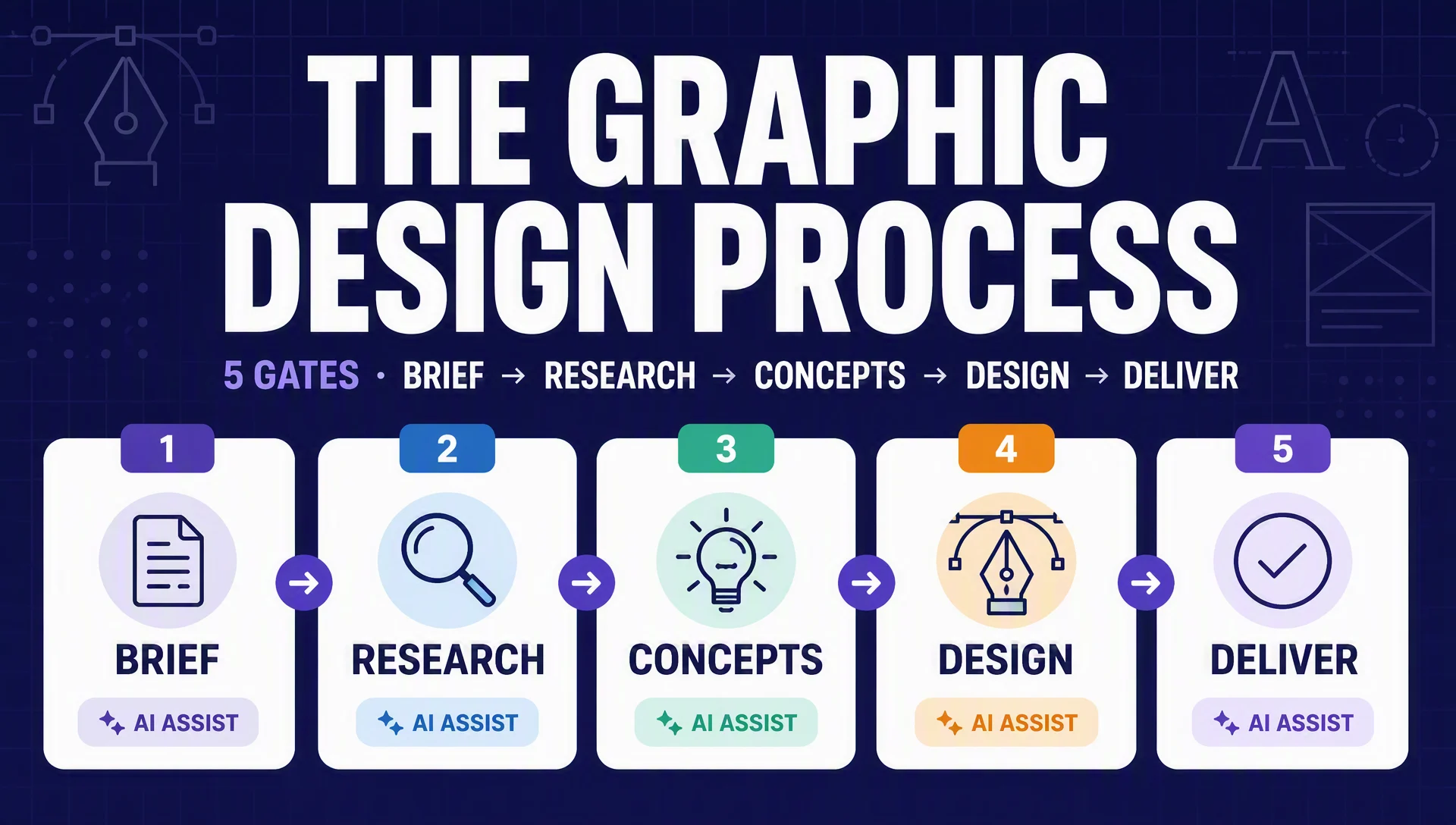
A modern graphic design process is a human-led loop with five gates: brief → research → concepts → design → review and deliver. The human owns the decisions; AI tools and agents do the volume. In 2026, that is the whole difference between a designer who finishes in days and a non-designer who finishes in hours — the loop is the same one graphic designers have always used, but every stage now has an AI assistant that produces drafts, variations, and formats fast enough to test.
Who this is for: marketers, content creators, and SEO beginners who need on-brand visuals (blog covers, social graphics, infographics) and want a repeatable process — with the option to hand most of the work to an AI agent. What you need: one design tool with a free tier (Canva, Figma, or an image generator), a brand color and font reference, and — for the automated path — Codex CLI or Claude Code on your machine. Done means: one approved, on-brand asset delivered in the formats you need, with a record of the decisions you made so the next asset is faster.
Why the process matters more in 2026
Design work is not failing because designers are slow. It fails because the loop is broken: no brief, vague feedback, and revisions that drag on. The research has been consistent on this for years — 34% of 1,100 teams surveyed by Piktochart called excessive approval steps their biggest workflow challenge, and designers regularly report that slow client feedback is the top cause of schedule slips, not the drawing itself.
What changed by 2026 is that you no longer need to be a designer to run the loop well. AI adoption in design is no longer a fringe case:
- 72% of digital designers now use generative AI regularly, and 91% say it improves output quality (Figma State of the Designer 2026, 906 designers surveyed).
- 86% of creators use creative generative AI in their workflows, with 60% using multiple tools (Adobe Creators' Toolkit report, 16,000+ creators surveyed).
- The average designer's AI tool stack more than doubled in a year — from 3 tools to 7 (AI in Design 2026 report).
The practical consequence for an SEO beginner: the skills that used to gate design — drawing, layout, tooling — are now cheap enough to automate. What stays expensive is judgment: deciding what the asset is for, which variation fits the brand, and when to stop. So the 2026 process is a five-gate loop where every mechanical step can be delegated and every decision stays with you.
One caveat before the numbers go to your head. These are provider-reported figures from surveys done in late 2025 and 2026, and they describe the design industry broadly. Your own result depends on the brief you write and the brand rules you lock down — which is exactly what this guide builds.
The five gates at a glance
Gate | Human decision | AI assist | Gate opens when |
|---|---|---|---|
1. Brief | Purpose, audience, message, constraints | Drafts the brief from a Q&A | One page, no open questions |
2. Research | Which references reflect the brand | Builds moodboards and competitor scans | A reference set you approve |
3. Concepts | Which 3-5 directions to pursue | Generates breadth fast | Divergent options, not one guess |
4. Design | Which direction becomes the asset | Iterates layouts, edits, formats | Brand-consistent, accessible draft |
5. Review & deliver | Approve or reject, cap revisions | Organizes feedback, exports formats | Approved files + license record |
The rest of this guide walks each gate: what you do, what the output looks like, the quality check that opens the next gate, and the recovery path when the gate does not open.
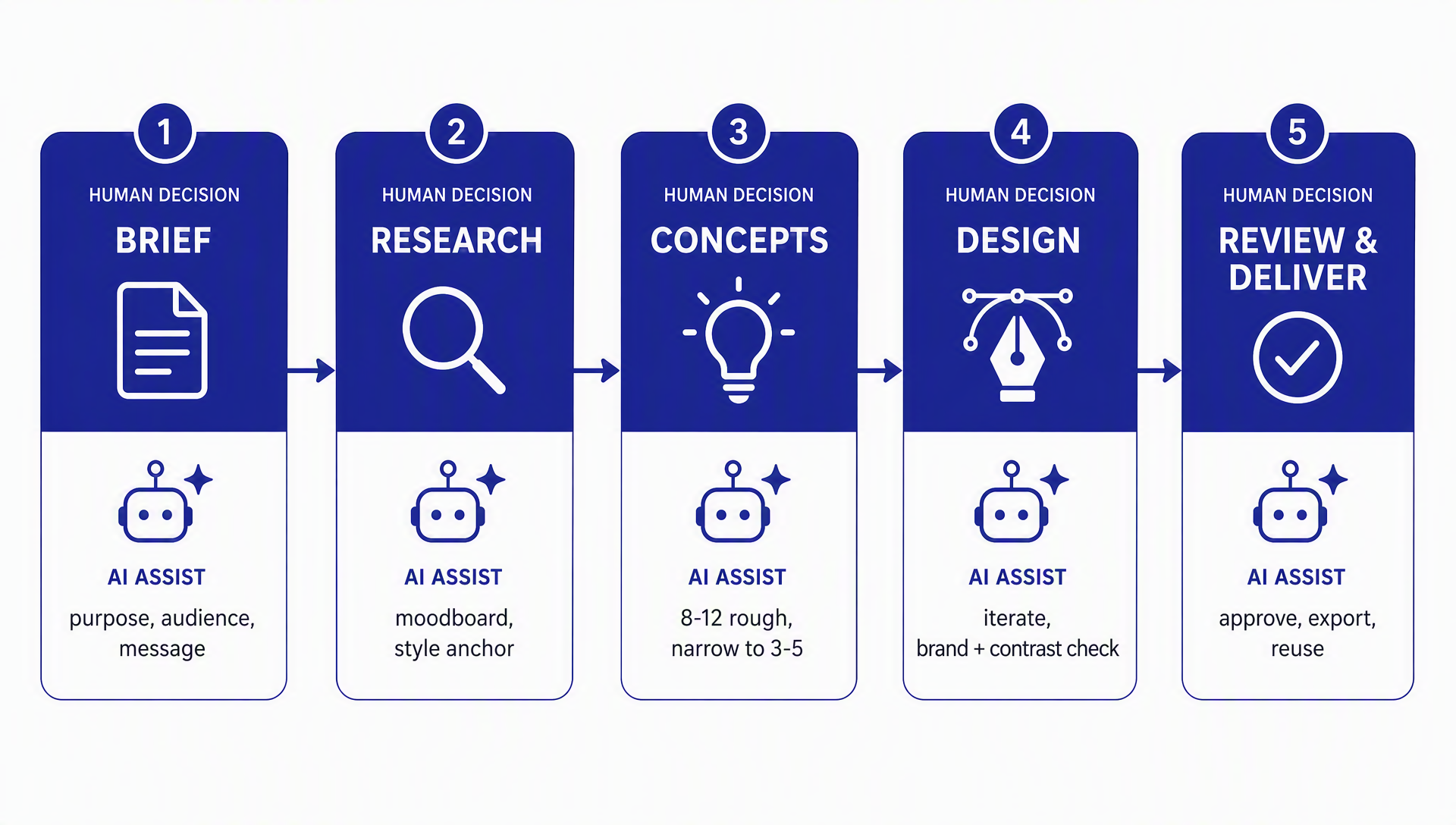
The 2026 design loop: humans own the decisions, AI tools handle the volume.
Gate 1 — The design brief
The brief is the highest-leverage document in the process. A weak brief is the most common cause of revision loops; a clear one prevents them. A 2026 provider analysis (TDS DAAS) reported that projects with high-quality briefs averaged about 1.6 revision rounds versus 4.1 for weak ones — treat that as directionally true rather than a promise, but the direction is exactly what designers report everywhere.
You do not need a formal client to write a good brief. You need one page that answers:
- Purpose — what action should the reader take after seeing this asset? (click, read, buy, share)
- Audience — who are they, and what do they already know?
- Message — the single sentence the asset must communicate.
- Format and specs — where it lives (blog, social, email), and the exact dimensions.
- Brand rules — colors (hex codes), fonts, logo usage, and 2-3 example assets that look right.
- Constraints — deadline, budget, legal or tone limits.
- Approval — who says yes, and who must sign off before you deliver.
Quality check: you can read the brief in under a minute and answer "what is this for?" without guessing. If a stakeholder later asks for a change that contradicts the approved brief, the brief wins.
Recovery path: if you cannot write the audience and message sentences, stop and ask — everything downstream inherits the confusion.
Gate 2 — Research and references
Before generating anything, spend 20-30 minutes collecting references. Research is not a formality; it sets the visual vocabulary the AI will imitate, and it prevents the "make it pop" feedback loop later.
- Competitive scan. Look at the top 3-5 assets your competitors and the search-results leaders use for the same purpose. Note what they repeat (structure, color, tone), not what to copy.
- Moodboard. Collect 6-12 images that feel like the direction you want: layouts, color palettes, type styles, photographic treatments. A moodboard forces taste to become visible and debatable.
- Style anchor. If you will generate images, pick one master reference and describe it in writing ("soft shadows, editorial grid, warm off-white background, 2 accent colors"). Locking a style anchor is the single biggest lever for brand consistency across AI outputs.
In 2026 the AI shortcut here is real: generators like Midjourney, Canva Magic Media, or Adobe Firefly can produce a moodboard in minutes from your brief. But you still approve the set. The gate does not open on a pile of images; it opens on a chosen reference set.
Quality check: you can point to each reference and say what it contributes (layout, color, tone, type). If a reference does not earn its place, drop it.
Recovery path: if the moodboard pulls in five different directions, narrow to two — you are choosing a direction, not a gallery.
Gate 3 — Concepts: breadth, then narrow
The classic designer move is to generate many rough directions and then converge. AI makes the breadth step nearly free, which means the discipline is choosing, not generating.
- Generate breadth. Produce 8-12 rough concepts from your brief and references using a fast model or template. Do not polish yet — polish hides bad directions.
- Narrow to 3-5. Pick the directions that best match the brief and the moodboard. Discard the rest without agonizing.
- Refine the winner. Take the direction with the most approval momentum and refine it in a higher-quality pass.
A 2026 technique worth knowing: seed locking. Record the generation seed of the concept you approve. With a locked seed, small variation requests ("slightly warmer," "more space at the top") become reproducible edits instead of a regeneration lottery. Not every tool exposes seeds; when it does, write it down next to the asset.
Quality check: each surviving concept can be explained in one sentence tied to the brief. If a concept needs a paragraph of justification, it is not a direction.
Recovery path: if nothing in the batch works, do not push a bad concept further. Go back to Gate 2 and tighten the references — the problem is the vocabulary, not the luck.
Gate 4 — Design and iterate
This is where you turn the chosen concept into a polished, on-brand asset. The tool choice matters less than the loop: design → check against brand rules → check accessibility → repeat a bounded number of times.
Which tool for which job (mid-2026 landscape)
Stage | Best-fit tool | What it automates | When to skip |
|---|---|---|---|
Drafting briefs and copy | Any capable LLM (Claude, ChatGPT) | Turns a Q&A into a structured brief | If the brief already exists |
Image generation (concepts, hero images) | Adobe Firefly, Midjourney, Canva Magic Media | Text-to-image from your style anchor | If you only need layout, not imagery |
Layout and editable UI | Figma Make | Prompt-to-wireframe and editable components | For single marketing assets, Canva is faster |
Marketing templates | Canva Magic Studio | Finished social, deck, and doc templates | If you need editable brand-system components |
Photo editing and cleanup | Firefly Generative Fill, Qwen Image Edit, Recraft | Background removal, inpainting, relighting | If the source image needs no edits |
Multi-format export | Canva Magic Resize | Produces every platform size from one master | If you only need one format |
The three most-compared tools solve different problems: Figma AI is for editable UI and design systems; Canva Magic Studio is for finished marketing assets fast, at the cost of editability; Adobe Firefly is the strongest commercial-safety story for image generation because it is trained on licensed and public-domain data, with enterprise IP indemnification claims. Most teams end up using two or three, not one.
Pricing as of mid-2026, verify before committing: Canva Pro around $13-15/month, Figma Professional around $15-16 per editor per month, Firefly Standard at $9.99/month. All have free tiers sufficient for this process.
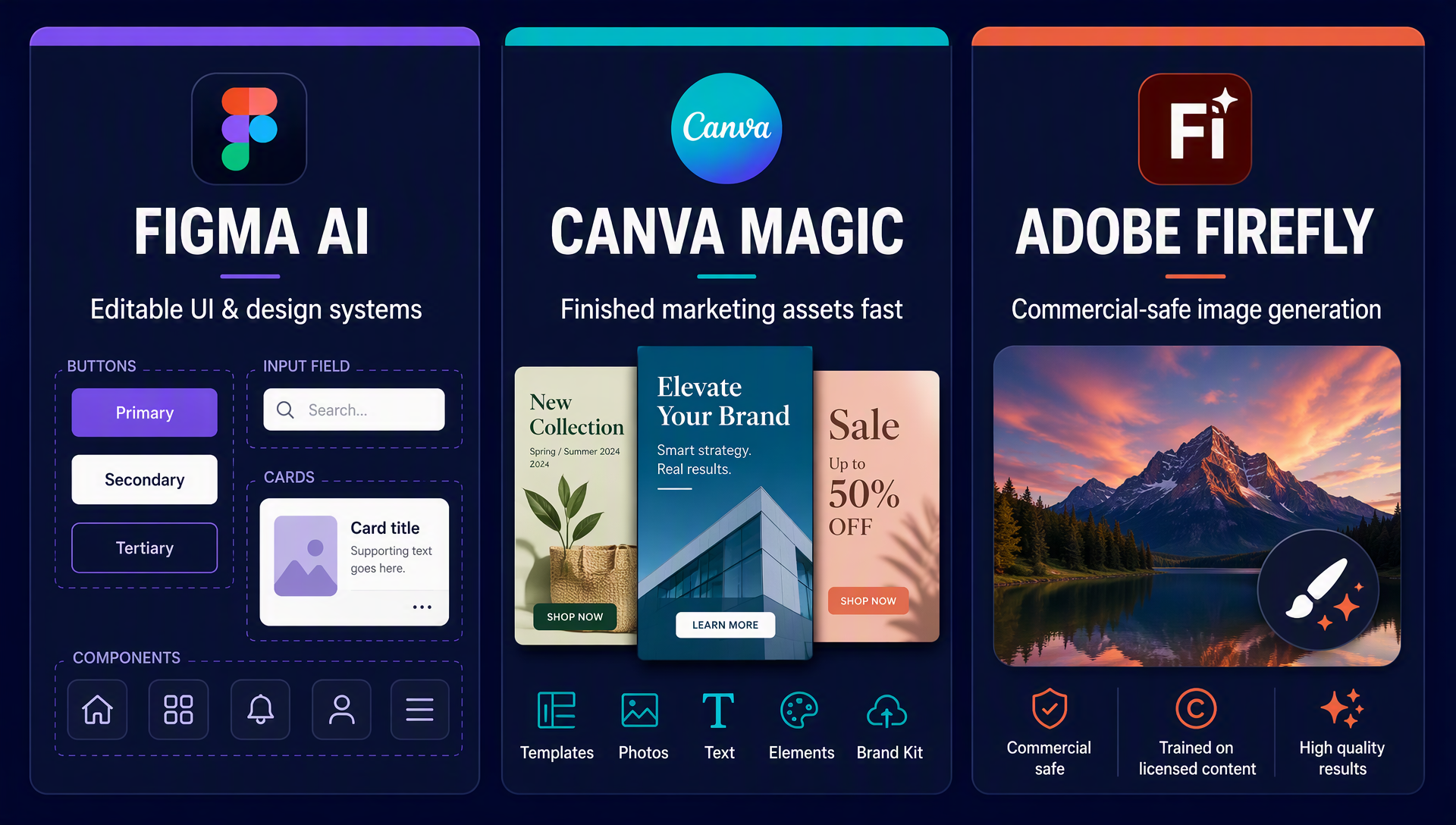
The three most-compared AI design tools solve different problems — most teams use two or three.
Two checks before you call it designed
- Brand check. Compare against the brief's brand rules and your style anchor. If a color, font, or spacing rule is broken, fix it now — it is cheaper than explaining it later.
- Accessibility check. Normal text needs at least 4.5:1 contrast against its background (WCAG 2.1 AA). None of the AI tools check this for you automatically; a free contrast checker does.
Quality check: the asset matches the approved direction, respects the brand rules, passes the contrast check, and reads clearly at the size it will actually appear.
Recovery path: if the asset keeps missing, make one targeted edit instead of regenerating the whole thing. Inpainting and background-removal tools close the last 20% without the lottery of a fresh generation.
Gate 5 — Review, deliver, and reuse
The final gate is where projects either close cleanly or spiral. Two habits keep it clean.
1. Cap the revision rounds. Include 2-3 revision rounds by default, and distinguish revisions (fine-tuning the approved direction) from scope changes (a new direction — which requires a new brief and often a new quote). Write the cap into the brief or contract before work starts.
2. Make feedback specific and centralized. Vague feedback is the revision killer. Train reviewers to state the problem, not prescribe the solution: "the headline gets lost against the photo" beats "make it pop." Keep feedback in one place — Figma comments, a review tool like Filestage, or even a shared doc — so nobody works from a scattered Slack thread.
Deliver the right files. Export print-ready formats (CMYK, 300 dpi, bleed) when needed, web formats (PNG, WebP) for online use, and the editable source if the client or your team will reuse it. Attach a licensing note — if you used AI generation, disclose it and record which tool and license apply.
Reuse, do not restart. Save the approved brief, style anchor, and seeds in one place. The second asset built from the same system takes a fraction of the time, because the decisions are already made. This is the whole point of a design system, applied at a scale you can actually run.
Quality check: the asset is approved, exported in the formats you promised, and the brief + style anchor + seeds are saved for the next one.
Recovery path: if a reviewer requests something outside the approved brief, point to the brief. If it is a genuine scope change, start a new brief at Gate 1 instead of fighting inside the current one.
Hand the whole thing to Codex: a copy-paste skill
You have now seen the five-gate process. The last step is removing the friction of running it: save the skill below into Codex or Claude Code, and the agent will drive the process for you — asking the Gate 1 questions, building the reference set, generating concepts, and preparing the review, while you keep every approval.
The agent never guesses, never prints credentials, and never claims a result is guaranteed. It returns decisions to you at every gate.
Save this file as .claude/skills/graphic-design-process/SKILL.md in a Claude Code project, or the equivalent skills directory in Codex:
---
name: graphic-design-process
description: Run a five-gate graphic design process from brief to delivered asset, for beginners. The agent drives the loop, the user makes every decision. Works with authorized image tools; never invents outputs.
---

You are a graphic-design-process assistant for a beginner. Your job is to walk the user through the five gates — brief, research, concepts, design, review and deliver — producing clear options and preparing reviews. You do not make design decisions, publish anything, or claim guaranteed outcomes.

## Hard Rules

- Never print, write, or log API keys, tokens, passwords, or private data.
- Never fake or fabricate a generated image, screenshot, metric, or result. If an image tool or API is not available or authorized, say so and show what the user can do manually.
- Never claim that a design, tactic, or asset will produce a specific ranking, traffic, conversion, or revenue result.
- Every deliverable returns a decision point to the user. Do not auto-approve.

## Inputs to Collect First

1. Purpose of the asset (click, read, buy, share) and where it will appear.
2. Target audience and their prior knowledge.
3. The single message the asset must communicate.
4. Format, exact dimensions, and file types needed.
5. Brand rules: colors (hex), fonts, logo rules, and 2-3 reference assets that look right.
6. Deadline, budget, and any legal or tone constraints.
7. Who approves and how many revision rounds are included.
8. Which image tool the user authorizes (Firefly, Midjourney, Canva Magic Media, or none).

## Workflow

### Gate 1 — Brief
1. Ask the inputs above as a short Q&A. Do not assume answers.
2. Produce a one-page brief: purpose, audience, message, format/specs, brand rules, constraints, approval.
3. Output: `brief.md`. Gate opens only when the user can answer "what is this for?" in one sentence.

### Gate 2 — Research
1. Ask for or gather 6-12 reference images the user chooses; do not fabricate them.
2. Produce a written style anchor: layout, color, type, image treatment in 2-3 sentences.
3. Output: `references.md` with the style anchor on top. User approves the set.

### Gate 3 — Concepts
1. Generate 8-12 rough concepts from the brief and style anchor using the authorized image tool.
2. Narrow to 3-5 with the user; record which were discarded.
3. Output: `concepts/` with numbered options and one-sentence rationale each.
4. If a tool has reproducible seeds, record the seed of any approved concept.

### Gate 4 — Design
1. Refine the approved concept into one polished asset.
2. Run the brand check (colors, fonts, spacing against the brief) and the accessibility check (4.5:1 contrast for normal text).
3. Output: the asset file plus a `design-notes.md` listing what was checked.
4. User reviews; a targeted edit is preferred over a fresh regeneration.

### Gate 5 — Review, deliver, reuse
1. Prepare a review summary: what changed from the previous round, what is still open.
2. Export the formats the user requested (web PNG/WebP; print CMYK/300 dpi/bleed when asked).
3. Record the approved brief, style anchor, and seeds in a `project/` folder for reuse.
4. Include a short licensing note (tool used and license).

## Output Format

For every gate, return:
- The deliverable for this gate.
- The quality check that passed (or why it did not).
- The exact decision the user must make next, as a question.

## Never

- Generate, alter, or present images that do not come from an authorized tool the user configured.
- Publish, upload, or share the asset without explicit user approval.
- Fabricate metrics, client names, or success stories.
- Skip a gate because it feels slow. The loop is the product.
Revision-loop killers
The process is the fix for revisions, but three habits make it bulletproof:
- Write the brief and the revision cap before any design starts. A stakeholder who contradicts the approved brief loses the argument.
- Use the 10/50/99 rule. At ~10% completion, feedback addresses the overall vision; at ~50%, whether the vision is being visualized correctly; at ~99%, only minute adjustments. No new directions at 99%.
- Assign one decision-maker. If five people give feedback, one consolidates it into a single document. Contradictory instructions are how "Frankenstein" designs are born.
Verify your finished result
Before you call the project done, run this checklist:
- [ ] The asset answers the brief's message in one glance.
- [ ] Colors, fonts, and spacing match the brand rules in the brief.
- [ ] Normal text passes the 4.5:1 contrast check.
- [ ] The asset is exported in every format the brief required.
- [ ] The approved brief, style anchor, and any seeds are saved for reuse.
- [ ] The revision round count is recorded and within the agreed cap.
- [ ] You can reproduce the asset for a sibling project without restarting.
If any box is unchecked, go back to the relevant gate. The loop is designed to reopen cheaply.
FAQ
I'm not a designer and I have no budget. Does this process still work? Yes. Canva's free tier, free image generators, and free contrast checkers cover every gate. The process costs time, not money — and it saves time by preventing revision loops.
Will using AI in my design process hurt my SEO? No. Google does not penalize AI-assisted design, and the alt text, file names, and structured layout you write around the asset are what matter for search. What hurts SEO is thin, on-brand-irrelevant content — the opposite of what this process produces.
Which agent should a beginner use — Codex or Claude Code? Both run the skill above. Choose the one you can install today. Codex CLI and Claude Code both work from a terminal; if you already use one for other content workflows, keep it. The skill is the same.
How do I keep AI-generated visuals consistent with my brand? Lock three things in Gate 2: a style anchor written in 2-3 sentences, one master reference image, and the brand's hex colors. Then include them in every generation prompt and record seeds where the tool supports them.
Do I need to disclose AI use to my client? If you work for clients, disclose it in the contract — "I use AI-assisted tools for ideation and rendering, with final hand-editing" — because some clients forbid AI outright. Choose commercially safe tools (Firefly is the strongest story here) and keep the license record from Gate 5.
What is the biggest mistake beginners make? Skipping Gate 1. Starting to generate without a brief is how you end up with a beautiful asset that answers the wrong question — and then the revision loop begins.
Author: Camille Rhodes, Architect of 300+ AI Content Workflows at Auspia. Camille writes about content automation, publishing systems, and repeatable AI-assisted workflows for growth teams.