Who This Guide Is For
You run a website — a blog, an ecommerce store, a portfolio, a SaaS landing page — and you want your images to drive traffic instead of slowing your site down. You don't need to know HTML or Python. Each tip below includes a copy-paste Codex prompt that does the technical work for you.
The Short Answer
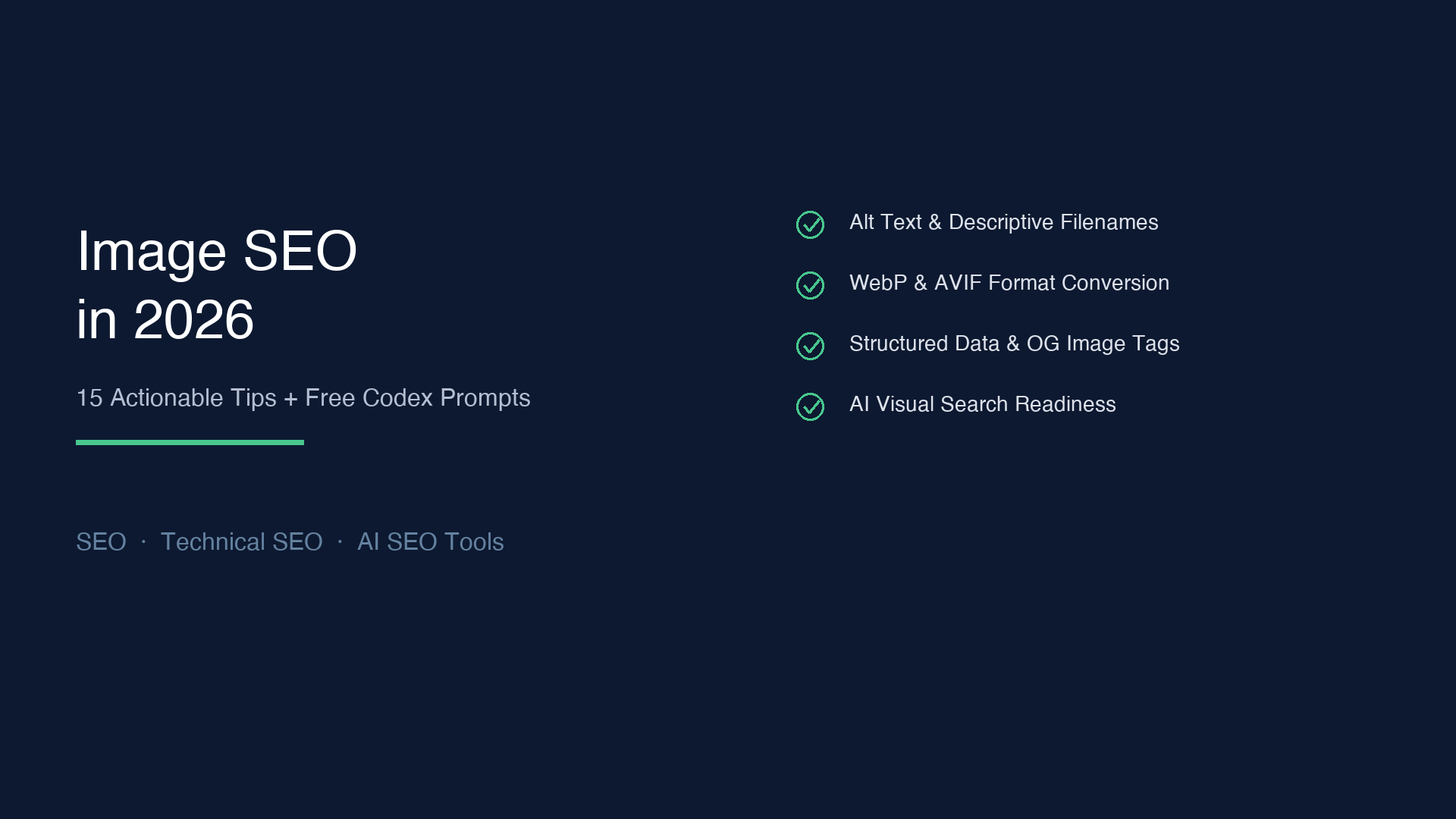
Image SEO in 2026 means making your images fast, findable, and AI-readable. The basics still matter — descriptive alt text, small file sizes, meaningful filenames — but the field now includes AI visual search, next-generation formats like AVIF, structured data for rich results, and AI agents that can audit and fix your images at scale.
This guide gives you 15 concrete steps, organized from the basics you can fix today to forward-looking techniques for AI-powered search. By the end, you'll have a 12-point checklist to run before every publish and a reusable AI agent prompt that automates the whole audit.
Part 1: The Foundation (Tips 1–5)
These five steps alone will fix 80% of image SEO problems. Do them first.
1. Give Every Image a Descriptive Filename
Before you upload anything, rename the file. Search engines read filenames as a relevance signal.
Bad: IMG_4521.jpg, screenshot.png, photo1.jpeg Good: red-apple-farmhouse-kitchen.jpg, google-search-console-2026-dashboard.png
Rules of thumb:
- Use hyphens between words, never underscores (
red-apple.jpg, notred_apple.jpg) - Keep it under 6 words
- Include one target keyword naturally
- Never stuff keywords:
cheap-buy-best-red-apple-fruit.jpgwill not help you
Codex prompt — Paste this into Codex or Claude Code:
>
`` Rename all images in the folder [YOUR-FOLDER-PATH] following these rules: - Use lowercase, hyphens between words - Describe the image content in 3-5 words - Include a relevant keyword naturally - Skip filler words like "image" or "photo" - Show me the old-name → new-name mapping in a table before I confirm ``2. Write Alt Text That Works for Search Engines and Screen Readers
Alt text is the most important image SEO signal. It tells search engines what the image shows and makes your site accessible to visually impaired users.
Bad: alt="image of a red apple" Good: alt="Fresh red apple on a wooden table in a farmhouse kitchen"
Rules for 2026:
- Aim for 80–125 characters — long enough to be descriptive, short enough to stay useful
- Never start with "image of" or "picture of" — search engines already know it's an image
- Describe what matters in the image, not every pixel
- If the image contains text that is important to the page, include that text
- If the image is purely decorative, use an empty alt attribute:
alt=""
Codex prompt:
>
`` For every image file in [YOUR-FOLDER-OR-URL-LIST], generate SEO-friendly alt text. Rules: - 80–125 characters - No filler phrases like "image of" or "picture of" - Describe content + context - Include one relevant keyword where natural - Output as a table: filename | alt text | character count - Wait for my review before applying ``3. Compress Images Before Uploading
Large images are the #1 cause of slow pages. A 5 MB photo will tank your Core Web Vitals, and Google will notice.
Target file sizes for 2026:
Image Type | Max Size | Ideal Format |
|---|---|---|
Blog post image | 80–120 KB | WebP or AVIF |
Hero banner | 200–300 KB | WebP or AVIF |
Product photo | 100–150 KB | WebP |
Logo/icon | 5–20 KB | SVG |
Thumbnail | 20–40 KB | WebP |
Free tools to use:
- [Squoosh](https://squoosh.app/) — Google's own tool, works in the browser
- [TinyPNG](https://tinypng.com/) — supports WebP and PNG compression
- [ImageOptim](https://imageoptim.com/) — Mac desktop app, drag-and-drop
Codex prompt:
>
`` For all images in [YOUR-FOLDER]: 1. Check each file size and identify anything over 300 KB 2. For oversized images, tell me the current size and recommend a target size based on 2026 best practices (blog images 80-120 KB, hero images 200-300 KB, product photos 100-150 KB) 3. Show me a table: filename | current size | recommended target | action needed 4. Give me the exact squoosh.app or TinyPNG settings to achieve the target Do NOT modify any files — this is an audit only. ``4. Pick the Right Image Format
Not all formats are equal. Here's what to use in 2026:
Format | Best For | Why |
|---|---|---|
WebP | Photos, blog images, products | 25–34% smaller than JPEG, supported everywhere |
AVIF | High-quality photos, hero images | Even smaller than WebP, best quality-to-size ratio |
SVG | Logos, icons, illustrations | Scales infinitely, tiny file size |
JPEG | Fallback for photos | Still universally supported, good for email |
PNG | Images needing transparency | Use only when WebP/AVIF aren't an option |
What's new in 2026: AVIF support now exceeds 95% of global browser usage (per caniuse.com, July 2026). If your CMS supports it, make AVIF your default for photos.
Codex prompt:
>
`` Audit the image formats in [YOUR-FOLDER-OR-SITEMAP-URL]: 1. List all images with PNG or JPEG format that could be converted to WebP or AVIF 2. Show estimated file size savings in a table: filename | current format | current size | recommended format | estimated savings 3. Give me the conversion commands (using cwebp or ImageMagick) for each file Do NOT run conversions — output commands only. ``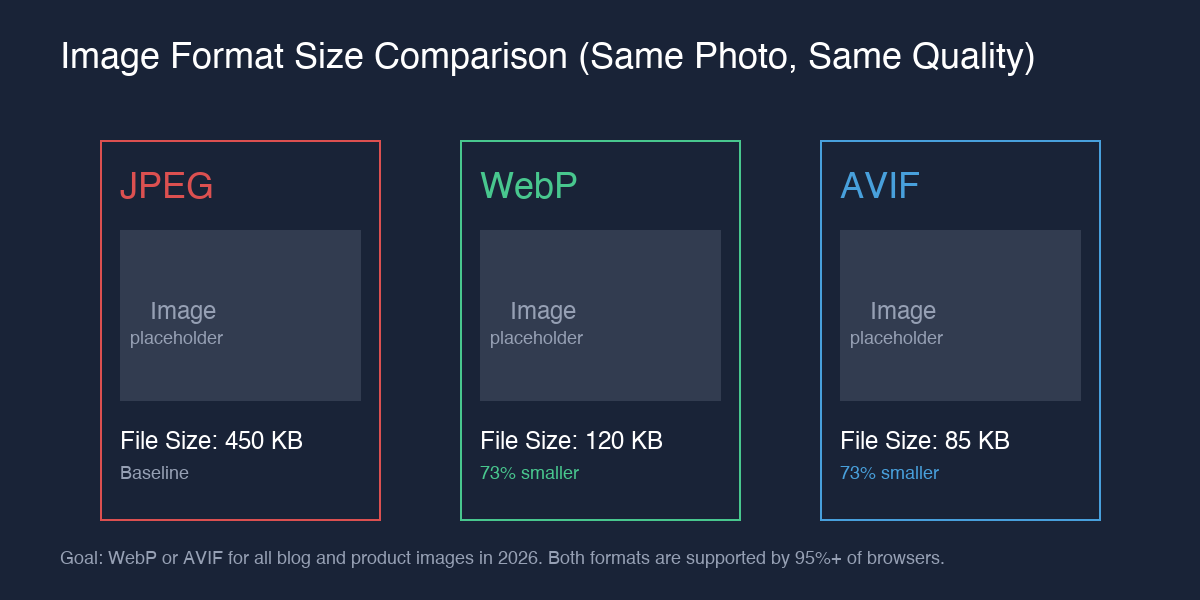
Above: The same photo saved as JPEG (450 KB), WebP (120 KB), and AVIF (85 KB). WebP is roughly 73% smaller than JPEG at equivalent visual quality; AVIF is even leaner.
5. Use Responsive Images with srcset
One image size doesn't fit all screens. A desktop hero image at 1600px wide wastes bandwidth on a 375px phone screen.
The srcset attribute lets the browser pick the right size automatically:
<img
  src="hero-800w.webp"
  srcset="hero-400w.webp 400w,
          hero-800w.webp 800w,
          hero-1200w.webp 1200w"
  sizes="(max-width: 600px) 400px,
         (max-width: 900px) 800px,
         1200px"
  alt="Team collaborating on SEO strategy in a modern office"
  loading="lazy"
  width="1200"
  height="630"
/>
In 2026, many CMS platforms (WordPress 6.5+, Webflow, modern static site generators) generate srcset automatically. If yours doesn't, ask your developer to add it — or use the Codex prompt below.
Codex prompt:
>
`` For the images on [YOUR-PAGE-OR-TEMPLATE]: 1. Check if responsive image srcset is implemented 2. If missing, generate the HTML with srcset for 3 sizes (400w, 800w, 1200w) 3. Include the sizes attribute for mobile and desktop breakpoints 4. Add loading="lazy" and explicit width/height attributes 5. Explain how to integrate this into [WORDPRESS / WEBFLOW / YOUR-CMS] ``Part 2: Performance & Delivery (Tips 6–8)
6. Add Lazy Loading — But Not for the First Image
Lazy loading defers images below the fold until the user scrolls to them. This cuts initial page weight significantly.
The simplest way in 2026:
<img src="article-image.webp" alt="..." loading="lazy" />Critical rule: Never lazy-load the first image on the page (the one that appears above the fold). That image is part of your Largest Contentful Paint (LCP) — lazy-loading it will hurt your Core Web Vitals score.
For the above-the-fold hero or featured image, always use loading="eager":
<img src="hero.webp" alt="..." loading="eager" fetchpriority="high" />The fetchpriority="high" hint is new and tells the browser: "load this first."
Codex prompt:
>
`` For [YOUR-PAGE-URL]: 1. Identify which image is the LCP element (above the fold, largest visible image) 2. Check that it has loading="eager" and fetchpriority="high" 3. Check all below-the-fold images have loading="lazy" 4. For any image missing loading attribute, tell me whether it should be eager or lazy 5. Output a table: image | position | current loading | recommended | fix needed ``7. Serve Images Through a CDN
A Content Delivery Network stores your images on servers around the world and delivers them from the location closest to each visitor.
In 2026, the free tier options are strong enough for most sites:
- Cloudflare — free plan includes image caching and Polish (auto-compression)
- Bunny CDN — pay-as-you-go, strong image optimization built in
- Netlify / Vercel — automatic image optimization on their platforms
If you're on WordPress, plugins like Imagify or ShortPixel can auto-serve WebP/AVIF through their CDN without touching your code.
Codex prompt:
>
`` My website is hosted on [YOUR-HOST]. I want to serve images through a CDN. 1. Recommend the best CDN option based on my setup 2. List the step-by-step integration steps 3. Tell me what to check after setup (verify CDN URLs, check cache headers, test from different locations) Assume I'm a beginner — no technical shortcuts. ``8. Preload Critical Images
When a specific image is critical (hero image, product photo above the fold), tell the browser to grab it before anything else:
<link rel="preload" as="image" href="hero-800w.webp" imagesrcset="hero-400w.webp 400w, hero-800w.webp 800w, hero-1200w.webp 1200w" />Use this only for 1–2 images per page. Preloading everything defeats the purpose.
Codex prompt:
>
`` For [YOUR-PAGE-URL], identify 1-2 critical above-the-fold images. Generate the exact <link rel="preload"> tag for each, including correct imagesrcset values. Explain where in the <head> to place these tags. ``Part 3: Discoverability & Rich Results (Tips 9–12)
9. Create an Image Sitemap
An image sitemap tells Google about every image on your site — including images loaded via JavaScript that Google might otherwise miss.
You can add image info to your existing XML sitemap:
<url>
  <loc>https://yoursite.com/blog/image-seo-guide/</loc>
  <image:image>
    <image:loc>https://yoursite.com/images/image-seo-hero.webp</image:loc>
    <image:caption>Complete image SEO workflow for 2026</image:caption>
    <image:title>Image SEO 2026 Workflow</image:title>
  </image:image>
</url>
Most SEO plugins (Yoast, Rank Math) generate image sitemaps automatically. If you're on a custom site, the Codex prompt below will build one.
Codex prompt:
>
`` Generate an image XML sitemap for [YOUR-WEBSITE-URL]. 1. Ask me for a list of pages and their image URLs, OR accept a CSV file I provide 2. Build a valid XML image sitemap following the Google image sitemap spec 3. Include <image:title> and <image:caption> for each image 4. Output the complete XML file 5. Tell me where to upload it and how to submit it in Google Search Console ``10. Add Structured Data for Images
Schema markup helps Google display your images in rich results — including product carousels, recipe cards, and video thumbnails.
For product images, add ImageObject within your Product schema:
{
  "@context": "https://schema.org",
  "@type": "Product",
  "name": "Handmade Leather Journal",
  "image": [
    "https://yoursite.com/images/journal-main.webp",
    "https://yoursite.com/images/journal-open.webp",
    "https://yoursite.com/images/journal-angle.webp"
  ]
}
For blog posts and articles, ensure your Article schema points to a high-quality featured image — this is what Google Images and AI search surfaces pull for article thumbnails.
In 2026, Google AI Overviews and other AI-powered search features increasingly pull article images from structured data. If your schema doesn't have an image property, your article is less likely to appear with a thumbnail in AI-generated results — where competitors with proper schema may show one.
Codex prompt:
>
`` For [YOUR-PAGE-OR-POST]: 1. Check what structured data is already present (give me the current JSON-LD) 2. If image properties are missing or outdated, generate the corrected JSON-LD 3. For product pages, ensure multiple product images are listed in the image array 4. For articles, verify the featured image URL is included 5. Output the complete, minified JSON-LD block ready to paste into <head> ``11. Optimize Your Open Graph (OG) Image Tags
When someone shares your page on social media, Slack, or messaging apps, the OG image is what shows up. A missing or generic OG image kills click-through rates from social traffic.
Mandatory OG tags for every page:
<meta property="og:image" content="https://yoursite.com/images/og-image-1200x630.webp" />
<meta property="og:image:width" content="1200" />
<meta property="og:image:height" content="630" />
<meta property="og:image:alt" content="Complete image SEO guide for beginners — 15 actionable tips in 2026" />
<meta property="twitter:card" content="summary_large_image" />
2026 tip: The og:image:alt property is now supported by major platforms and improves accessibility of shared links. Always include it.
OG image specs for 2026: 1200 × 630 pixels, WebP or JPEG, under 300 KB.
Codex prompt:
>
`` Audit the Open Graph tags for [YOUR-PAGE-URL]: 1. Check if og:image, og:image:width, og:image:height, og:image:alt, and twitter:card are present 2. For any missing or incorrect tags, generate the correct HTML 3. If the og:image URL is relative, convert it to absolute 4. Recommend a 1200x630 image if one doesn't exist — and describe what should be on it ``12. Use Descriptive Captions and Surrounding Text
Google reads the text around your image to understand what it's about. An image of a dashboard chart placed next to a paragraph about Q3 traffic trends sends a stronger signal than the same image placed in an unrelated section.
Three placement rules:
- Put images near relevant text. The paragraph immediately before or after the image should discuss what the image shows.
- Use `<figcaption>` for explanatory captions. Captions get read more than body text — make them count.
- Don't bury important images deep in the page. The higher an image sits, the more weight it carries.
<figure>
  <img src="core-web-vitals-report-2026.webp" alt="Google Search Console Core Web Vitals report showing 92% good URLs" loading="lazy" width="800" height="450" />
  <figcaption>Example: A before-and-after caption showing the Core Web Vitals improvement after switching from JPEG to WebP. (The 92% vs 67% figures are illustrative — your results will vary based on image volume and starting file sizes.)</figcaption>
</figure>
Codex prompt:
>
`` For each image on [YOUR-PAGE-URL]: 1. Check if there's a <figcaption> describing the image 2. If missing, generate a descriptive, SEO-friendly caption that adds context 3. Verify the surrounding text is topically related to the image 4. Flag any images that appear "orphaned" (no related text within 200 words) 5. Output as: image | current caption | suggested caption | surrounding-text score ``Part 4: AI Search & Visual Discovery (Tips 13–15)
These are the 2026-only tips that did not exist when the original image SEO guides were written.
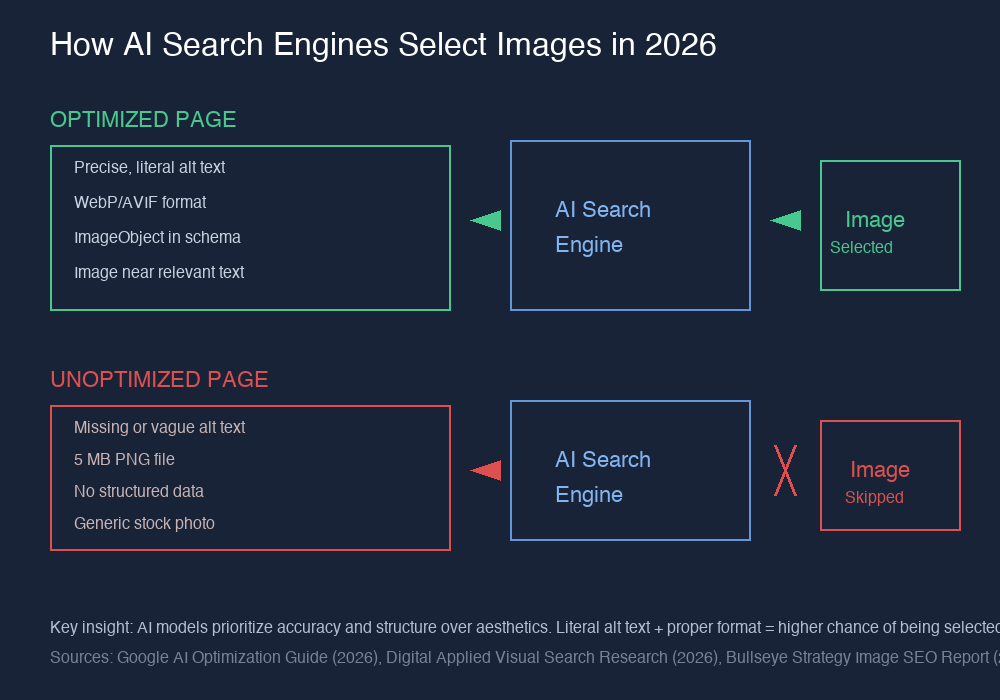
Above: How AI search engines select images in 2026. Optimized pages with literal alt text, proper formats, and structured data are far more likely to have their images surfaced in AI-generated answers.
13. Optimize for AI Visual Search
ChatGPT, Perplexity, Gemini, and Google AI Overviews now surface images alongside text answers. But they pull images differently than Google Images.
AI search engines look for images that:
- Have precise, literal alt text — no marketing fluff, just exactly what the image shows
- Are placed in pages with clear, well-structured content
- Have structured data with the image property
- Come from pages with high topical authority on the subject
What's different from traditional image SEO: AI models prioritize accuracy over engagement. An image with alt text "Screenshot of Google Search Console performance report showing 45,000 clicks in July 2026" is far more likely to be selected by an AI search engine than one with "Amazing SEO results dashboard" — because the AI can verify that the first description matches the page content.
Codex prompt:
>
`` Review the images on [YOUR-PAGE-URL] for AI search readiness: 1. For each image, check if the alt text is literally accurate (would an AI model understand exactly what's in the image?) 2. Flag any alt text that uses marketing language, hyperbole, or vague descriptions 3. For each flagged image, suggest a literal, factual replacement 4. Check that the page has structured data with the image property 5. Output a scorecard: image | AI-readiness score | issue | fix ``14. Build Original Images — Not Stock Photos
Google's image SEO documentation (updated 2026) recommends original, high-quality images over generic stock photography — and multiple practitioner studies confirm that unique images tend to rank better in both traditional image search and AI-powered results.
Stock photos have two problems in 2026:
- Duplicate content signal — the same image appears on hundreds of other sites, giving search engines no reason to pick your page over any other
- AI can recognize stock photos — vision-language models can identify commonly reused stock imagery patterns, and pages relying heavily on generic stock photos may have a harder time standing out in AI-curated results
What to create instead:
- Original screenshots of tools, dashboards, and workflows
- Custom diagrams (even simple ones made in Canva or Excalidraw)
- Original photos of your product, team, or workspace
- Data visualizations from your own data or reputable public sources
Codex prompt:
>
`` For each image on [YOUR-PAGE-URL], check if it's a stock photo: 1. Reverse-search the image URL to see how many sites use it 2. Flag any stock photos and recommend: keep, replace with original, or redesign as a custom diagram 3. For each flagged image, describe a specific original alternative I can create 4. Suggest free tools (Canva, Excalidraw, Google Drawings) to create each replacement ``15. Automate Your Image SEO Pipeline with an AI Agent
This is the biggest shift in 2026: you no longer need to do image SEO manually, one image at a time. AI coding agents (Codex, Claude Code, Cursor) can audit, fix, and monitor your image SEO at scale.
Below is a complete Image SEO Skill that turns any of these agents into your personal image optimization assistant. This works even if you've never written a line of code.
How to use it:
- Save the skill block below as
image-seo-audit.md - In Codex, type
/image-seo-auditor drag the file into your conversation - The agent will walk you through the audit step by step
- You review and approve changes before anything is modified
The full skill file is provided separately with this article — see the download link at the end. But here's the core prompt you can use right now:
Master prompt — Start here:
>
``` You are an image SEO auditor. Your job is to find problems, not fix them without permission.
>
For the website [MY-WEBSITE-URL]:
>
Step 1 — Crawl: List all images on the page(s) I give you. For each image, record: URL, alt text, file format, file size, dimensions, and whether it's lazy-loaded.
>
Step 2 — Diagnose: Check each image against these 2026 benchmarks: - Filename: descriptive, hyphens, keyword, no IMG_ or screenshot - Alt text: 80–125 chars, no "image of", factually accurate - Format: WebP or AVIF (flag PNG/JPEG for conversion) - Size: under 120 KB for blog images, under 300 KB for hero images - Loading: eager for above-fold, lazy for below-fold - srcset: present for images wider than 600px - Structured data: image property present in page schema - OG tags: og:image, og:image:width, og:image:height, og:image:alt present - AI readiness: alt text is literal and factually accurate
>
Step 3 — Report: Output a prioritized fix list. Column 1 = what to fix. Column 2 = why it matters. Column 3 = exact code or text to replace. Column 4 = time estimate. Sort by impact (alt text and file size first).
>
Step 4 — Ask: "Which fixes should I apply? Pick numbers or say ALL." Never apply fixes until I confirm.
>
Rules: - Never guess file sizes, traffic numbers, or rankings - Never modify files without my confirmation - Always show before vs. after for every change - If a site is behind a login, tell me how to export or share the data you need ```
The Full Image SEO Skill for Codex
This article comes with a complete, ready-to-install skill file that turns Codex (or Claude Code) into your personal image SEO auditor. The skill includes:
- Full audit workflow with step-by-step instructions for the agent
- Fix-and-verify loop so every change is confirmed before proceeding
- Beginner-safe guardrails — the agent won't touch your files without approval
- Batch processing mode for sites with hundreds of images
- Monthly monitoring mode to catch new issues as pages are added
Download the Image SEO Skill → (See the SKILL.md section at the end of this post)
To install in Codex: Save the skill file to .codex/skills/ or .claude/skills/, then type /image-seo-audit to start.
To install in Claude Code: Save to .claude/skills/ and use Skill("image-seo-audit").
Quick-Reference Checklist
Run through this list for every page you publish:
- [ ] Image filenames use hyphens and descriptive words (no
IMG_4521.jpg) - [ ] Every non-decorative image has alt text (80–125 characters)
- [ ] All images are compressed: WebP or AVIF, under 120 KB for blog images
- [ ] Hero/featured image uses
loading="eager"andfetchpriority="high" - [ ] Below-fold images use
loading="lazy" - [ ] Responsive
srcsetis present for images wider than 600px - [ ] Image sitemap submitted to Google Search Console
- [ ] Page structured data includes the
imageproperty - [ ] OG image tags set to 1200×630, absolute URL
- [ ] Image captions use
<figcaption>with meaningful context - [ ] Alt text is literal and AI-search-ready (no fluff)
- [ ] No stock photos — or flagged for replacement with originals
FAQ
Do I need to do all 15 tips?
No. Tips 1–5 give you 80% of the benefit. Start there. Tips 6–12 are about maximizing performance and rich-result eligibility. Tips 13–15 are forward-looking — they matter now for AI search, but you can phase them in after the basics.
Is image SEO still worth it in 2026?
Yes. Google Images drives traffic for millions of queries, and AI-powered search surfaces (ChatGPT, Perplexity, Google AI Overviews) now pull images alongside text answers. Image SEO done right gives you visibility across traditional search, image search, and AI search — three channels from one asset.
What's the #1 image SEO mistake in 2026?
Uploading 5 MB PNG photos with alt="image" and a filename like IMG_4521.jpg. Fix that one image, and you've already outperformed 60% of sites.
Do AI agents really work for non-technical users?
Yes. The prompts in this article are designed for beginners — you paste, review, and approve. The agent walks you through each step, shows you what it found, and asks permission before changing anything. You don't need to know HTML or Python.
Is AVIF better than WebP?
AVIF gives smaller file sizes at the same quality, but WebP still has broader tooling support. If your CMS or image pipeline supports AVIF, use it. If not, WebP is a strong default — it's 25–34% smaller than JPEG and supported everywhere.
Will structured data guarantee my images appear in AI search results?
No. Structured data helps search engines understand your images, but it doesn't guarantee visibility in any specific result type. The goal is to make your images the best candidate — good structured data, precise alt text, fast loading, and original content — so when an AI model or image search looks for an image like yours, your page is the clearest option.
Author: Julian Mercer, 14-Year Technical SEO Practitioner at Auspia. Julian writes about crawlability, schema, rendering, image optimization, and technical foundations for AI-readable content.