The quick answer
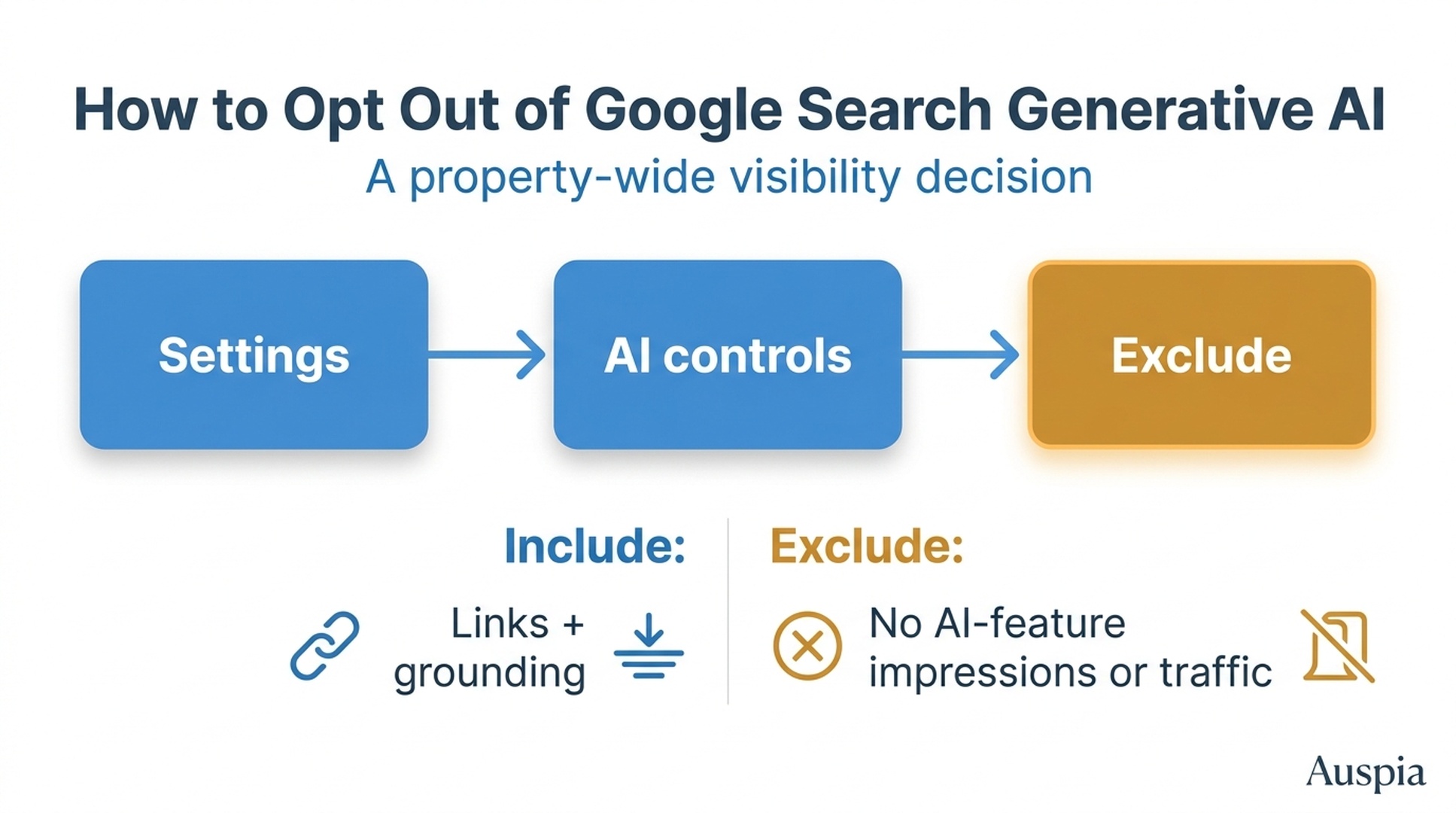
If your Google Search Console property has the new Search generative AI setting, a property owner can opt out in a few clicks:
- Open the correct property in Google Search Console.
- Select Settings in the left navigation.
- Under AI controls, open Search generative AI.
- Select Exclude my site's links and content from Search generative AI features.
- Save the change.
This is a broad visibility decision, not a reporting preference. The exclusion option says that Google should stop showing the property's links and content to users in Search generative AI features, including AI Overviews and AI Mode, and stop using it to help ground responses there. The setting also says the site will no longer receive traffic or impressions from those features.
The control is currently visible only on some properties. If you do not see AI controls in Settings, there is nothing to configure yet. Do not try to recreate the outcome with a blanket noindex or nosnippet directive; those are different controls and can affect ordinary Google Search visibility too.
Auspia's take: Leave the default setting on unless your team has a specific legal, licensing, content-governance, or commercial reason to exclude the whole property. Turning it off removes a route through which people can discover your content, but it does not solve every concern people mean when they say "AI use."
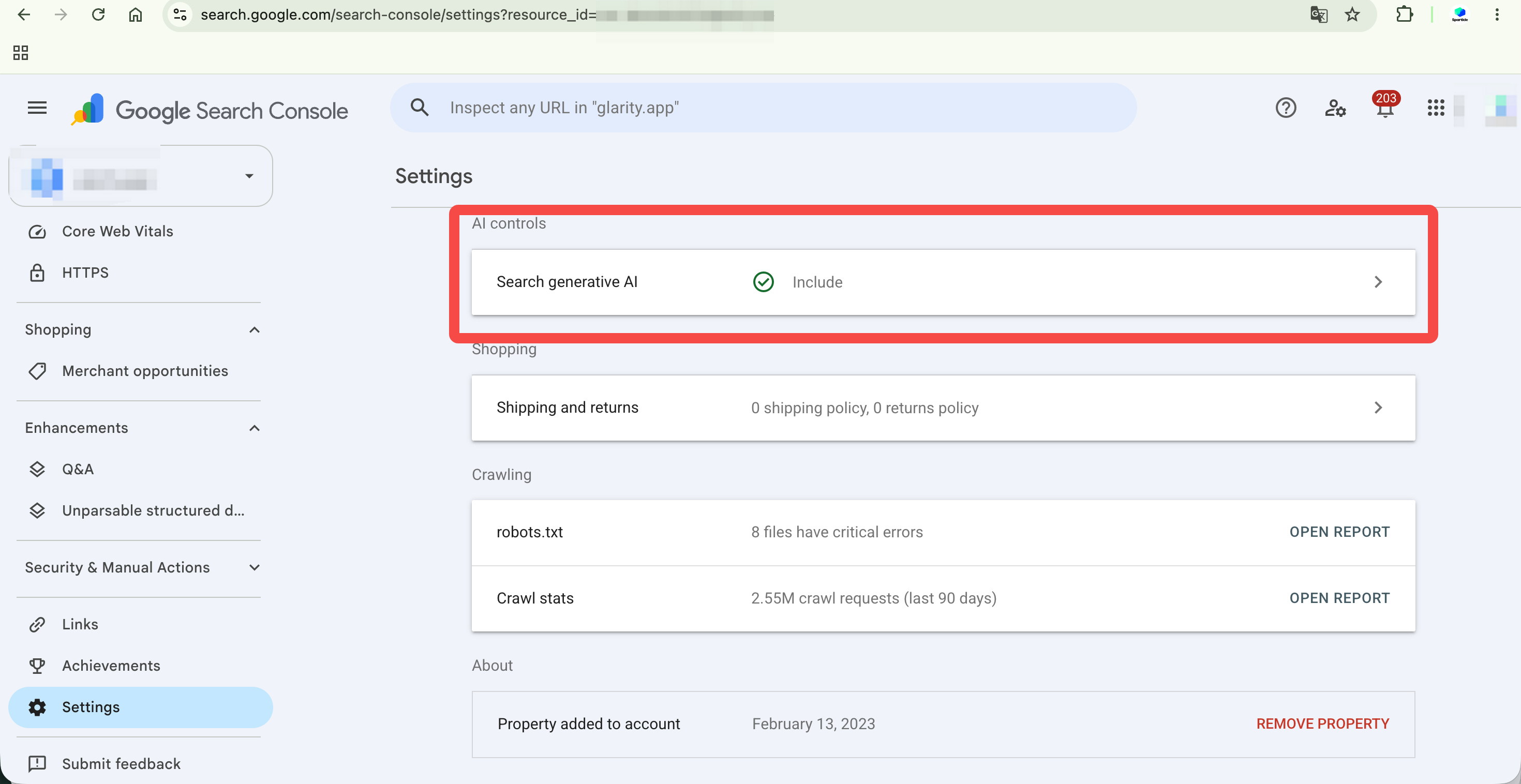
The new setting appears under Settings > AI controls for properties included in the limited rollout. The supplied screenshot shows the default state as Include.
Before you opt out: know what this setting changes
The wording in the interface is unusually clear. It presents two property-level choices:
Choice in Search Console | What Google says it does | Practical consequence |
|---|---|---|
Include my site's links and content in Search generative AI features (default) | Allows links to appear and content to help ground AI responses in Google Search generative AI features | The property remains eligible for visibility, impressions, and referral traffic from those surfaces |
Exclude my site's links and content from Search generative AI features | Prevents the property from being visible or linked within those features and from helping ground their AI responses | The property will not receive traffic or impressions from those features |
In the screenshot supplied for this article, Google names AI Overviews and AI Mode as examples of the affected features. That makes this a sitewide distribution choice. It is not a way to hide one paragraph, remove a single page, or turn off a small analytics module.
The interface also says the choice affects every page in the property, including child properties. Child properties inherit the parent setting by default, though their owners can override it. That is a reason to pause if your organization manages country, product, blog, or subdomain properties separately.
What it does not appear to change
Based on the interface wording, this switch controls visibility and grounding in Search generative AI features. It does not say that it:
- removes your pages from classic Google Search;
- removes your site from the web or from third-party AI tools;
- changes Google Analytics or Search Console access;
- blocks Google from crawling your property for regular Search; or
- replaces a page-level preview directive such as
nosnippet.
The distinction matters because Google documents separate controls for Search snippets, AI-feature inputs, indexing, and training in other Google systems. Treat each as a separate decision, not as interchangeable versions of an "AI off" button.
Who can see and change the setting?
The supplied administrator screenshots show the setting inside a Search Console property. Google states that owners have full control over property settings, while Full and Restricted users have more limited access. In practice, ask the verified or delegated property owner to make the change, or to confirm the appropriate governance process before anyone does.
Availability is the other gate. Google has not surfaced this page on every property yet. On an eligible property, the path shown in the screenshots is:
Google Search Console property
  > Settings
    > AI controls
      > Search generative AI
When the feature is available, the Settings overview shows a row labeled Search generative AI and the current state, such as Include. Opening that row shows the two radio-button choices.
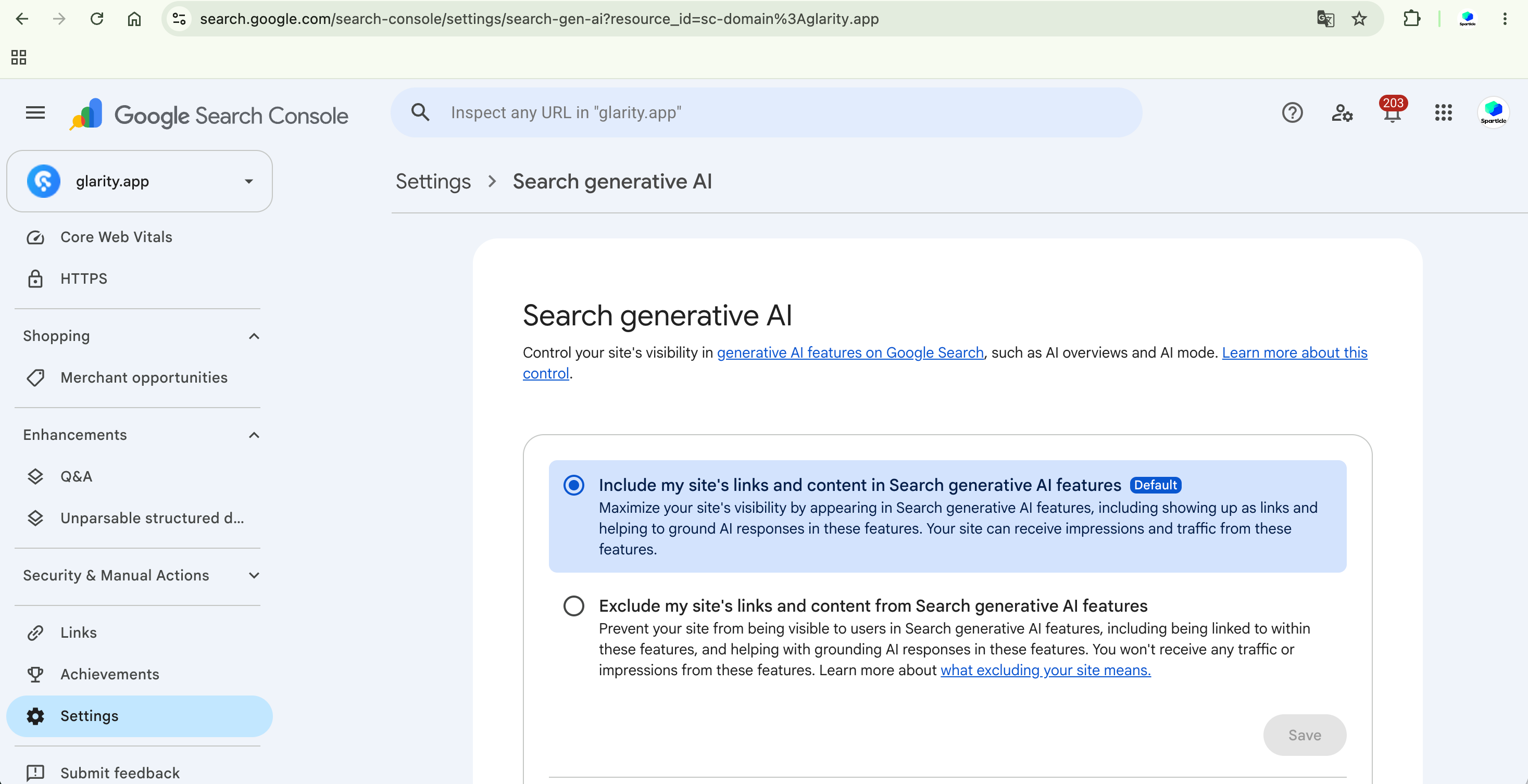
Use the property selector first. The detail screen identifies Include as the default and explains that Exclude removes the property's links and content from the named Search generative AI features.
How to opt out in Google Search Console
This workflow is short. The decision behind it should not be rushed.
1. Confirm the exact property you intend to change
Use the property selector in the upper left of Search Console. Check whether you are in a Domain property, a URL-prefix property, or a child property. If your site has several properties, write down which one owns the content you are discussing.
Why this matters: the new interface says the setting reaches all pages in the current property and affects child properties by default. Changing example.com can be very different from changing blog.example.com.
2. Open Settings and look for AI controls
Select Settings from the main navigation. On properties participating in the rollout, look for an AI controls section near the top of the page. You should see the Search generative AI row with its current state.
If there is no AI controls section, stop there. Your account may not have access to the feature at this stage. There is no reliable way to infer eligibility from a different property, and no reason to use technical directives as a substitute merely because the menu is absent.
3. Open Search generative AI and read the default selection
The default option is:
Include my site's links and content in Search generative AI features
Google describes this as maximizing visibility in Search generative AI features, including appearing as links and helping ground AI responses. It also says the site can receive impressions and traffic from these features.
This is worth recording in your change log even if you leave it alone. It establishes that the property was included before any later discussion about traffic, citation visibility, or content policy.
4. Select the exclusion option
Choose:
Exclude my site's links and content from Search generative AI features
The accompanying copy says Google will prevent the site from being visible to users in these features, including as a link and as grounding for responses. It also warns that the site will not receive traffic or impressions from them.
The trade-off is immediate in principle: you gain a property-wide exclusion from the named Search generative AI features, while giving up the chance to be a supporting link or grounding source in those features.
5. Save, then document the decision
Click Save. Before you close the tab, capture a dated internal note with:
- the property name and type;
- the person and team that approved the decision;
- the reason for the exclusion;
- the parent and child properties reviewed; and
- the metric baseline you will use if the setting is later reversed.
Google's existing AI-features documentation says AI Overview and AI Mode activity is included in the Search Console Performance report under the Web search type. It does not document a separate AI-only performance report in that guidance. Keep a baseline of the broader Web data, relevant landing pages, and conversions, but do not claim that a later Web trend proves the setting caused a precise AI-traffic change.
A decision test for publishers and growth teams
Do not turn off generative AI visibility just because the setting exists. The right choice depends on why your content is valuable and what risk you are trying to manage.
Situation | Usually leave the default Include setting on | Consider Exclude after owner and policy review |
|---|---|---|
Marketing, product, documentation, or editorial content built to earn discovery | Yes. Links and source visibility are generally part of the distribution goal. | Only if the organization has a documented reason to give up this channel. |
Licensed, syndicated, or tightly controlled material | Maybe. Review the license terms and any agreements first. | Possibly, if the distribution agreement bars this kind of Search use. |
Sensitive content with a narrowly defined handling requirement | Maybe. The setting may not address the underlying privacy or compliance need. | Possibly, but confirm it is the correct control with legal or security stakeholders. |
A team wants to block model training | No. This screen is described as a Search generative AI visibility control. | Use the appropriate Google documentation and policy process for training questions, not this setting alone. |
A team wants to preserve ordinary Google rankings but limit AI answer use | Do not make assumptions. Page-level preview directives have their own Search effects. | Evaluate |
There is a healthy tension here. A publisher may dislike the idea of a response using its work as grounding. That concern is real. But an exclusion also removes the linked discovery path Google describes in the same interface. For most commercial sites, that is a strategic trade, not a housekeeping choice.
Do not confuse this setting with Google's other AI-related controls
There are several Google controls that sound similar but answer different questions. Mixing them up can create an unnecessarily broad loss of visibility.
Control | Scope | What it is for | Why it is not the same as this Search Console setting |
|---|---|---|---|
Search generative AI setting | Whole eligible Search Console property | Inclusion or exclusion in Google Search generative AI features | The new dashboard option described in this guide; it is a property-level control in a limited rollout. |
| A page | Stops a text snippet from appearing and prevents the content from being a direct input for AI Overviews and AI Mode | It also affects classic Search, Google Images, Discover, and other Google result types. |
| A | Keeps selected text out of snippets | Useful for a specific on-page section, not for a whole property-level AI Search decision. |
| A page | Sets the maximum text Google can show in a snippet | It limits the amount of content that may be used as a direct input for AI Overviews and AI Mode, while also changing regular Search previews. |
| A page | Removes the page from Google Search indexing | Far more drastic: an unindexed page cannot be a normal Search result. |
| A crawl-control token for certain non-Search generative systems | Limits training and grounding in some other Google systems | Google documents it separately from how content is controlled in AI features within Google Search. |
Google's own AI-features documentation says there are no special technical requirements or special schema needed to appear in AI Overviews or AI Mode. A page needs to be indexed and eligible to appear in Google Search with a snippet. It also directs site owners to preview and indexing controls, rather than proposing a generic technical workaround for every concern.
That is why the dashboard option is notable: it gives eligible properties a direct sitewide choice in the Search Console interface. It should simplify a narrow decision, not encourage teams to scatter conflicting tags across their site.
What to monitor after an opt-out
An opt-out is not an experiment with a clean conversion report. Google's documented Performance reporting includes AI feature activity within the overall Web search type, so the data does not neatly isolate the effect of this one setting.
Still, you should monitor the business consequence of a deliberate visibility change.
Check | Baseline to save first | What to watch afterward |
|---|---|---|
Search Console | Web clicks and impressions for priority pages and query groups | Directional changes over comparable periods, not a claim of exact AI attribution |
Analytics | Organic sessions, engaged sessions, leads, purchases, and revenue for affected landing pages | Whether loss of visibility is accompanied by a material business change |
SERP observation | A small dated sample of priority queries, market, and device | Whether the relevant Google AI feature appears and whether your property is linked |
Content governance | A record of the policy or license reason for the change | Whether the reason still applies at the next review |
Give yourself a review date. A sensible starting point is 30 to 60 days, provided that enough comparable search demand exists. The aim is not to prove an exact attribution Google does not expose. It is to make a reversible policy decision with a factual record.
The practical default: do not opt out by accident
Google's AI responses are a changing part of Search, and thoughtful publishers may decide the trade-off is not right for every property. The new Search Console option makes that decision more explicit for the properties where it has appeared.
But explicit does not mean trivial. Excluding a site removes its links, content grounding, impressions, and traffic from the affected Search generative AI features. If your goal is to reach people researching a product, problem, or category, the default Include setting remains the sensible starting point unless a real policy requirement points the other way.
If your team is still deciding, use Auspia's AI Search Visibility Checker to establish a view of the brand and topics you want to monitor. Pair that with your own Search Console and analytics baselines. A visibility tool can support the review; it cannot decide the legal or commercial trade-off for you.
Frequently asked questions
How do I opt out of Google AI Overviews in Search Console?
For properties where Google has made the feature available, open Settings > AI controls > Search generative AI, select Exclude my site's links and content from Search generative AI features, then save. The supplied screenshots show that this affects Google Search generative AI features such as AI Overviews and AI Mode.
Is the Search generative AI opt-out available to every website?
No. The interface is currently visible on only some Search Console properties. If you do not see AI controls in Settings, the feature is not available on that property at this time.
Does excluding my site remove it from regular Google Search?
The interface describes exclusion from Search generative AI features. It does not say that it removes a site from classic Google Search. Do not substitute noindex, nosnippet, or another directive unless you understand their separate and broader effects.
Will I lose traffic if I opt out?
Google's interface says you will not receive traffic or impressions from the affected Search generative AI features. It does not mean all organic traffic disappears, but it does mean giving up an eligible source of discovery and referral traffic.
Can I exclude only a single page or paragraph?
This Search Console setting is property-wide. For page- or text-level controls, Google documents nosnippet, max-snippet, and data-nosnippet. Those controls also affect Search previews, so evaluate them carefully before implementation.
Is this the same as blocking Google from training AI models?
No. The Search Console interface is described as a control for visibility and grounding in generative AI features on Google Search. Google documents Google-Extended separately for limiting training and grounding in some other Google systems.
Sources and evidence notes
- Google Search Central: AI features and your website
- Google Search Central: robots meta tag, data-nosnippet, and X-Robots-Tag specifications
- Google Search Console Help: Managing owners, users, and permissions
- Supplied Search Console owner-view screenshots, captured July 16, 2026. They show the new AI controls section, the default Include state, the exclusion language, and the path through Settings.
Author: Jasper Quinn, AI Search Product Researcher Tracking 60+ Feature Changes at Auspia. Jasper writes about search product updates, AI visibility controls, and the practical decisions site owners need to make.